
Track your job and approve each service
Once your job starts, follow how the work is going and what you are being charged. Each time your provider finishes a service, check its charges and approve them, or send them back with a reason.
Before you start
You need a job. A job is created when you accept a provider's quote. See Compare quotes and choose a provider.
Anyone at your company can follow the job. To approve charges you need the Admin, Manager or Operations role. If you are not sure which role you have, ask your company's Admin.
New to jobs on PortzApp? For what a job is and how it works, read Job Management. For how the list of charges is built and approved, read Disbursement Accounts. This guide shows you what to do on your own job.
What to know first
Your provider runs the job and keeps it up to date. You follow along and approve.
The work is split into services, such as agency fees or crew change. Each one shows how far it has got.
Each service is approved on its own, when your provider finishes it. PortzApp tells you when it is your turn.
If something is wrong, send it back with a reason. Your provider fixes it and sends it to you again.
Open your job
- Select Jobs in the sidebar.
- Open the job.
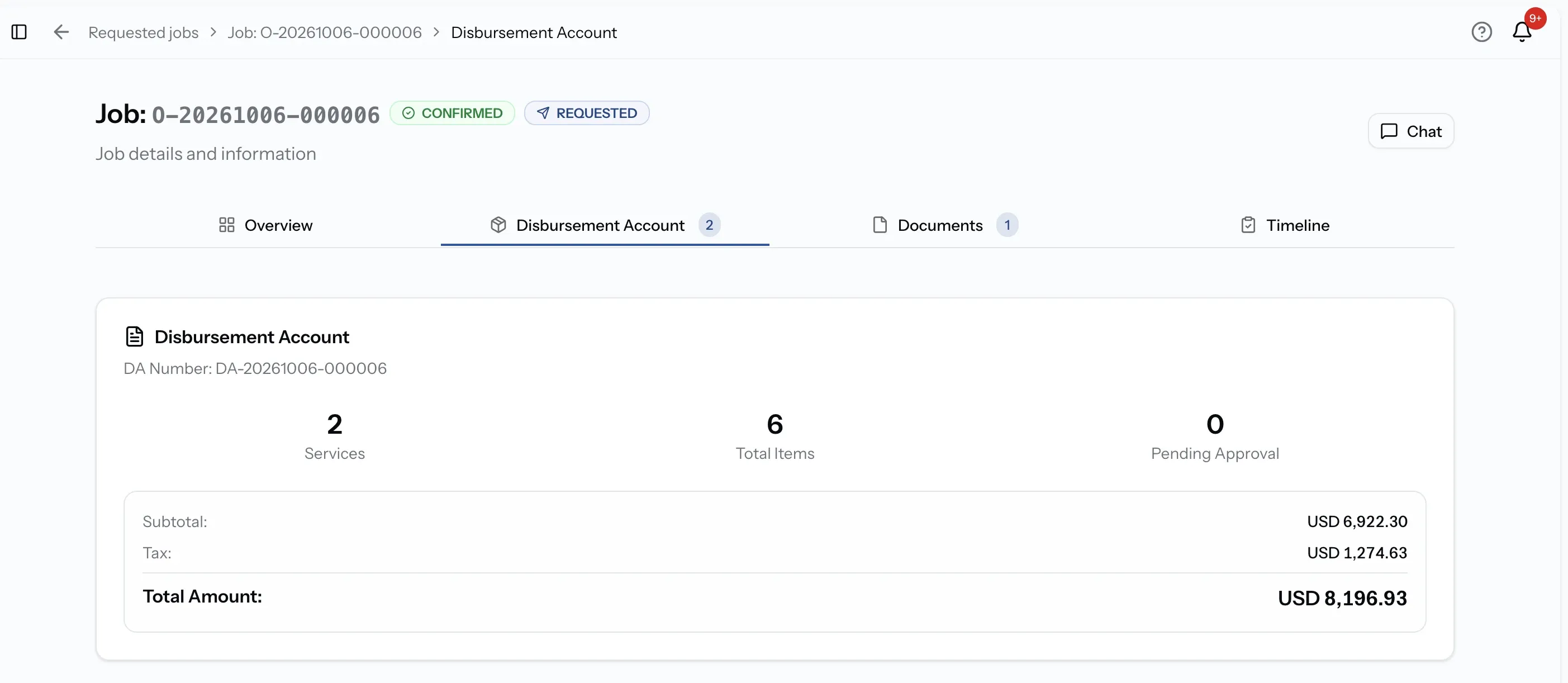
- Select the Disbursement Account tab.
The top of the page shows the job's status, which your provider updates as the work moves on:
- Confirmed: you accepted the quote and the job is set up.
- In Progress: the work has started.
- Completed: your provider has finished, and the job is waiting for your final approval.
- Cancelled: the job was called off.
Just below it, the DA Summary gives you the money at a glance: how many services and items there are, and the subtotal, tax and total so far.
Use Chat at the top of the job to message your provider about anything on it. See Send messages through job chat.
Follow the work
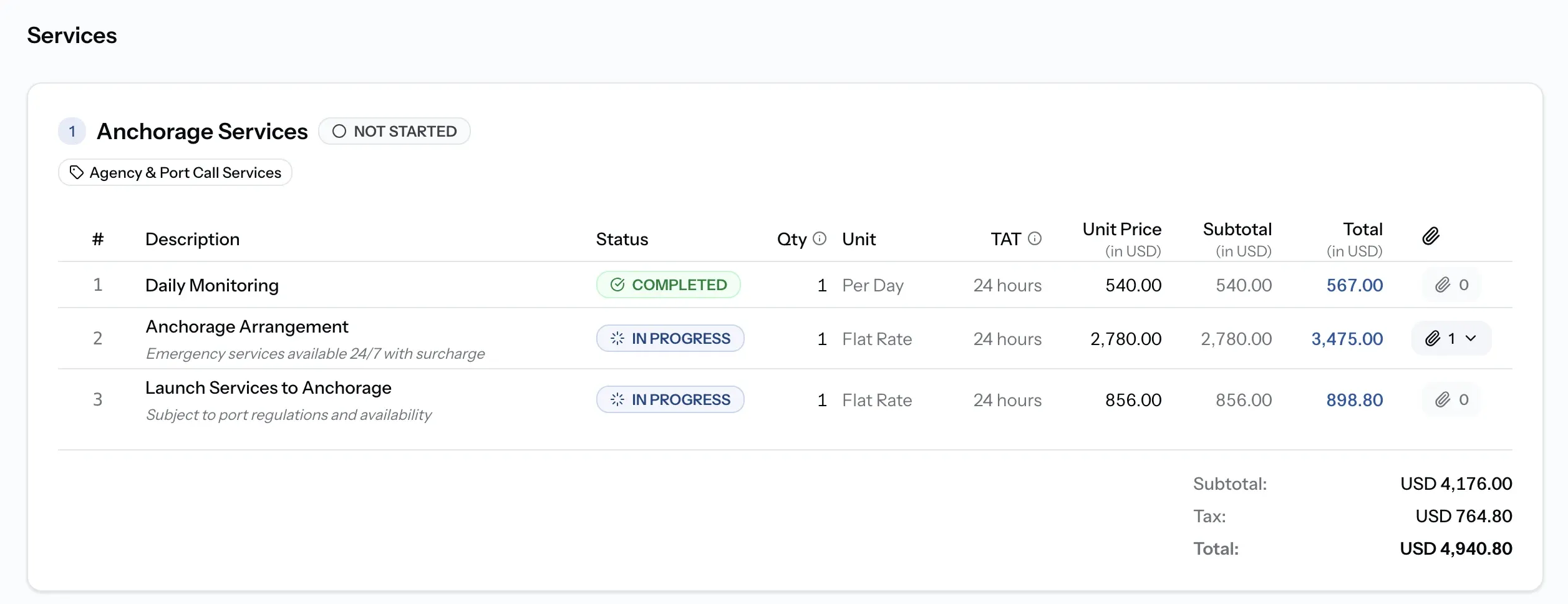
Below the summary, the account is grouped in two levels:
- A service is one piece of work, such as agency fees, crew change or provisions.
- An item is a single charge inside a service, with its quantity, price, tax and total.
The services and charges from the quote you accepted are already there when the job starts.
What the statuses mean
Every service and every item shows how far it has got:
- Not Started: the work has not begun.
- In Progress: the provider is working on it.
- Completed: that part of the work is done.
- Cancelled: it will not go ahead. Cancelled charges are left out of the totals.
Your provider updates these as they go, so you can see where things stand without asking.
New charges can appear during the job
Your provider can add services and charges as the work goes on, for example when something extra was needed at the port. They appear here once your provider releases them, and you approve them the same way as everything else.
Know when it is your turn
When your provider finishes a service, they send it to you to approve. You get a notification and an email.
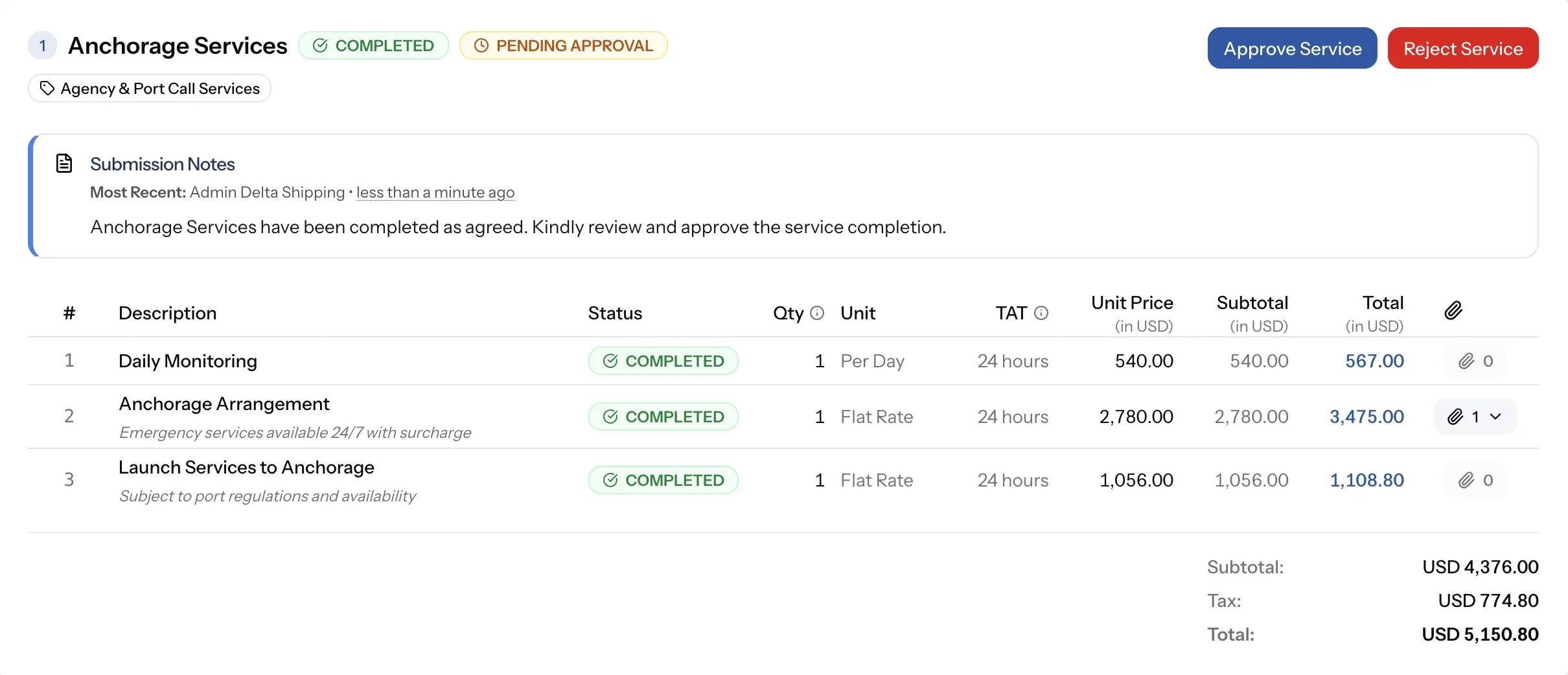
On the job, that service's card shows Pending Approval and two buttons: Approve Service and Reject Service. If your provider left a note for you, it appears on the same card.
Approve a service
Approve when the work is done and the charges match what you agreed.
Step 01
Check each charge
Look at every item on the service: what it is, the quantity, the price and the total. If a receipt or invoice is attached, open it.
Step 02
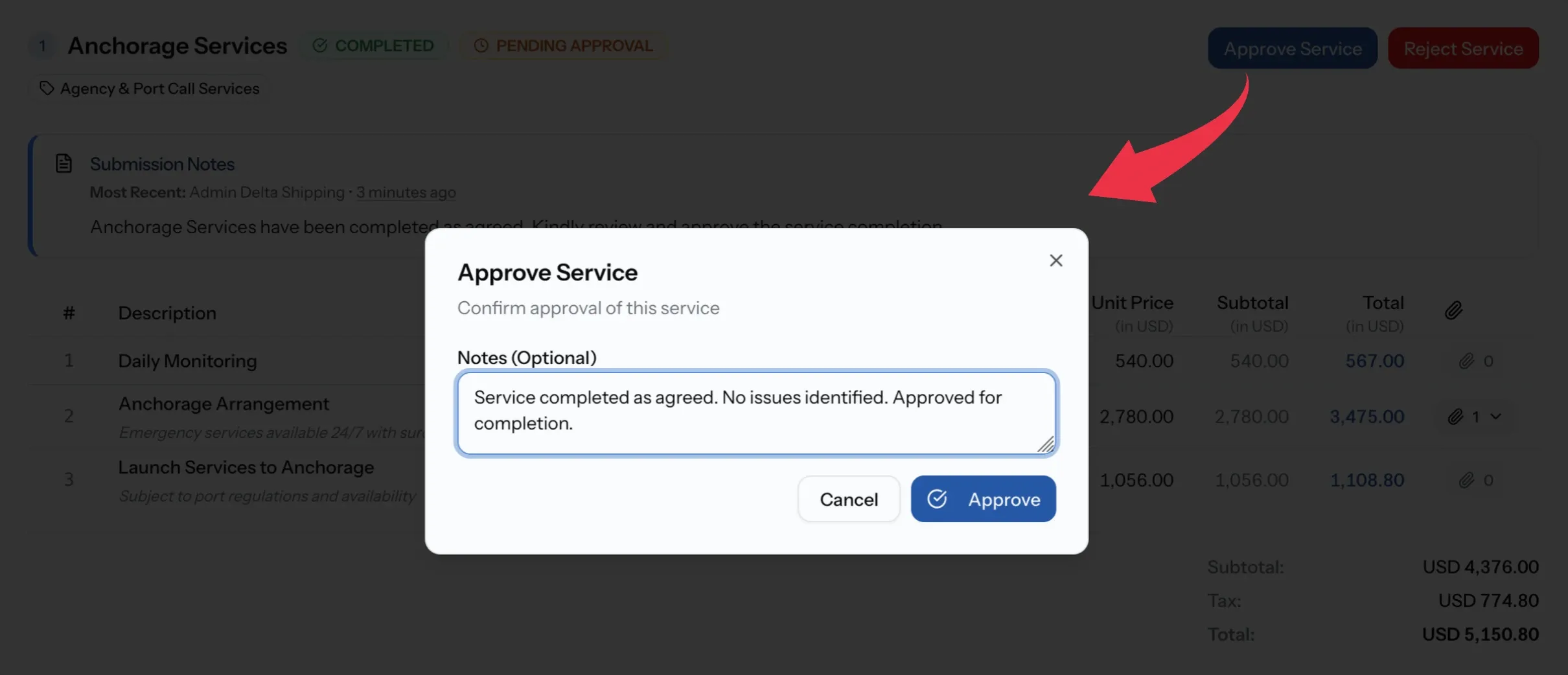
Select Approve Service
The button is on the service's card.
Step 03
Add a note if you want, and confirm
The note is optional. Once you confirm, the service shows Approved and your provider is told.
Send a service back
If something is not right, or you need more information, send the service back instead of approving it.
Step 01
Select Reject Service
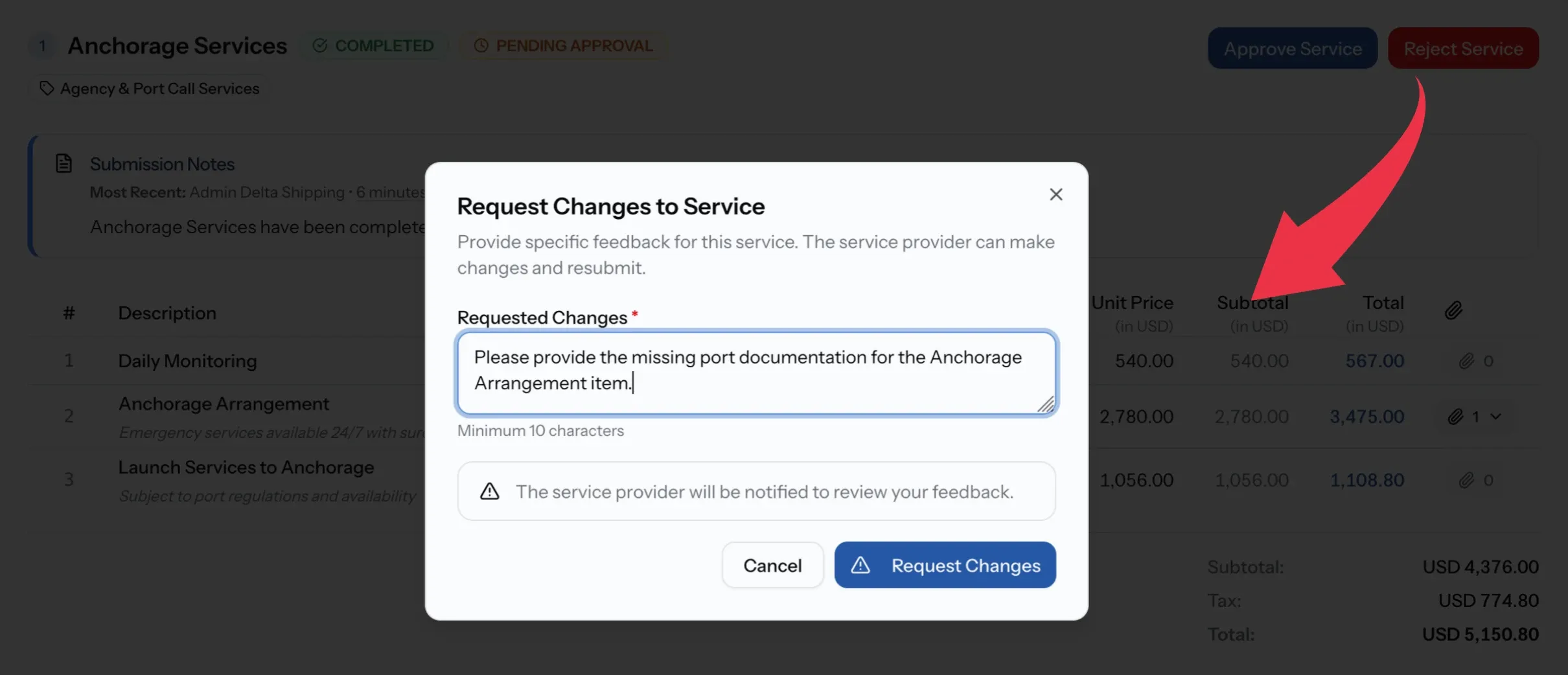
The button is on the service's card. A window called Request Changes to Service opens.
Step 02
Say what needs to change
Write at least 10 characters. Be specific about what needs to change or what you need, so your provider can sort it first time.
Step 03
Select Request Changes
The service shows Changes Requested, and your provider is told to look at your note.
Sending a service back does not cancel it
The button says Reject Service, but nothing is cancelled. The service goes back to your provider so they can correct it or explain, and then it comes back to you to check again.
What happens after you send it back
Your provider reads your note and responds in one of two ways:
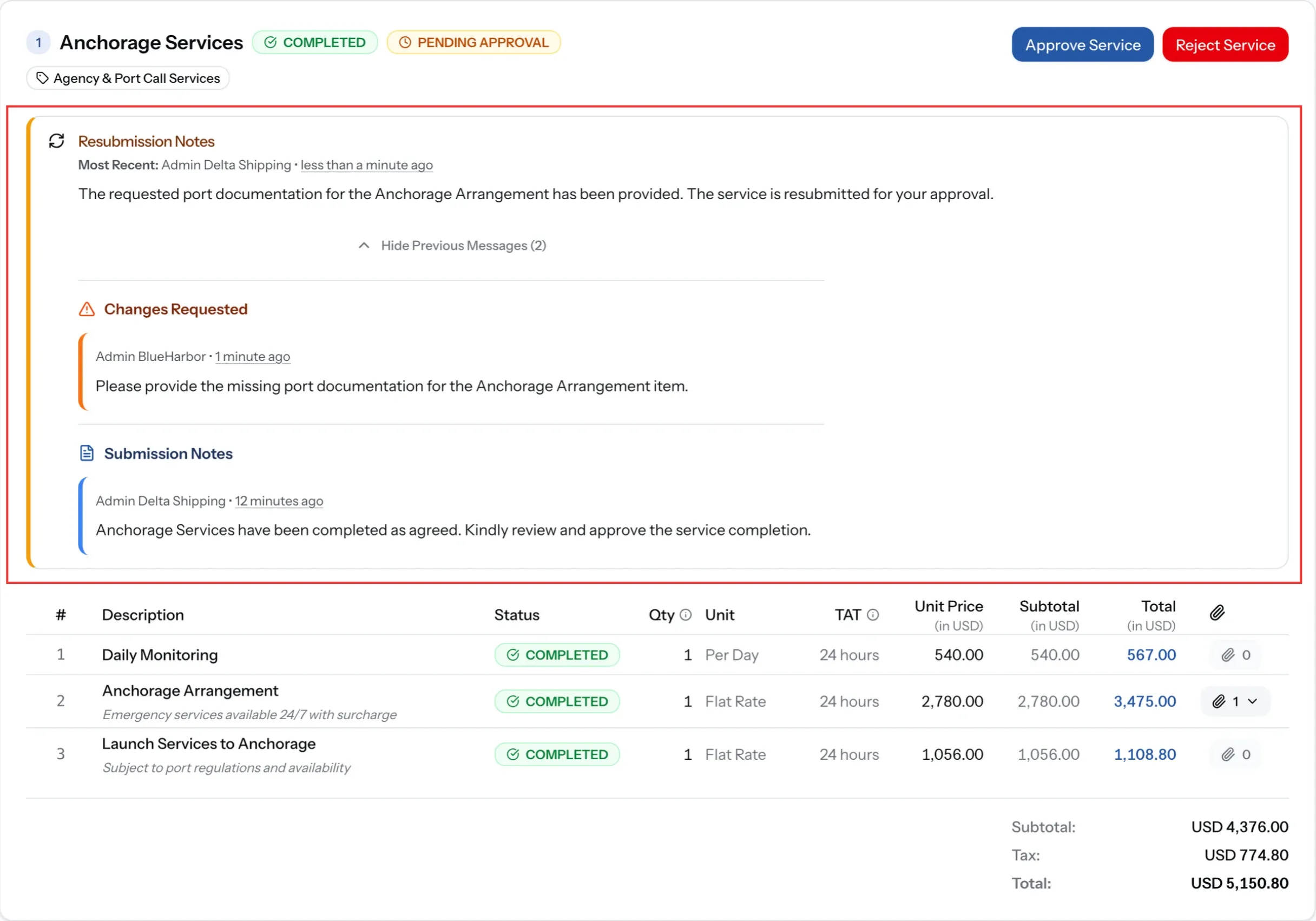
- They make the changes you asked for, then send the service back to you. It shows Pending Approval again.
- They explain or provide what you asked for without changing the service, for example a document or a clarification, and send it back with a note.
Either way, the service comes back to you to check again. Everything you and your provider write about it stays on its card, so you can always see what was asked and answered.
Two kinds of approval
Approving a service
Happens during the job, each time your provider finishes a piece of work.
Approving the job
Happens once, at the end, when all the work is done.
Approving a service
Done on the service's card, in the Disbursement Account tab.
Approving the job
Done at the top of the job, with Approve Job.
At the end of the job
Manage a job from start to finish
When every service is done, your provider completes the job and you approve it as a whole. This guide shows how.
If you cannot approve
I do not see Approve Service or Reject Service
The service is not waiting for you yet. The buttons only appear when the card shows Pending Approval.
The buttons are greyed out
Your role cannot approve. Admin, Manager and Operations can. Ask your company's Admin if you need to.
I cannot see any prices
Your role hides prices. Operations can still approve, but a colleague with pricing access may need to check the figures.
Request Changes will not send
Your note is too short. Write at least 10 characters.
What you can do now
You can open your job, see its status and what it adds up to, follow how each service is going, check each service when your provider sends it to you, approve the ones that are right, and send back the ones that are not with a clear reason.
FAQ
01
02
03
04
05