
Create and send job documents
Turn a job's disbursement account into the documents you send your client, from a proforma at the start to a final account or invoice at the end. Choose what goes on it, how it looks, and email it from PortzApp.
Before you start
You need a job you are servicing, with billable items on its disbursement account. See Manage the disbursement account on a job.
Creating and viewing documents needs the Admin, CEO, Manager or Finance role. Operations and Viewer cannot open them.
On a job from a quote, only items you have published to the buyer can go on a document, so publish first.
For what each document is for and how exports fit into a job, read Job Documents & Exports. This guide walks through creating and sending one.
Before you create a document
Every document is built from the job's disbursement account, so get the account right first.
Only billable items can go on a document. On a job from a quote, they also have to be published.
Five document types cover the job, from PDA to Final Invoice. Rename any of them if your client expects a different title.
Download a draft first to check it. A draft has no number and is marked DRAFT.
Your letterhead, style and payment terms can be saved once in Settings and reused on every document.
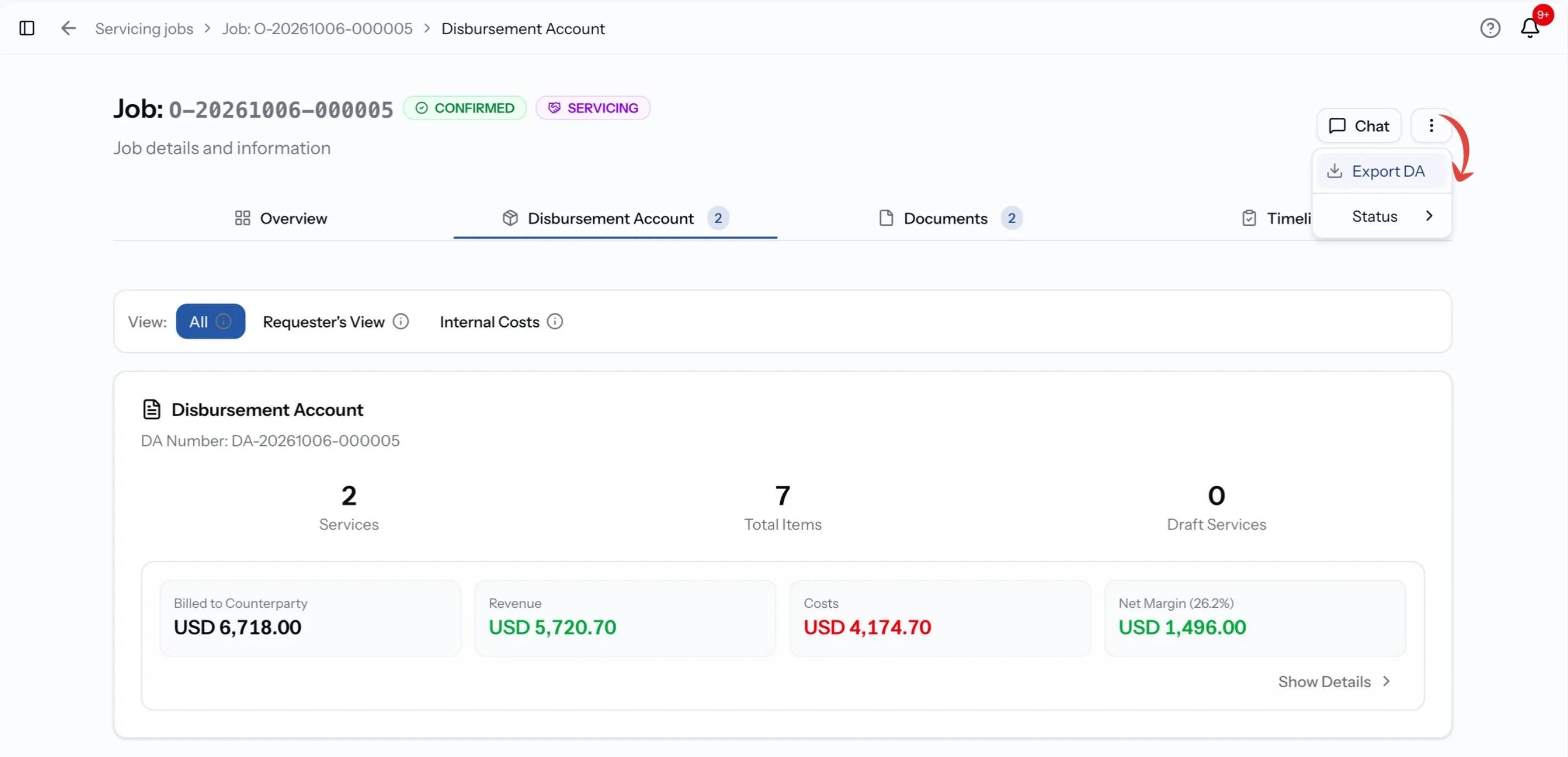
Open DA Exports
Open the job and select the menu at the top right. Choose Export DA. If it is greyed out, your role cannot create documents: Admin, CEO, Manager and Finance can.
DA Exports opens, listing every document created for the job so far with its Status, Email Status, who created it and when. From each row you can view or download the PDF once it is ready, or delete it. Start a new document from the same page.
Which document to create
Type
PDA, Proforma disbursement account
When to use it
The estimate, before or early in the job.
Type
DA, Disbursement account
When to use it
A snapshot of the account while the job is running.
Type
FDA, Final disbursement account
When to use it
The settlement document, once the work is done.
Type
PI, Proforma invoice
When to use it
An invoice-style estimate, for clients who need one before paying.
Type
FI, Final invoice
When to use it
The invoice to be paid.
Type
Custom
When to use it
Any document your client calls something else, such as a statement of account or a cost estimate. Select Rename and give it your own title.
Choose the document type
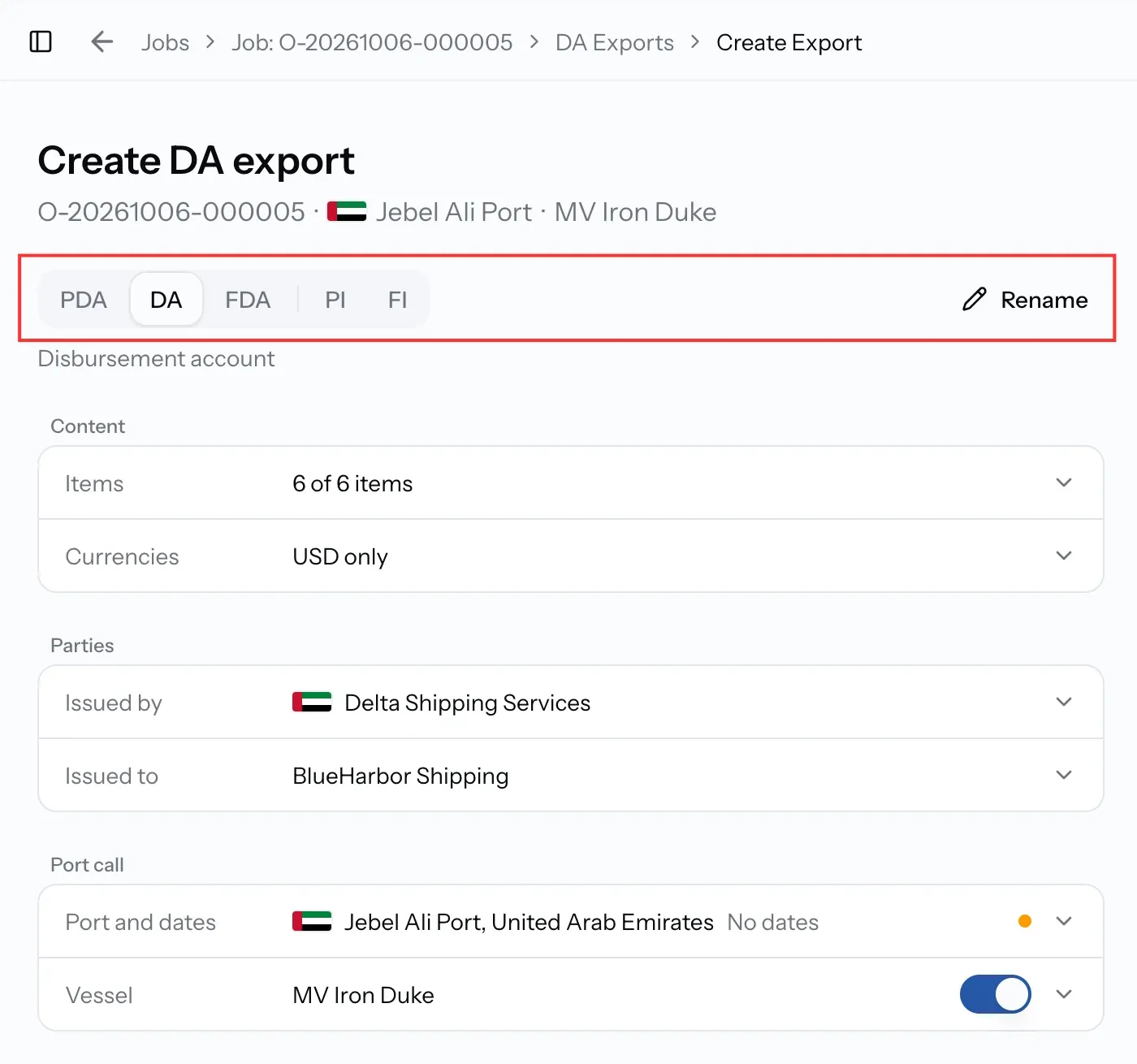
Create DA export opens with the document type at the top. Pick PDA, DA, FDA, PI or FI.
Make it a Custom document
If your client expects a different title, such as "Statement of account" or "Cost estimate", select Rename and type your title. The document becomes a Custom document:
- Your title prints at the top instead of a standard one.
- Everything else, the items, currencies and layout, is chosen the same way as any other document.
- It is listed in DA Exports as Custom.
Clear the title to turn it back into a standard document.
Reuse a previous document
If the job already has a document, PortzApp offers to reuse its terms, currencies and layout, so each new one starts where the last one left off.
Content
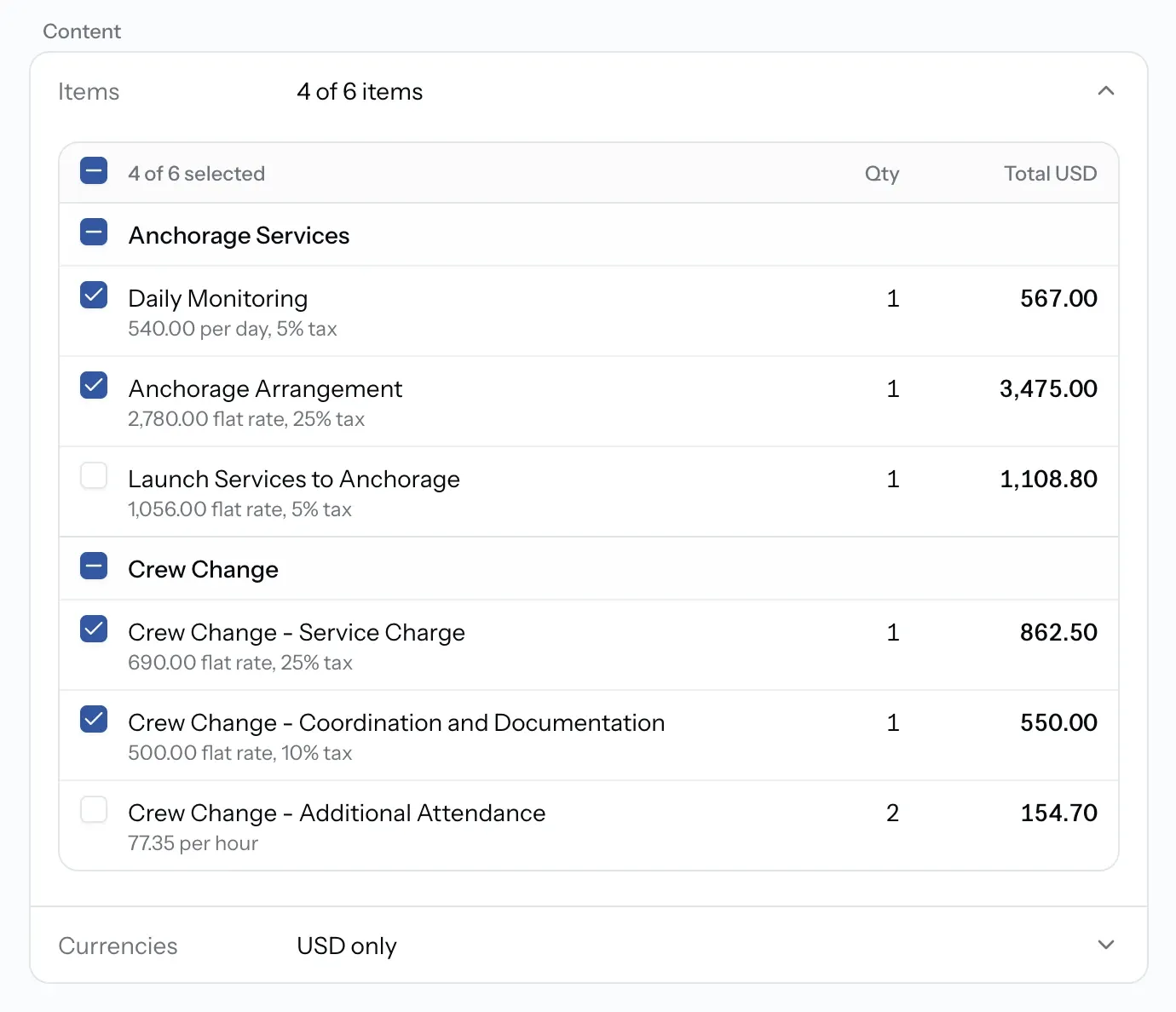
Items
Choose which items go on the document. Only billable items are offered. On a job from a quote they also have to be published and public, so anything the buyer cannot see stays off. On a manual job every billable item is available.
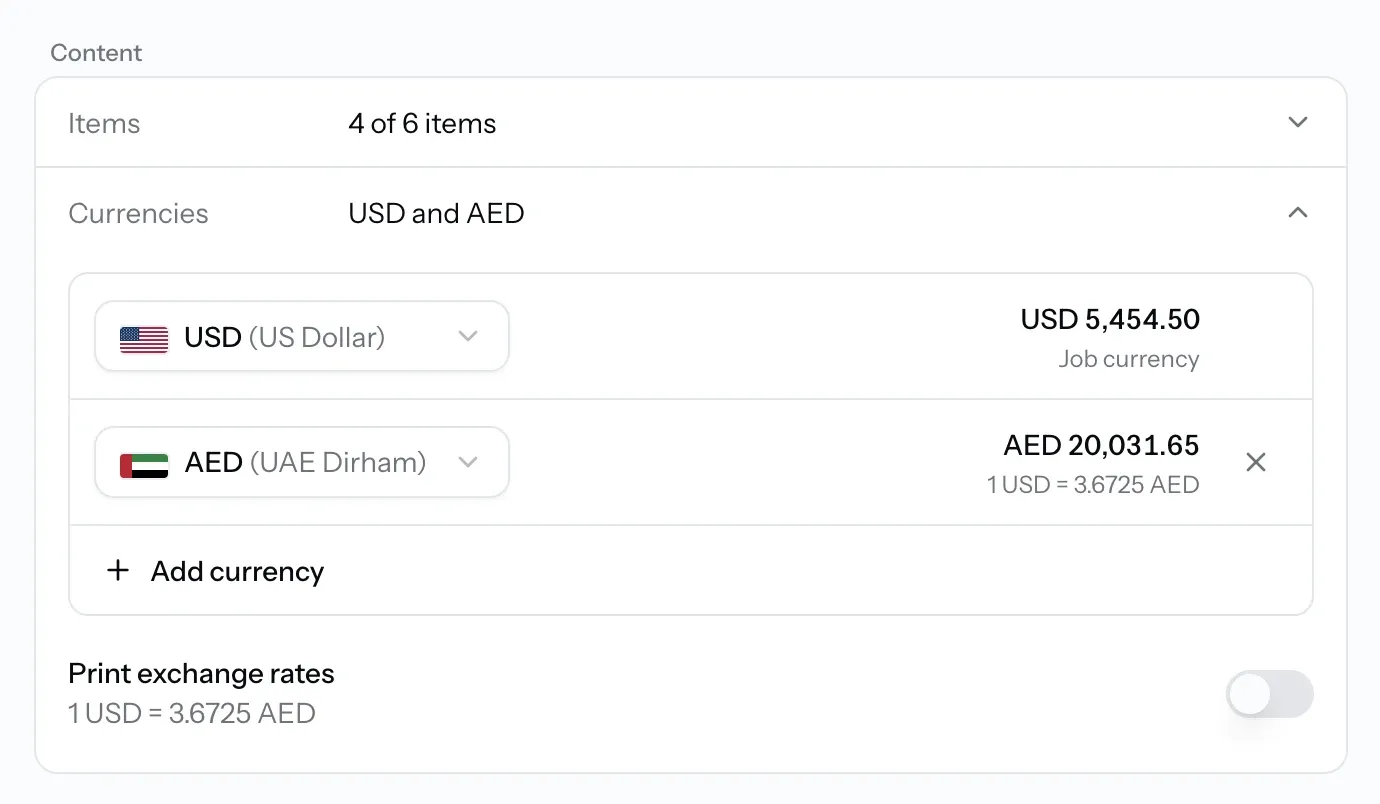
Currencies
The document starts in the job currency. Add other currencies to show the totals in them as well. Each one shows the rate it uses, or No rate available if none is set. Turn on Print exchange rates to print each rate on the document, like 1 USD = 3.6725 AED.
Parties and port call
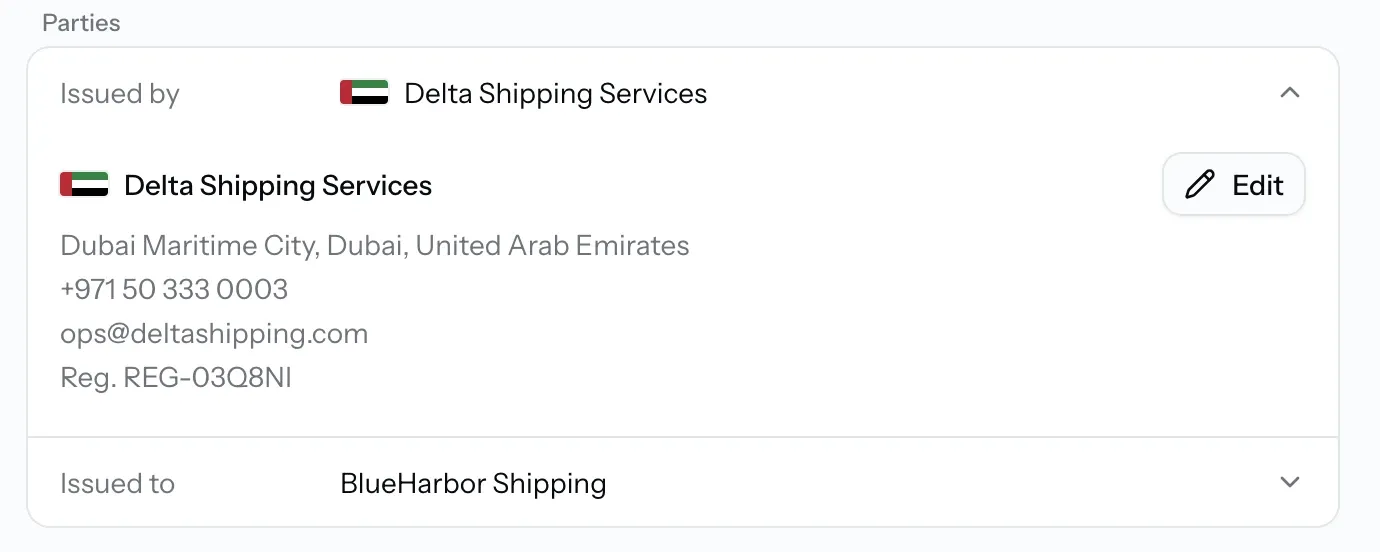
Issued by and Issued to
Your company's details and your client's: name, registration code, address, phone, email and tax ID. Only the names are required. Fields marked with a small amber dot are usually included, such as your client's tax ID.
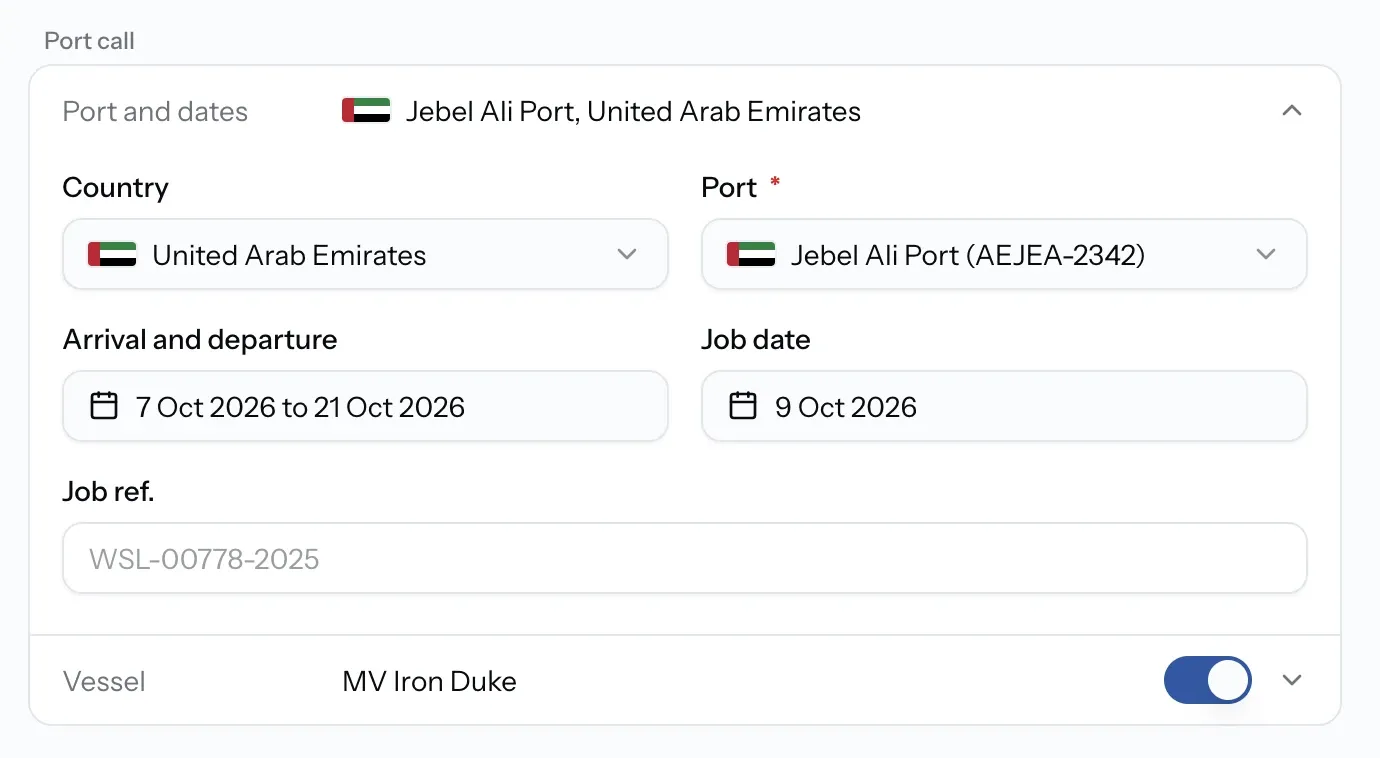
Port and dates
The port, the arrival and departure dates, and the Job date printed on the document.
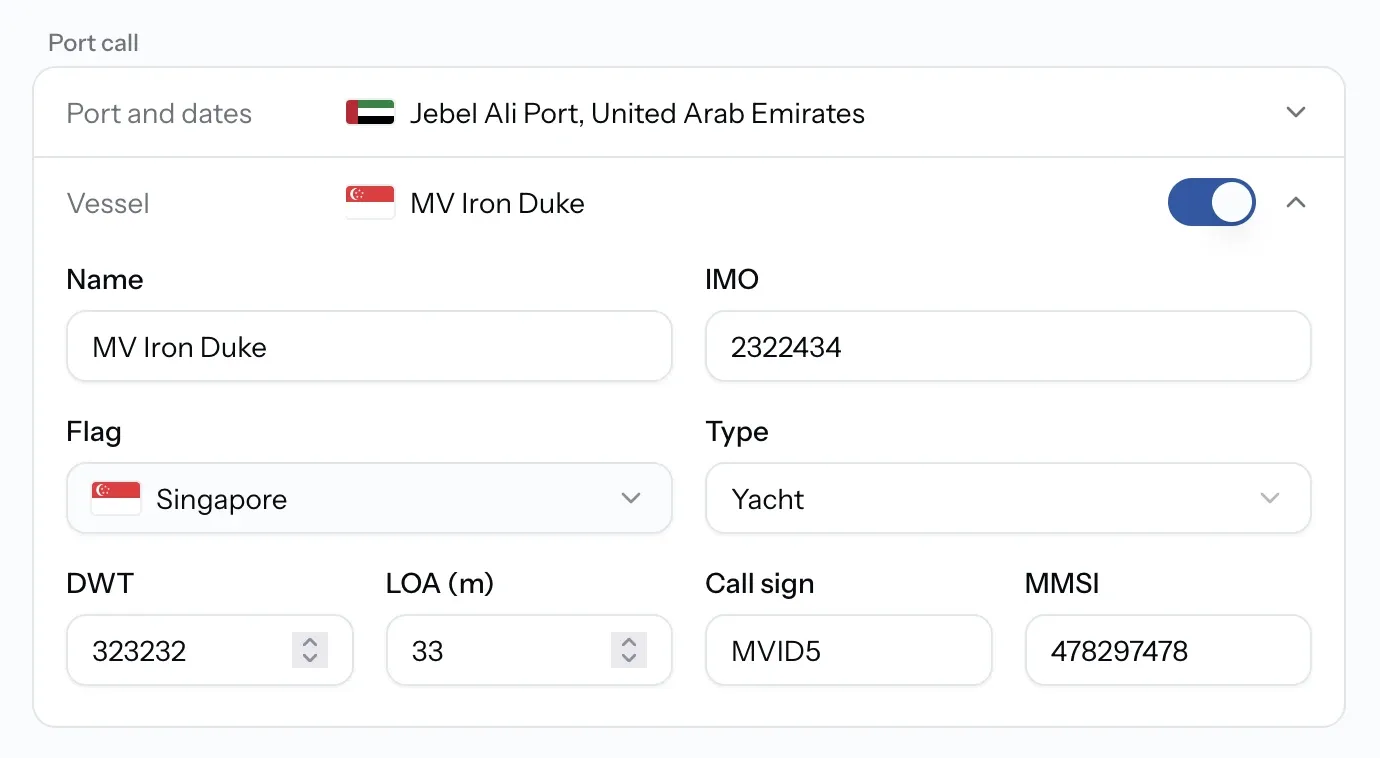
Vessel
The vessel's details, with a switch to show or hide the vessel on the PDF. Turn it off for work that is not tied to a vessel.
Terms and attachments
Payment and notes
The payment terms and any notes printed on the document. They start from your saved defaults, and you can change them for this document.
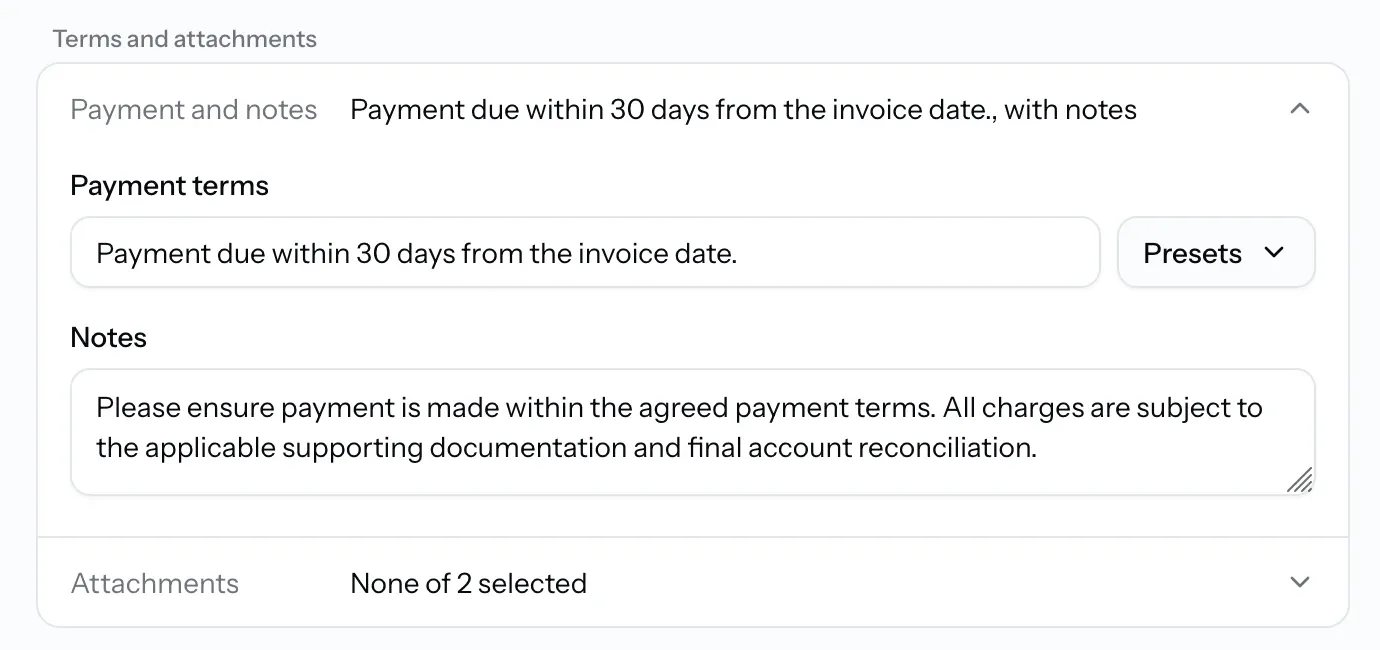
Attachments
Add the PDFs behind the charges, such as vendor invoices and receipts attached to items or shared in the job's chat. They are appended into one file, so your client receives the account and its supporting documents together.
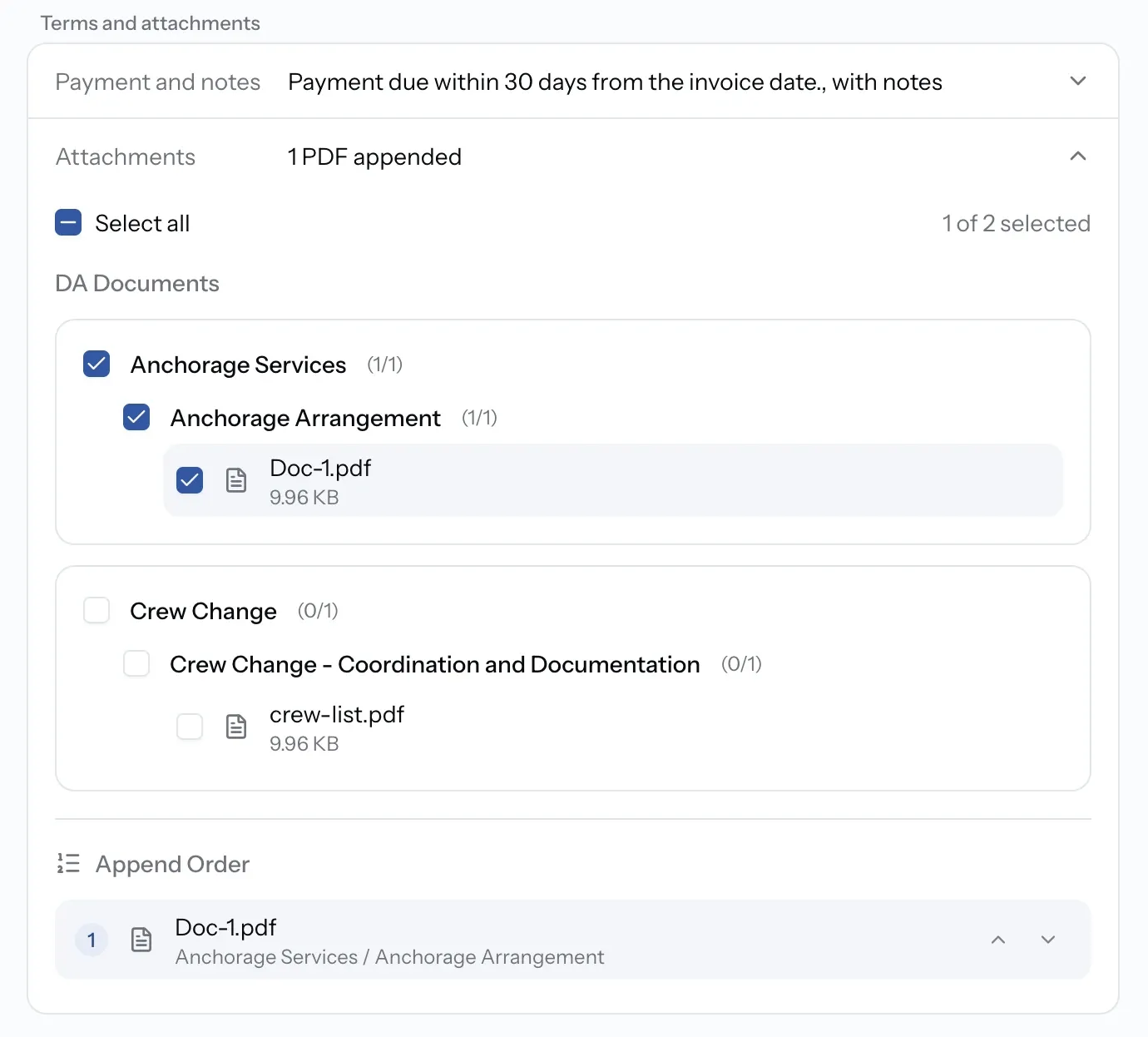
Appending attachments is part of Pro
On Standard you can still create and send every document type. Combining supporting PDFs into the same file needs Pro.
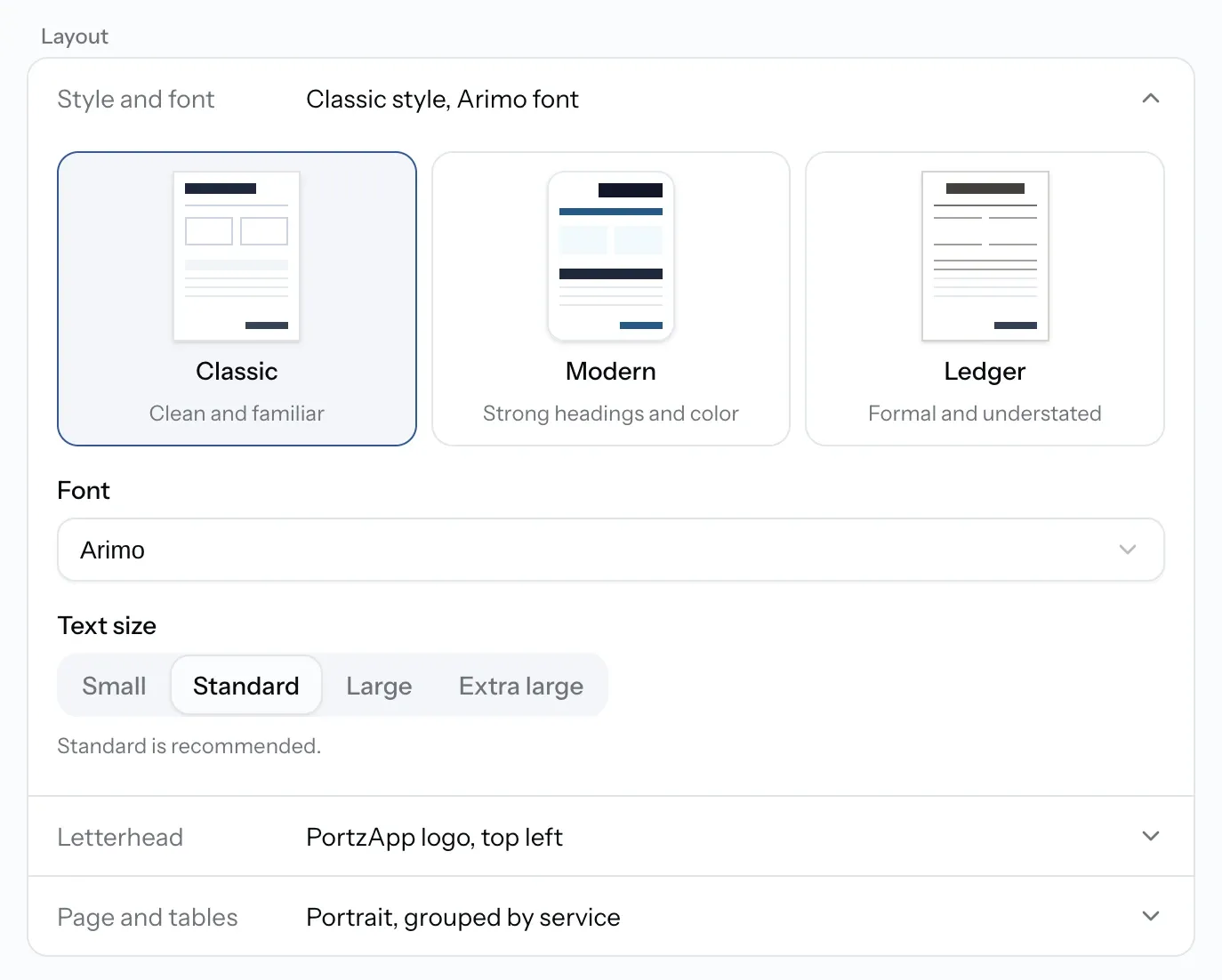
Layout
- Style and font: the look of the document, its font and text size.
- Letterhead: your organization's letterhead, a custom logo (PNG, JPG or WebP, under 500 KB), or none.
- Page and tables: orientation, how currencies are laid out, and the footer.
All of these start from your saved defaults. Set them once under Settings, then DA exports, and change them on a single document when a job needs something different.
Four ways to finish
The button at the bottom of the form creates the document. Its menu has the other options.
Download PDF
Create the document and download it straight away.
- Gets a document number
- Listed in DA Exports
Create and email
Create the document and send it from PortzApp.
- Sent once the PDF is ready
- Email status tracked in the list
Create without download
Create the document now, and download or send it later.
- Gets a document number
- Open it any time from DA Exports
Download draft
Check the document before you create it.
- No document number
- Marked DRAFT
Email a document
Send the document to your client without leaving PortzApp.
Step 01
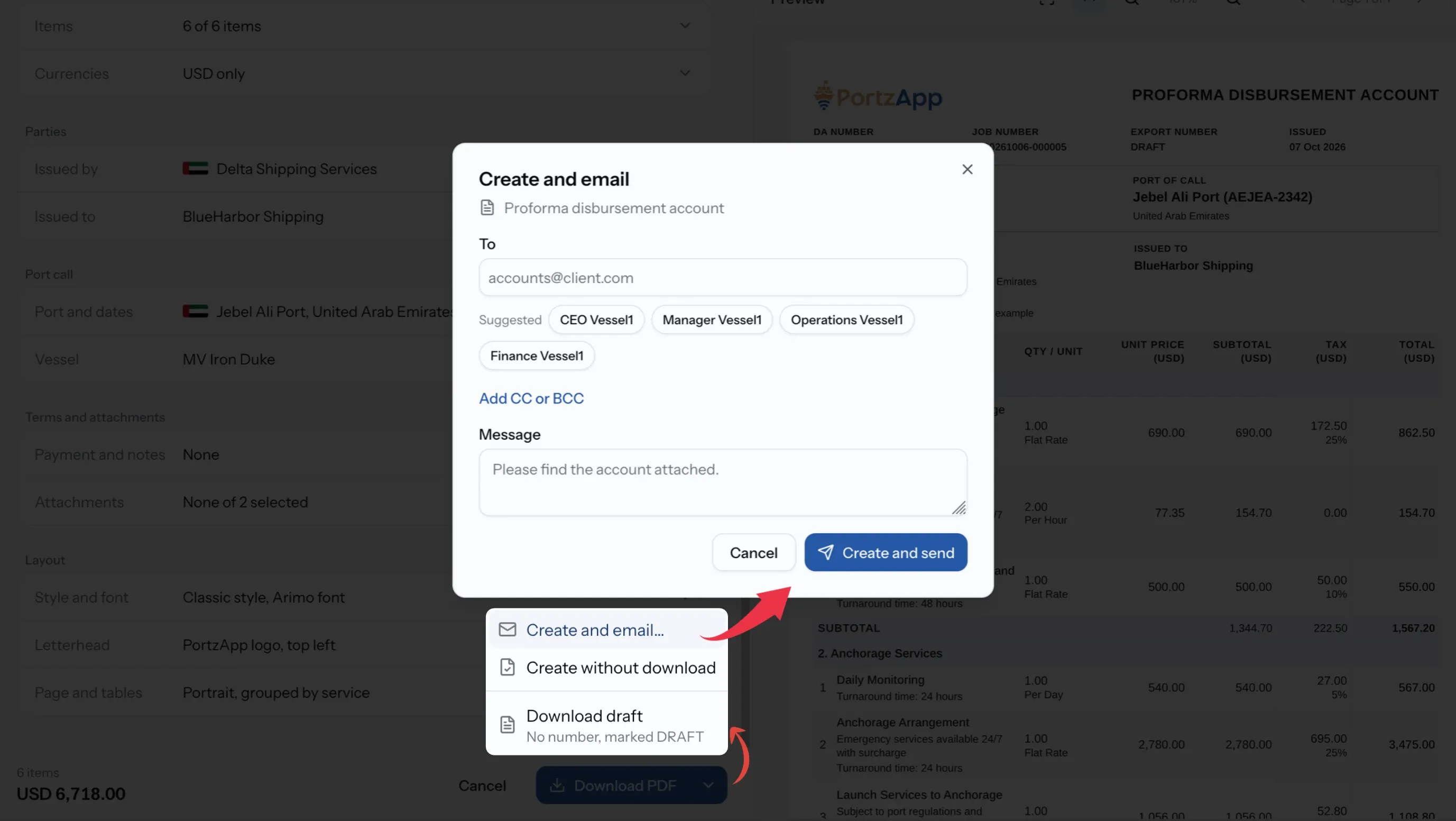
Choose Create and email
Open the menu beside the create button and choose Create and email.
Step 02
Add the recipients
Type or paste each address into To, and add CC or BCC if needed. Everyone in To and CC can see each other. At least one recipient is required.
Step 03
Add a message and send
Write a short message, then send. The document is created and emailed as soon as the PDF is ready.
Document statuses
A new document takes a moment to generate. Its status in DA Exports shows where it is.
Status
Pending
What it means
Waiting to be generated.
Status
Processing
What it means
Being generated now.
Status
Completed
What it means
Ready to view, download or send.
Status
Failed
What it means
Generation did not finish. Create it again, and contact support if it keeps failing.
When a document will not come together
Export DA is greyed out
Your role cannot create documents. Admin, CEO, Manager and Finance can. Operations and Viewer cannot.
No items to choose from
The account has no billable items, or on a job from a quote, none are published yet. Publish them on the Disbursement Account tab, then try again.
A currency shows No rate available
There is no exchange rate for that pair. Set one in your organization's currency settings, or remove that currency from the document.
I cannot add attachments
Appending supporting PDFs is part of Pro, and only PDFs can be appended.
What you can do now
You can turn a job's disbursement account into a PDA, DA, FDA, proforma or final invoice, or a Custom document with your own title, choose the items, currencies, details and layout, check it as a draft, and email it to your client from PortzApp.
FAQ
01
02
03
04
05