
Job Management
A job opens when a quote is accepted. It is the shared workspace for the work itself: the vessel and schedule, the money, the documents, and the port call activity, visible to both organizations.
FOR BUYERS & PROVIDERS
One job, two views. Both organizations see the same record, but the provider sees costs, drafts, and non billable items that the requester does not. Changing a job's status belongs to the provider delivering it.
Key takeaways
- Jobs appear when a quote is accepted, or when a provider creates one for work agreed elsewhere.
- Requested jobs are ones you ordered. Servicing jobs are ones you deliver.
- The work, the money, the paperwork, and the audit trail all sit under one job number.
- Status belongs to the provider. A requesting organization cannot change it, whatever their role.
- A completed job goes to the requester for approval.
Where a job comes from
Accepting a quote turns a request into a job, carrying every quoted line into its disbursement account and locking the currency and exchange rate at that moment.
Providers can also create a job directly, for work agreed by phone or email, built on a saved client rather than a request.
Requested and servicing
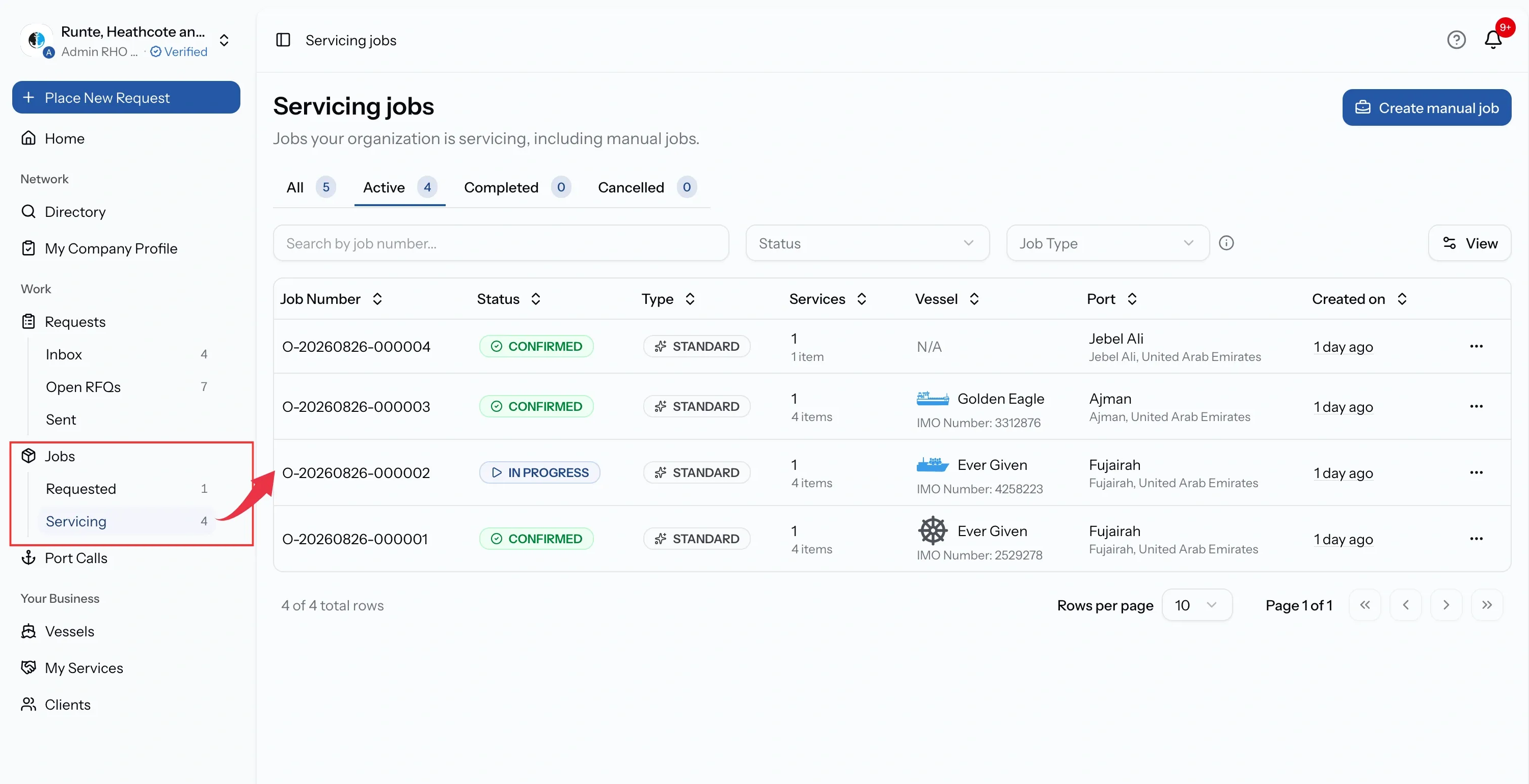
Select Jobs in the sidebar. Organizations that both order and deliver services get two entries, Requested and Servicing. If you only do one, you get a single list.
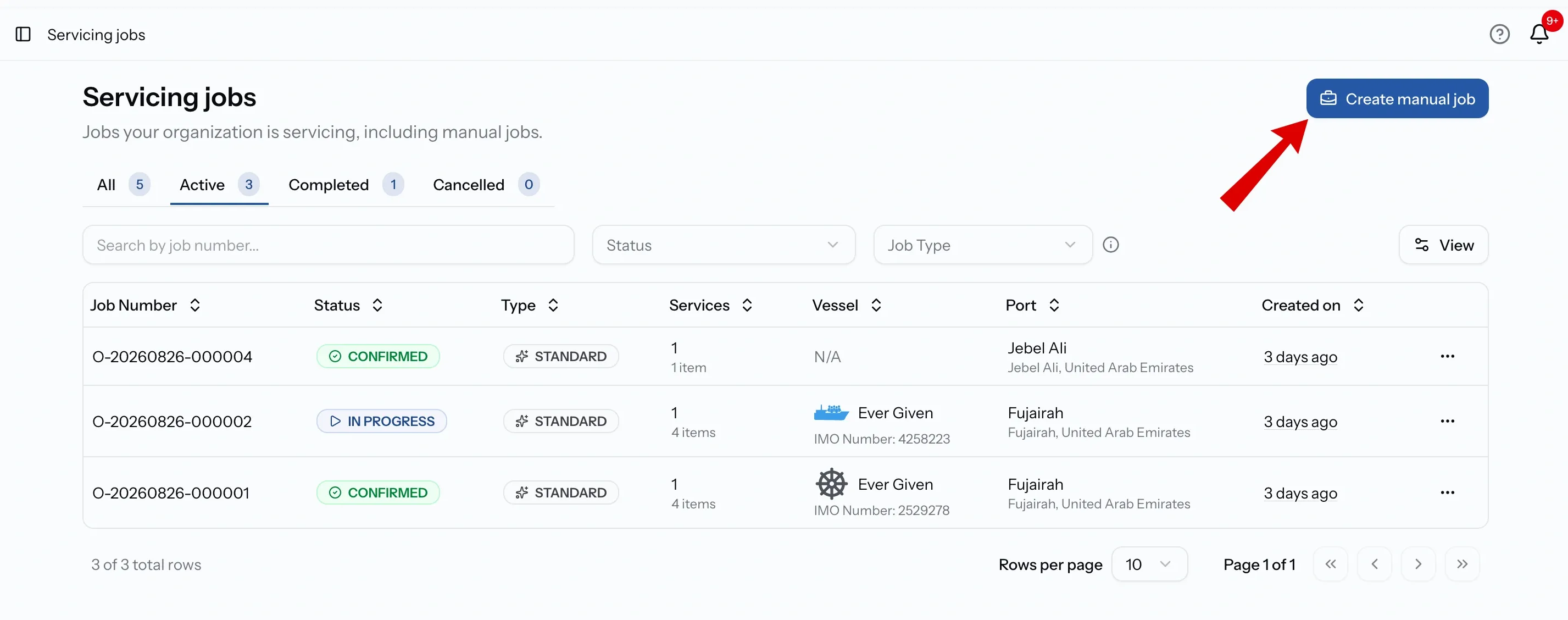
Either way the list filters by All, Active, Completed, and Cancelled, and you can send a request or create a manual job from the header. Each job also carries a badge showing which side you are on, so you can tell without going back to the list.
What a job includes
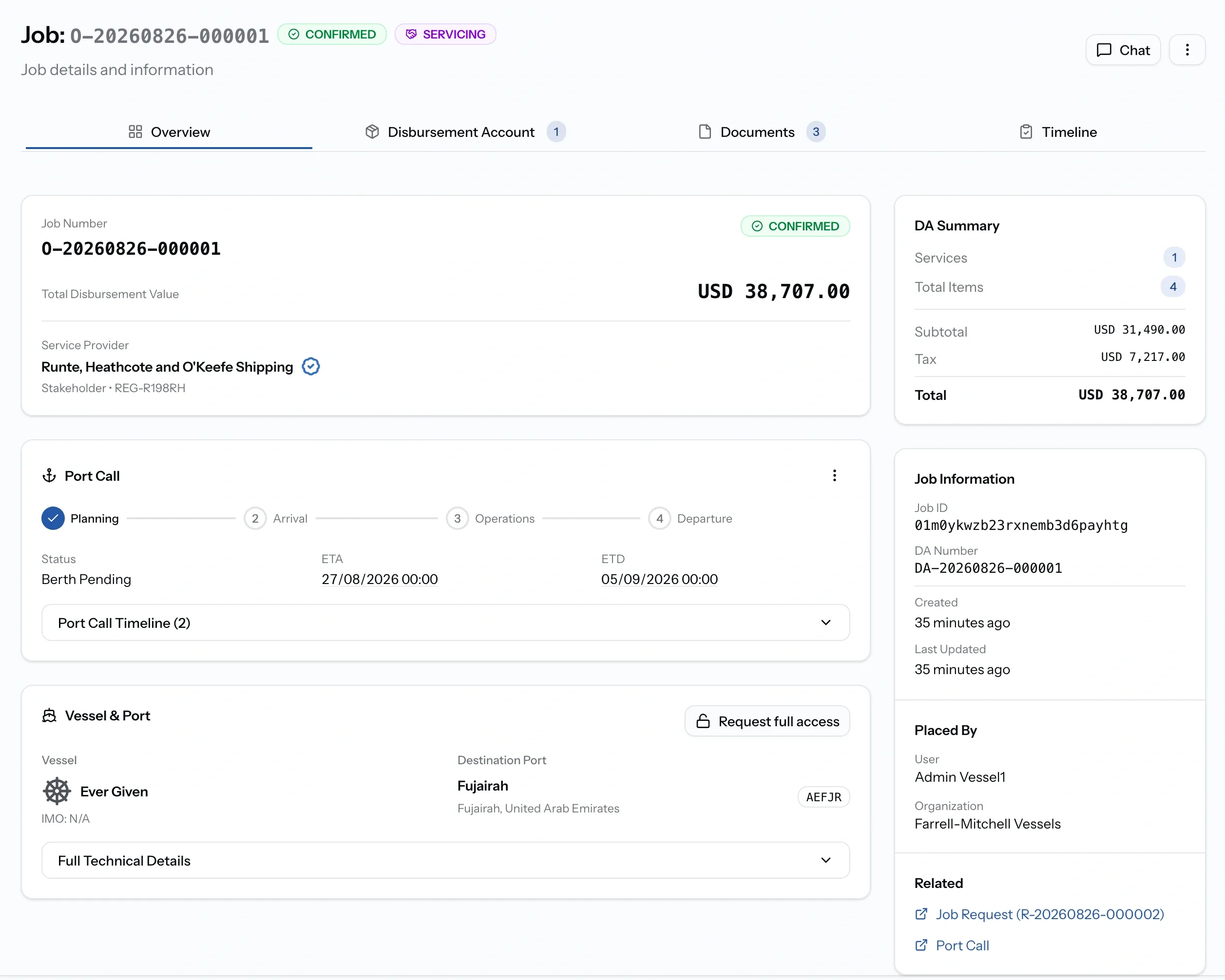
Four tabs across the top. Two carry a count, so you can see what is waiting before opening them.
- Overview: who is involved, the vessel, the schedule, and the account totals.
- Disbursement Account: the services and line items being delivered and billed. See Disbursement Accounts.
- Documents: every file attached to the job. See Job Documents & Exports.
- Timeline: who approved, changed, or published what. See Job Activity Timeline.
Chat opens from the job header, so the conversation stays with the work.
What the Overview tab holds
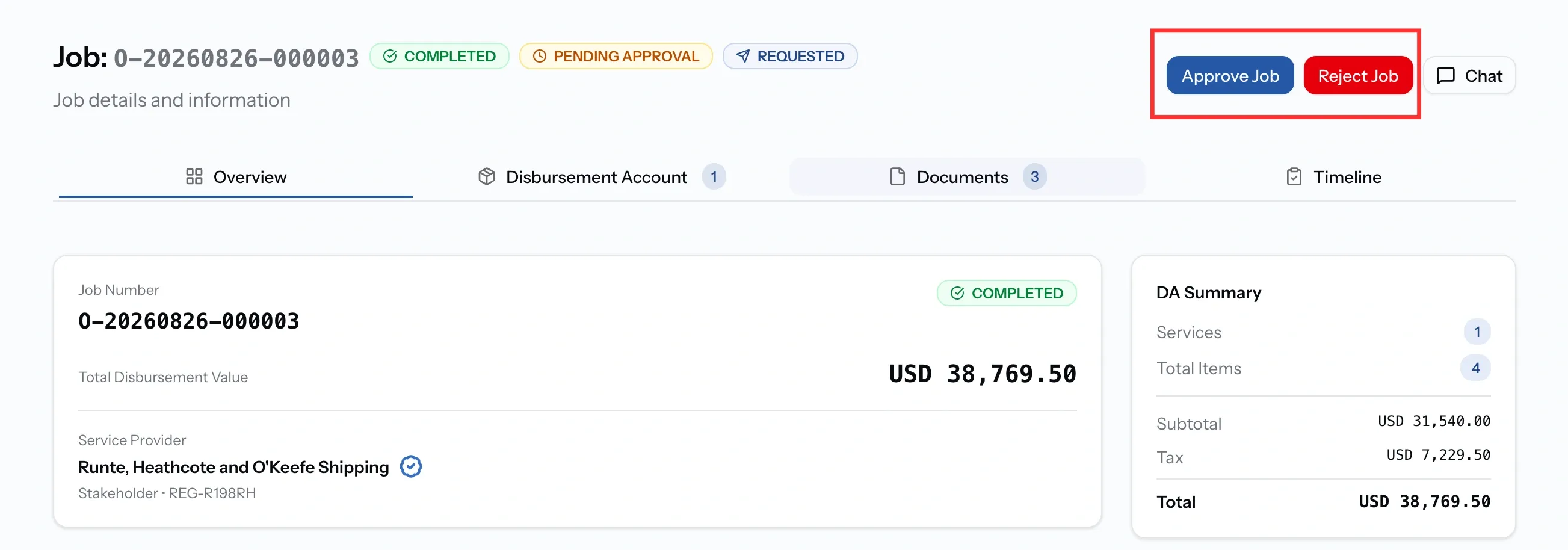
- The job number, its status, and a badge showing whether you are servicing this job or receiving it.
- The total disbursement value, with a DA Summary of services, items, subtotal, tax, and total.
- Client and service provider, naming both organizations.
- The vessel, with its full specification: call sign, MMSI, flag state, build year, GRT, NRT, DWT, length overall, beam, and draft.
- The port and schedule, with recent port call updates.
How much of the vessel you see depends on whether it has been shared with you and at what level.
Who sets the status
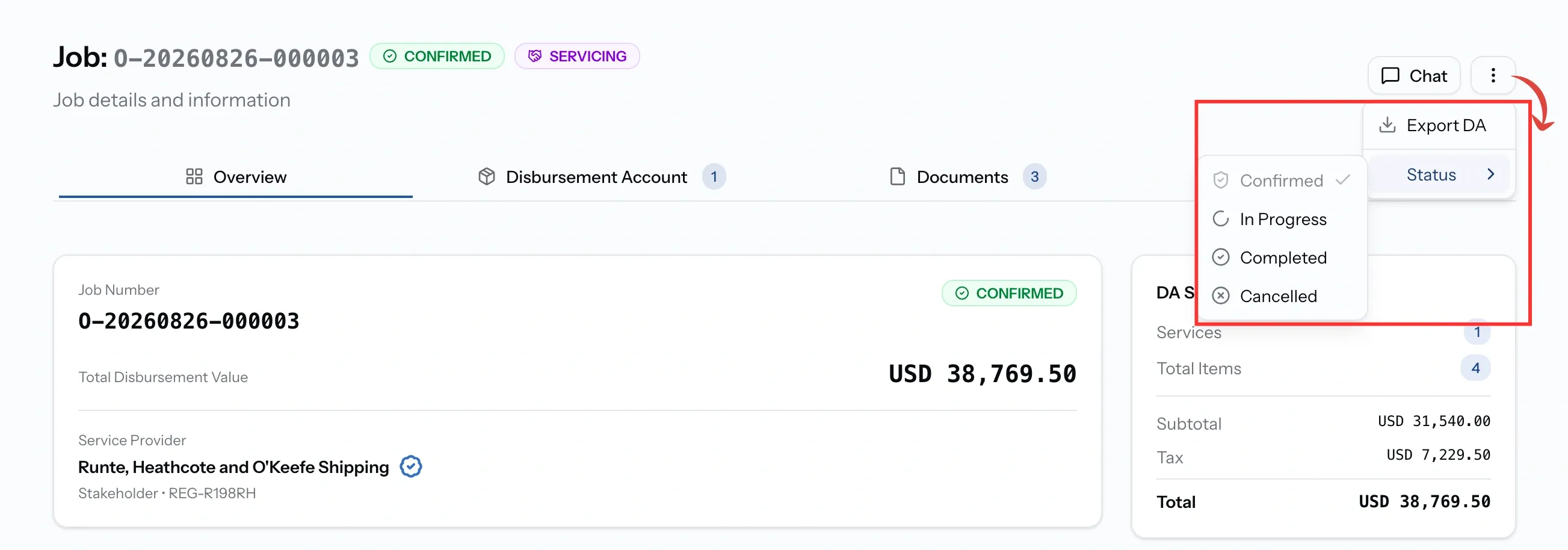
Status belongs to the organization delivering the job. For a job from a quote that is the agency whose quote was accepted; for a manual job it is whoever created it. A requesting organization cannot change it.
Within the provider, changing status needs the Admin, Manager, or Operations role. CEO, Finance, and Viewer cannot.
Job statuses
Approving a completed job
When the provider marks a job Completed, it goes to the requesting organization for sign-off. The job shows Pending Approval alongside its status, and Approve Job and Reject Job appear in the header for the requester.
This sits above the service-by-service approvals inside the disbursement account. Those settle individual charges as the work goes along; this closes out the job as a whole once delivery is done.
Jobs without a request
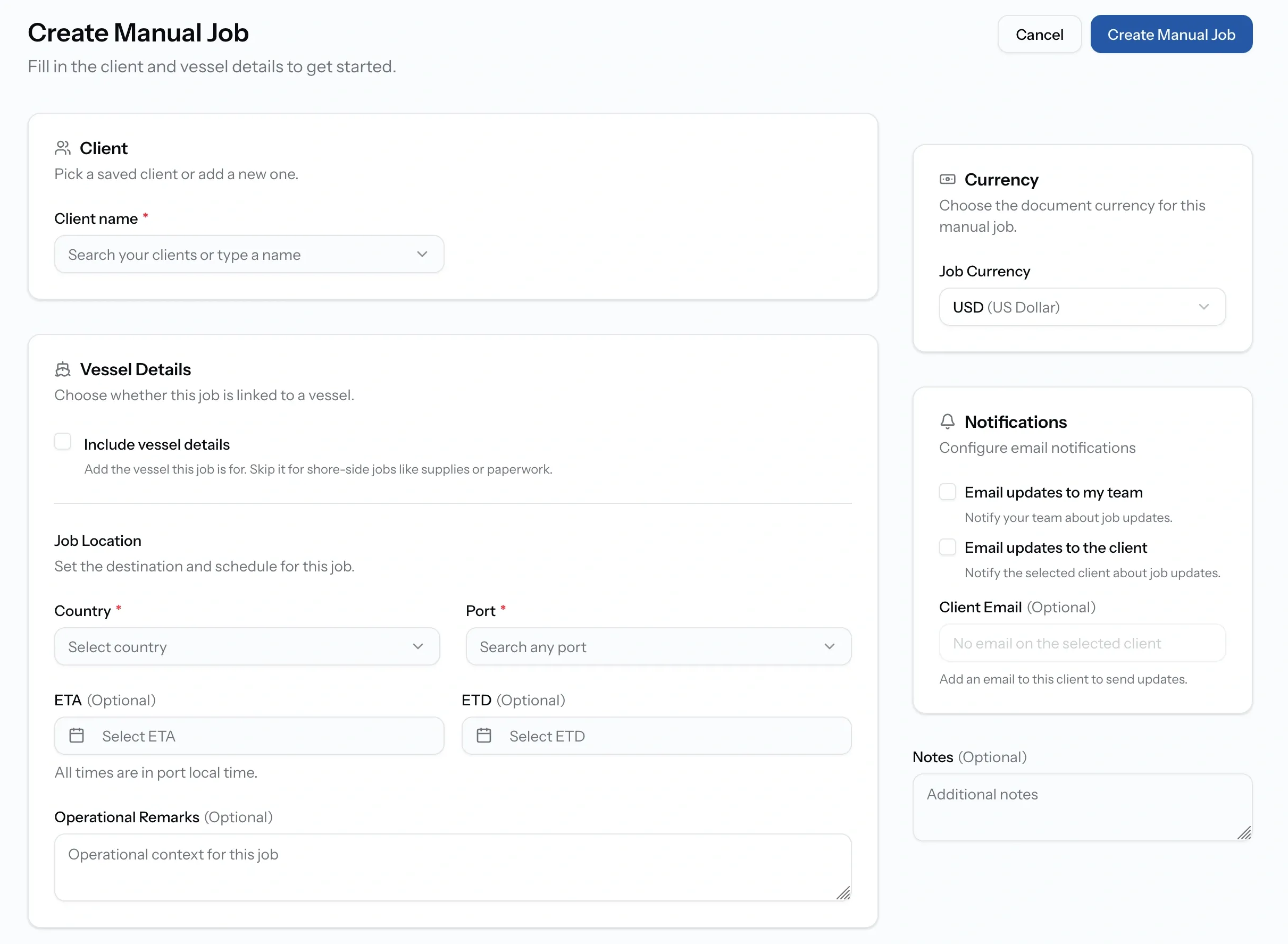
Providers can run work that never came through the marketplace. Create Manual Job asks for four things:
- Client: pick a saved one or type a new name, which saves it to your Clients list.
- Job location: country and port, both required, with ETA and ETD optional and shown in port local time.
- Vessel: optional. Tick Include vessel details when the job is tied to a port call, and skip it for shore-side work like supplies or paperwork.
- Job currency: the document currency for this job. A job from a quote inherits the quote's currency, but a manual job has no quote behind it, so you set it here.
You also choose who hears about it. Email updates to my team and Email updates to the client are both off unless you tick them, and the client option needs an email address on their record.
From there it behaves like any other job you service, with the same account, documents, and exports. The difference is that it has no Timeline, since there is no requester approving anything, and its conversation is internal to your team rather than shared.
Common issues
There is no Timeline tab
Manual jobs have no requester approving the account, so there is no approval history to show.
I cannot change the job status
Status is set by the provider delivering the job, so a requesting organization cannot change it. On the provider side it needs the Admin, Manager, or Operations role. CEO, Finance, and Viewer cannot.
The Documents tab is empty
Nothing has been attached yet. Files appear here as either side adds them to account items or shares them in chat.