
Manage your clients
Keep one record for each company you work for outside PortzApp. Add their details once, reuse them on every manual job, and see all the work you have done for them in one place.
Before you start
Clients are for companies that offer services on PortzApp. Anyone on your team can view them. To add, edit or delete a client you need the Admin, Manager or Operations role.
What a client record is for
A client is your own record of a company you work for outside PortzApp. They never log in or see it.
Only a name and a type are required. Add an email if you want to send them updates.
Clients you add while creating a manual job are saved here automatically.
Each client gathers every job you have run for them, so their history is one click away.
A client with jobs linked to it cannot be deleted until those jobs are moved to another client.
Open Clients
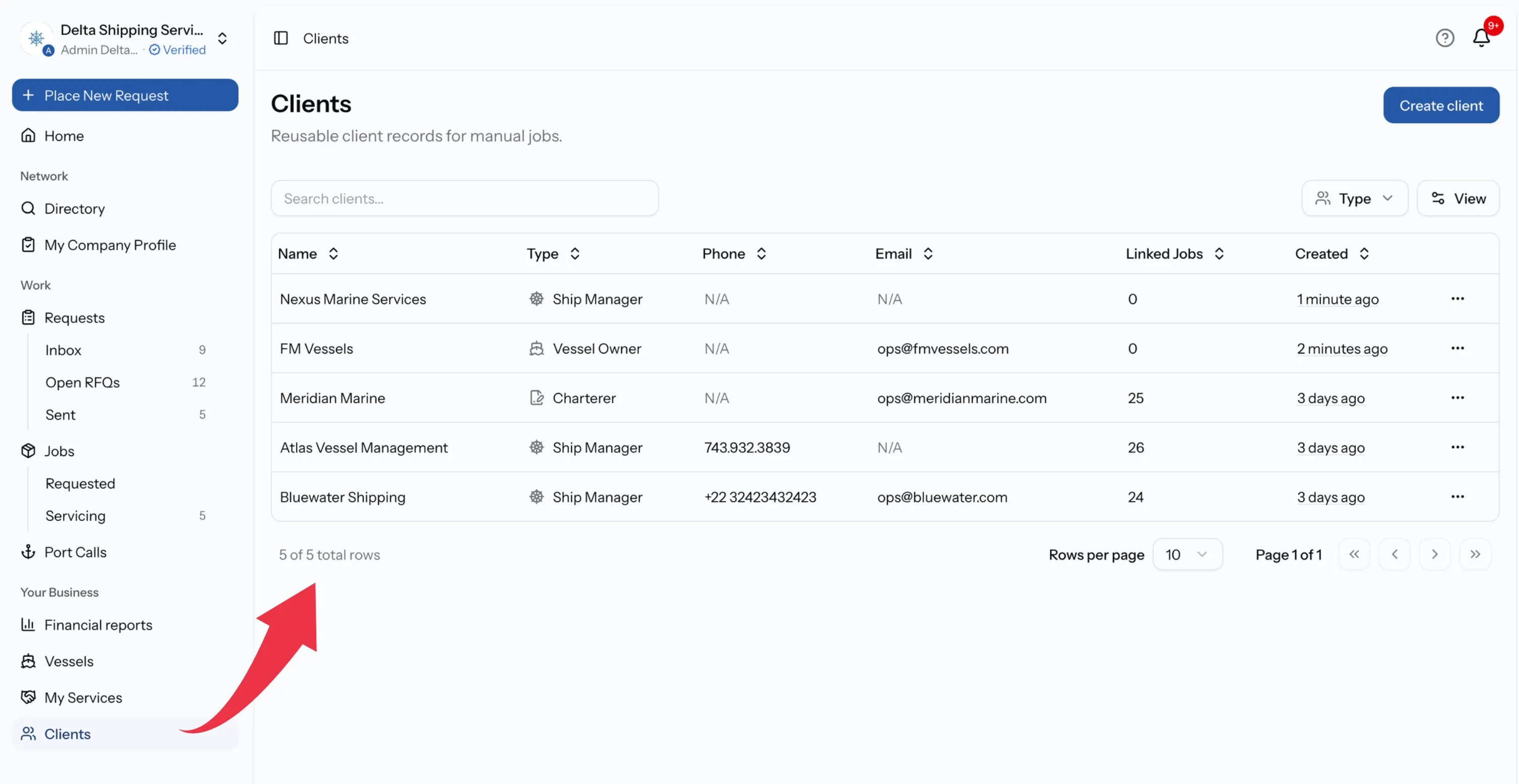
Select Clients in the sidebar, under Your Business.
The list shows each client's Name, Type, Phone, Email, how many Linked Jobs they have, and when they were Created. Search by name to find one quickly.
Add a client
You can add a client here ahead of time, or while creating a manual job. Either way, it ends up in this list.
Step 01
Select Create client
The button is at the top of the Clients list. Create Client opens.
Step 02
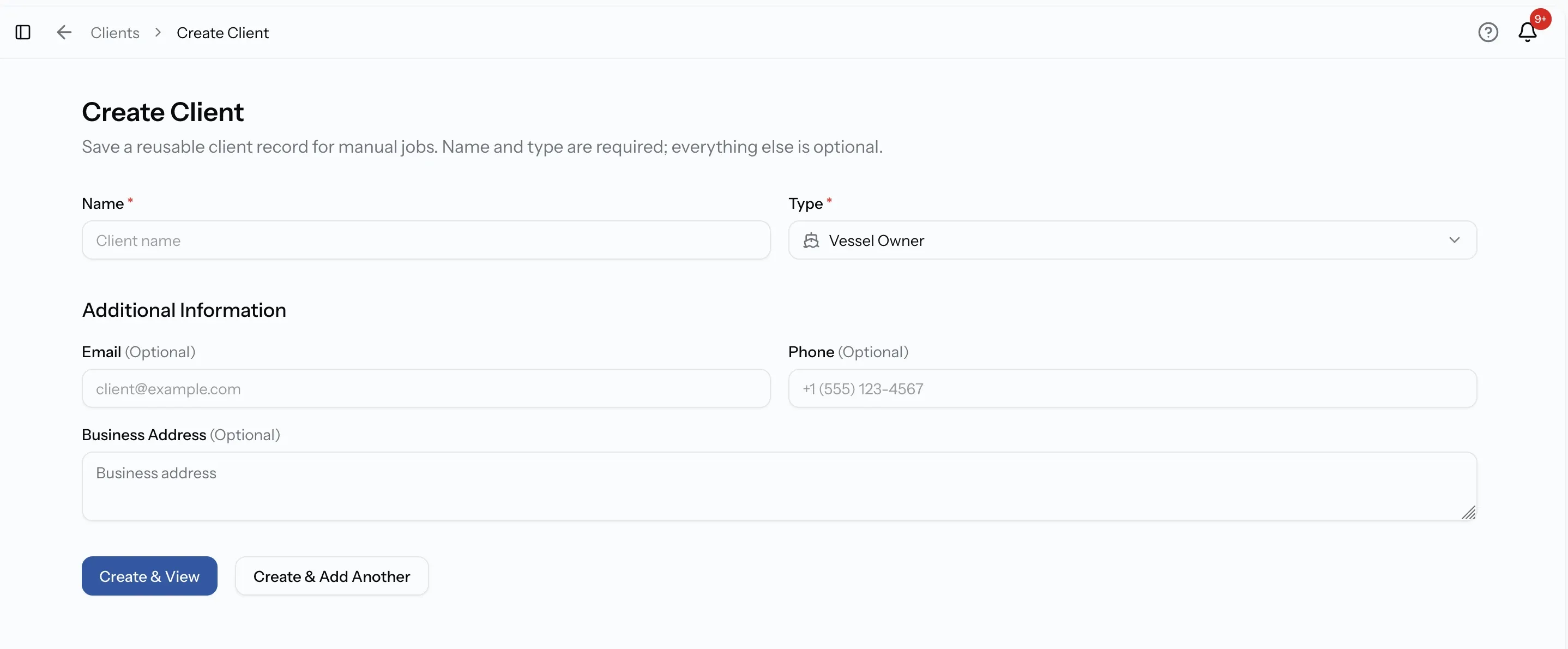
Enter the name and type
Both are required. Search the type list for the kind of company it is, such as ship agent, vessel owner or charterer.
Step 03
Add the contact details
Under Additional Information, Email, Phone and Address are optional. Add the email if the client should receive updates.
Step 04
Save the client
The client is added to your list, ready to pick on your next manual job.
The email is what makes a client reachable
Without an email on the record, the client cannot receive job updates, and you will have no address ready when you send them a document. Add it now, or edit the client later.
Open a client
Select a client to open their record.
Their details
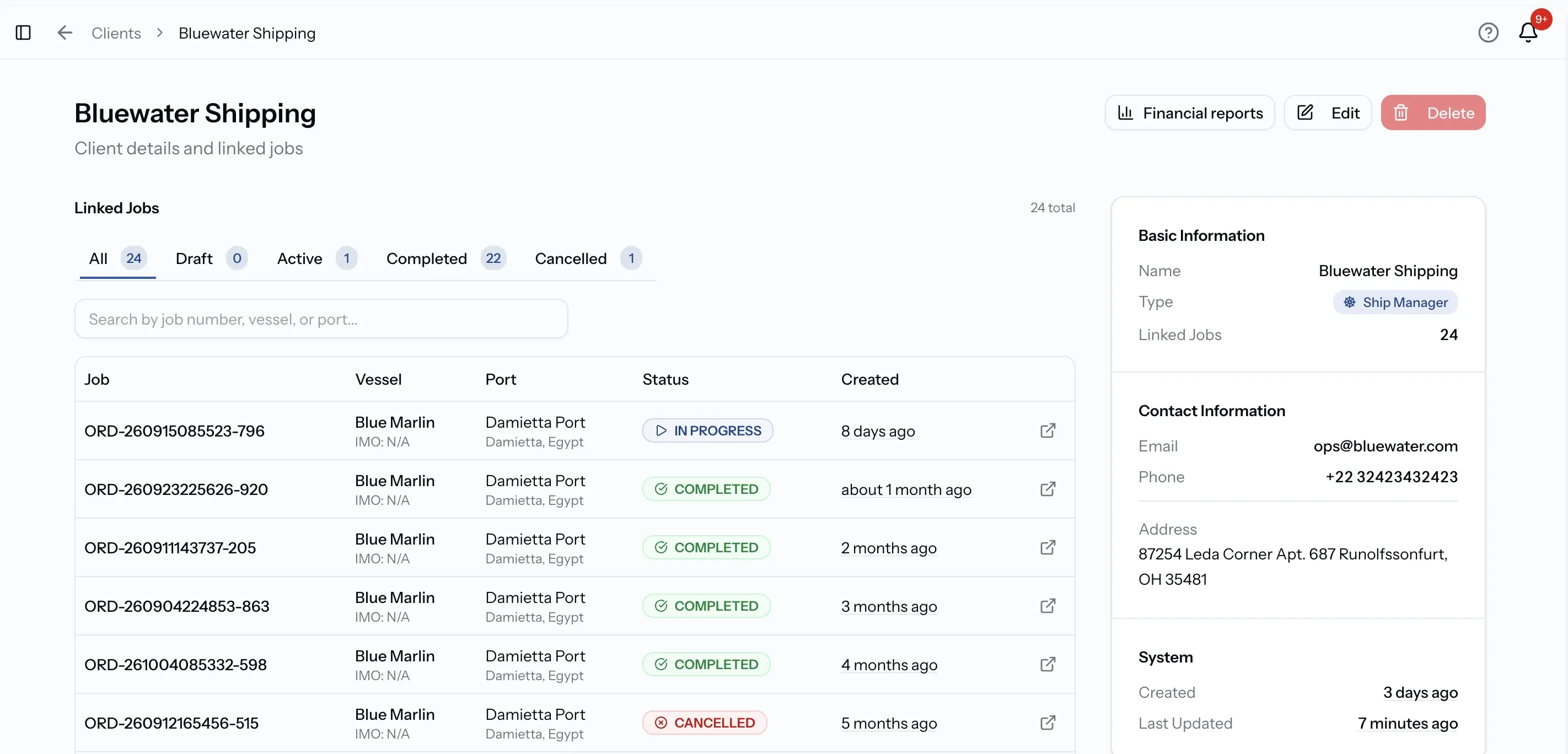
Basic Information holds the name and type, with the number of linked jobs. Contact Information holds the email, phone and address. System shows when the record was created and last updated.
Linked Jobs
Every job you have run for this client, filtered by All, Draft, Active, Completed and Cancelled. Search by job number, vessel or port to find a particular one.
This is the quickest way to answer a client's question about past work, such as what you last charged them or whether a job is still open.
Edit a client
Open the client and choose Edit, or choose Edit from the menu on their row in the list. Edit Client has the same fields as when you added them.
Changes apply to the record straight away. The client's jobs stay linked to them.
Delete a client
Open the client and choose Delete. Delete client asks you to confirm, and deleting cannot be undone.
A client can only be deleted once no jobs are linked to it. If any are, PortzApp says Cannot delete yet. Open each linked job, change its client, then come back and delete the record.
Put a client to work
Create a manual job for a client
Clients come into their own on manual jobs. Pick one by name, and their details and job history come with them.
When a client will not do what you expect
There is no Clients page
Clients are for companies that offer services. A company that only buys services has none to manage.
I cannot add or edit clients
Your role can view clients but not change them. Admin, Manager and Operations can.
The client cannot be deleted
Jobs are still linked to it. Edit each linked job, assign it to another client, then delete the record.
My client is not receiving updates
Their record has no email, or client updates were not switched on for the job. Add the email, then turn on client updates on the job.
What you can do now
You can keep a record for every company you work for outside PortzApp, add and update their details, see every job you have run for them, and remove a record once nothing is linked to it.
FAQ
01
02
03
04
05