
Compare quotes and choose a provider
Line up every quote on one page, compare them in a single currency, read each line item, ask for a revision where something is off, and accept the one that fits.
Before you start
You need a published request with at least one quote. To find it, see Manage your sent requests.
Anyone in your organization can read quotes, but what they see and do depends on their role. Only Admin, Manager and Finance can accept a quote or ask for a revision.
For how quotes and revisions work across PortzApp, read the Quote Comparison & Selection feature page. This guide walks through doing it on a real request.
The short version
Every quote for a request arrives on that request's page. The lowest one is selected for you when the page opens.
Compare in your own currency, each provider's currency, or any currency you pick.
Read the line items, not just the total. Turnaround time, tax, attachments and terms all sit inside the quote.
Ask for a revision when a quote is close but not right. The provider sends a new version and the old one stays on record.
Accepting creates the job and closes the request for every other provider.
Where the quotes are
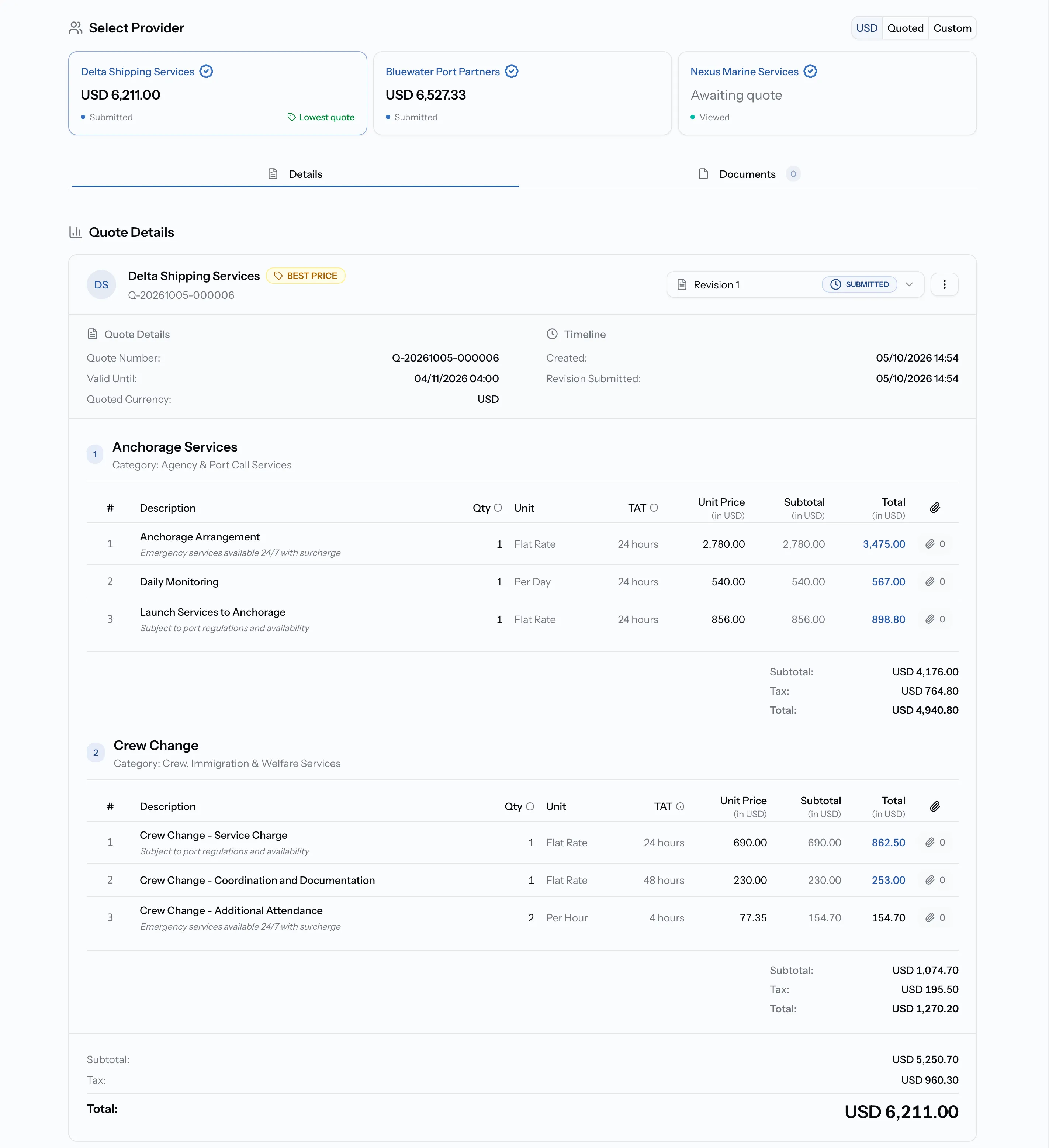
Open the request from Sent Requests. Quotes appear under Select Provider, one card per provider, below the request details.
Each card shows the provider's name, their total and where their quote stands. When the page opens, the cheapest quote is already selected so you start with the best price. If you have already accepted a quote, that one is selected instead.
The cheapest quote carries a Lowest quote tag on its card. Select any card to open that provider's quote below.
Compare in one currency
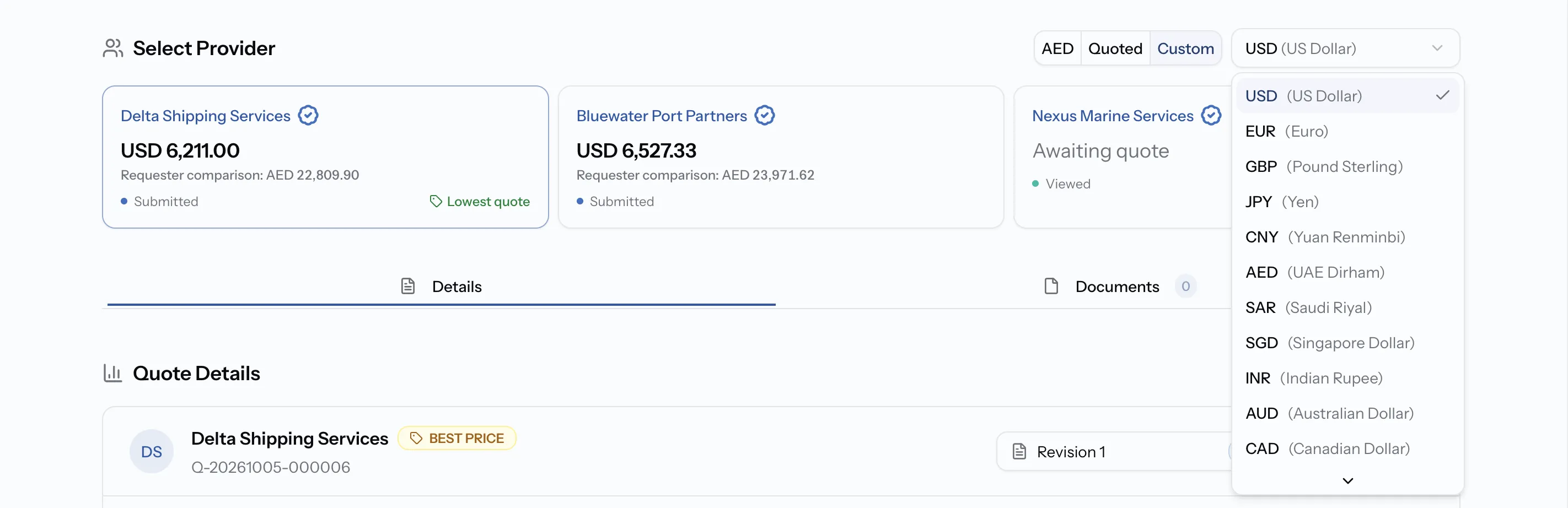
Providers quote in their own currency, which makes totals hard to compare by eye. The toggle at the top right of Select Provider changes the currency every total is shown in:
- Your default currency, shown by its code, for example USD. Every quote is converted to your organization's currency so totals line up. This is the default.
- Quoted shows each quote in the currency the provider used.
- Custom lets you pick any currency from the list.
Conversion only changes how a quote is displayed. The provider's quote itself stays in their currency, and the quote shows its Quoted Currency alongside the Display Currency you are viewing.
Conversion uses your organization's own exchange rates where you have set them, and market rates otherwise. If no rate exists for a pair, the total shows Conversion unavailable.
Lowest is not always cheapest
The Lowest quote tag compares totals in your default currency. Two quotes can cover different things, so before you choose on price, open both and check that the services, quantities and turnaround times match.
Read a quote
Below the provider cards, the Details tab shows the selected quote in full.
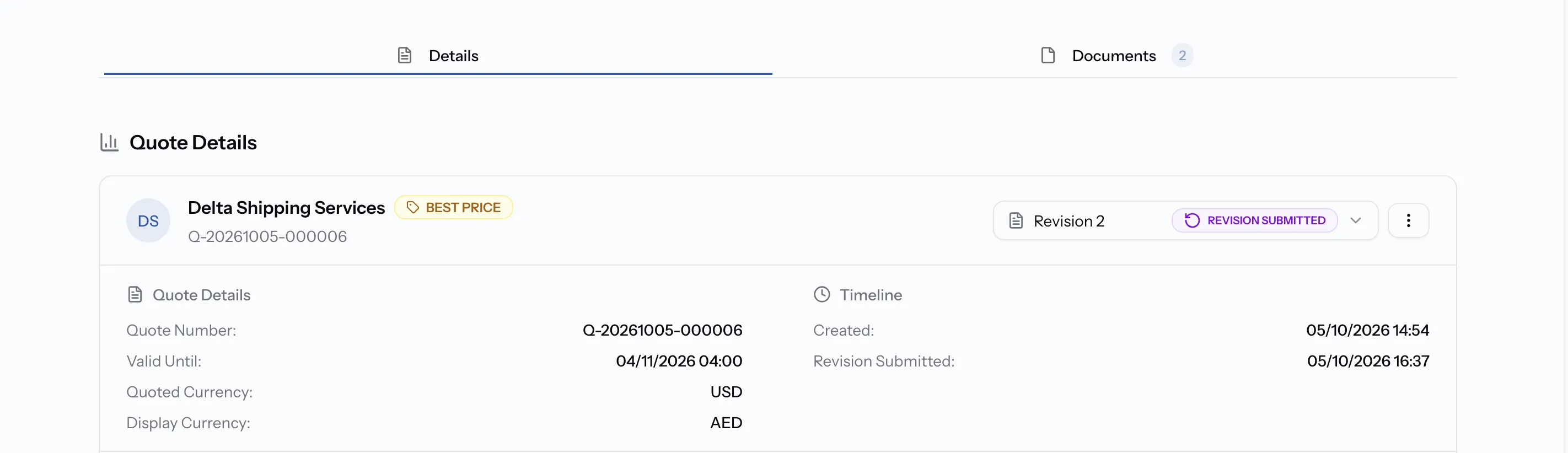
At the top are the provider's name and quote number, with Best Price next to the name when this is the cheapest quote. On the right, the revision picker shows which version you are reading and its status. The menu beside it holds the provider's PDA.
Under the name, Quote Details shows the terms that matter most when comparing:
- Valid Until is the date the provider holds this price.
- Quoted Currency is the currency they quoted in.
- Display Currency appears when you are viewing the quote converted to another currency.
Check the line items
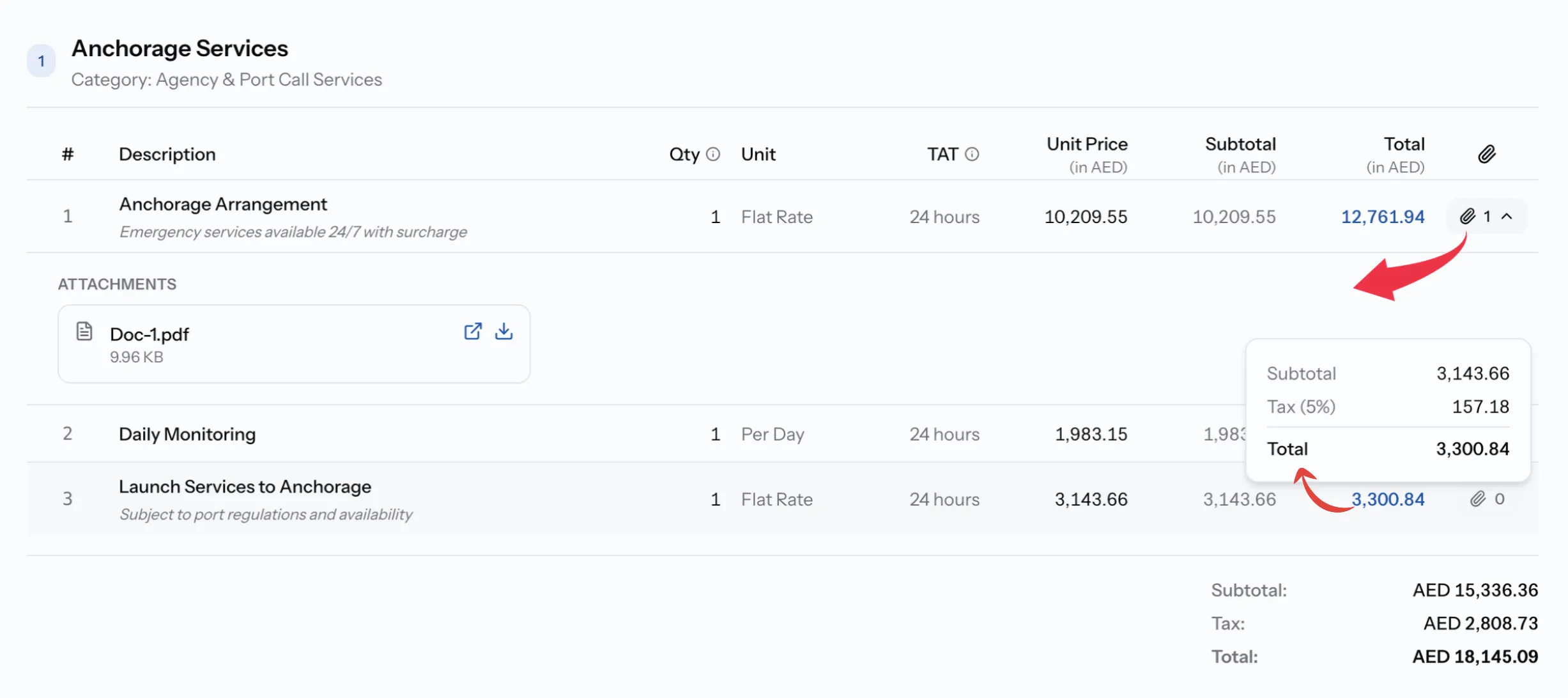
The quote is grouped by service, numbered in order. A service you wrote in yourself is marked Custom. Select View items under a service to load its lines.
Each line shows:
- Description
- Qty (Quantity) and Unit
- TAT, the turnaround time
- Unit Price, Subtotal and Total, in the currency you are viewing
Hover over a total to see the tax on that line. Select a line to open its full detail.
The paperclip column shows how many files are attached to a line. Select the count to list them, then open or download each one.
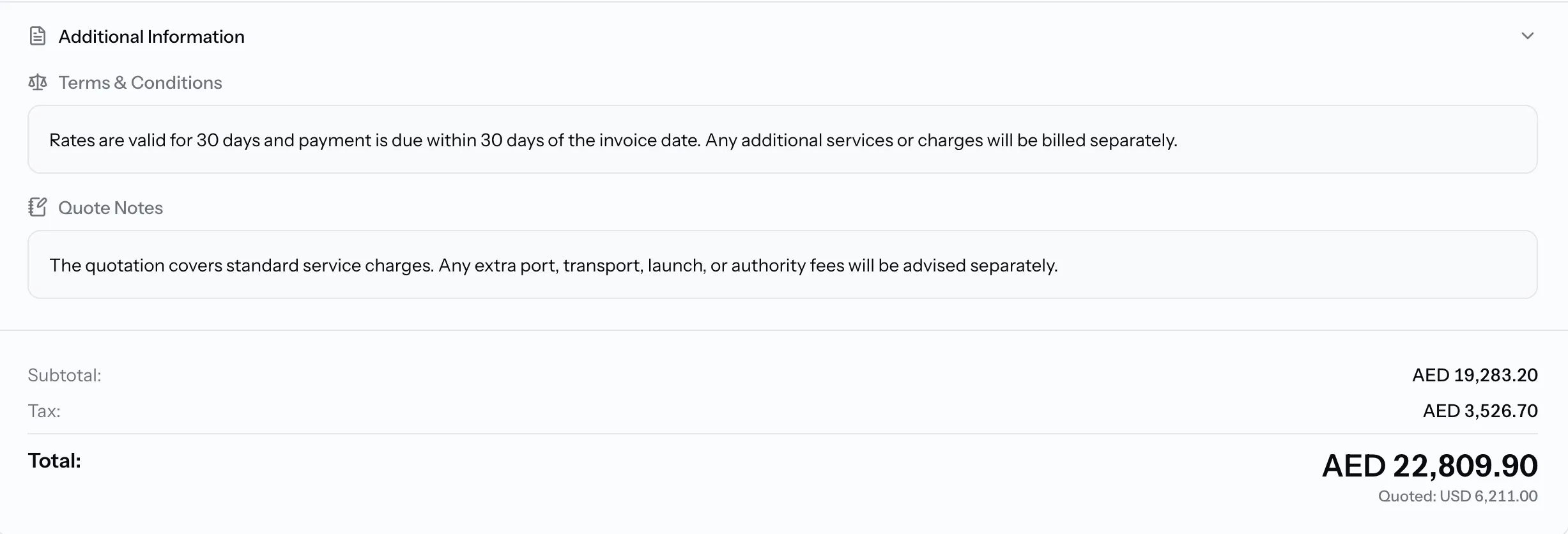
Additional information
At the bottom of the quote, below the services, Additional Information holds what the provider wrote around the prices:
- Terms & Conditions covers payment, exclusions or assumptions.
- Quote Notes holds anything else they want you to know.
Read both before you accept, because they are part of what you are agreeing to. A quote without terms or notes has no Additional Information section.
Documents
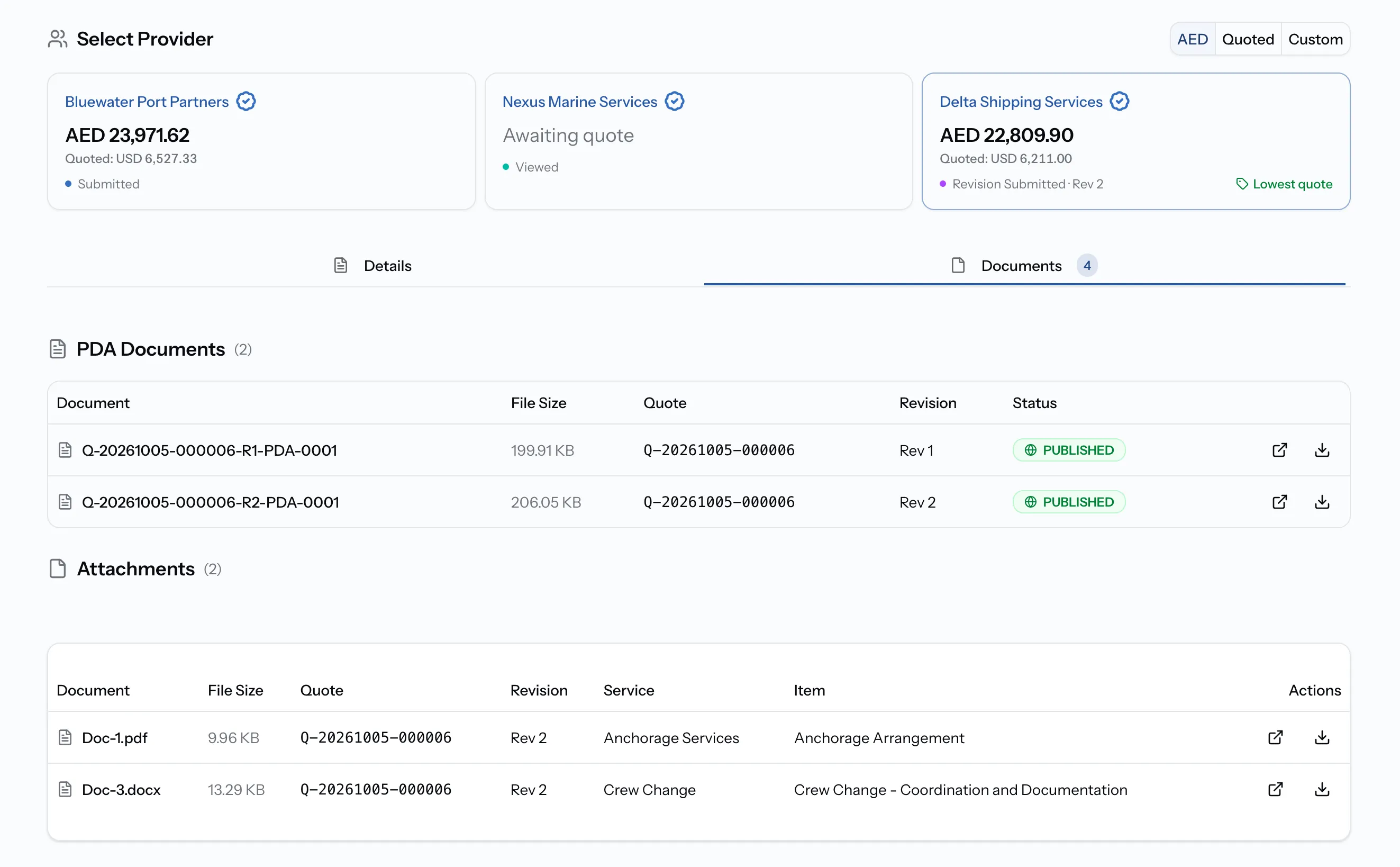
The Documents tab, next to Details, collects every file for the selected provider:
- PDA Documents are pro forma disbursement accounts the provider published with the quote.
- Attachments are the files on individual lines, listed with the quote, revision, service and line they belong to.
Open or download any of them from the same row. You can also reach the PDA from the menu next to the revision picker, where you can view it, download it, or generate one if the provider has not.
What you see depends on your role. Operations and Viewer see quotes without prices and without PDAs. CEO sees everything but cannot accept or ask for revisions. Admin, Manager and Finance can do both.
Ask for a revision
When a quote is close but not right, ask the provider to change it rather than turning it down. A missing service, a quantity that does not match, or a price you want explained are all good reasons.
Step 01
Select the provider's card
Choose the provider whose quote you want changed. Their quote opens below the cards.
Step 02
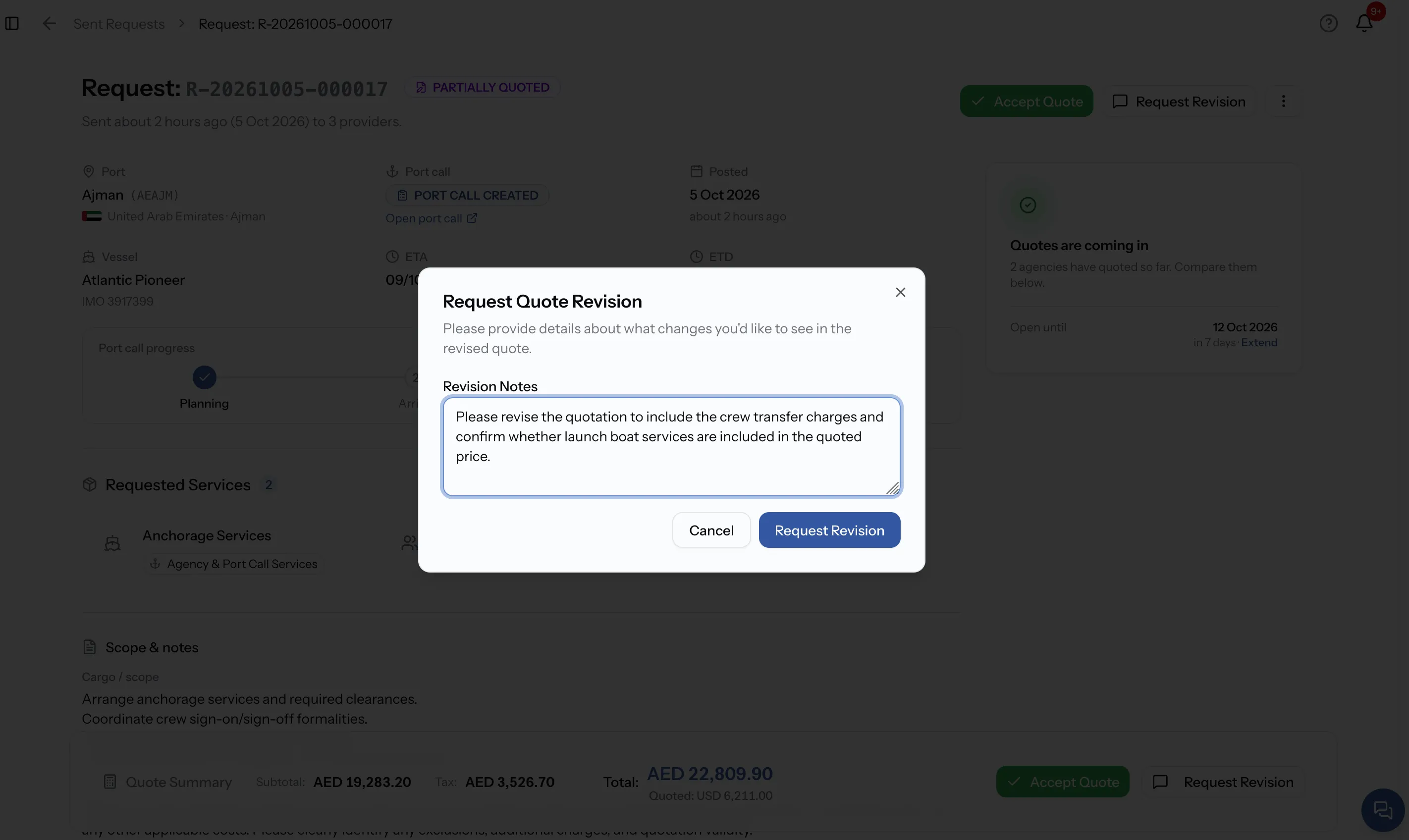
Select Request Revision
The button is at the top of the page and in the bar at the bottom. It only appears on the latest version of a quote that is waiting for your decision.
Step 03
Write your revision notes
Say exactly what you want changed in Revision Notes. This is required, and the provider sees your notes as written.
Step 04
Send the request
Select Request Revision in the dialog. The provider is notified by email and in PortzApp.
While you wait
The provider's card changes to Revision Requested, and the quote shows your notes in an orange Revision Requested banner. Accept Quote and Request Revision are hidden on that quote until the provider sends a new version.
When the revised quote arrives
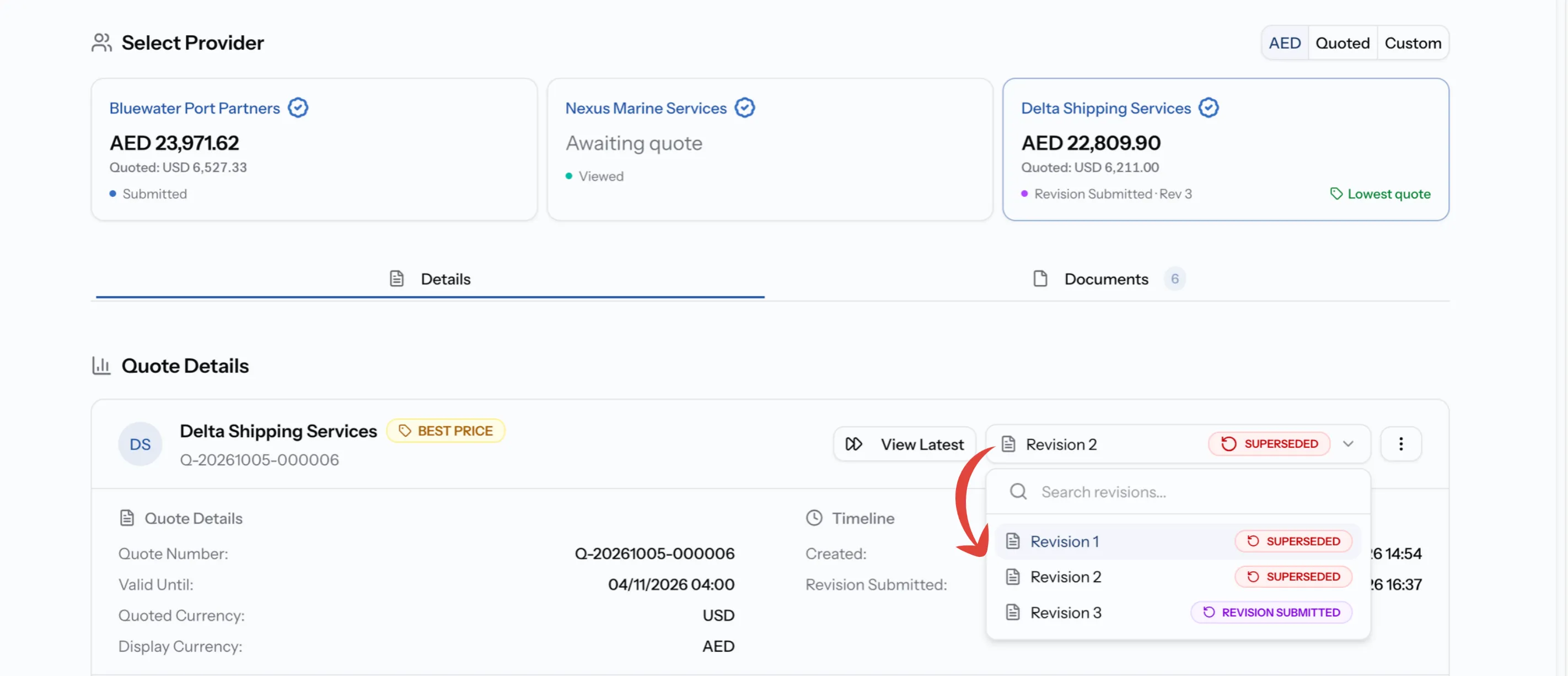
The provider's card shows Revision Submitted with the revision number, for example Rev 3. The quote opens on the latest version, and Accept Quote and Request Revision are back.
Earlier versions are kept. Open the revision picker at the top of the quote to see every version with its status, and select one to read it. While you are on an older version, View Latest takes you back. You can ask for a revision as many times as you need.
Accept a quote
When one quote is right, accept it. Accepting creates the job and closes the request for every other provider.
Step 01
Check you are on the latest revision
Select the provider's card. If the revision picker shows an older version, select View Latest first.
Step 02
Select Accept Quote
The button is at the top of the page and in the bar at the bottom. If it is greyed out, hover over it to see why.
Step 03
Decide what to share about your vessel
If the request includes a vessel, tick Share full vessel details with this service provider to send the IMO number and technical details. Leave it unticked to share basic vessel information only.
Step 04
Confirm
Select Accept Quote in the dialog. PortzApp creates the job and takes you straight to it.
What accepting changes
Accepting one quote settles the whole request at once:
- The quote you accepted is marked Accepted. The provider is notified and becomes the provider on the new job.
- Every other quote is marked Superseded. Those providers are closed and notified that the work went elsewhere.
- Providers who had not quoted are closed and can no longer send a quote.
- The request moves to Job Created and to the Completed tab. Its header links to the job.
Check the Valid Until date first
Each quote shows a Valid Until date, which is how long the provider holds that price. If it has passed, ask for a revision so the provider can confirm or update the price before you accept.
After you accept
The work moves to the job
Accepting creates a job. That is where you follow the work, talk to your provider, and approve their services and the job as a whole.
Common issues
Accept Quote and Request Revision are greyed out
Hover over the button to see why. Your role may not allow it, the request may have ended, or another quote has already been accepted. Only Admin, Manager and Finance can act on quotes.
Accept Quote and Request Revision have disappeared
You are waiting on the provider. After you ask for a revision, the buttons stay hidden on that quote until they send a new version. They are also hidden while you are reading an older revision. Select View Latest.
There is no button to reject a quote
You do not need one. When you accept a quote, every other quote is closed automatically. If none of them is right, ask for revisions or cancel the request.
A total shows Conversion unavailable
There is no exchange rate for that currency pair. Switch the toggle to Quoted to see the provider's own amount, or add your own rate for that currency in your organization settings.
What you can do now
You can compare every quote on a request in one currency, read each quote down to its line items and documents, ask a provider for a revision, and accept the right quote to start the job.
FAQ
01
02
03
04
05
06