
Create a manual job for a client
Record work that never came through a request. Pick or add the client, attach a vessel and port call if there is one, set the currency, and run it like any other job.
Before you start
Your company needs to offer services on PortzApp, and you need the Admin, Manager or Operations role. CEO, Finance and Viewer cannot create manual jobs.
Have the client's name and type to hand, plus their email if they should get updates. Decide the currency before you start, because it cannot be changed afterwards.
When a manual job is the right tool
Use it for work agreed by phone, email or a standing arrangement, where no request or quote exists on PortzApp.
The client is your own record. They never log in or see the job.
A vessel is optional. With one, the job can join an active port call or plan a new visit.
The Job Currency locks once the job is created.
A manual job has no buyer approval and no Timeline. You complete it once every service is done.
Start a manual job
There are two places to start.
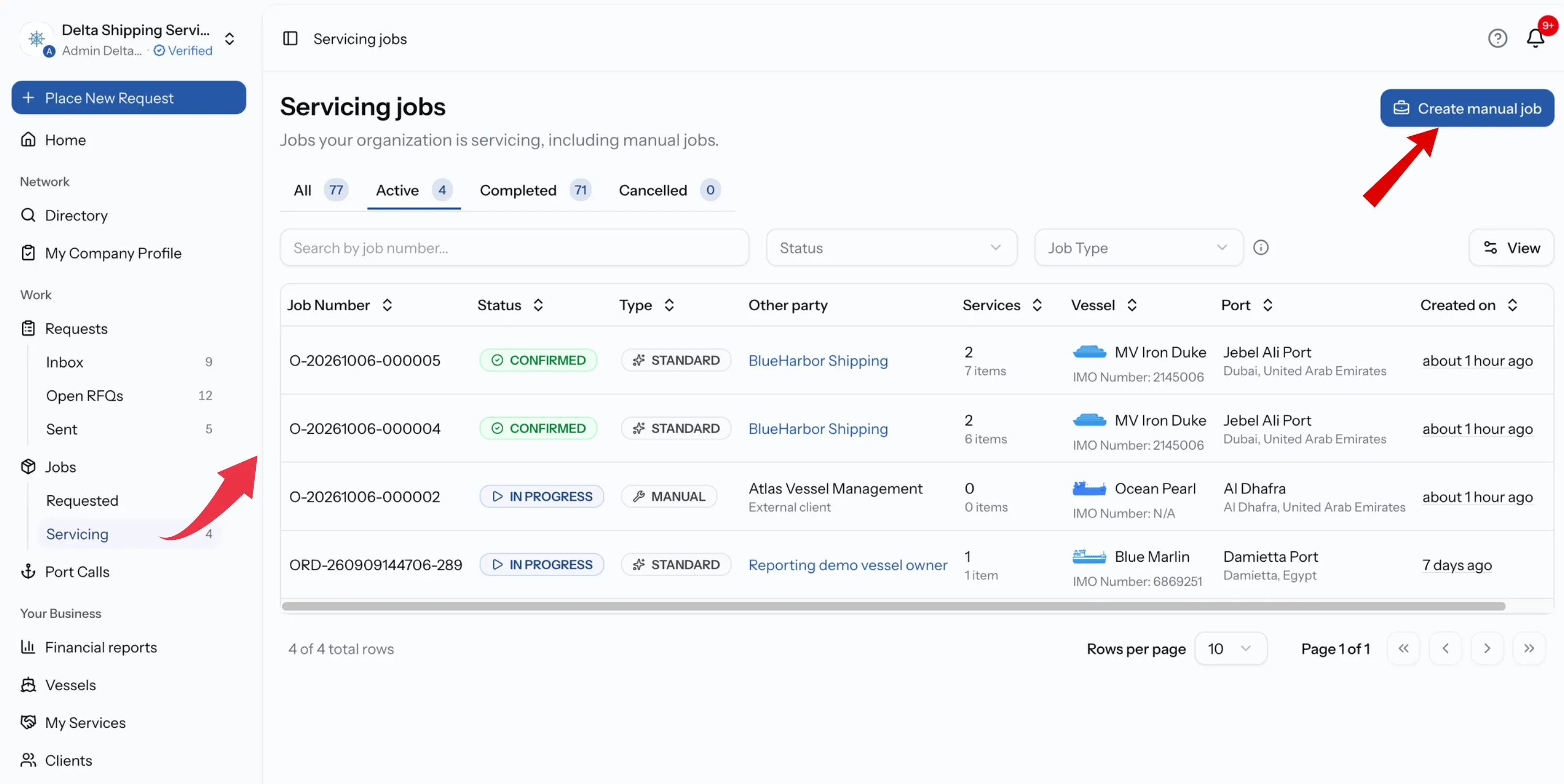
From your jobs
Open Jobs, then Servicing, and select Create manual job at the top of the list.
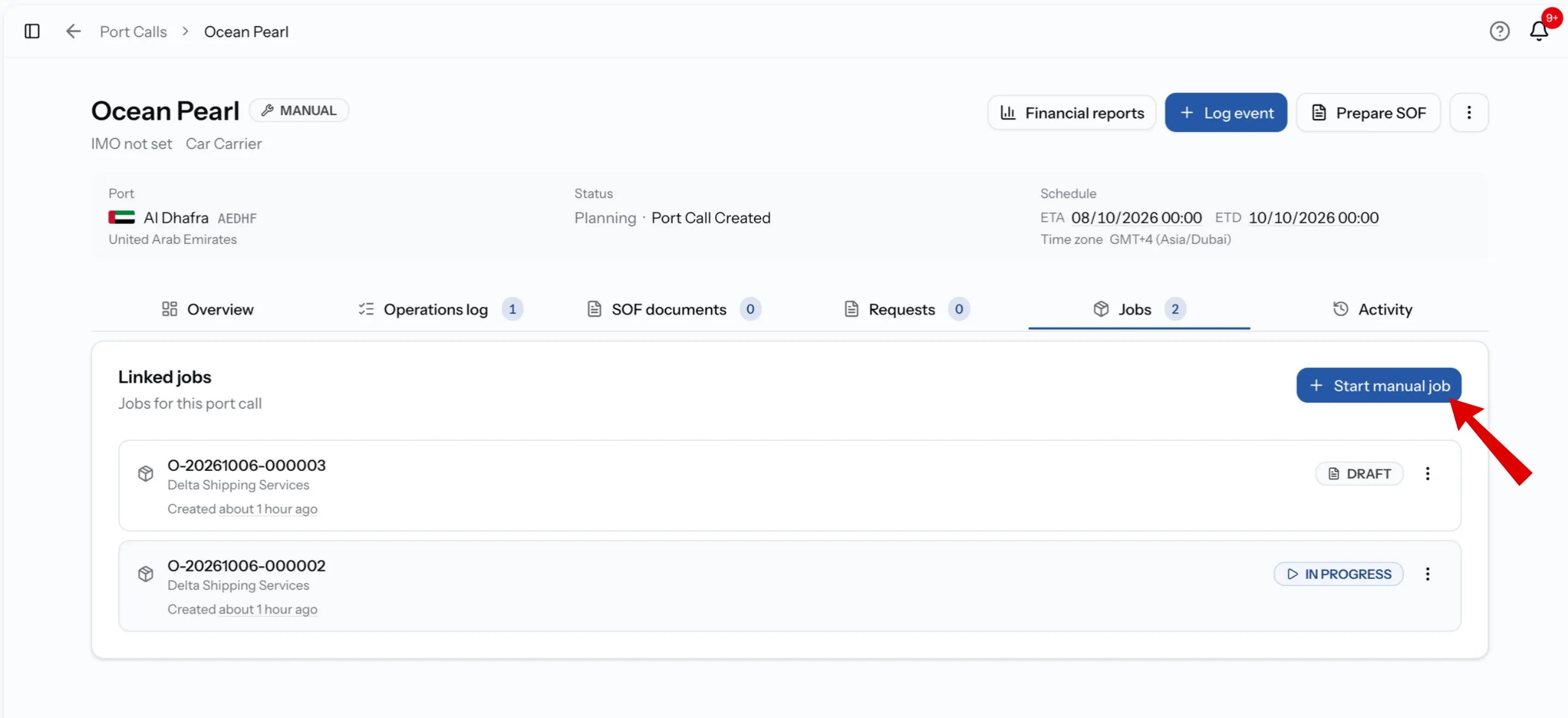
From a port call
Open the port call the work belongs to and select Start manual job. This is the quicker route when you are already working on that visit.
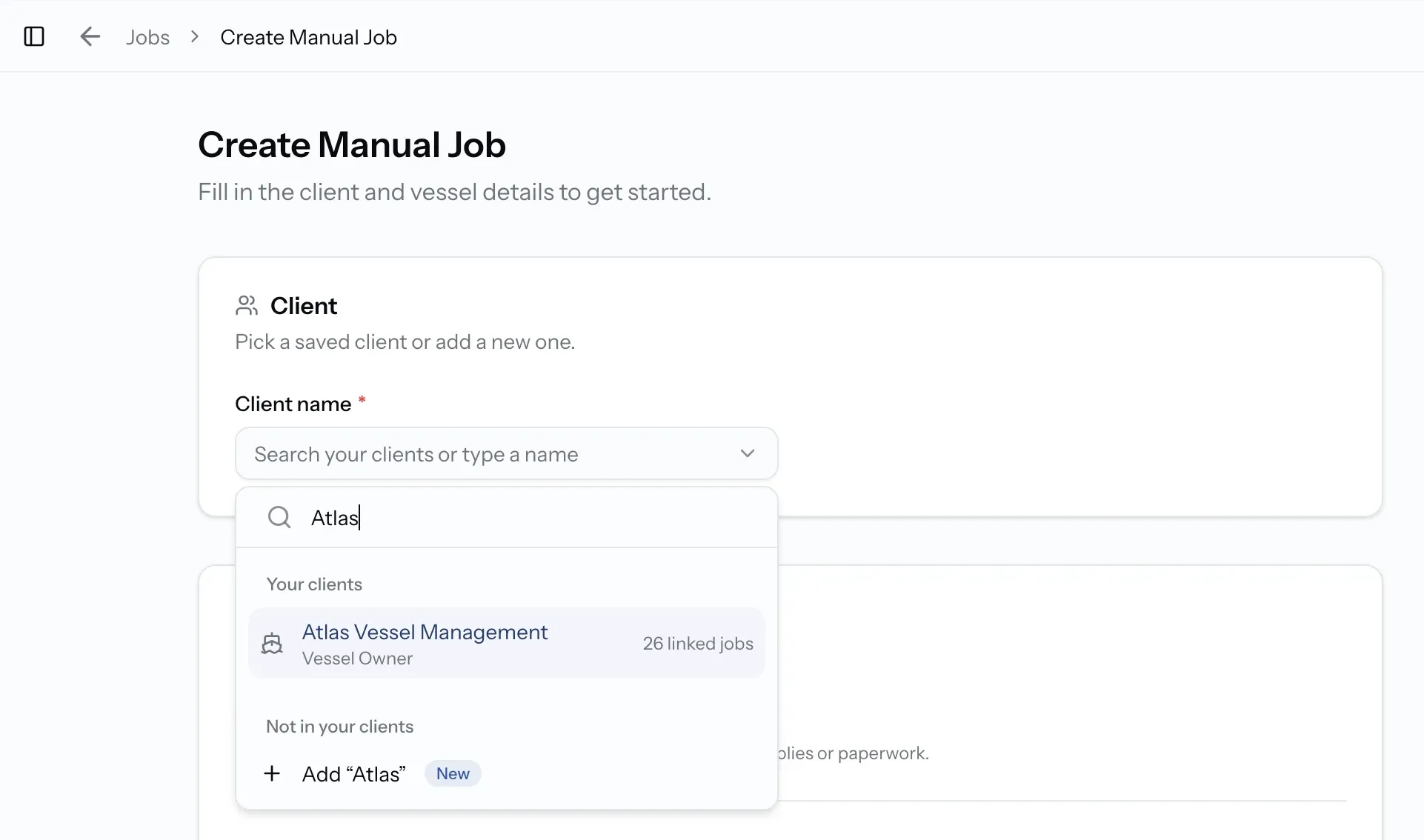
Client
Select Client name and search your clients, or type a name to add a new one.
- A saved client. Matches appear under Your clients as you type. Select one and their details come with them.
- A new client. Type the full name, then select it under Not in your clients, where it is marked New. Then fill in the rest:
- Type is required, for example ship agent, vessel owner or charterer.
- Email, Phone and Address are optional.
The new client is saved to your Clients list when the job is created, ready to reuse next time. Add the email now if the client should receive updates, because without it they cannot be sent anything.
If you have no saved clients yet, the field asks you to type a client name to add your first one.
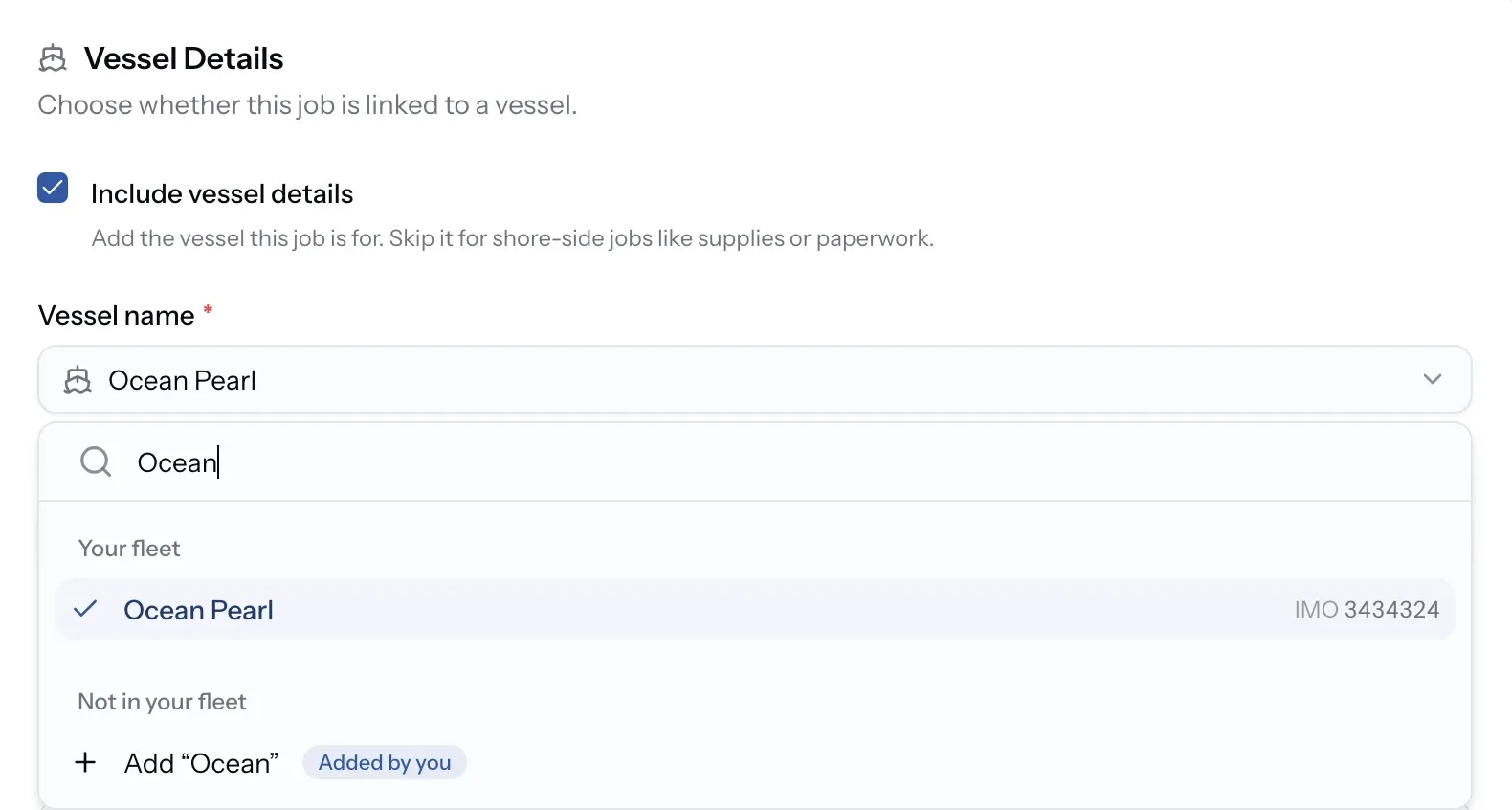
Vessel Details
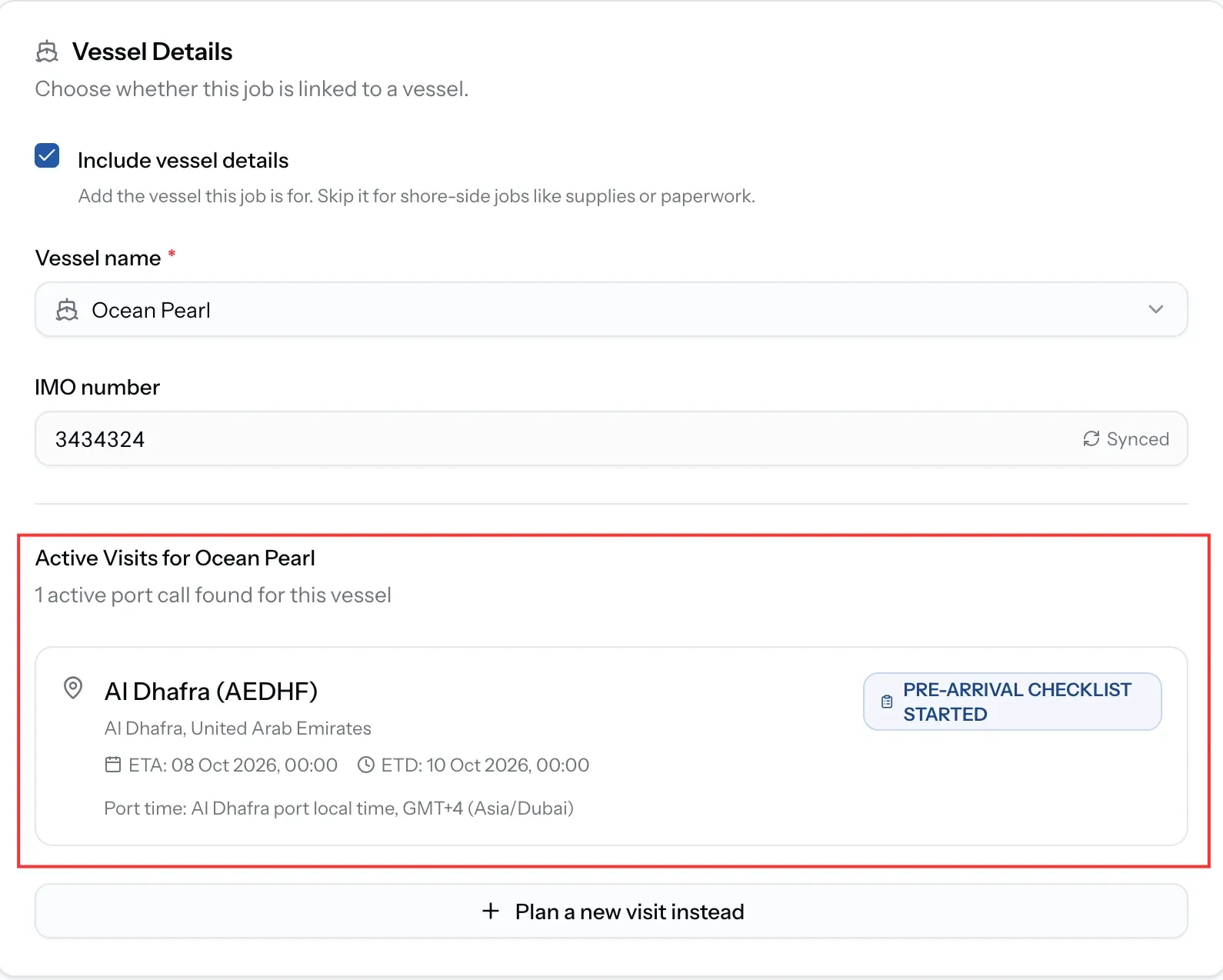
Turn on Include vessel details if the job is for a specific vessel. Leave it off for shore-side work such as supplies or paperwork.
With it on, search Vessel name:
- A vessel from your fleet fills in its IMO number from the record.
- A vessel that is not in your fleet can be typed in. Add its Vessel Type, and open Additional Vessel Information for the IMO number, flag, dimensions and tonnages if you have them.
Active Visits
If the vessel already has an active port call, PortzApp lists it under Active Visits for that vessel. Select the visit the job belongs to, and a Selected Port Call card confirms the link. The port, dates and remarks come from that port call.
If none of them is right, choose Plan a new visit instead.
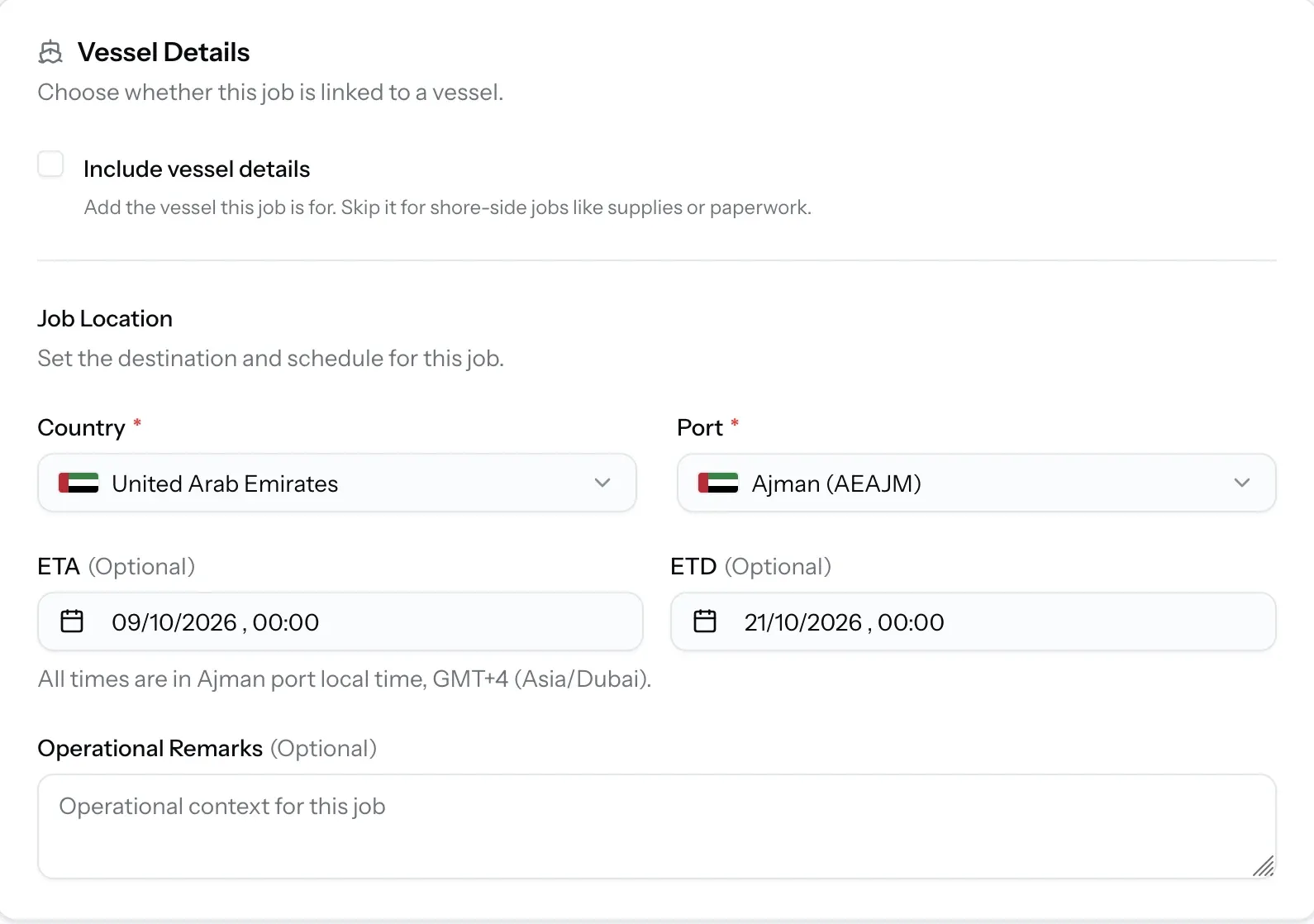
Job Location
Without a vessel, this section is Job Location. With a vessel and a new visit, it is Plan a New Visit. The fields are the same:
- Country and Port are required.
- ETA and ETD are optional, in the port's local time.
- Operational Remarks, or Port Call Remarks when there is a vessel, are optional context for the work.
Planning a new visit with a vessel creates a port call for it, so the job shows up on that visit alongside any other work.
Currency, notifications and notes
The last part of the form sets how the job is billed and who hears about it.
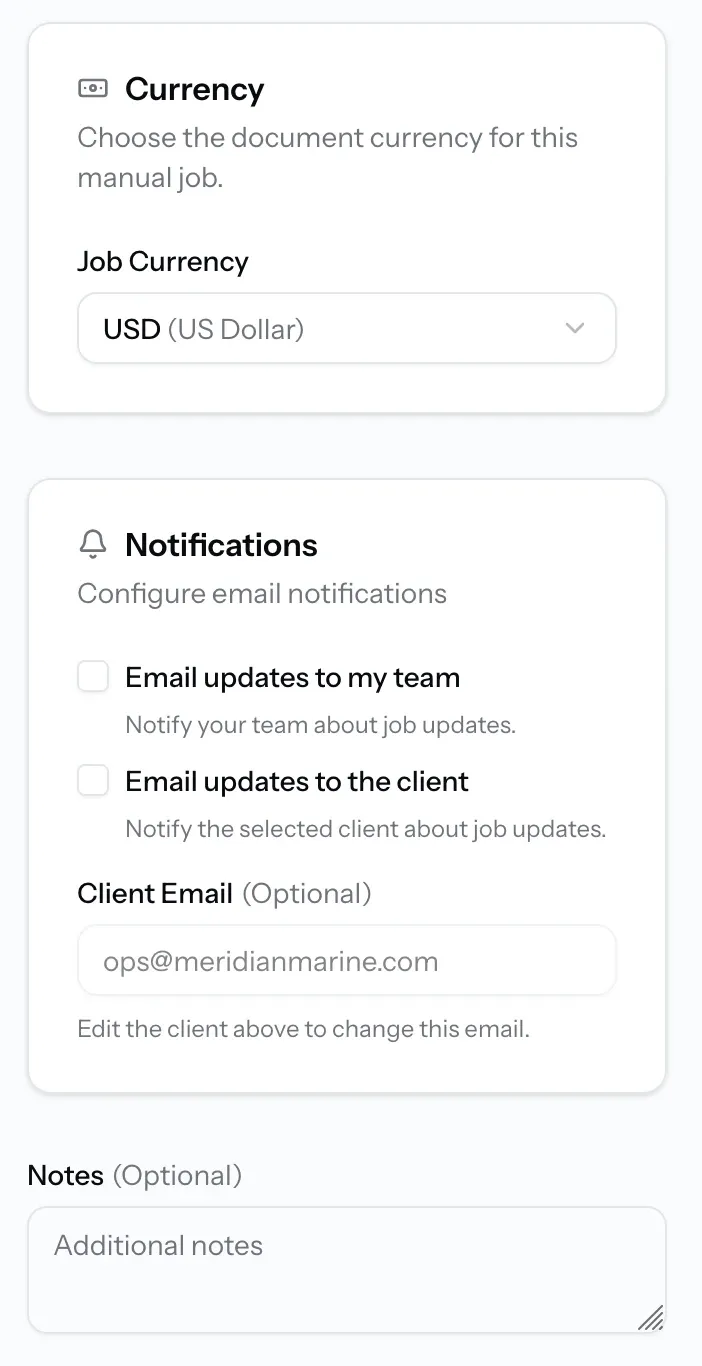
Job Currency
The currency the job's disbursement account and documents will use. A job from a quote takes the quote's currency, but a manual job has none, so you set it here.
Notifications
Both email options are off unless you tick them:
- Email updates to my team notifies your own colleagues about job updates.
- Email updates to the client notifies the client. Client Email shows the address on their record. If it says No email on the selected client, add one to the client first.
Documents such as a PDA or invoice are separate. They reach the client only when you email them from the job.
Notes
Optional, for anything your team should know about the job.
Job Currency is locked after creation
Once the job is created, the currency cannot be changed, even from Edit Job. Pick the one your client will be billed in.
Create the job
When the client, vessel, location and currency are set, create the job.
Step 01
Check the Job Currency
It cannot be changed once the job exists.
Step 02
Select Create Manual Job
The button is at the top right of the page. PortzApp creates the job and opens it.
Step 03
Start the work
A manual job starts as Draft. Open the menu at the top right of the job, choose Status, then In Progress when work begins.
Manual job or job from a quote
Manual job
The client is your own record, with no PortzApp account.
Job from a quote
The other side is a PortzApp organization that accepted your quote.
Manual job
Starts as Draft, and you set the currency.
Job from a quote
Starts as Confirmed, in the quote's currency.
Manual job
Completed once every service is completed or cancelled. Nobody approves it.
Job from a quote
The buyer approves each service and the completed job.
Manual job
No Timeline, and chat stays within your own team.
Job from a quote
A shared Timeline and a chat shared with the buyer.
Edit a manual job
Open the job, then the menu at the top right, and choose Edit Job. You can update the client details, vessel, location, notifications and notes. The currency is shown but cannot be changed.
From there the job runs like any other you service: build the disbursement account, issue documents, and mark it Completed when the work is done. See Manage a job from start to finish.
Your client records
Manage your clients
Every client you add here is saved for reuse, and each one gathers every manual job you have run for them.
When the form will not go through
There is no Create manual job button
Manual jobs are for companies that offer services, and need the Admin, Manager or Operations role. CEO, Finance and Viewer cannot create them.
My client is not in the list
They are not saved yet. Type their full name and select it under Not in your clients, marked New, then add their type.
Email updates to the client does nothing
The client has no email on their record. Add one to the client, and the option can then send updates.
My client cannot see the job
That is expected. Clients have no PortzApp account. Anything they receive is emailed from the job.
What you can do now
You can record work that came to you outside PortzApp as a manual job, with a saved or new client, an optional vessel and port call, a fixed currency, and the notifications you choose, ready to run like any other job.
FAQ
01
02
03
04
05