
Manage your financial reports
Review your revenue, costs and net margin by period, client, job and tariff item, export the report as a CSV file, and manage reports emailed to your Admins on a schedule.
Before you start
You need the Admin, CEO, Manager or Finance role. Scheduled reports need the Admin role. For what each figure means, see Financial Reports.
What to know first
The report opens on the last 3 months, compared with the 3 months before.
Every figure is before tax, and the filters and currency you choose apply to the whole page.
Exports and emailed reports use the period and filters you set.
Emailed reports cover completed jobs, in your company's default currency.
Open your report
Select Financial reports in the sidebar, under Your Business.
The report opens on Overview, covering the last 3 months. Across the top are four figures, each compared with the period before:
- Revenue: what you charged your clients.
- Costs: what the work cost you, including non-billable expenses.
- Net margin: revenue minus costs, plus any non-billable revenue.
- Margin rate: net margin as a share of revenue.
One card also shows how much of your revenue comes from your top 3 clients.
Choose the period
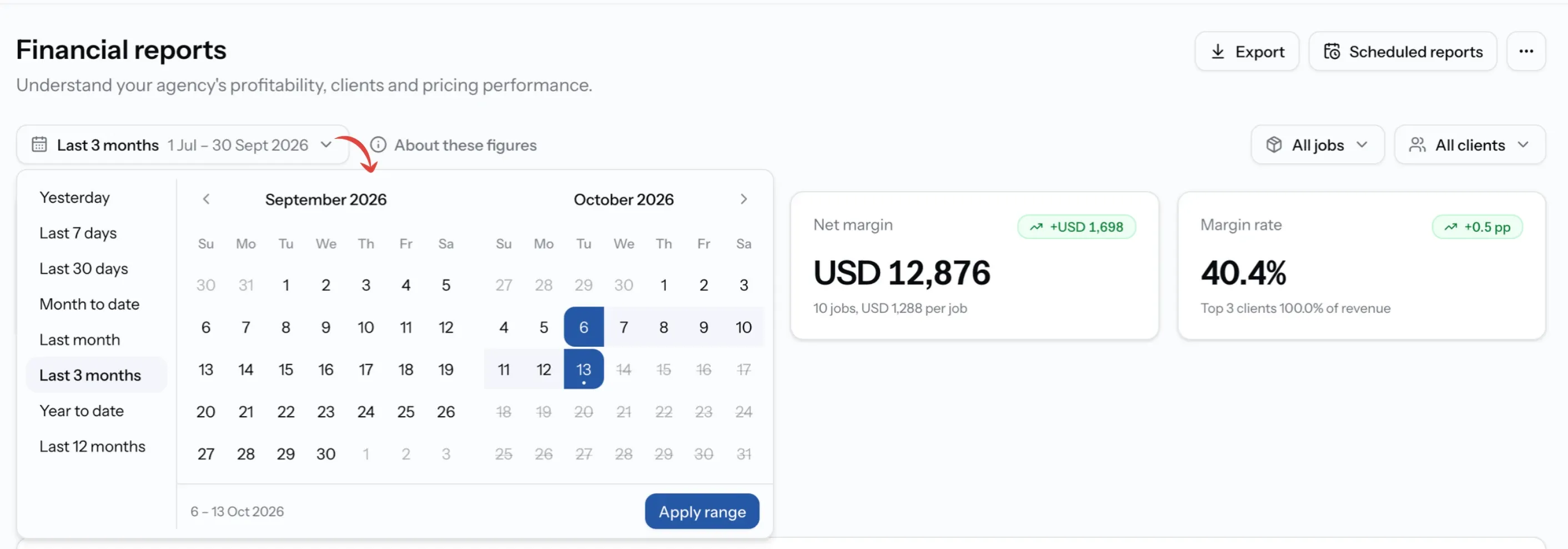
Every period is compared with the one just before it, so each figure shows what changed.
Step 01
Open the period selector
It is at the top of the report and shows the current period.
Step 02
Pick a preset
Choose Yesterday, Last 7 days, Last 30 days, Month to date, Last month, Last 3 months, Year to date or Last 12 months.
Step 03
Or set your own dates
Pick a start and end date, then select Apply range.
Filter the report
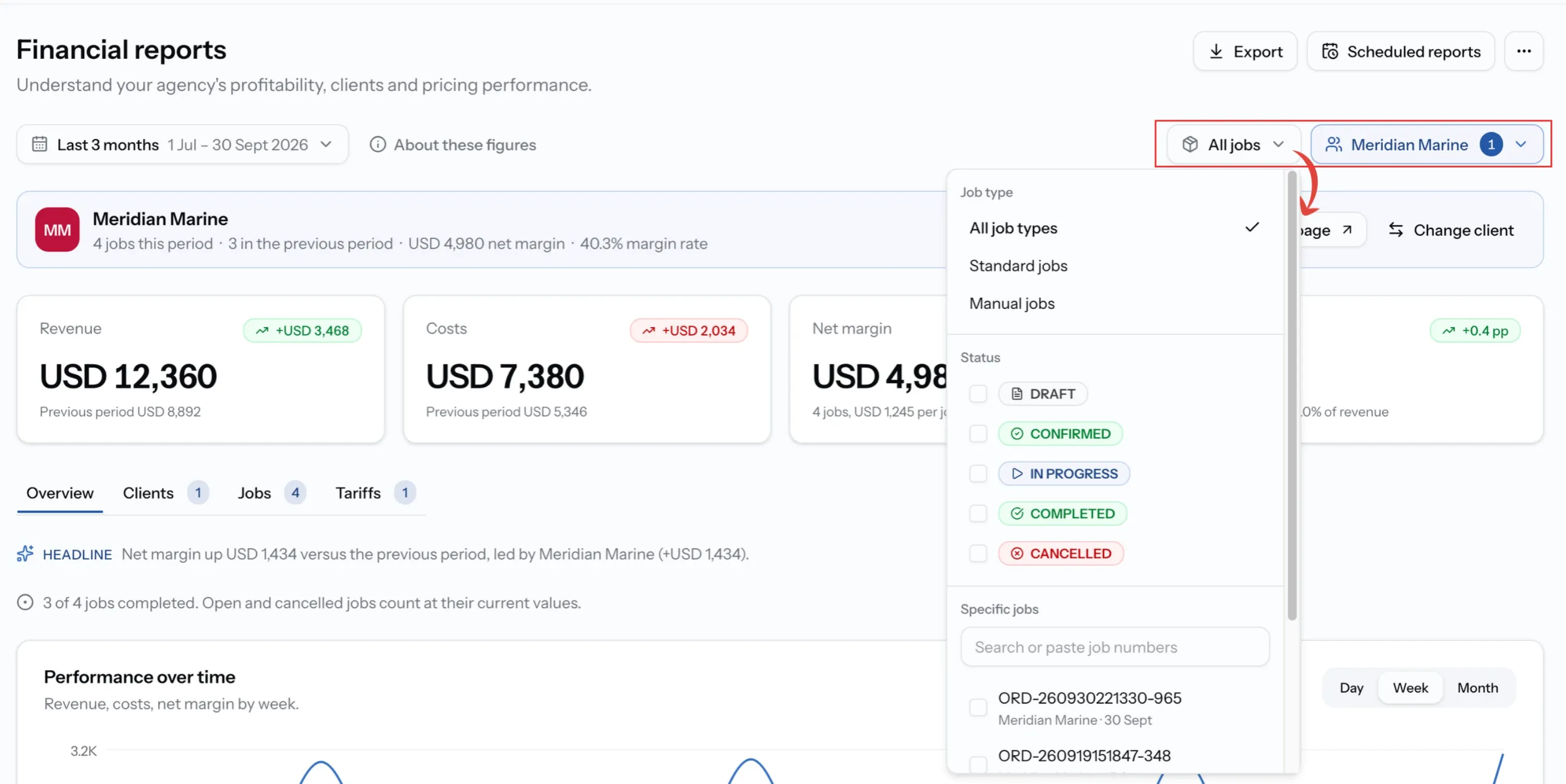
Narrow the report to the jobs you want to review. Every figure and chart updates as you go.
Step 01
Choose a client
Pick one client from the list, or leave it on All clients.
Step 02
Choose the Job type
All job types, Standard jobs from a quotation, or Manual jobs.
Step 03
Choose a Status
Every status is included unless you choose. Pick one or more to see only those jobs.
Step 04
Focus further if needed
Choose Specific jobs, One port call or One service to review just those.
Step 05
Clear or reset
Remove a single filter, or select Reset to go back to the full report.
About these figures
Select About these figures to see how the report is worked out:
- every job status is included, before tax,
- jobs are dated by completion, or by creation while still open,
- each job is converted at the exchange rate locked on that job.
It also notes anything to be aware of in the period, such as older jobs dated differently.
Change the report currency
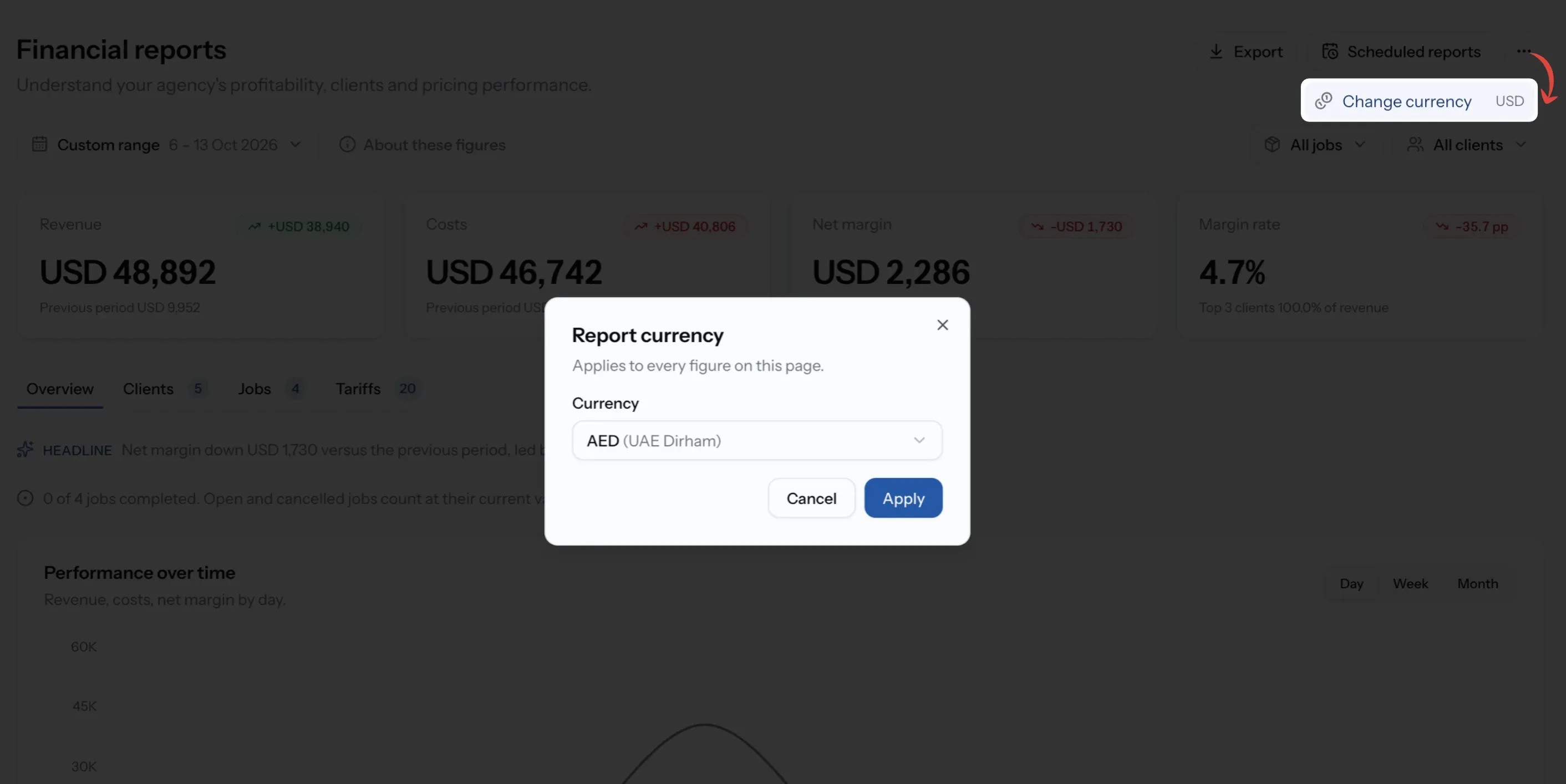
See every figure in another currency, for example your own.
Step 01
Open More options
The menu at the top right of the report.
Step 02
Select Change currency
Report currency opens. It applies to every figure on the page.
Step 03
Pick the currency and select Apply
The report shows the rate used, and says if it is your own rate.
Review the Overview
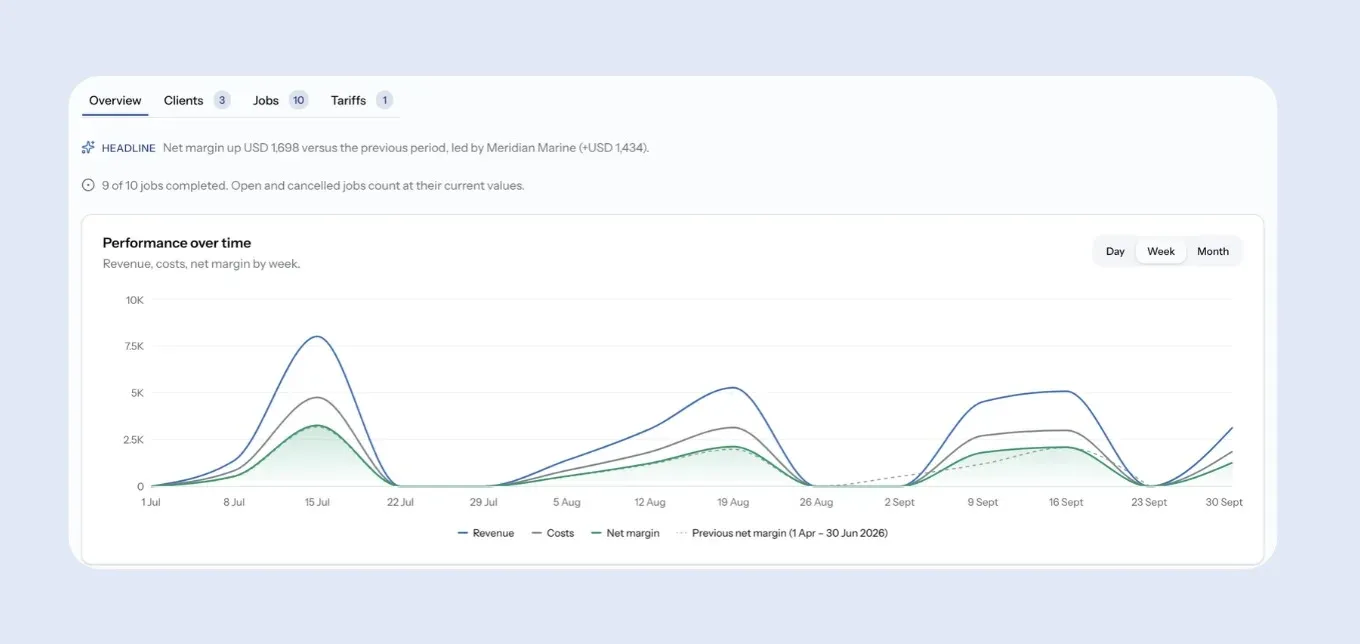
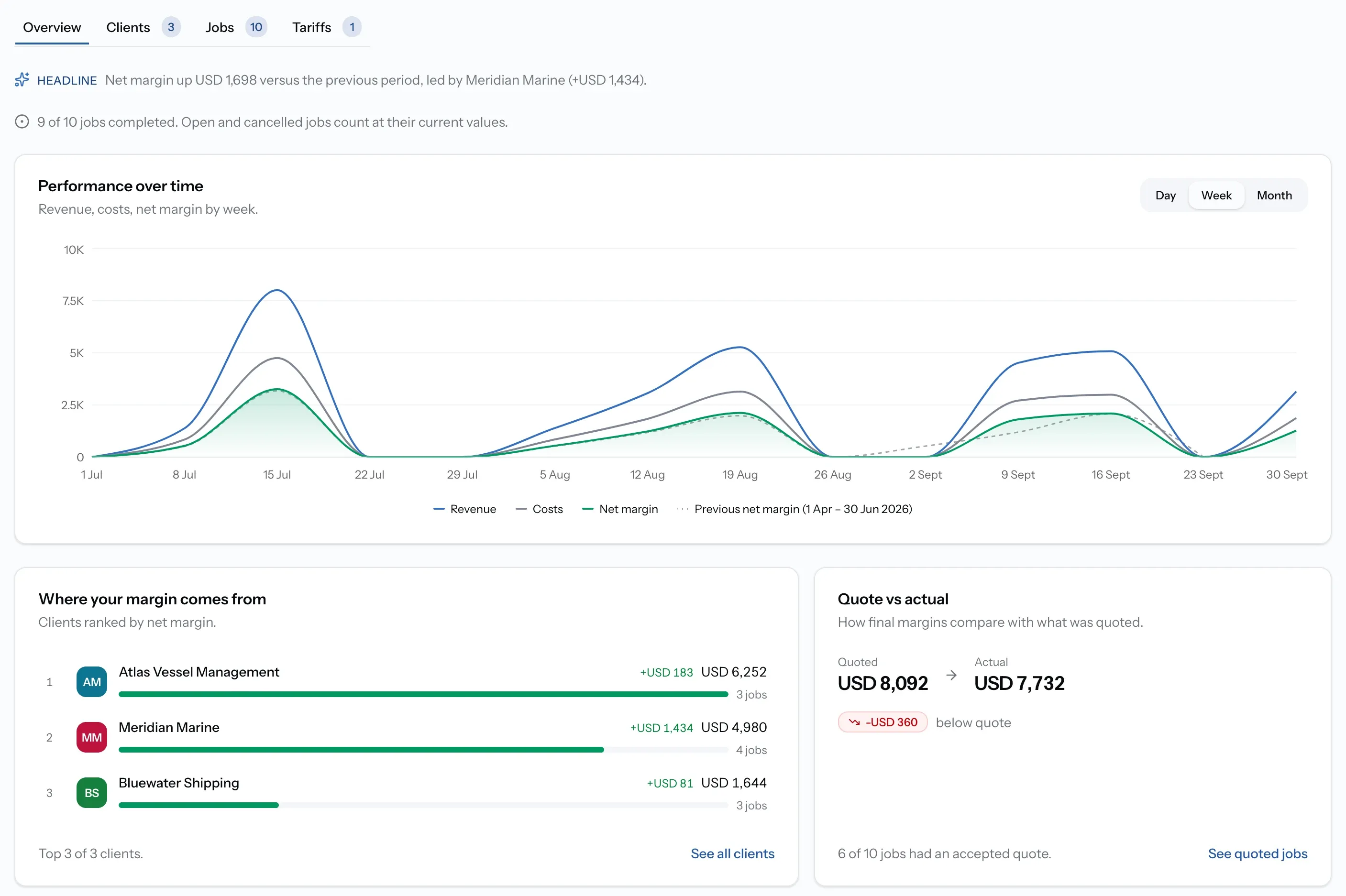
Overview brings the period together:
- Headline: a sentence on how net margin changed, and which clients moved it most.
- Performance over time: a chart of revenue, costs and net margin. Switch it to show days, weeks or months, and turn each line on or off. Hover a point for its figures and the previous period's.
- Where your margin comes from: your clients ranked by net margin. Select See all clients for the full list.
- Quote vs actual: for standard jobs from an accepted quotation, how the final margin compares with the margin you quoted. Select See quoted jobs to list them.
- Margin by port and Margin by vessel: where your most profitable work happens. With only a few ports and vessels, they share one card, Where jobs happen.
- Recent jobs: your latest jobs and their margin. Select See all jobs for the full list.
Review by client, job and tariff
Switch tabs at the top of the report.
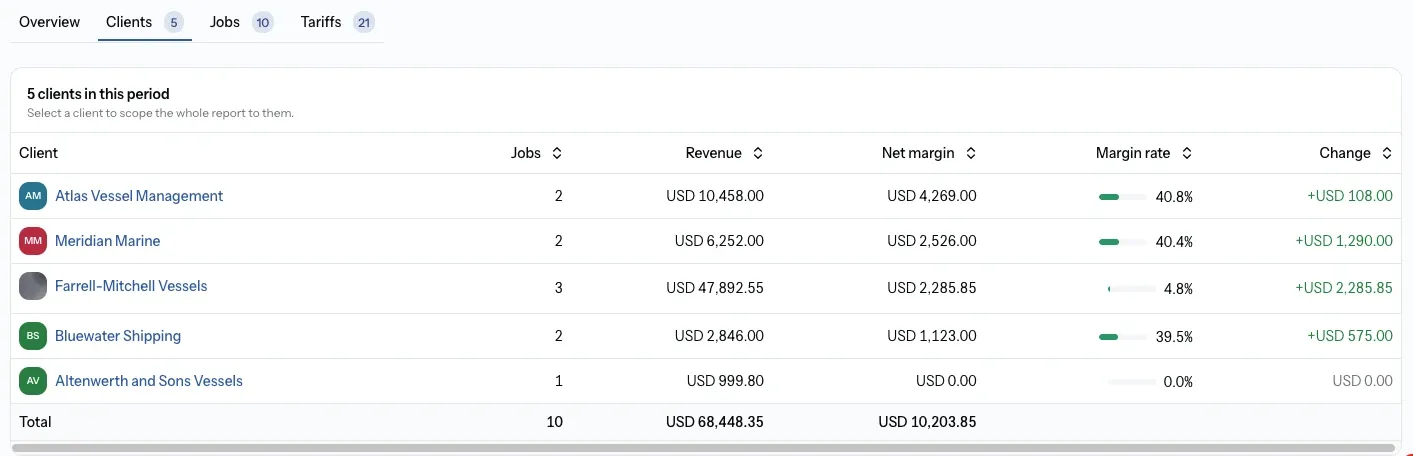
Clients
Every client in the period, with their jobs, revenue, net margin, margin rate and how their margin changed. Select a client to review the whole report for that client only, with their own chart and jobs. Select Change client to switch.
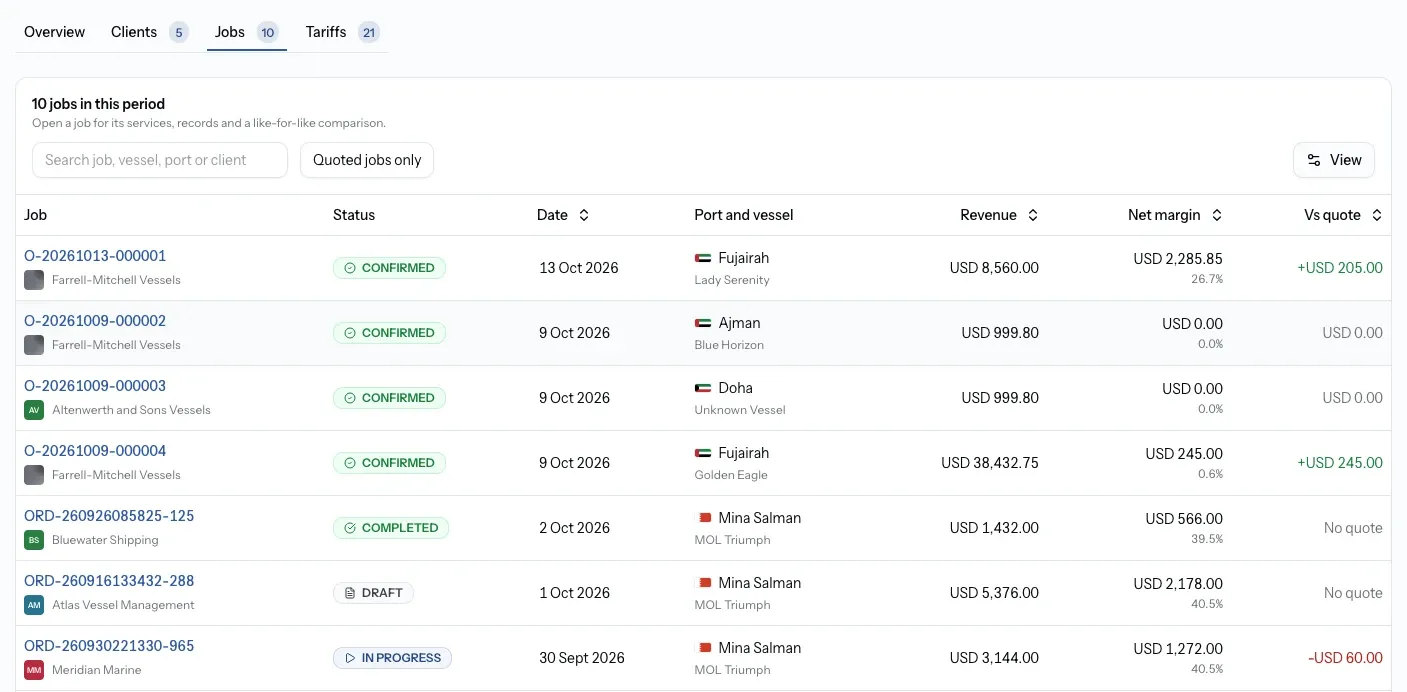
Jobs
Every job in the period, with its status, date, port and vessel, revenue, costs, net margin, margin rate, and how it compares with the quote. Select a job to open it. For long periods only the latest jobs are listed, but the totals still include every job.
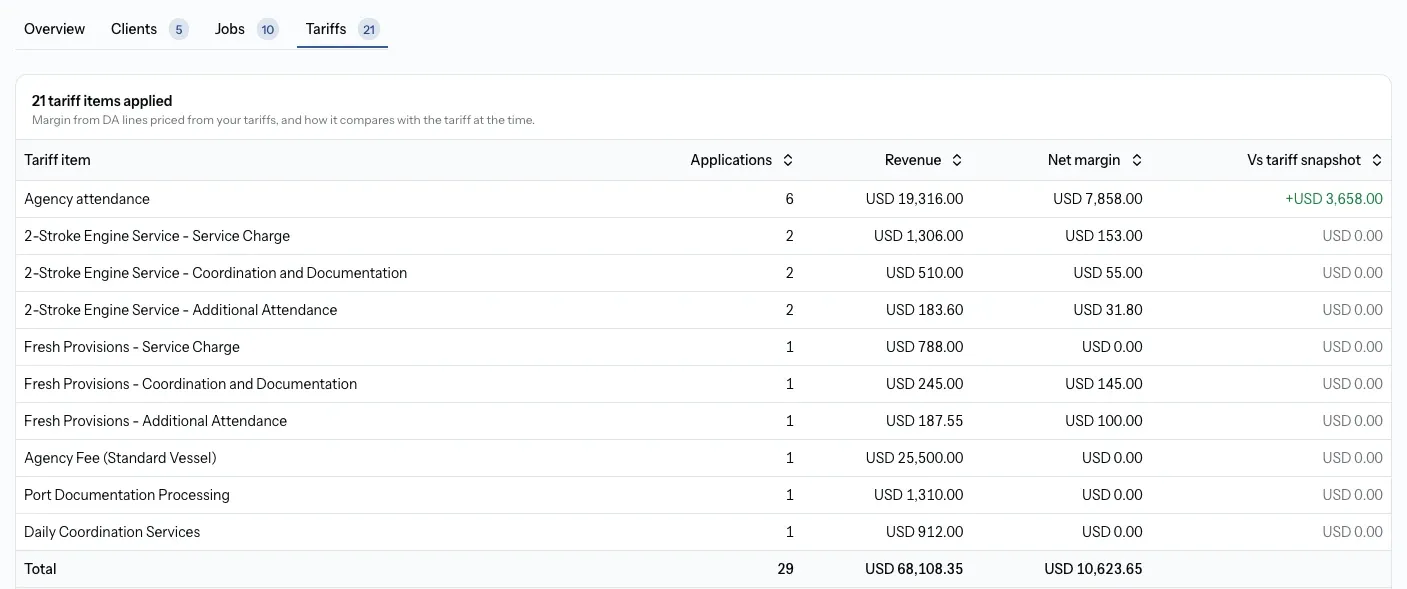
Tariffs
Each tariff item used on a disbursement account in the period, with how many times it was applied, its margin, and how that compares with the tariff price when it was set.
Review one job closely
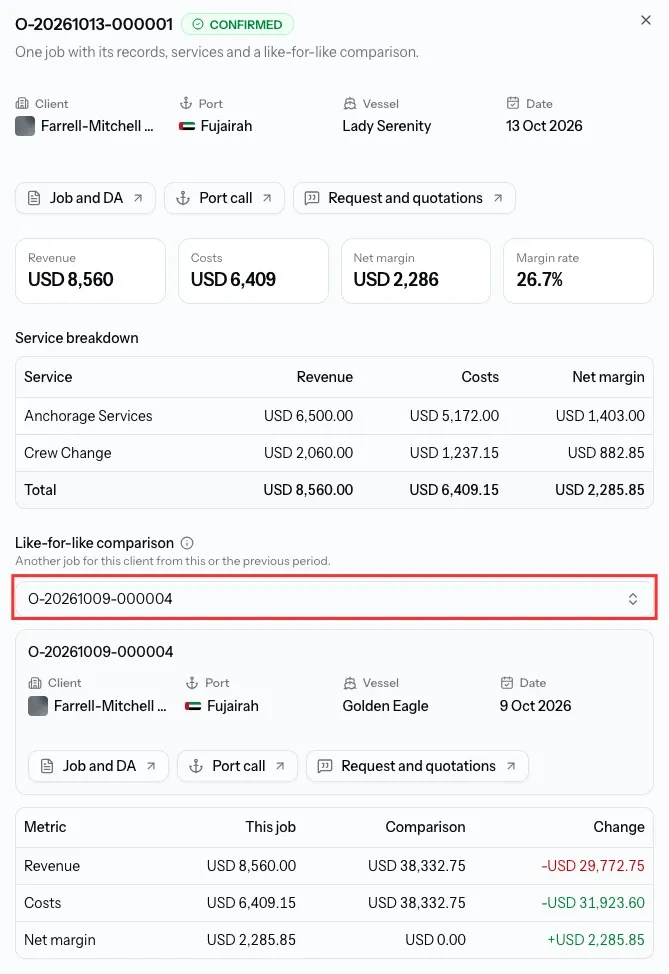
See where a job's margin came from, and compare it with another job for the same client.
Step 01
Open the job
Select it in the Jobs tab. Its revenue, costs, net margin and Service breakdown open.
Step 02
Choose a Comparison job
Pick another job for the same client, from this period or the one before. The figures are compared line by line.
Step 03
Read the differences
Differences can come from scope or quantities, not only price.
Step 04
Open its records
Use the links to open the job and its DA, the port call, or the request and quotations.
Export the report
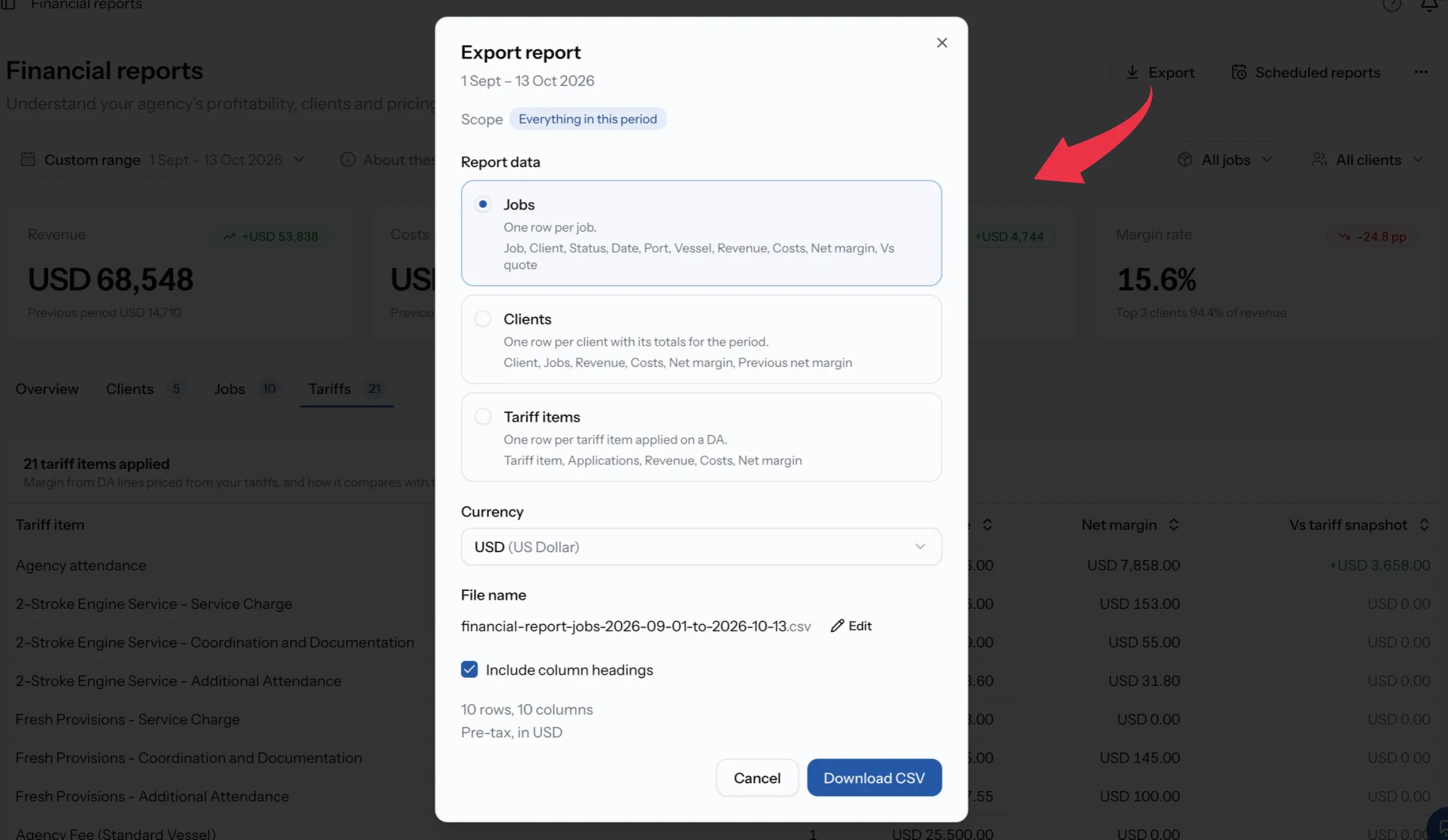
Download the report as a CSV file for a spreadsheet or your accounting team. It uses the period and filters you set.
Step 01
Select Export
Export report opens.
Step 02
Choose the Report data
Clients gives one row per client with its totals, Jobs one row per job, and Tariff items one row per tariff item applied on a DA.
Step 03
Choose the Currency
The currency the figures in the file are shown in.
Step 04
Name the file
Select Edit to change the File name, and choose whether to Include column headings.
Step 05
Select Download CSV
The file downloads to your device.
Reports by email
Admins can have the report emailed automatically, or send one straight away. Select Scheduled reports at the top of the report to manage them.
Emailed reports always cover completed jobs, in your company's default currency, and go to Admins only. Recipients are checked before every send.
Schedule a report
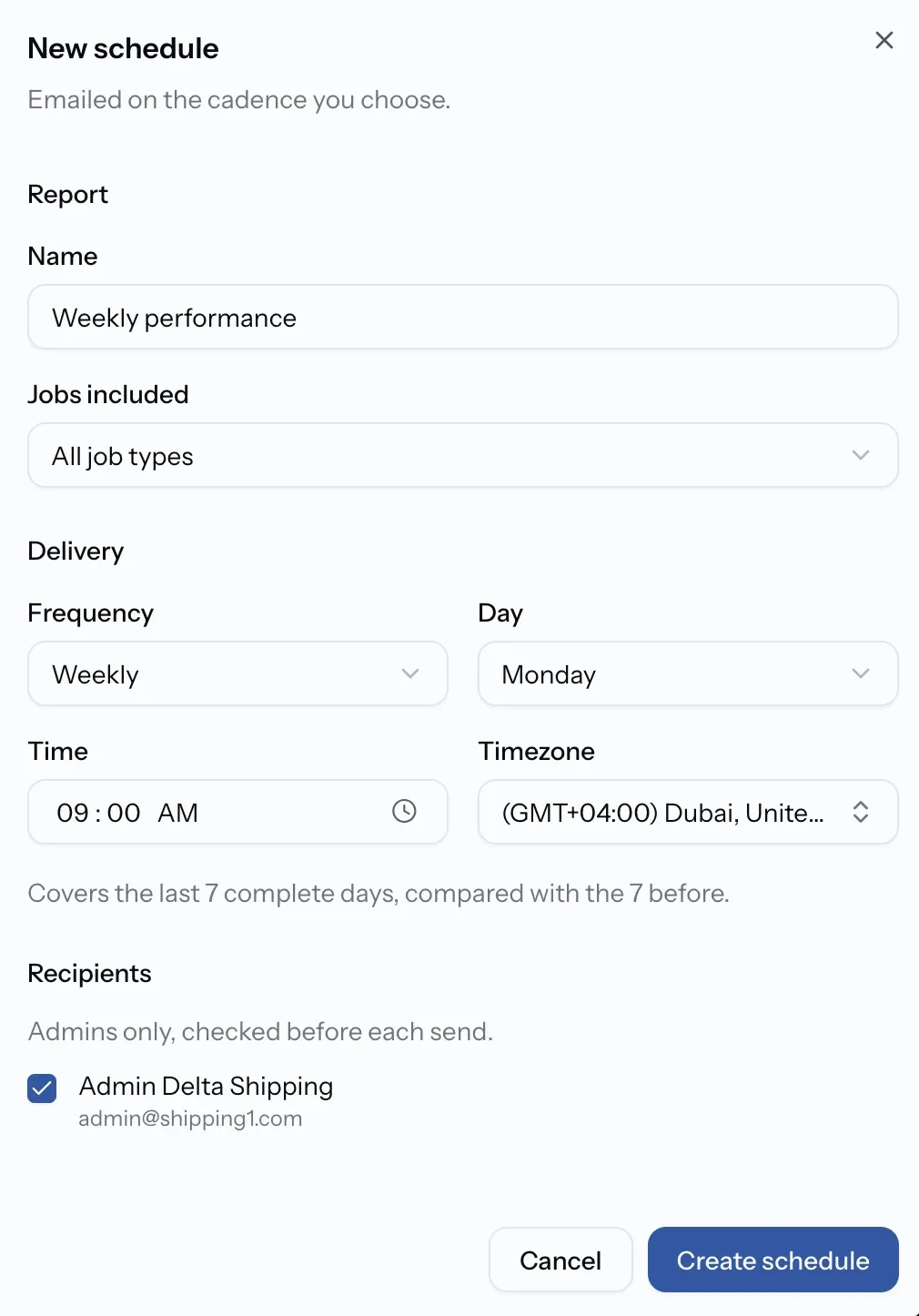
For Admins. The report is emailed on the day and time you choose.
Step 01
Start a New schedule
Start from Weekly performance or Monthly performance, or set up your own.
Step 02
Name it and choose the Frequency
Daily covers yesterday. Weekly covers the last 7 complete days. Monthly covers the previous calendar month. Each is compared with the period before.
Step 03
Choose when it sends
Pick the Day for weekly reports, or the Day of month for monthly ones, then the Time and Timezone.
Step 04
Choose the Jobs included
All job types, Standard jobs or Manual jobs.
Step 05
Choose the Recipients and save
Pick the Admins who should receive it, then select Create schedule.
Manage your schedules
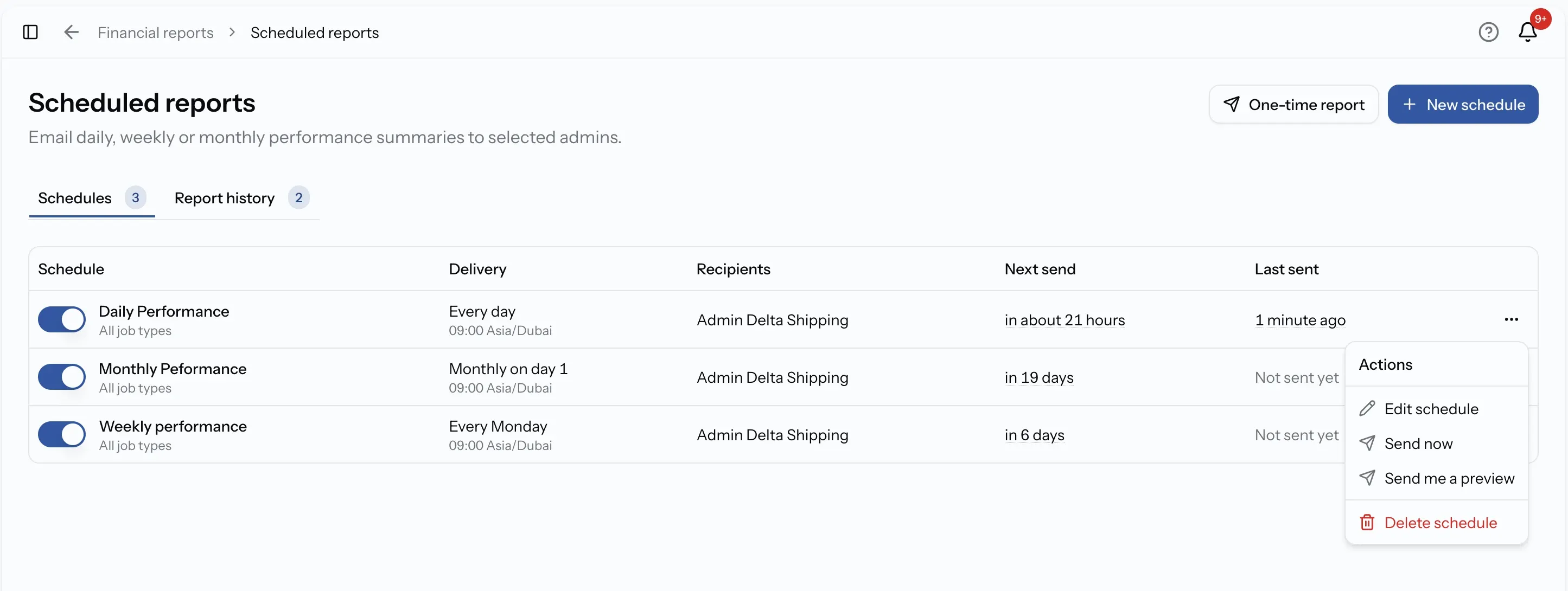
Scheduled reports lists every schedule with its Recipients, Next send and Last sent. Due now means it is about to send, and Paused means it will not send.
Open a schedule's menu to:
- Edit schedule: change any setting. Changes apply from the next delivery.
- Send now: email the report straight away.
- Send me a preview: email it to yourself only, to check it before it goes out.
- Delete schedule: stop future reports from this schedule. Reports already sent stay in the history.
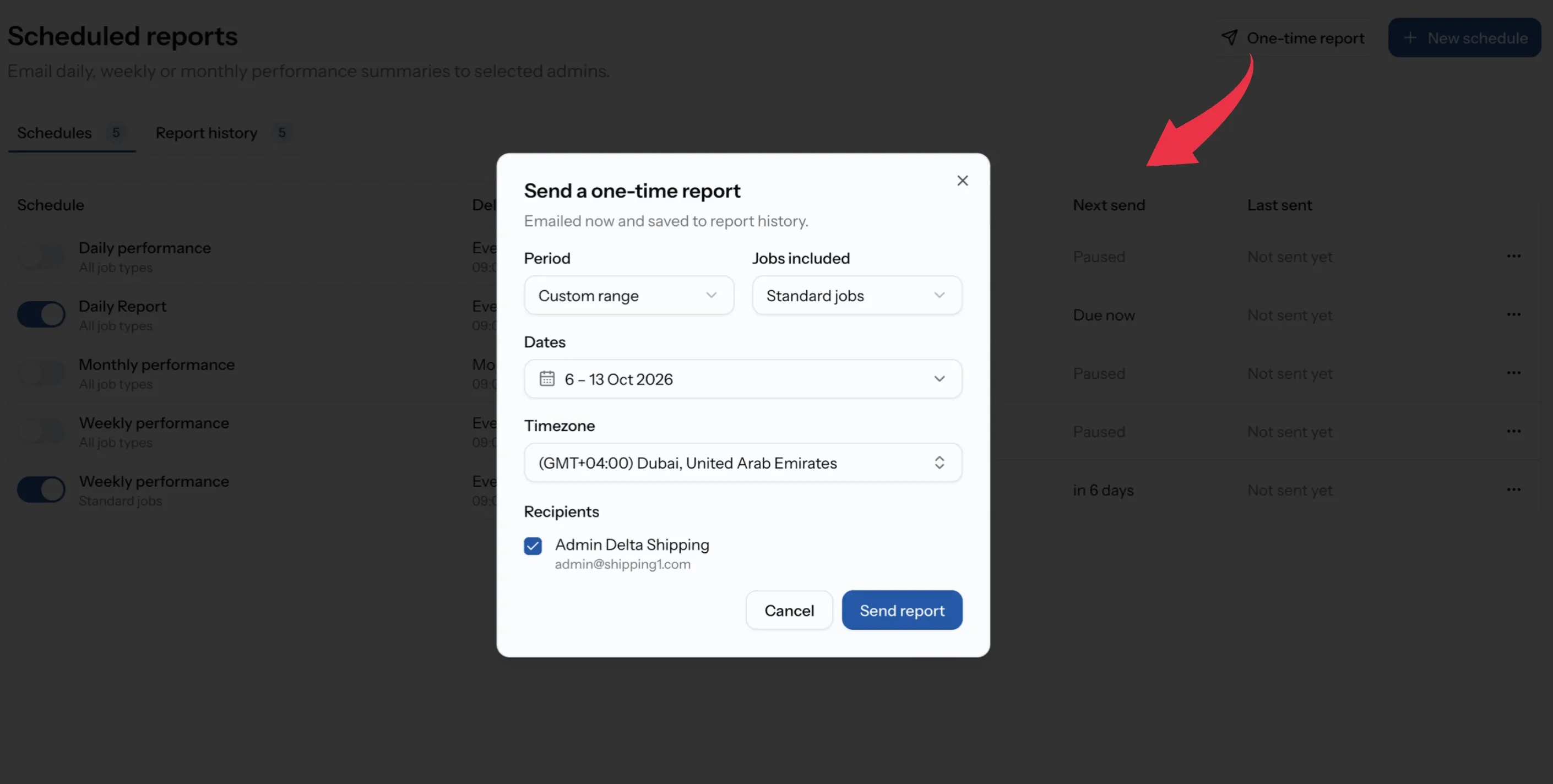
Send a one-time report
Email a report once, without setting up a schedule.
Step 01
Select Send a one-time report
On Scheduled reports.
Step 02
Choose the Reporting period
Pick a preset, or Custom range and your own dates.
Step 03
Choose the Jobs included and Recipients
The job types to cover, and the Admins who should receive it.
Step 04
Select Send report
It is emailed now and saved to the report history.
Review past reports
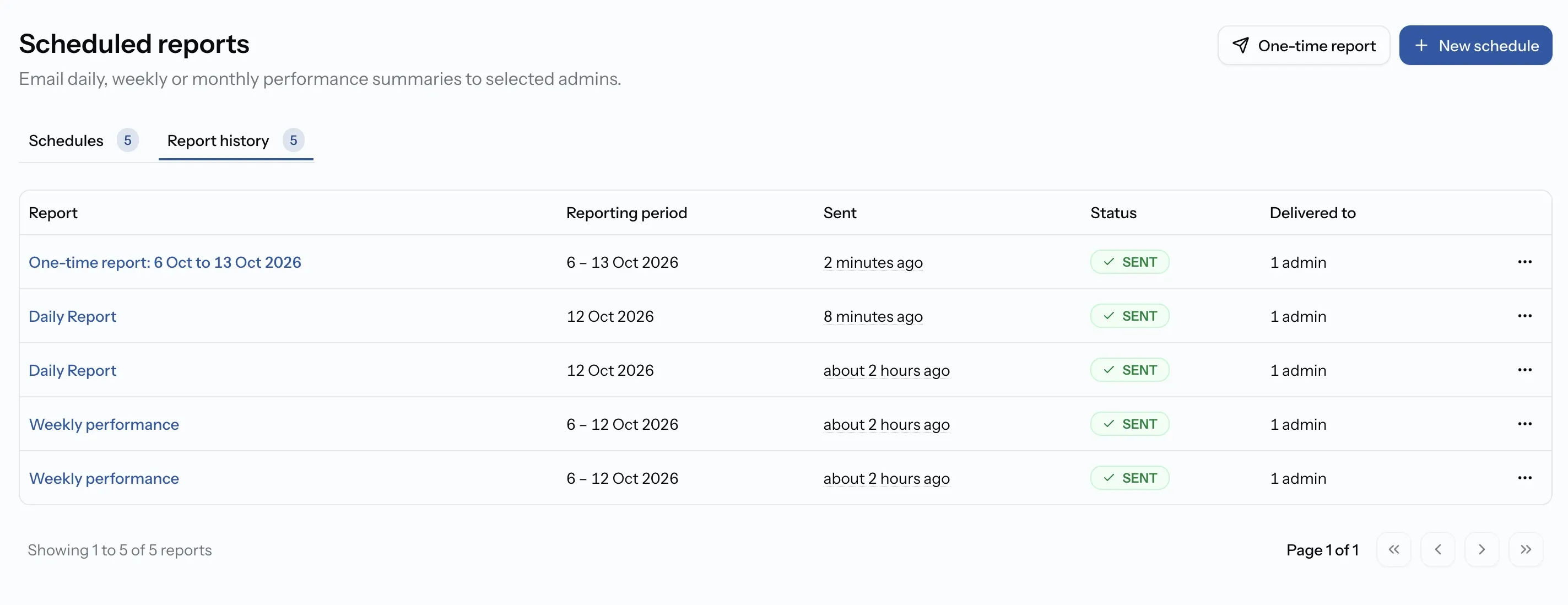
Every report sent, scheduled or one-time, is saved in the report history with its figures as they were when sent. Each entry shows when it was Sent, who it was Delivered to, and its Status.
Open one to see:
- the period it covered, and what it was Compared with,
- the Timezone and Basis used,
- the Email copy as the recipients received it.
Select Open live report to see the same period with today's figures.
Common issues
I cannot see Scheduled reports
Scheduled reports need the Admin role.
No financial activity in this period
No jobs match the period and filters. Widen the dates or select Reset.
The emailed report does not match the page
Emailed reports cover completed jobs in your default currency. The page includes every status unless you filter it.
I cannot add someone as a recipient
Scheduled reports go to Admins only. Make them an Admin, or export the report and send it yourself.
What you'll have
You know how your revenue, costs and net margin changed over the period, and which clients, jobs and tariff items drove the change. You have a CSV file for your spreadsheet or accounting team, and your Admins get the report by email on the schedule you set.
FAQ
01
02
03
04
05