
Manage the disbursement account on a job
Every job carries a disbursement account, where its services and charges live. Add services and items, publish what the buyer should see, track delivery, and send each service for the buyer's approval.
Before you start
You need a job you are servicing, either from an accepted quote or a manual job. Its disbursement account is on the job's Disbursement Account tab. See Manage a job from start to finish.
Prices, costs and margins need the Admin, CEO, Manager or Finance role. Operations can add items and track delivery, but someone with pricing access has to price them before they are published.
What the buyer sees, and when
The disbursement account is part of the job. On a job from a quote, every quoted service and item is already on it, and already published.
Services come from your own catalog. Anything missing has to be added there first.
Billable items are public and reach the buyer once published. Non-billable items are private and never do.
Items you add yourself start as drafts. Changes to a published item, including the quoted ones, wait until you publish again.
Each service goes to the buyer for approval once its public items are finished and published.
Open the Disbursement Account
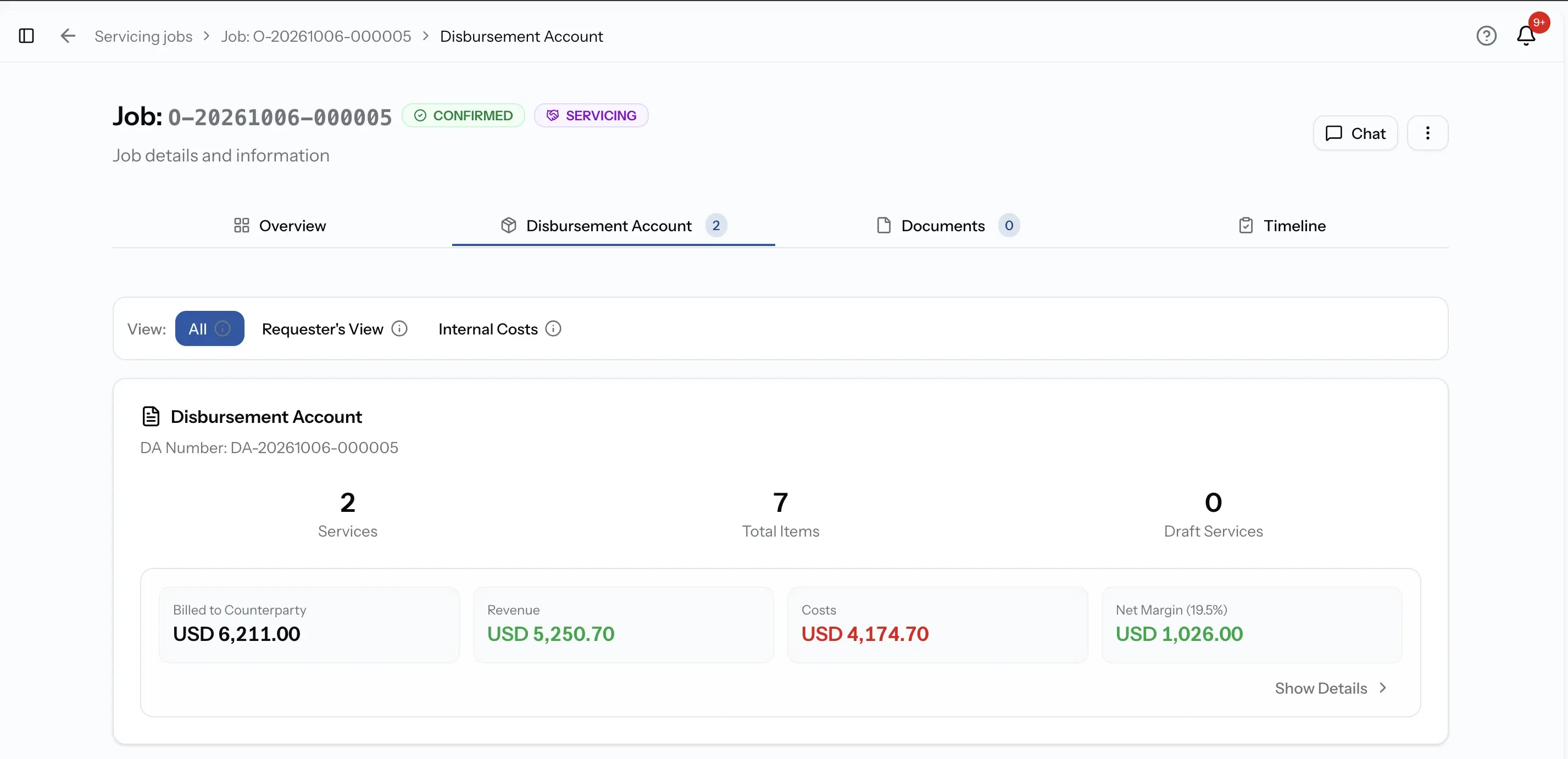
Open the job and select the Disbursement Account tab. On a job created from a quote, the services and items you quoted are already there, so you are adjusting the account rather than starting from nothing.
At the top, Billed to Counterparty is the total the buyer sees once everything is published. Profit / Loss opens the full picture, including your private costs.
Account views
Three views switch the same account:
- All: every service and item, including drafts and private items.
- Requester's View: only what the buyer can see, which is published public items.
- Internal Costs: private items, plus the cost breakdown behind anything you have marked up.
Add a service
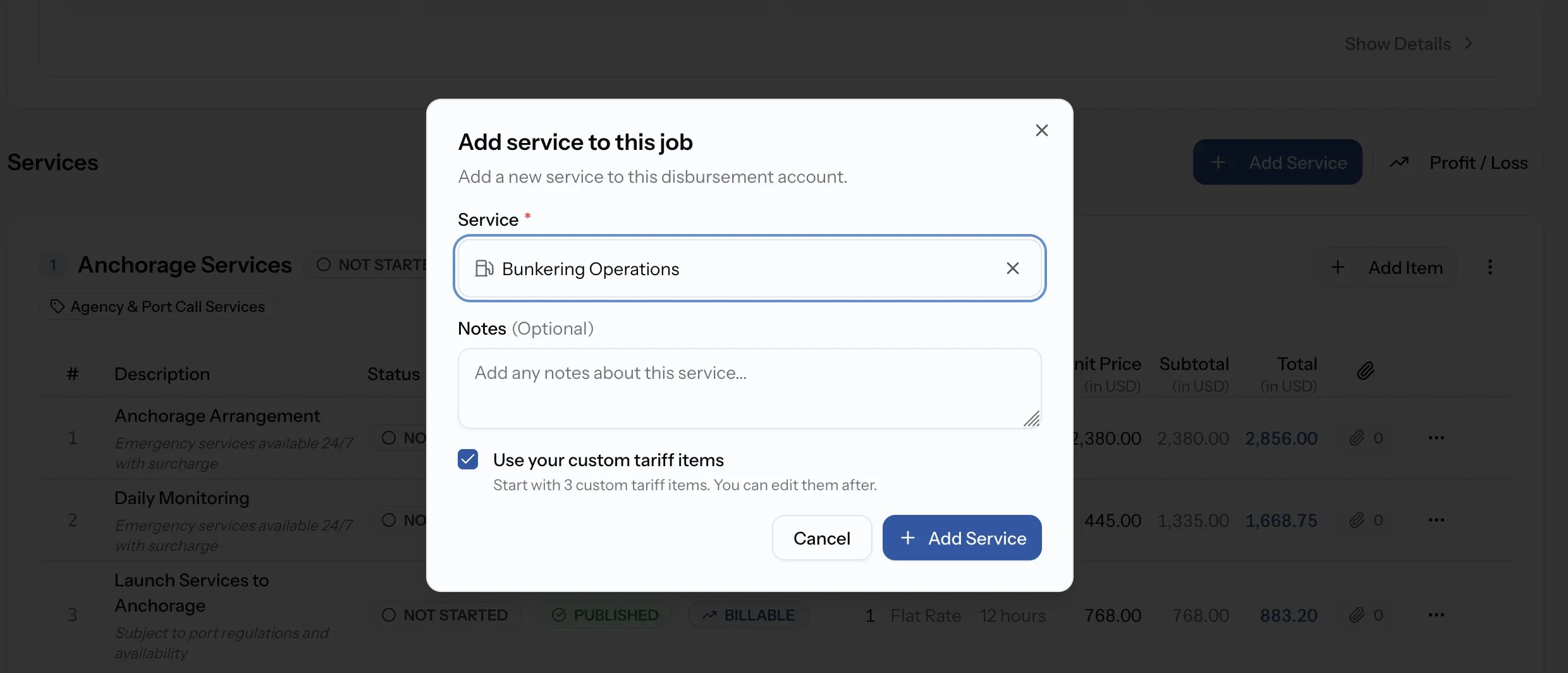
Select Add Service to open Add service to this job. It lists the services your company offers, grouped by category, and you can search by service or category name. Add one service at a time.
- Use your custom tariff items appears when the service has tariff items. Turn it on and the service starts with those items already added, ready to edit for this job. To set them up, see Set your default tariff items.
- Notes is optional, for anything about this service on this job.
If the service you need is not in the list, select Can't find your service? Create one to add it to your catalog, then add it to the job. See Manage your services.
Each service becomes a card on the account, with its own Status, Publish Service and Delete Service options, and an Add Item button. Services the buyer wrote in on the original request are marked Custom. Services cannot be added once the job is Completed or Cancelled.
Add an item to a service
Select Add Item on the service's card to open Add Item to Service. You can add items while the job is Draft, Confirmed or In Progress, as long as the service itself is not Completed.
Step 01
Pre-fill from Tariff
Optional. Pick one of your tariff items to fill in the form, then change anything that differs for this job.
Step 02
Fill in Item Details
Enter the Description, Quantity and Unit Type. Turnaround Time and Notes are optional.
Step 03
Choose the Billing Category
Billable means the buyer is charged. Non-billable is an internal cost: Expense deducts from your margin, Revenue adds to it.
Step 04
Enter the pricing
Choose the source currency, then the Selling Price and optional Cost Price for a billable item, with markup if you price from cost. Add Tax if it applies.
Step 05
Attach files and add the item
Add any File Attachments that support the charge, such as a receipt or vendor invoice, then select Add Item. It is saved as a draft.
Billable or Non-billable on the account
Billable
Charged to the buyer.
Non-billable
An internal cost or income: Expense deducts from margin, Revenue adds to it.
Billable
Public. The buyer sees it once you publish it.
Non-billable
Private. The buyer never sees it, published or not.
Billable
Counts towards Billed to Counterparty and can appear on exported documents.
Non-billable
Counts only in Profit / Loss and Internal Costs.
Billable
Needs the buyer's approval as part of its service.
Non-billable
A service with only private items needs no approval.
Adding items as Operations
Operations can add item details but cannot see or set prices. The form says so, and the item waits for someone with pricing access, such as Finance, to price it before it can be published.
Publish what the buyer sees
Services and items carried over from your quote are already published. Anything you add afterwards starts as a draft, and the buyer sees nothing new until you publish it. That lets you prepare and check additions first.
There are three ways to publish, depending on how much you want to release.
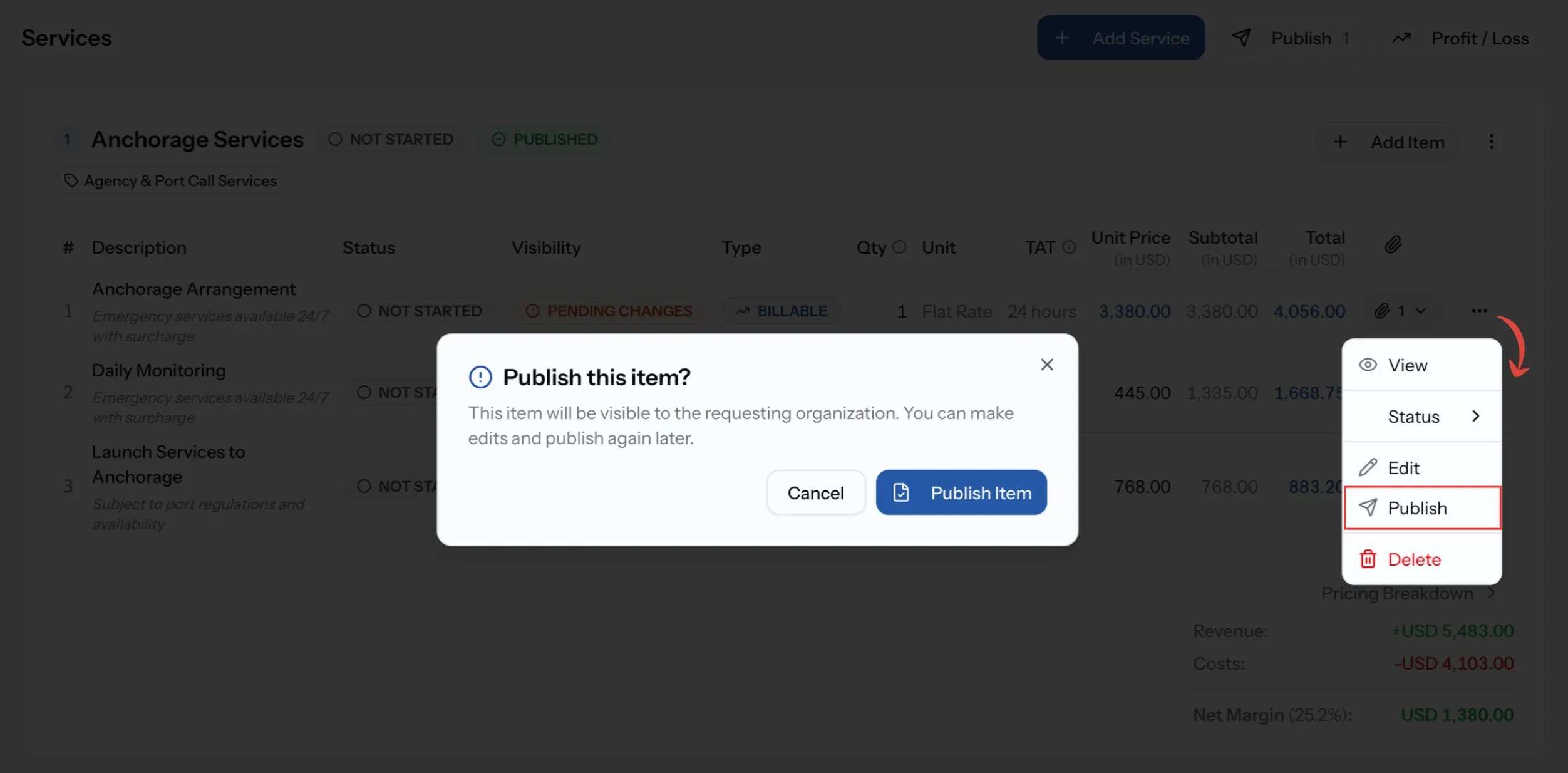
One item
Open the item's menu and choose Publish. Publish this item? confirms that the buyer will see it, and that you can still edit and publish again later.
One service
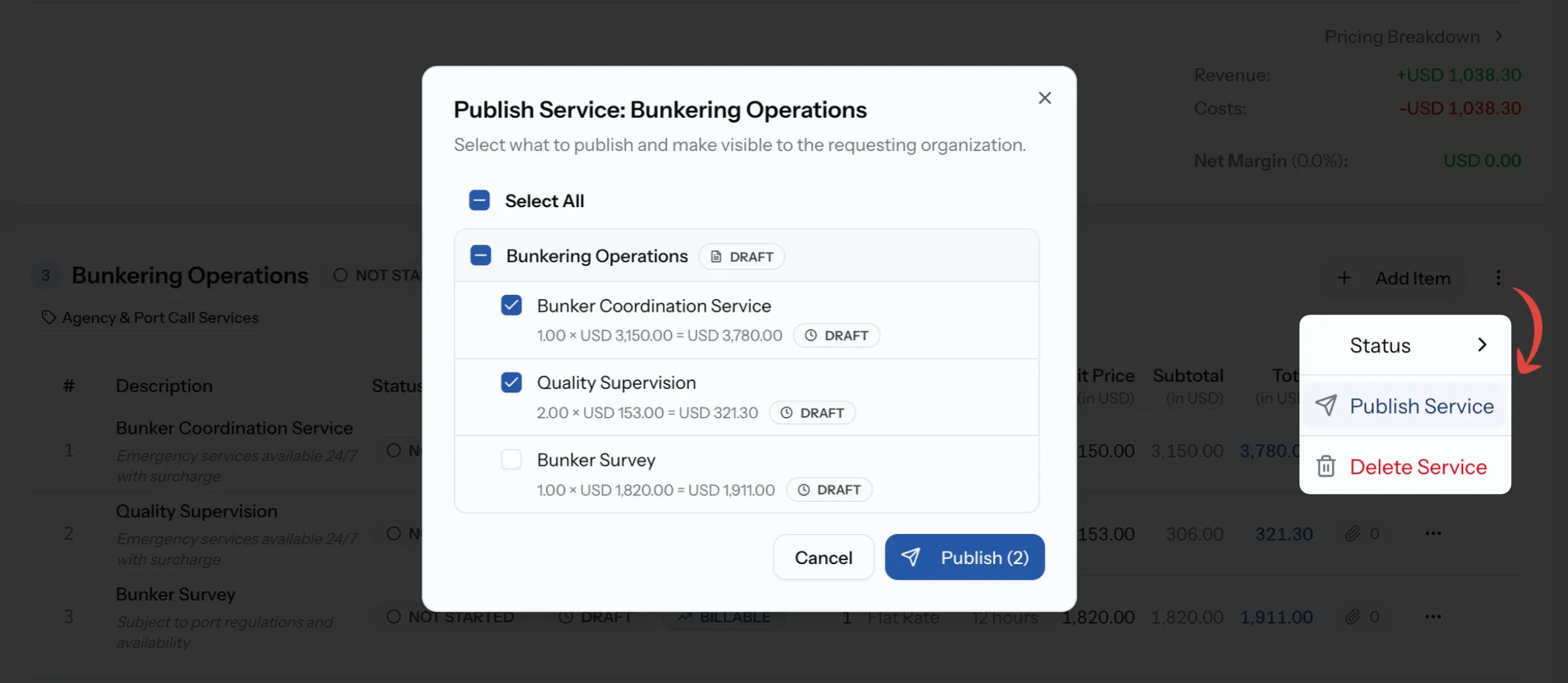
Open the menu on the service's card and choose Publish Service. Publish Service: with the service's name opens, listing the items on that service that are not yet released. Tick the ones to publish, then select Publish with the count of items you ticked.
If Publish Service is not available, hover over it: the service may have no items, only private items, or nothing left to publish.
Several services at once
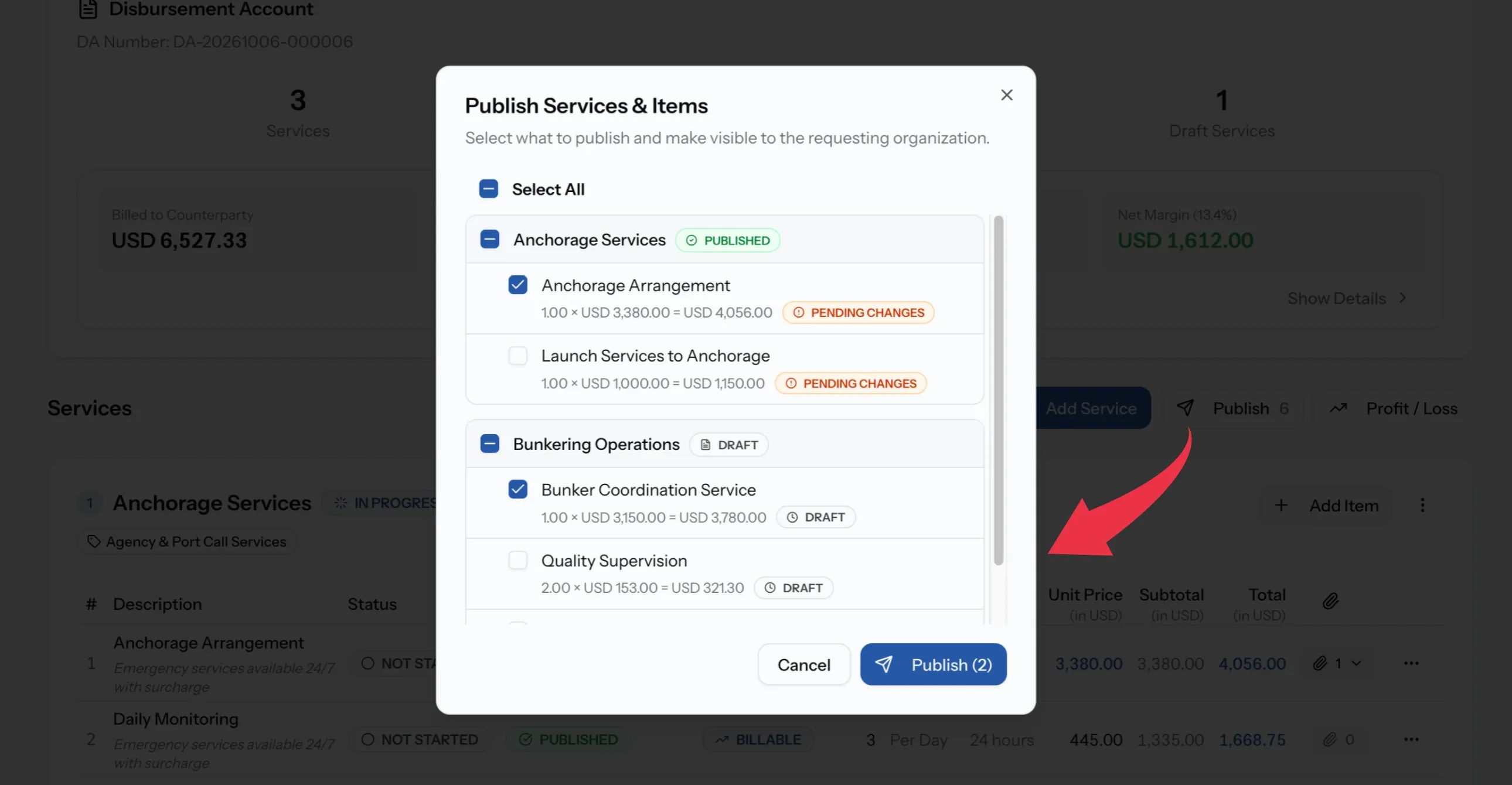
Select the publish button at the top of the account. Publish Services & Items lists everything not yet released across the account, including edits waiting on items the buyer has already seen. Tick exactly what goes out, or use Select All, then select Publish.
In either dialog, PortzApp lists any item that still needs pricing before it can go out, and any service with no items yet.
Each service then reads Draft, Partially Published or Published, depending on how much of it you have released.
Editing a published item
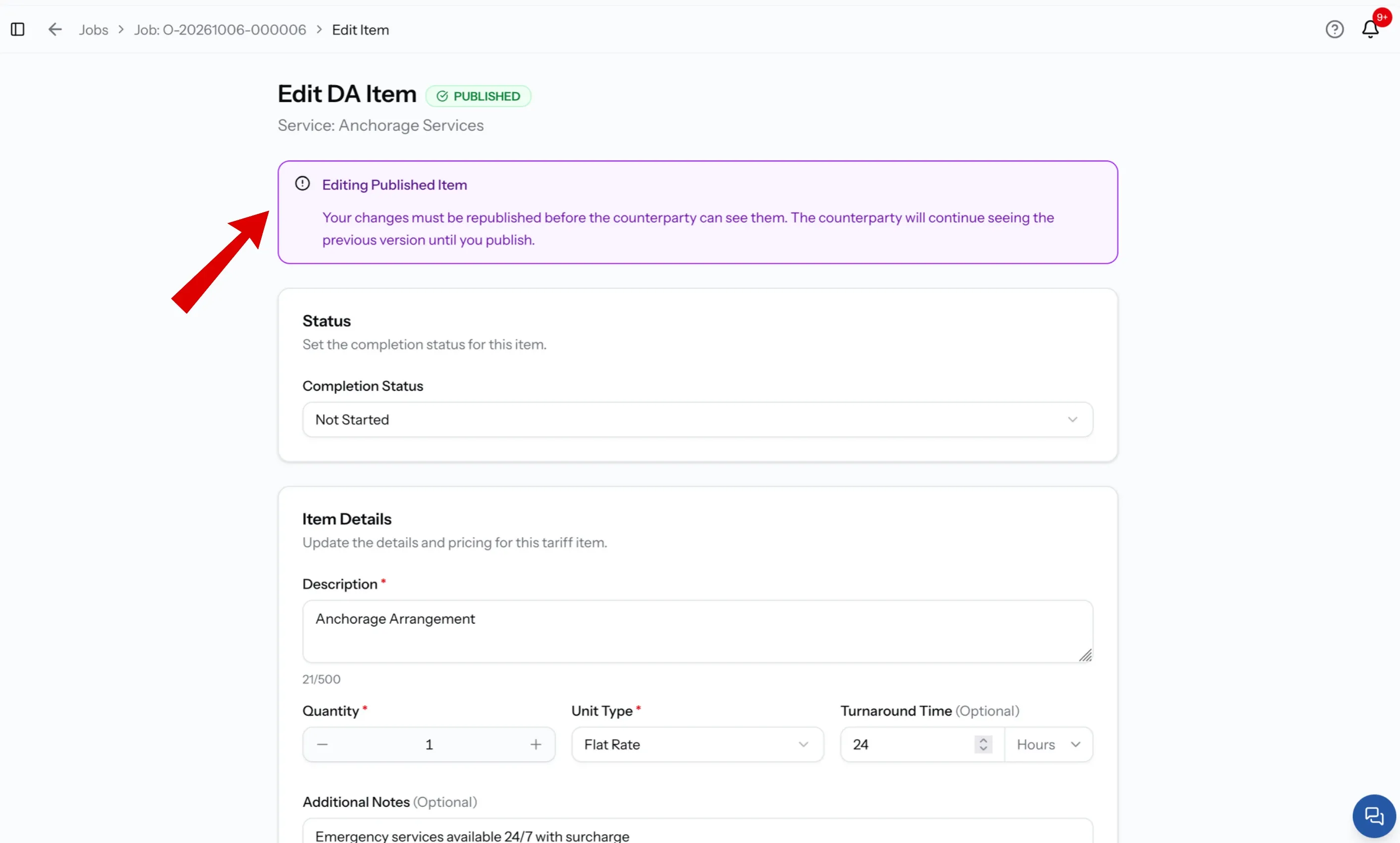
This includes every item carried over from your quote. When you open a published item with Edit, the form shows an Editing Published Item banner: your changes must be republished before the buyer can see them, and until then they keep seeing the previous version.
Save your changes and the item shows Pending Changes. Publish it again, by any of the three ways above, for the buyer to see the new version.
Check Requester's View first
Switch to Requester's View before you publish. It shows the account exactly as the buyer will see it, with drafts, pending changes and private items left out.
Track delivery
Every item and every service has a delivery Status: Not Started, In Progress, Completed or Cancelled. This is what the buyer watches while the work is under way, and it is separate from publishing and approval.
Item status
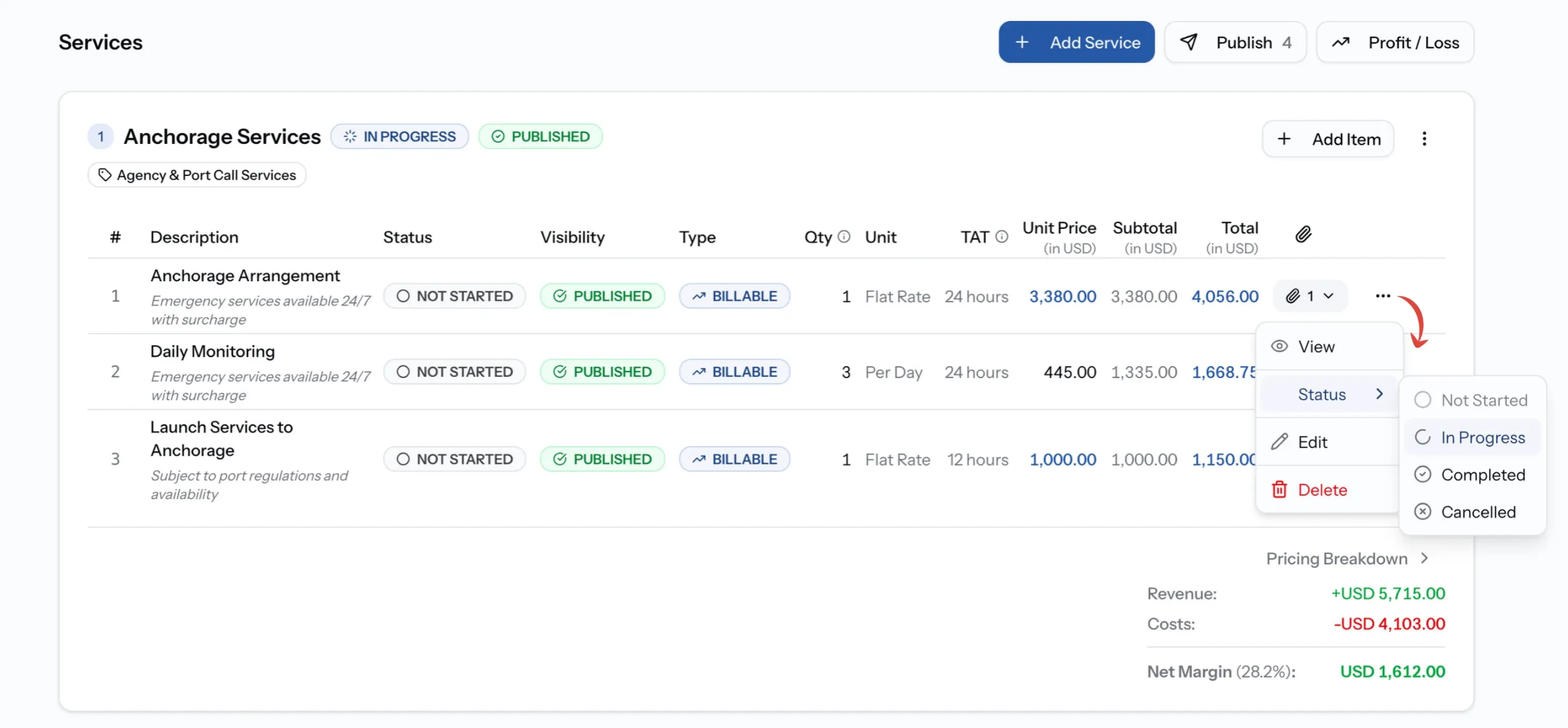
Open the item's menu, choose Status, and pick the new one.
- Completed asks you to confirm with Mark item as Completed?, showing the change from its current status.
- Cancelled asks you to confirm with Cancel this item?. A cancelled item is taken out of the totals, and you can reactivate it later.
- Not Started and In Progress change straight away.
Service status
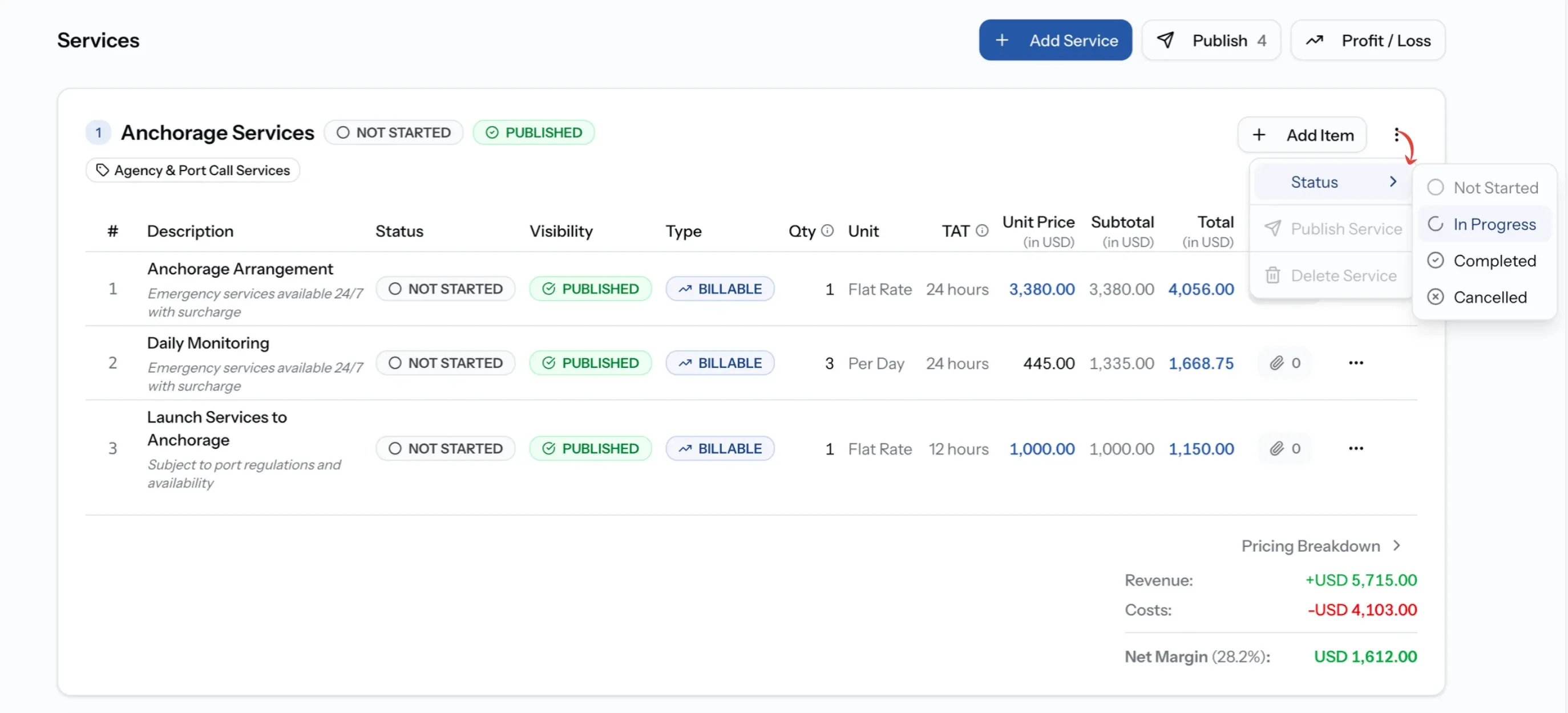
Open the menu on the service's card and choose Status. A service's status is set on its own, not worked out from its items, so a service can still read In Progress while all its items are done. A service needs at least one item before its status can change.
Choosing Completed is what sends a service for approval, covered next.
To change a completed service back, choose In Progress from the same menu. Reset Service Status? explains that you will be able to edit it again. If it was approved, that approval is cancelled and the buyer is notified, and the service has to be approved again.
Submit a service for approval
On a job from a quote, each service goes to the buyer for approval when its work is done.
Step 01
Finish its items
Every public item on the service must be Completed or Cancelled, and published with no pending changes. PortzApp lists anything still open if you try too early.
Step 02
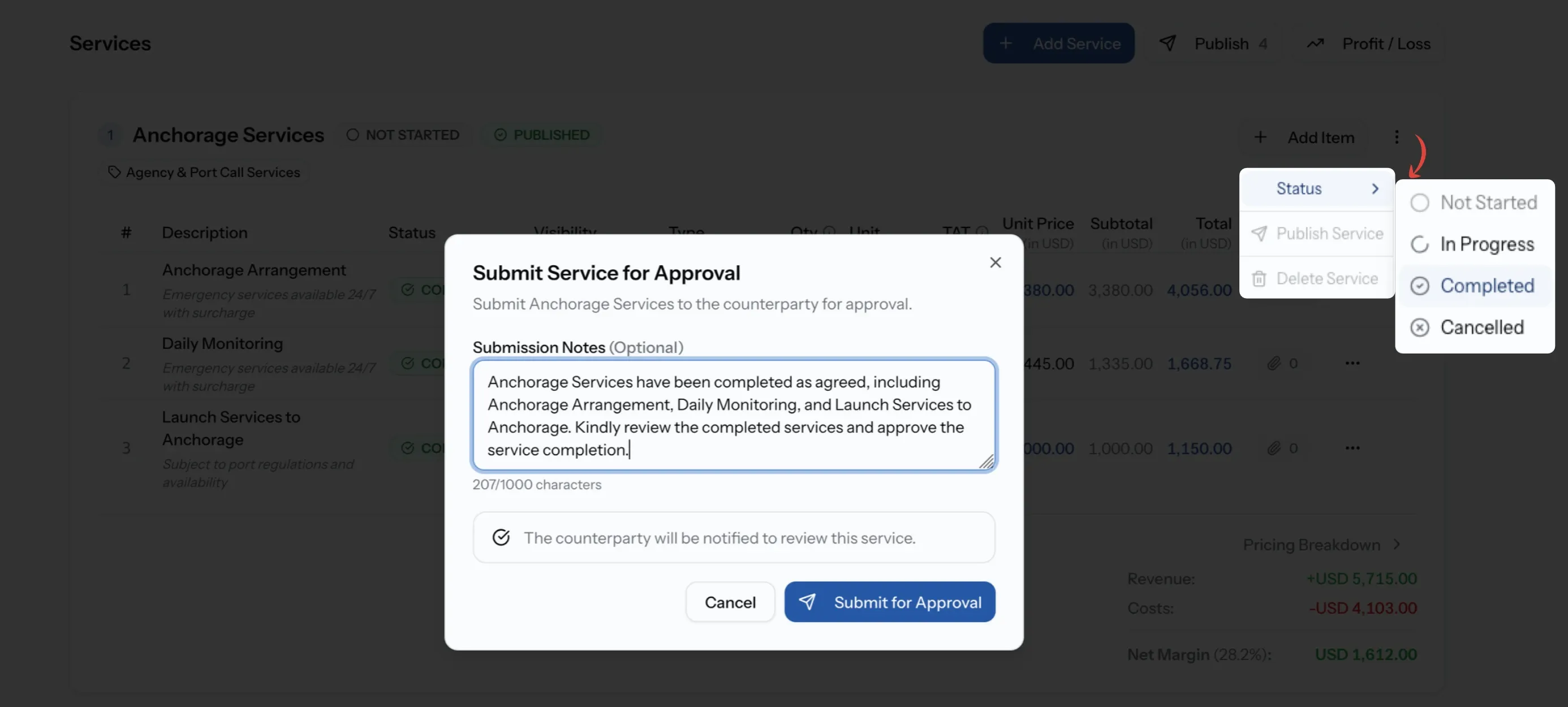
Set the service Status to Completed
Open the service card's menu, choose Status, then Completed. Submit Service for Approval opens.
Step 03
Add Submission Notes and submit
Notes are optional context for the buyer. Submit, and the buyer is notified to review the service. It now shows Pending Approval.
Approval statuses
Each service carries its own approval, shown on its card.
Status
Pending Approval
What it means for you
Submitted and waiting on the buyer. You cannot add items to it in the meantime.
Status
Approved
What it means for you
The buyer accepted the service as it stands. You can still add private items for internal costs.
Status
Changes Requested
What it means for you
The buyer sent it back with a reason. Change what they asked and complete it again, or resubmit it as it is.
When the buyer requests changes
When the buyer turns a service down, it comes back to you as Changes Requested. Their reason is in the approval conversation on the service card, along with everything said about the service so far. There are two ways to send it back, depending on whether anything needs to change.
If you change anything
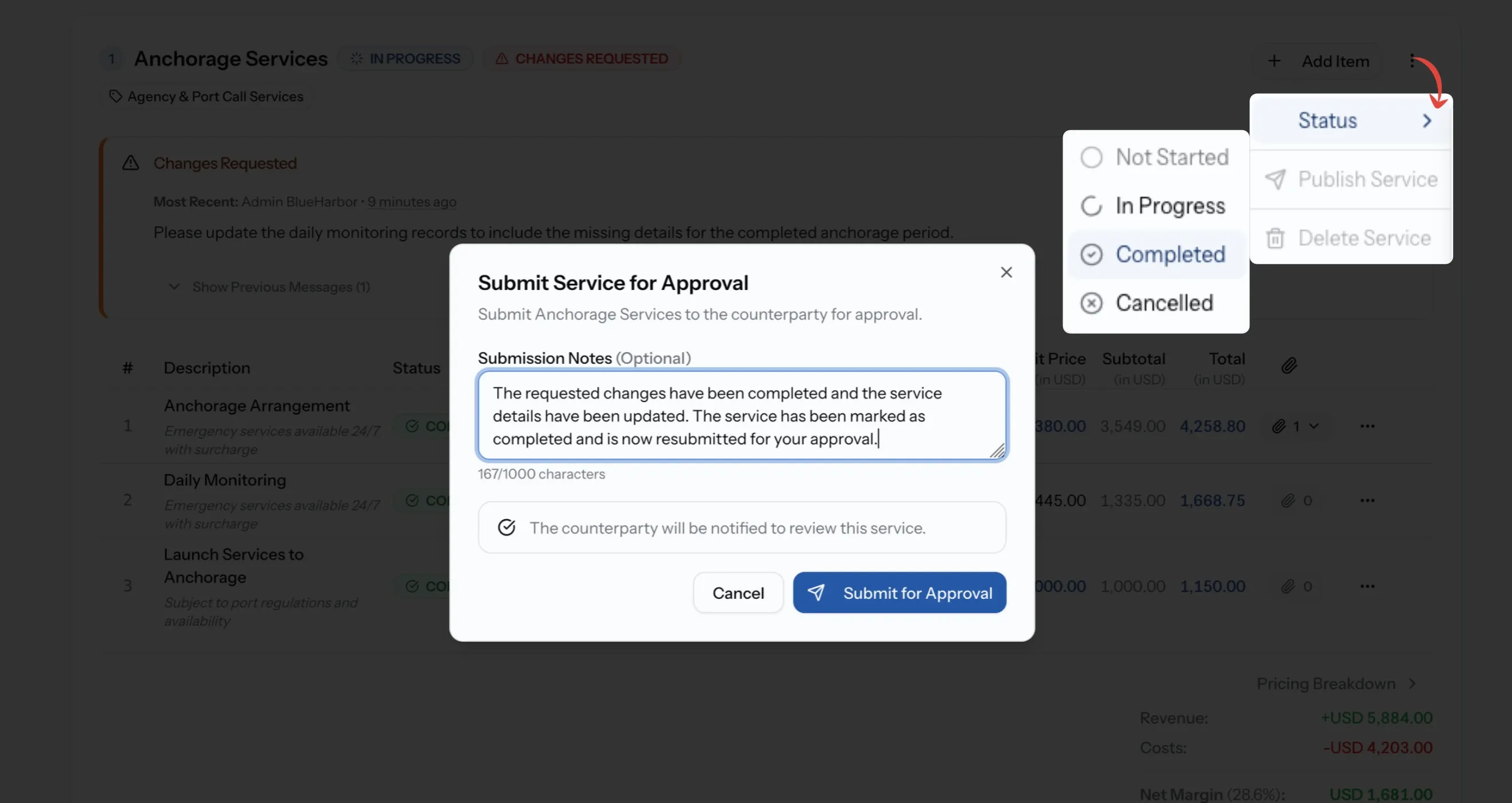
Editing or adding an item moves the service back to In Progress straight away, and any Completed item you edit moves back to In Progress too. From there it follows the same path as the first time:
- Make the changes the buyer asked for.
- Publish the changes so the buyer can see the new version.
- Set the service Status to Completed. Submit Service for Approval opens, and the service goes back to the buyer.
If nothing needs to change
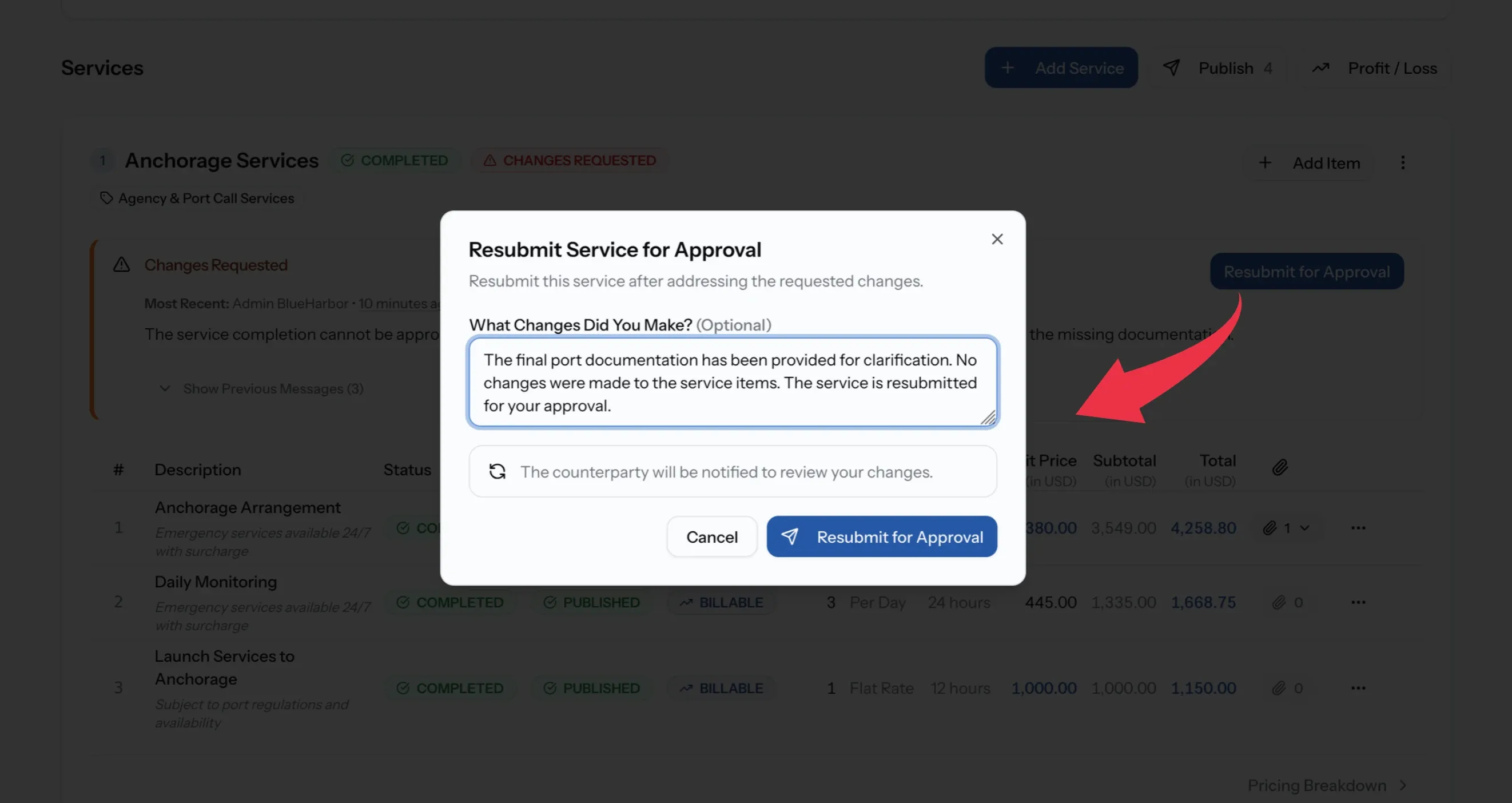
Sometimes the account is right as it stands, for example when the buyer asked for clarification or supporting documents rather than a different charge. The service items stay as they are and the service is still Completed, so there is nothing to redo.
Select Resubmit for Approval in the approval conversation on the service card. Describe what you checked or why the service stands as it is, then confirm. The buyer is notified to review it again.
If Resubmit for Approval tells you the service must be completed, an item was edited and the service moved back to In Progress. Follow the steps above instead.
Services that need no approval
A service whose items are all private never reaches the buyer, so it skips approval. Completing it shows Complete Private Service and marks it done straight away.
Items added to a service the buyer has already approved are always non-billable and private, for internal costs you only learn about afterwards.
On a manual job
Items work the same way as on a job from a quote: choose Billable for anything you will charge the client on your documents, and Non-billable for internal costs. There is no buyer on PortzApp, so nothing is published or sent for approval. Completing a service simply marks it done, with optional Completion Notes.
Next step
Create and send job documents
The job's disbursement account is what the PDA, DA and FDA are generated from. Turn it into the documents you send the client.
When the account will not cooperate
Add Item is greyed out
The job is Completed or Cancelled, or the service is waiting for approval. Hover over the button to see which. CEO and Viewer cannot add items.
The buyer cannot see an item
It is still a draft, or it is Non-billable and therefore private. Publish it, and check its Billing Category is Billable.
The buyer still sees the old price on a quoted item
Quoted items are already published, so your edit is waiting as Pending Changes. Publish the item again for the buyer to see it.
Resubmit for Approval says the service must be completed
An item was edited, so the service moved back to In Progress. Complete and publish the items, then set the service Completed to send it for approval.
An item cannot be ticked in the publish dialog
It still needs pricing. Someone with pricing access has to add its price before it can be published.
What you can do now
You can keep a job's disbursement account up to date with services and items, keep internal costs private, publish exactly what the buyer should see, track each item and service through to completion, and take each service through approval and back again when the buyer asks for changes.
FAQ
01
02
03
04
05
06
07