
Manage a job from start to finish
A job starts the moment a buyer accepts a quote. Follow it from Confirmed to In Progress and Completed, and close it with the buyer's approval, whichever side of the job you are on.
Before you start
You need a job. One is created when a buyer accepts a quote. See Compare quotes and choose a provider. Service providers can also record work done outside PortzApp as a manual job.
What you can do on a job depends on your side of it and your role. The provider moves the job through its statuses, and the buyer approves it at the end.
How a job moves
Accepting a quote creates the job as Confirmed. From there, only the provider on the job changes its status.
The provider works through the services on the Disbursement Account, then marks the job Completed.
Completing a standard job sends it to the buyer for approval. Approving closes it, and rejecting sends it back to In Progress.
A job cannot be completed while any service is still open.
On a job created from a quote, every approval and change is recorded on its Timeline. Manual jobs have no Timeline.
Find your jobs
Select Jobs in the sidebar. What you see depends on what your company does on PortzApp.
If your company only buys services
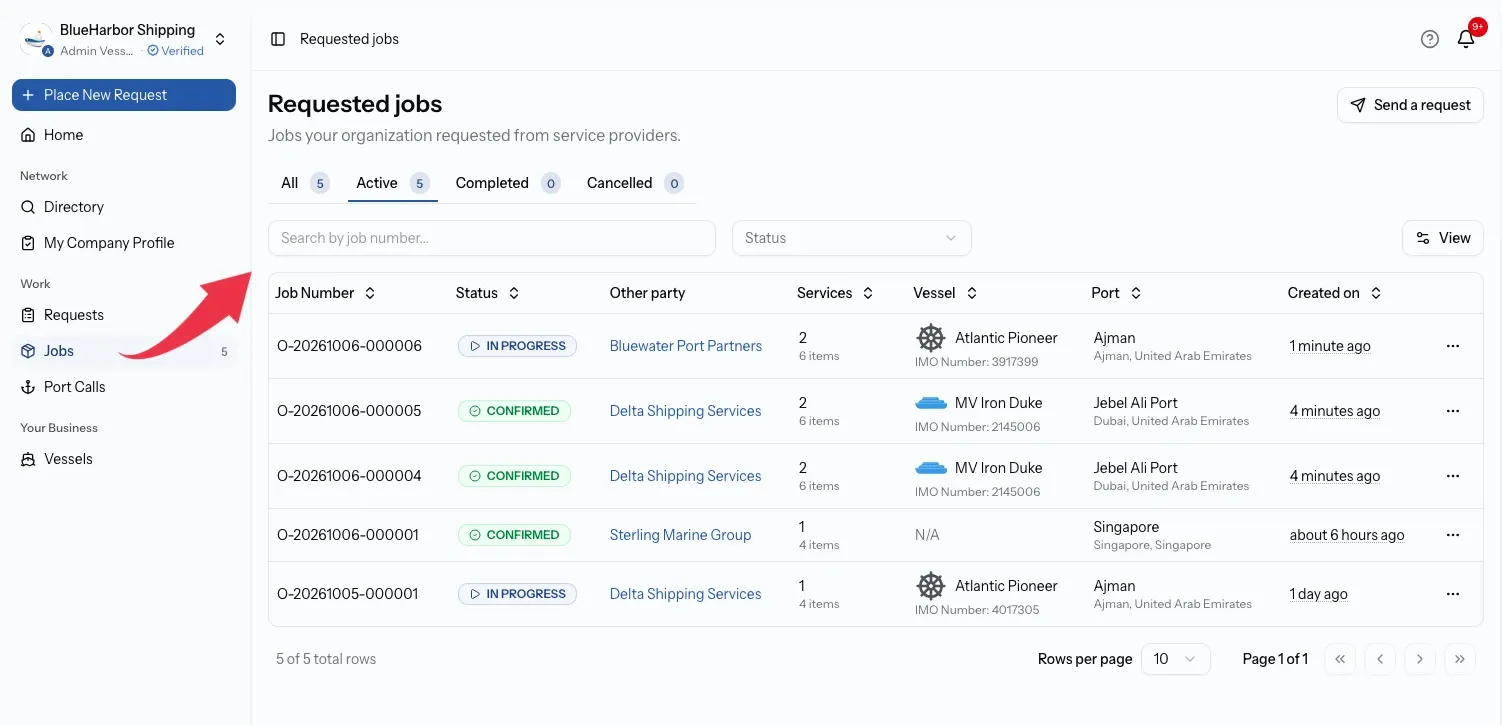
Jobs opens Requested jobs straight away. These are the jobs your company asked providers to do.
If your company also provides services
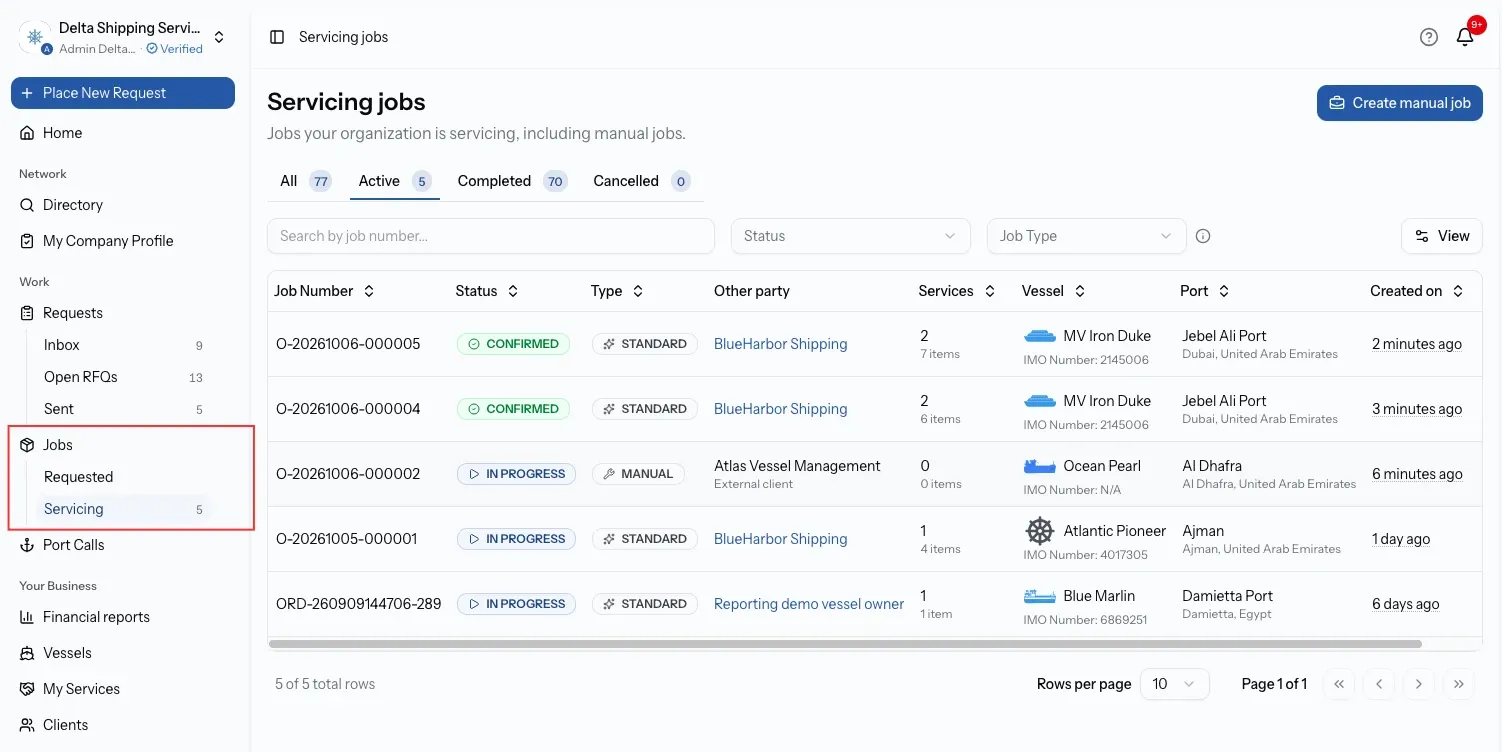
Jobs expands into two views:
- Requested holds jobs your company asked another provider to do, for example work you subcontracted.
- Servicing holds jobs your company is doing for a client, including manual jobs.
Open a job
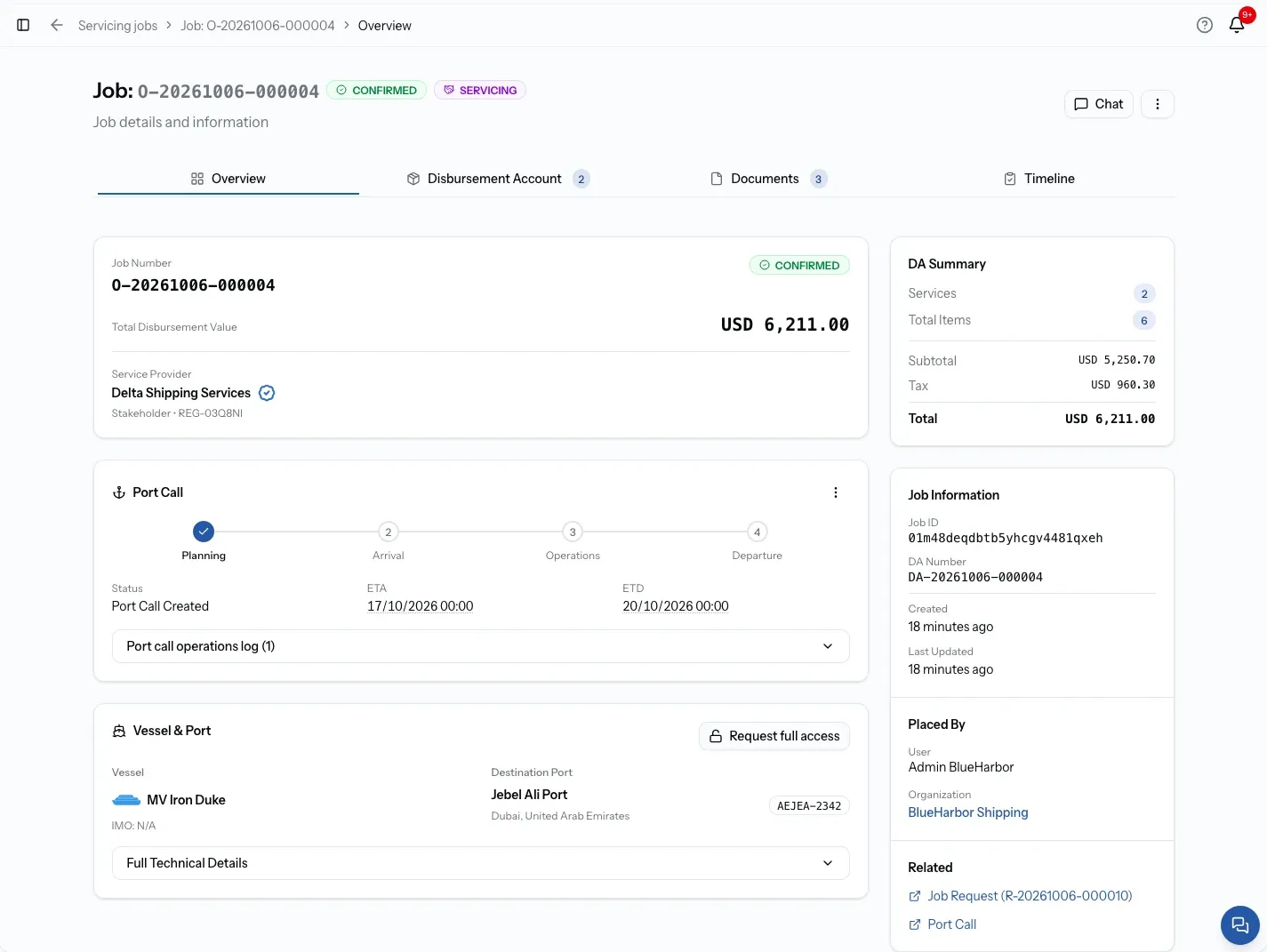
Select a job to open it. The header shows the job number and its status, plus a badge for anything else that applies:
- Pending Approval, Approved or Rejected, once the job has been sent for approval.
- Manual Job, for work a provider recorded outside a request.
- Requested or Servicing, showing which side of the job you are on.
Use Chat in the header to message the other party about this job. See Send messages through job chat.
A job from a quote has four tabs. A manual job has three, because it has no Timeline.
Overview
The Job Number, Total Disbursement Value and the Service Provider, then the vessel, port and port call details, Job Notes, a DA Summary of services and items, and Job Information with the DA number and dates. Related links back to the request and quote the job came from.
Disbursement Account
Every service on the job and its items, with each service's own progress and approval. This is where the work is tracked. Providers, see Manage the disbursement account on a job. Buyers, see Track your job and approve each service.
Documents
Files attached to Disbursement Account items, and files shared in the job's chat, in one list. See Create and send job documents.
Timeline
Every approval and change on the job, in order, with who made it and when. It only exists on jobs created from a quote, because a manual job has no buyer approving anything. Operations and Viewer cannot open it. See Job Activity Timeline.
Job statuses
Status
Confirmed
What it means
The buyer accepted the quote and the job exists. You can already add and edit services and items on the Disbursement Account.
Status
In Progress
What it means
The provider is working on the job. Services and items can still be added and edited.
Status
Completed
What it means
The provider has finished. The Disbursement Account is locked, and a standard job goes to the buyer for approval.
Status
Cancelled
What it means
The job was called off. The Disbursement Account is locked.
Who does what on a job
Service provider
Changes the job status from the menu at the top of the job.
Buyer
Follows the status. Cannot change it.
Service provider
Works through each service and its items on the Disbursement Account.
Buyer
Reviews and approves the services the provider submits.
Service provider
Marks the job Completed when every service is done.
Buyer
Approves the completed job, or rejects it with a reason.
Service provider
Status changes need the Admin, Manager or Operations role.
Buyer
Approving or rejecting needs the Admin, Manager or Operations role.
Change the job status
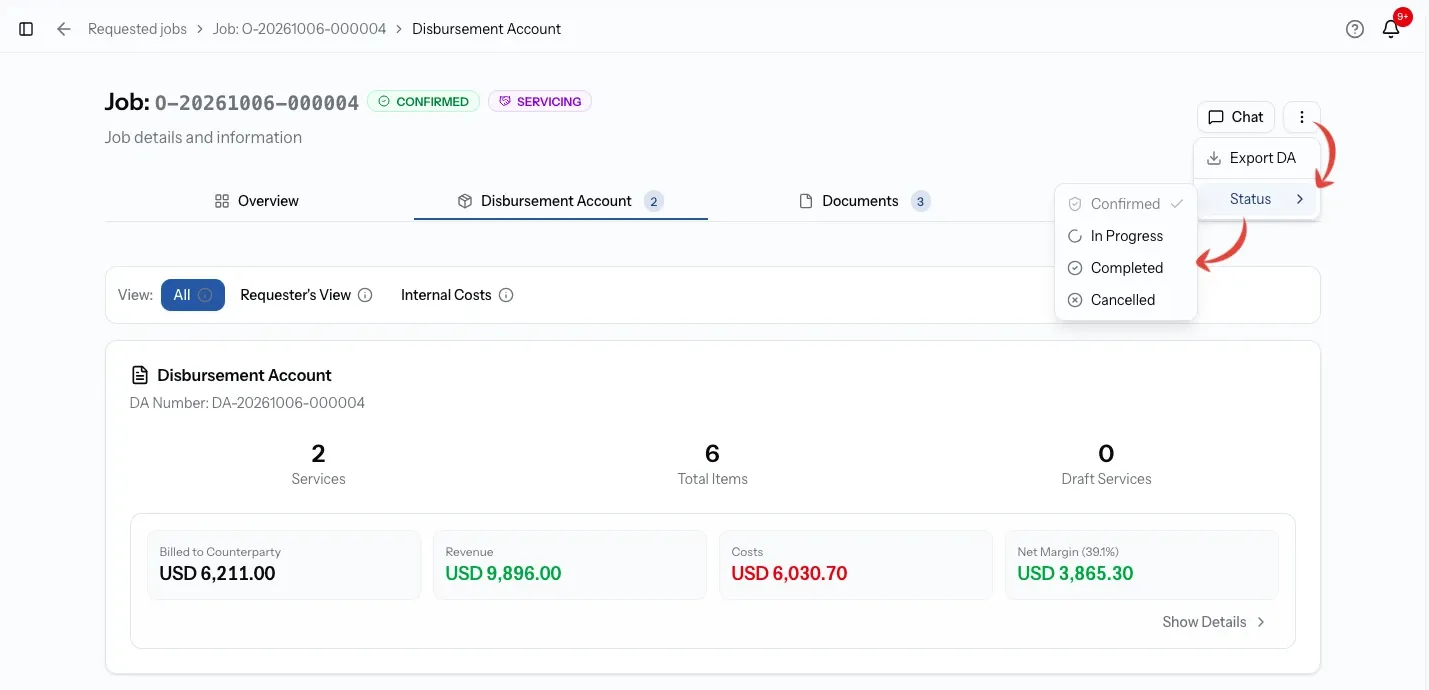
For the provider on the job. Open the menu at the top right of the job and choose Status to see the options.
Step 01
Start the work
Choose In Progress when work begins, so the buyer can see the job is under way.
Step 02
Finish every service
On the Disbursement Account, mark each service Completed or Cancelled. On a standard job, services with items the buyer can see also need the buyer's approval.
Step 03
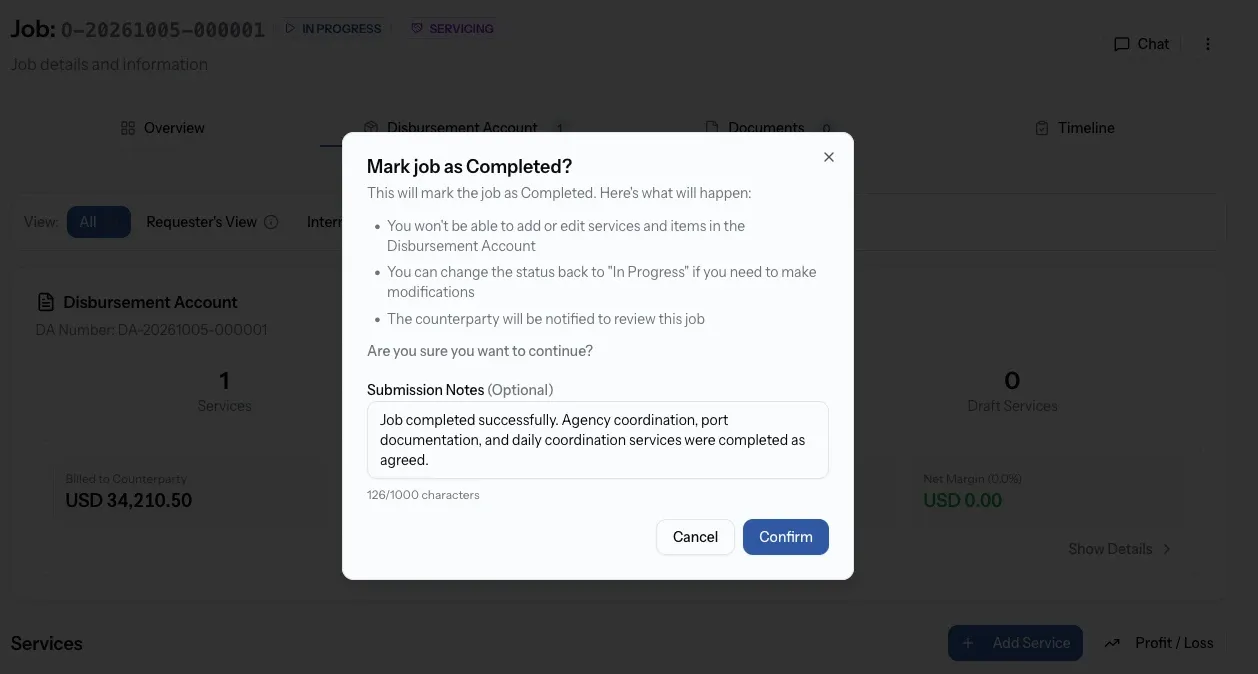
Mark the job Completed
Choose Completed. Add any context for the buyer in the notes, then confirm. The buyer is notified to review the job.
Cannot Mark Job as Complete
A job can only be completed when every service on it is finished. On a standard job, each service must be completed and approved, or cancelled. A service whose items are all private does not need approval. On a manual job, each service must simply be completed or cancelled.
If anything is still open, PortzApp lists the services that need attention instead of completing the job.
Approve or reject a completed job
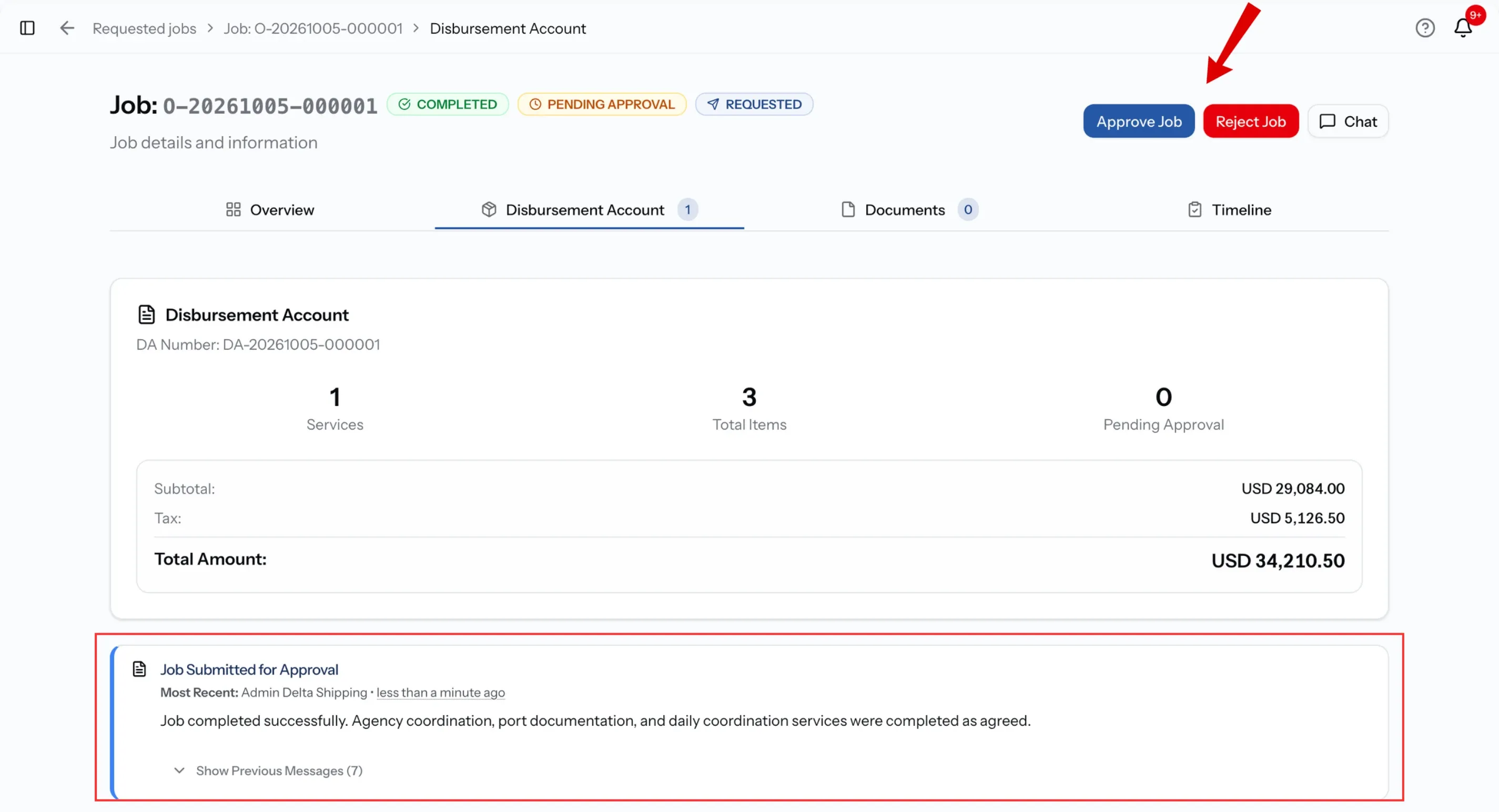
For the buyer. When the provider completes a standard job, it shows Pending Approval, and Approve Job and Reject Job appear at the top of the job.
Step 01
Review the job
Check the Disbursement Account and Documents tabs, so you know what you are signing off.
Step 02
Approve Job
Select Approve Job, add notes if you want, and confirm. The job is closed with an Approved badge.
Step 03
Reject Job
Select Reject Job and explain why, in at least 10 characters. The job goes back to In Progress so the provider can fix what you raised.
Reopen a completed or cancelled job
A Completed or Cancelled job can be moved back to In Progress from the same Status menu, for example to correct the Disbursement Account.
If the job was waiting on the buyer's approval, or had already been approved or rejected, PortzApp warns you first. Moving it back cancels the approval request, and the buyer is told.
The work itself
Manage the disbursement account on a job
Services, items, approvals and the money on a job all live on its Disbursement Account. Learn how it is built and approved.
Common issues
PortzApp says it cannot mark the job as complete
At least one service is still open. Complete or cancel each one listed, and on a standard job make sure the buyer has approved services with visible items.
I cannot change the job status
Only the provider on the job can change its status, and only with the Admin, Manager or Operations role. Buyers follow the status but do not set it.
The job went back to In Progress on its own
The buyer rejected it. Their reason is on the Timeline. Address it, then mark the job Completed again.
There is no Timeline tab, or it says I do not have permission
Manual jobs have no Timeline, because no buyer approves anything on them. On a job from a quote, Operations and Viewer cannot open it. Admin, CEO, Manager and Finance can.
What you can do now
You can find any job your company requested or is servicing, read it from Overview to Timeline, move it through Confirmed, In Progress and Completed as the provider, and approve or reject it as the buyer.
FAQ
01
02
03
04
05
06