
Send messages through job chat
Open a job's chat, send messages and files, find shared files in the job's documents, reply to a specific message, and edit or delete what you sent.
Before you start
A job to talk about. Every role except Viewer can use job chat. See Roles and Permissions.
For who sees each conversation and how chat files are filed, read Job Messaging & Collaboration. This guide walks you through each task.
What to know first
Each job has its own chat.
On a job from a quote, both companies see everything in the chat. On a manual job, it stays within your team.
Files you send are also saved in the job's Documents tab, and PDFs can be added to documents you export.
Open a job's chat
You can open a job's chat from the job itself, or from Messages on any page.
From the job
First open the job:
- As a buyer: select Jobs in the sidebar and open the job.
- As a provider: select Jobs in the sidebar, then Servicing for jobs you are doing for a client, or Requested for jobs you asked another company to do. Open the job.
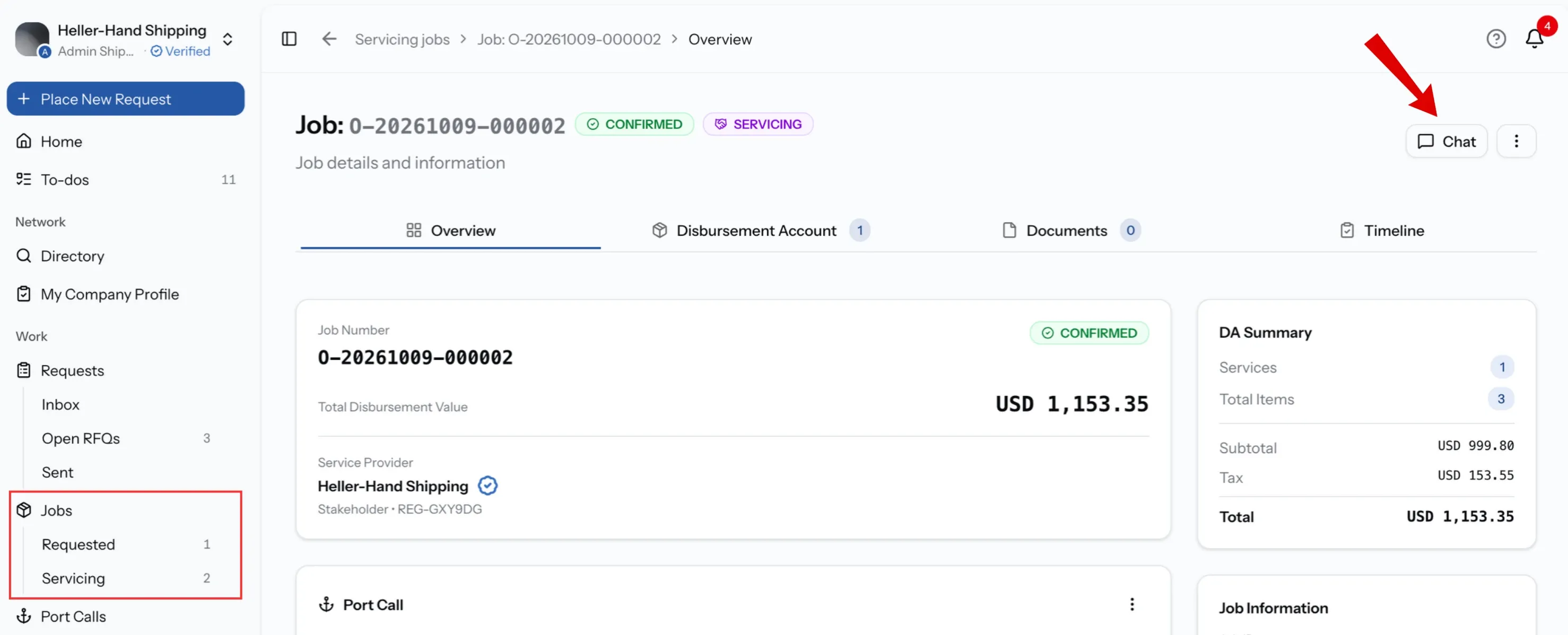
Then select Chat at the top right of the job.
From Messages
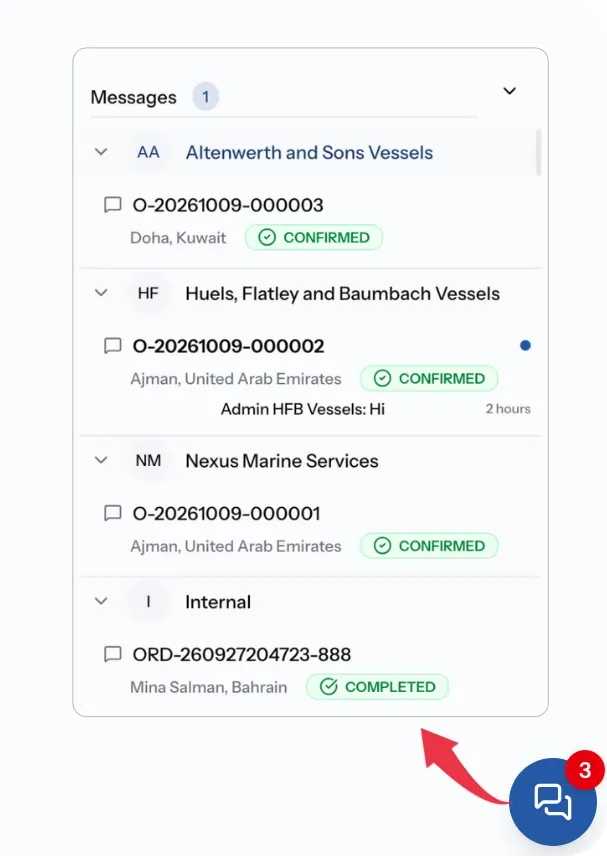
Open Messages in the dock at the bottom of any page. Chats are grouped by company, then by job, with the job's number, port, status and last message. A count shows when something is unread. Select a job to open its chat.
What the chat shows
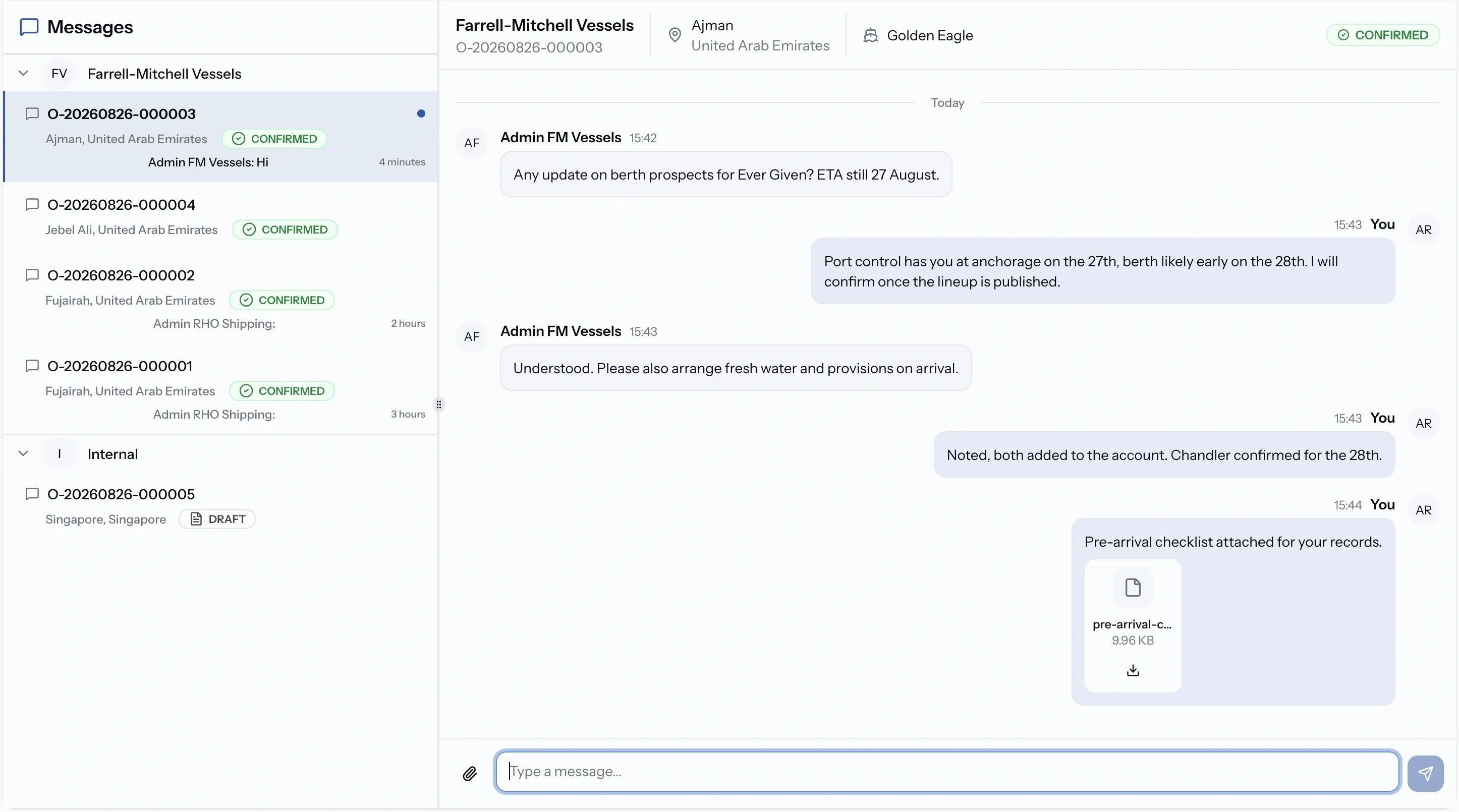
The top of the chat shows the job number, the other company, the vessel, the port and the job's status, so you always know which job you are discussing.
Who is in the chat depends on the job:
- A job from an accepted quote: the chat is shared between the buyer and the provider. Both see everything in it.
- A manual job: there is no other company on PortzApp, so the chat stays within your own team.
Send a message
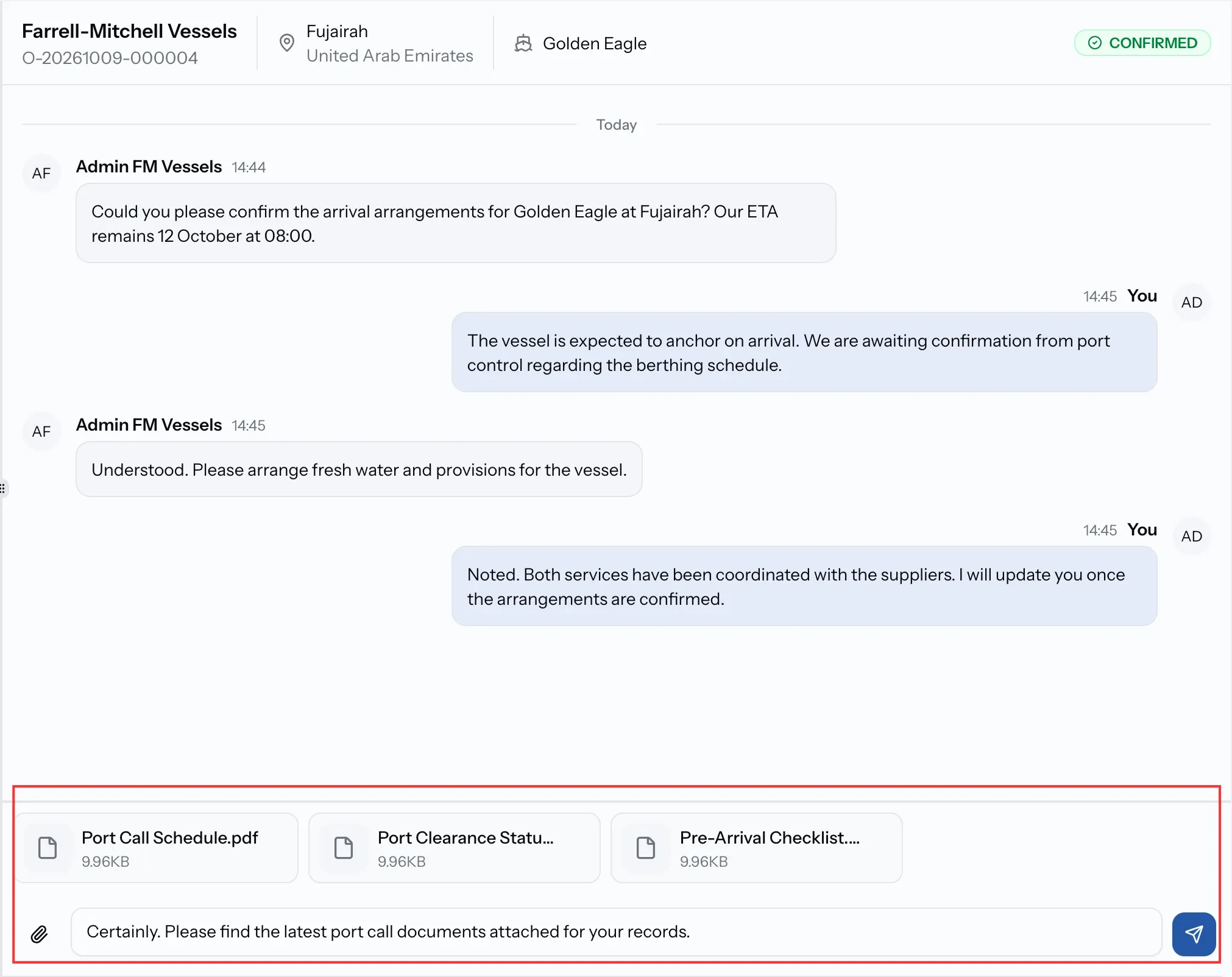
Write in the box at the bottom of the chat.
Step 01
Type your message
Use Shift and Enter together to start a new line.
Step 02
Send it
Press Enter or select the send button.
Attach files
Share photos, receipts or documents about the job in the chat.
Step 01
Select the attach button
It is beside the message box.
Step 02
Choose your files
Add up to 10 files per message, each up to 10 MB: images, PDF, Word, Excel or text files.
Step 03
Add a message if you want, and send
The files appear in the chat, where anyone in it can open or download them.
Find chat files in the job's documents
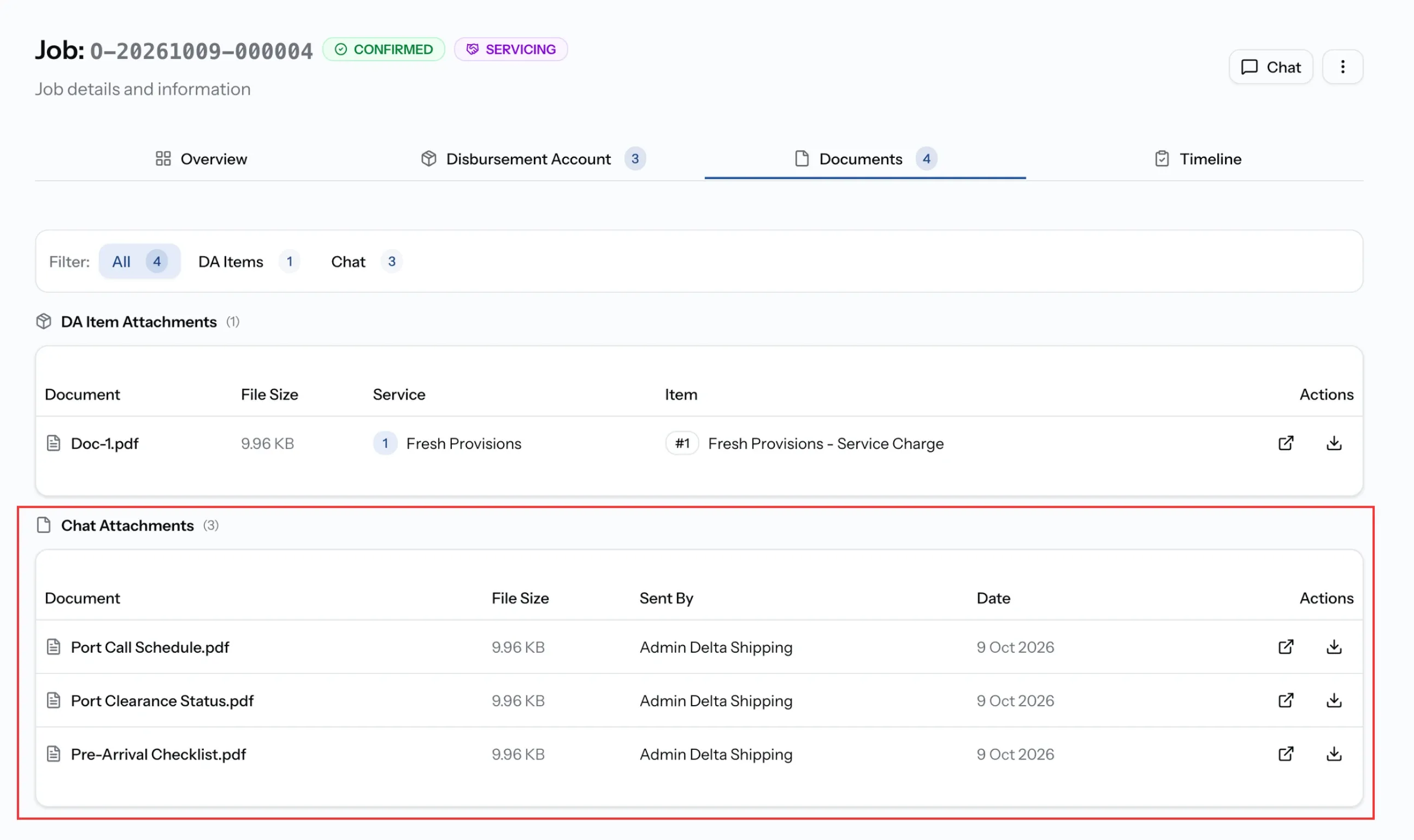
Every file sent in the chat is also saved in the job's Documents tab. Select Chat to see only those files, with who sent each one and when. Open or download them from there, without scrolling back through the chat.
Add chat files to a document you export
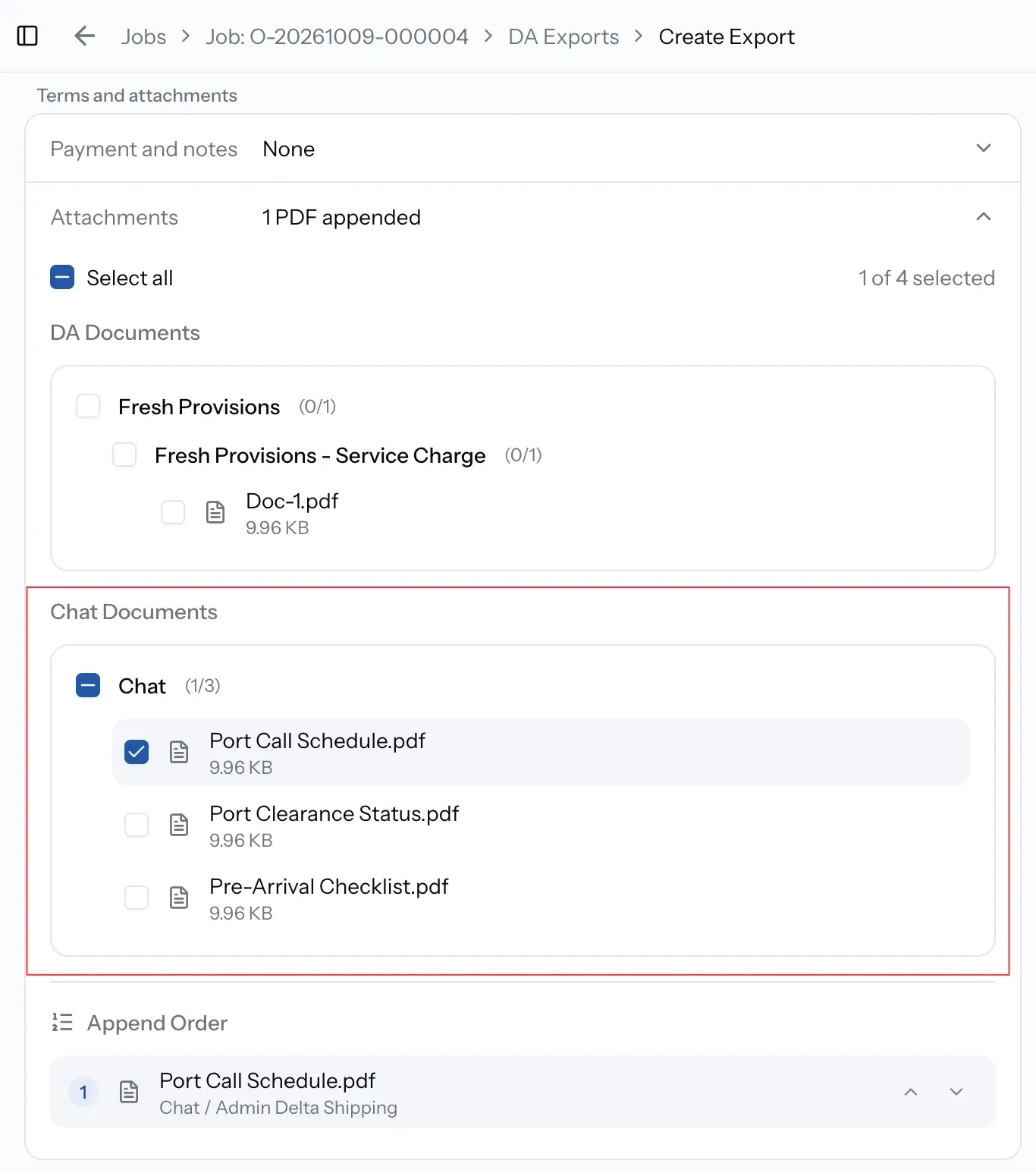
When you create a document from the job, such as a DA or an FDA, you can append PDFs from the chat to it. Your client then gets the account and its supporting papers, such as a delivery note photographed at the port, in one file.
Appending attachments is part of Pro, and only PDFs can be appended. See Create and send job documents.
Reply to a specific message
Quote the message you are answering, so a busy chat stays clear.
Step 01
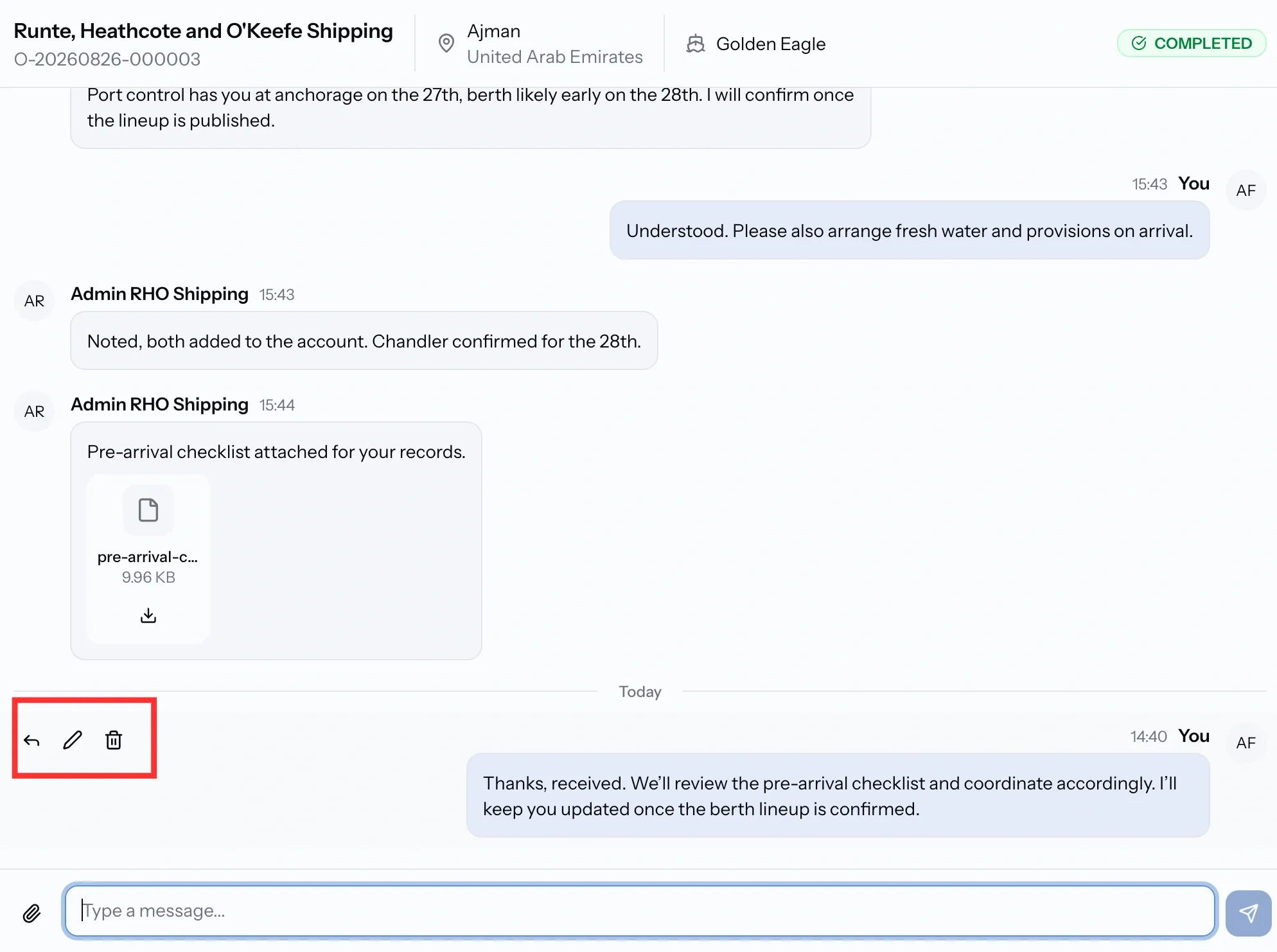
Hover the message
Its actions appear.
Step 02
Select Reply
The message you are answering shows above the message box.
Step 03
Write your reply and send
Your reply appears with the original quoted above it.
Edit a message
Hover your message and select Edit. The box shows Editing message with your text. Change it, then save. Anyone who already read the original will have seen it, so if the correction matters, say so in the chat.
Delete a message
Hover your message and select Delete, then confirm in Delete message. This cannot be undone. Any files in the message are also removed from the job's Documents tab, and the chat shows This message was deleted in its place.
Common issues
I cannot send messages
The Viewer role cannot use job chat. Every other role can.
A file will not attach
Each file must be under 10 MB, with no more than 10 per message, and in a supported format.
I cannot add a chat file to my export
Appending files to an export is part of Pro, and only PDFs can be appended. Other files stay in the Documents tab.
I cannot see older messages
Scroll to the top of the chat and select Load earlier messages.
What you can do now
You can open a job's chat from the job or from Messages, send messages and files, find chat files in the job's Documents tab, add chat PDFs to documents you export, reply to a specific message, and edit or delete what you sent.
FAQ
01
02
03