
Set your default tariff items
Tariff items are your own working rates, and setting them up is what turns quoting into checking rather than typing. Your cost prices and markups stay inside your organization.
Before you start
You need the Admin, Manager or Finance role. Operations and Viewer see no pricing anywhere in PortzApp.
Bring the prices you charge. If you also know what each line costs you, add that too. It is optional, and it is what lets PortzApp show you a margin.
For background on how pricing works across your catalog, including how tariff items and pricing are managed, read the Tariff Management feature page.
Key takeaways
Your tariff is private. It is not published anywhere and no buyer can browse it.
Its only job is to prefill your quote lines, so quoting becomes checking rather than typing.
Currency sits on the line, not the service, so one service can mix currencies.
Billable lines go on the quote. Non-billable lines never do.
Default items apply everywhere the service runs, unless a port has its own.
What tariff items are for
A tariff item is one line you would put on an invoice. Description, unit, quantity, price.
The point of setting them up is speed. When a request comes in, your quote does not start from a blank page. The lines prefill from the tariff items on that service, so most of the work is checking quantities and adjusting for the job in front of you.
A service with coverage and no tariff can still be found and requested. It just costs you twenty minutes of typing every time somebody asks.
Your tariff is private. It is not published in the Directory, it is not a price list buyers can browse, and it is not visible to anyone outside your organization. It is a working tool for your own team, so that quoting is faster than writing from scratch. Prices only ever reach a buyer when you build a quote and send it.
Three kinds of price, and when each one applies
Kind
Default tariff items
When it is used
Your standard rates for a service. Used at every port the service runs at, unless that port has its own
Kind
Port-specific tariff items
When it is used
Rates for one port, used instead of the defaults there.
Kind
Custom quote items
When it is used
Lines you add by hand while building a quote. They apply to that quote alone and change nothing in your tariff
Step 1. Open the Tariff Items tab
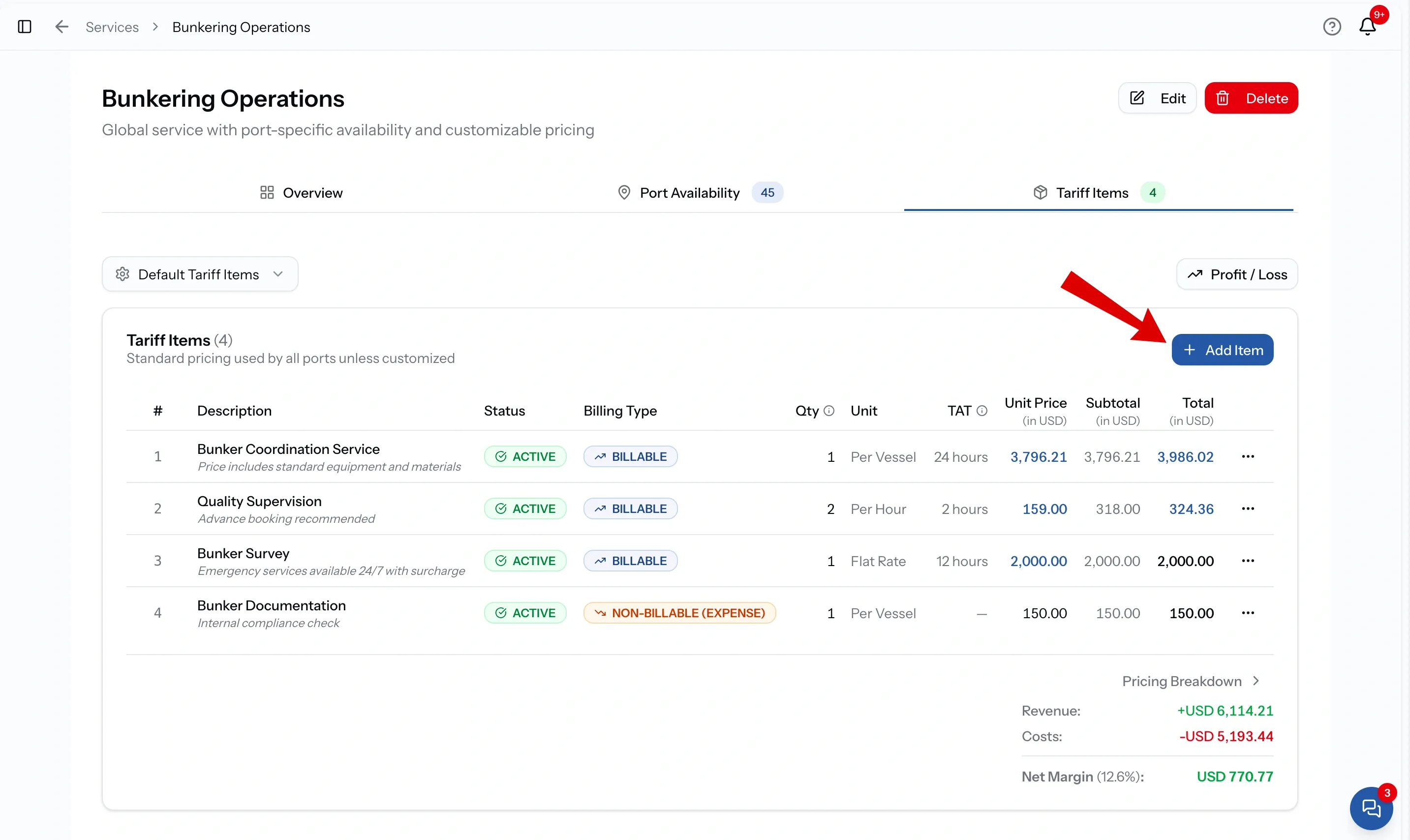
Open a service from your Service catalog and choose the Tariff Items tab. The number on it is how many lines the service has.
A zero there is worth acting on. It means every quote for this service is being built from nothing.
Choose Add Tariff Line to open the form. It has two sections, Item Details and Pricing.
Step 2. Fill in Item Details
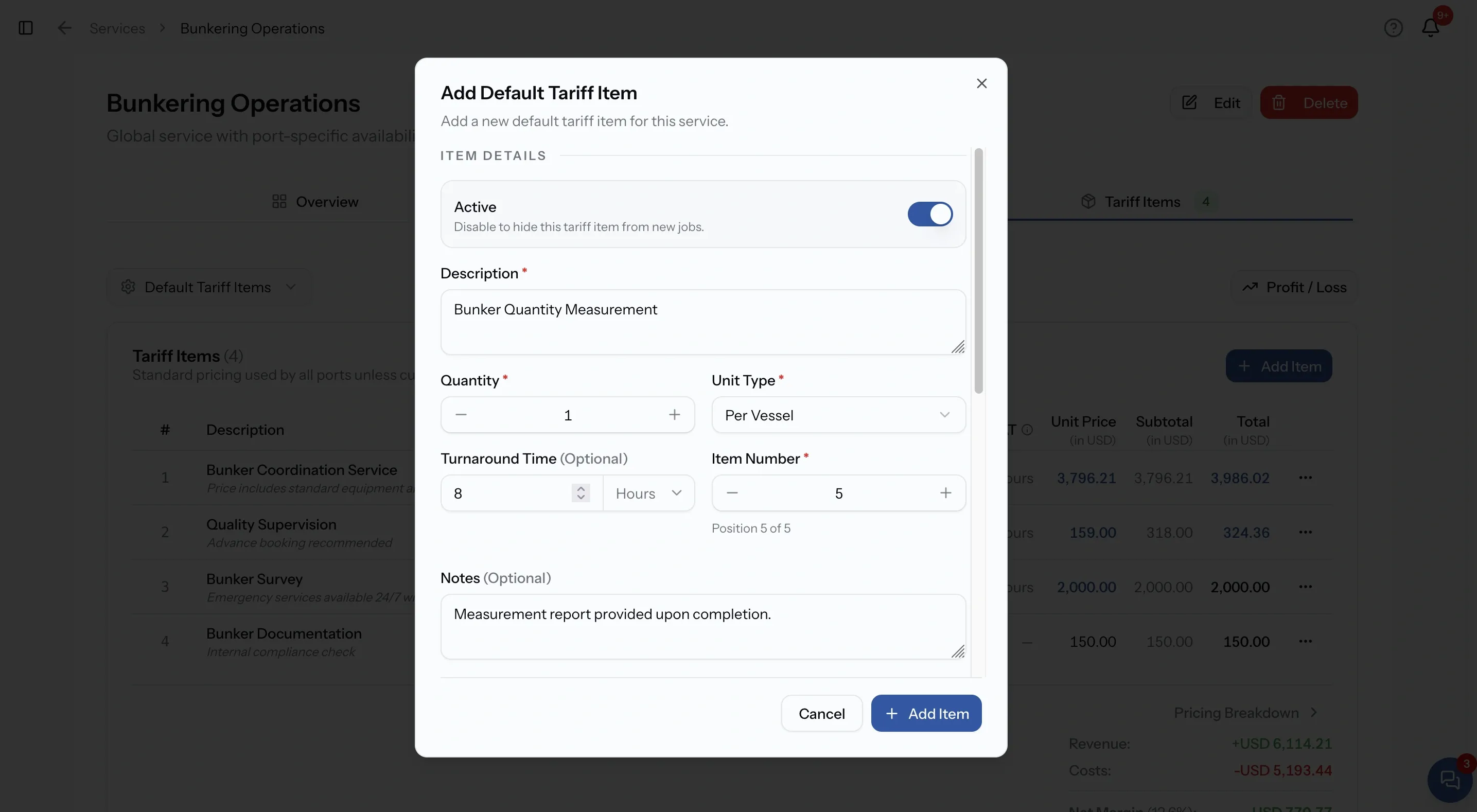
The top half of the form describes the line. No prices yet.
The Active toggle sits at the very top and is on by default. Turning it off hides the line from new jobs without deleting it.
Item Details
Field
Active / Inactive
What to put in it
On by default. Turn it off to hide the line from new jobs while keeping it
Field
Description
What to put in it
What the line item is, as a buyer will read it on a quote. Required
Field
Quantity
What to put in it
The usual quantity for this line, adjustable on every quote. Required. For time-based units there is a calculator that works the quantity out from a start and end time
Field
Unit Type
What to put in it
Flat rate, per minute, hour, day, ton, vessel, TEU or FEU. Required
Field
Turnaround Time
What to put in it
A number plus hours, days or weeks. Optional
Field
Item Number
What to put in it
The line's position in the list, shown as "Position 3 of 8". Appears when you edit
Field
Notes
What to put in it
A short caveat or condition that belongs with this line. It travels onto the quote, so write it for the person reading it there. Optional
Notes travel with the line
Notes are worth using, as long as you know where they end up. A note attached to a tariff line carries through onto the quote, where the buyer can read it.
That makes it the right place for a condition that would otherwise need a phone call. Minimum charge applies below ten tons. Rate valid during port working hours. Excludes overtime.
Step 3. Set the currency
Currency is the first field in the Pricing section. It opens on your organization's default currency, which is right for most line items, and the list holds the currencies enabled for your organization.
Currency sits on the line items, not the service. One service can hold line items in several currencies at once, which matches how providers actually work: local disbursements in local money, some line items in dollars.
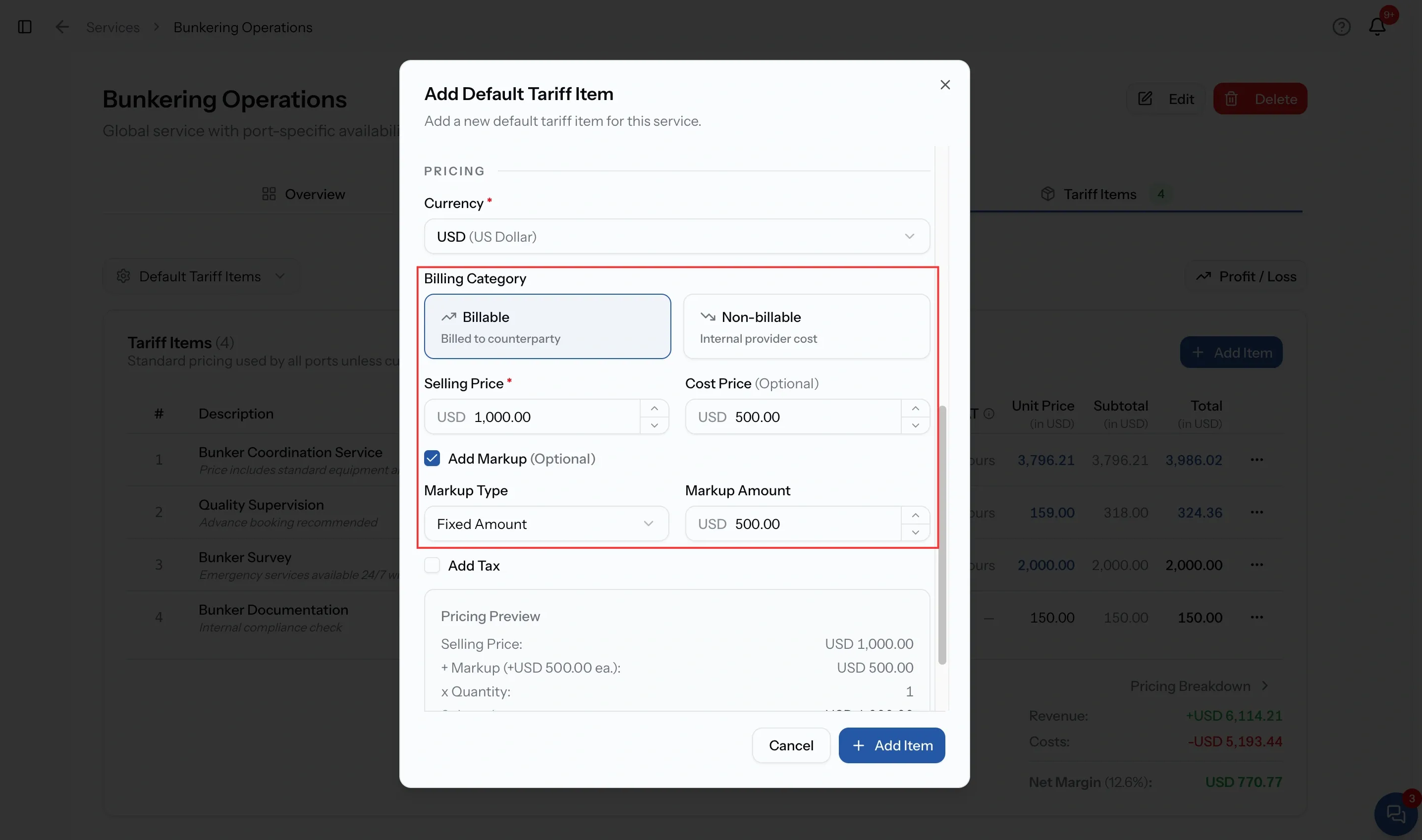
Step 4. Choose a Billing Category
Below currency sits the one question that changes everything under it, and everything that happens to the line afterwards.
This is the fork in the form. Read the table below before you choose, because the two paths are for genuinely different jobs, not two ways of doing the same one.
Billable or non-billable
Billable
Represents an actual line item you charge the buyer for
Non-billable
Represents an internal financial item that is not charged directly to the buyer
Billable
Appears as a line item on the quote you send
Non-billable
Does not appear as a charge on the buyer's quote
Billable
Use it for the services, fees, or other items you actually sell
Non-billable
Use it for costs or other internal financial items related to delivering the service
Billable
Answers "What am I charging the buyer for?"
Non-billable
Answers "What internal financial item do I need to account for in this service?"
Step 5. Add a billable line
Choose Billable and you get two price fields side by side.
Selling Price is required. It is what you charge, and it is what the buyer sees on the quote.
Cost Price is optional. It is what this line costs you. Nobody outside your organization sees it. Its job is to give PortzApp both ends of the line so it can show you the margin.
Markup is the gap between the two, and it is internal as well. You never have to work it out yourself.
Two ways to fill in a billable price
Either route ends with the same three numbers. Use whichever matches how you already think about the line.
Start from your cost
You price off what things cost you and want a consistent margin.
- Enter the Cost Price first
- Tick Add Markup, then choose Percentage or Fixed Amount
- The Selling Price is calculated for you
- Change the markup and the selling price follows
Start from your price
The rate is the rate, and you are recording your cost for the margin figure.
- Enter the Selling Price you already charge
- Add the Cost Price if you know it
- PortzApp works out the markup for you, as a fixed amount
- Leave the cost blank and you simply have no margin figure
How markup behaves
Add Markup stays greyed out until you enter a Cost Price. There is nothing to mark up until a cost has been entered, so if the checkbox looks disabled, that is why.
Once you enable it:
- Percentage takes a value between 0 and 100. Your Selling Price becomes the cost plus that percentage of the cost.
- Fixed takes a specific amount. Your Selling Price becomes the cost plus that amount.
Change the markup and the Selling Price updates immediately. Untick Add Markup, and the Selling Price returns to your Cost Price.
Keep in mind
The markup is only saved when your Selling Price is higher than your Cost Price. If you set the selling price at or below the cost, PortzApp does not record a markup for that tariff item.
Tax and the Pricing Preview
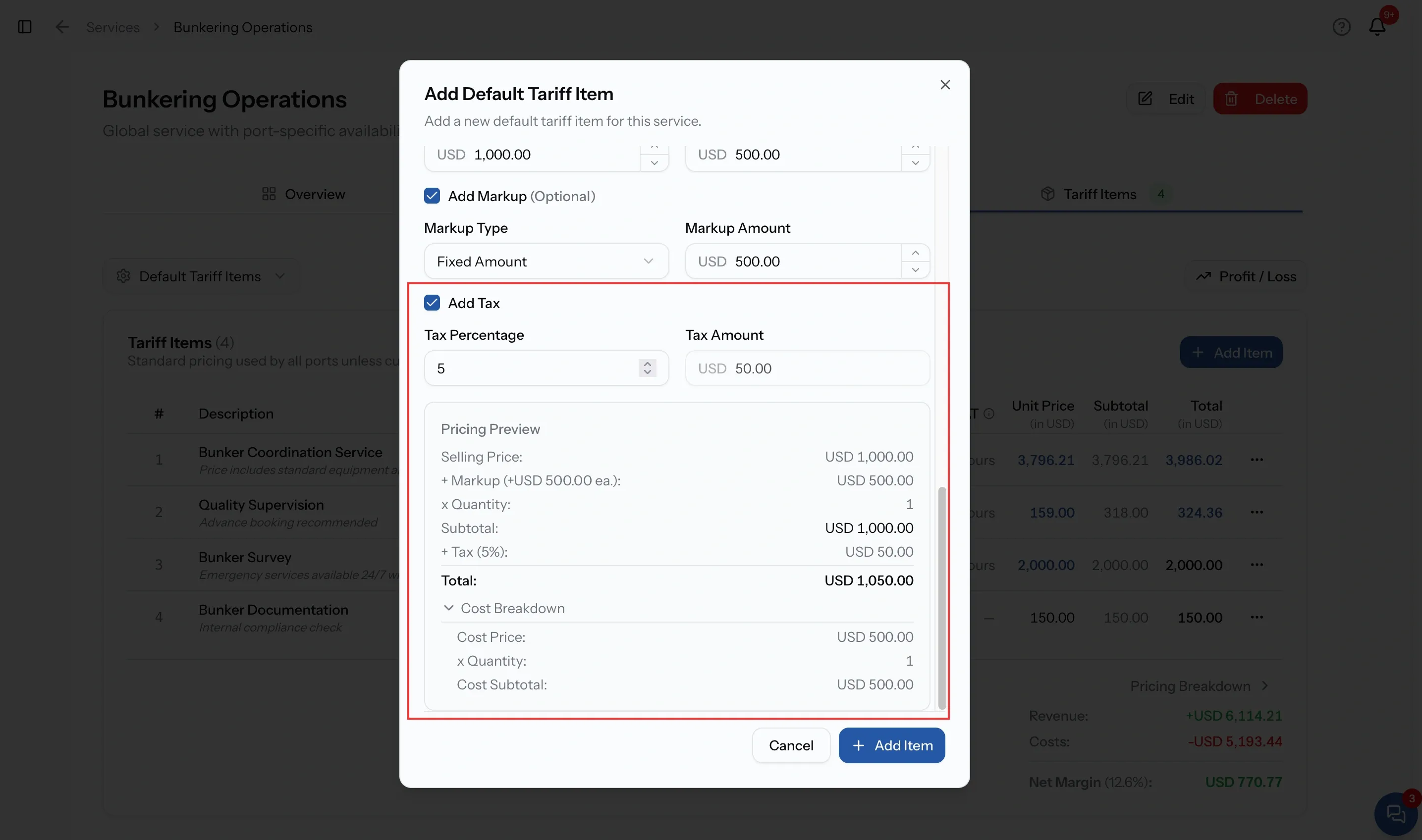
Add Tax is a checkbox near the bottom, and it is available on both kinds of line item. Tick it and enter a Tax Percentage. The Tax Amount beside it is read only and works itself out from the price, the quantity and the percentage.
Below everything sits the Pricing Preview. It updates as you type and is the fastest way to check you have not put a decimal in the wrong place. Read it before you save.
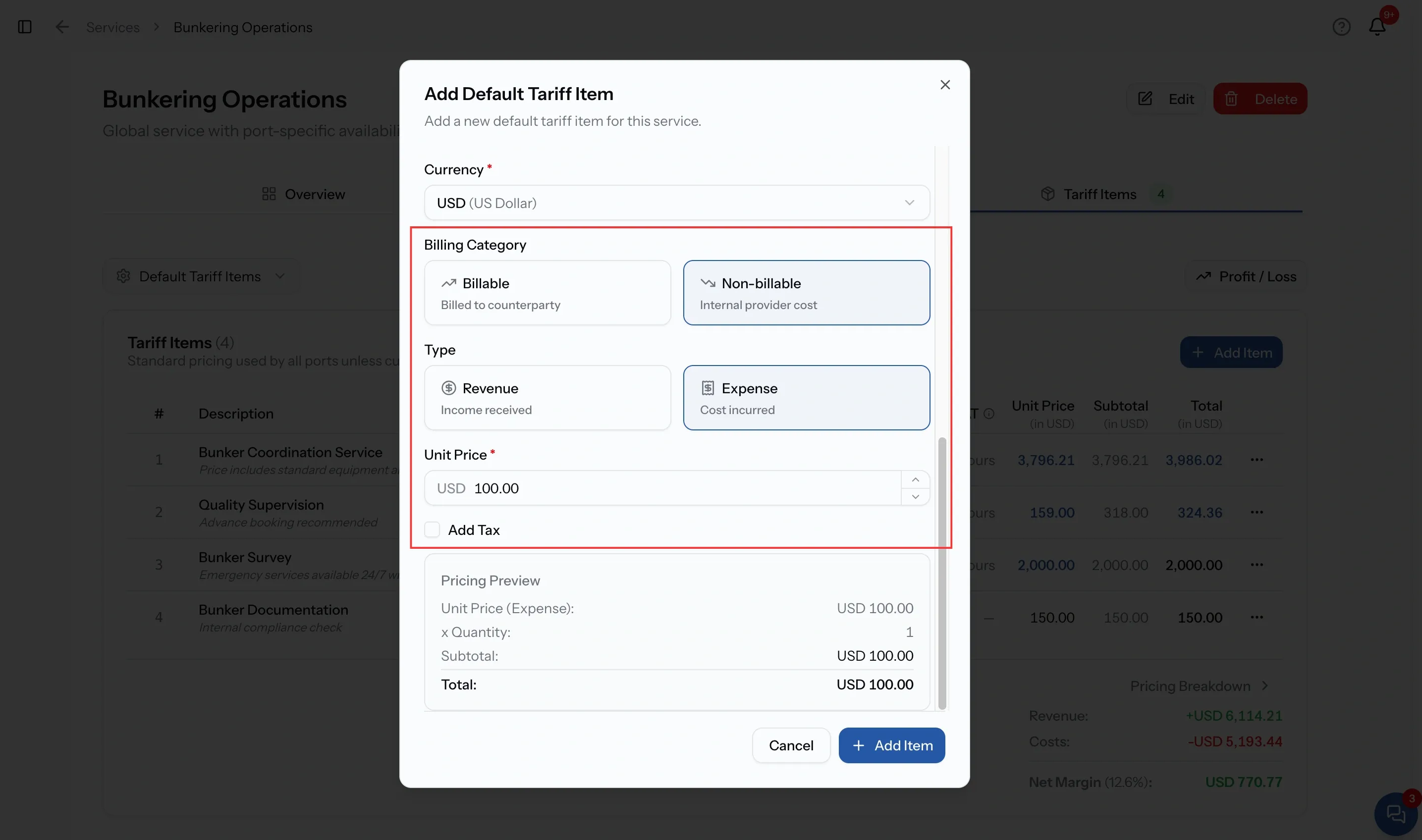
Step 6. Add a non-billable line
Choose Non-billable and the form simplifies. The two price fields collapse into one, labelled Unit Price, and the markup section disappears. There is nothing to mark up, because you are not selling this.
Then choose the type:
- Revenue, described as income received. Money that comes in against this service but is not charged to this buyer.
- Expense, described as cost incurred. Something you pay out to deliver the service.
Fill in the Unit Price, quantity and unit exactly as you would on a billable line. Currency and tax work the same way here too. The difference is entirely in where the number goes afterwards.
What non-billable lines are for
A non-billable line never appears on a quote. The buyer is not charged for it, does not see it, and has no way of knowing it exists. It is not a zero-priced line on their document. It is not on their document at all.
It is there so the service can carry what it genuinely costs you to deliver. Port dues you pay out. A subcontractor. Transport. Time from your own team. Anything that shapes what the job is worth without ever being billed.
The reason to bother is that it makes the margin real. A service priced at a thousand dollars with six hundred of unrecorded internal cost looks like a good service until it is not. Put those costs in as non-billable lines and the number you are looking at is the number you are actually earning.
These are your defaults. Every line item you have just built applies at every port this service runs at.
When one port needs different numbers, do not edit these. Give that port its own copy instead, and change only what differs there. See Customize pricing for a port.
Convert line items into your default currency
Editing one line's currency is a small job. Moving several is not, and that is what conversion is for. It changes the currency and works the new amounts out at a rate, instead of leaving you to recalculate every line by hand.
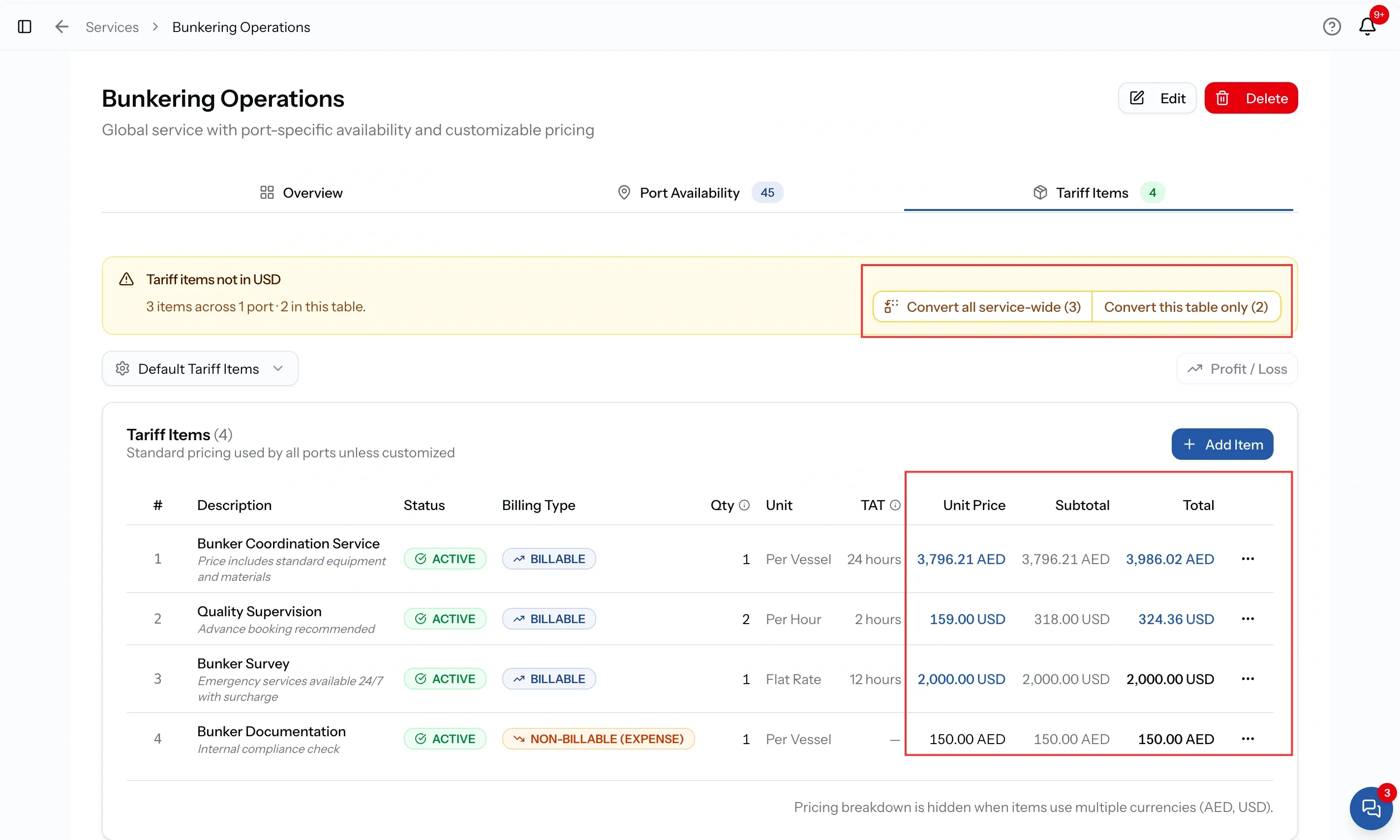
The option only appears when there is something to convert. If every line on a service is already in your organization's default currency, you will not see it, and there is nothing to do. When some lines are not, the page says so and tells you how many.
Convert lines into your default currency
Five steps, and you can stop at any point before the last one.
Step 01
Open the service and look for the option
Open the service from your Service catalog. If any lines are not in your organization's default currency, the page offers to convert them and tells you how many. No option means nothing is out of currency
Step 02
Choose what to convert
Pick Convert all service-wide to move every line, or Convert this table only to leave your port-specific pricing alone
Step 03
Review every line
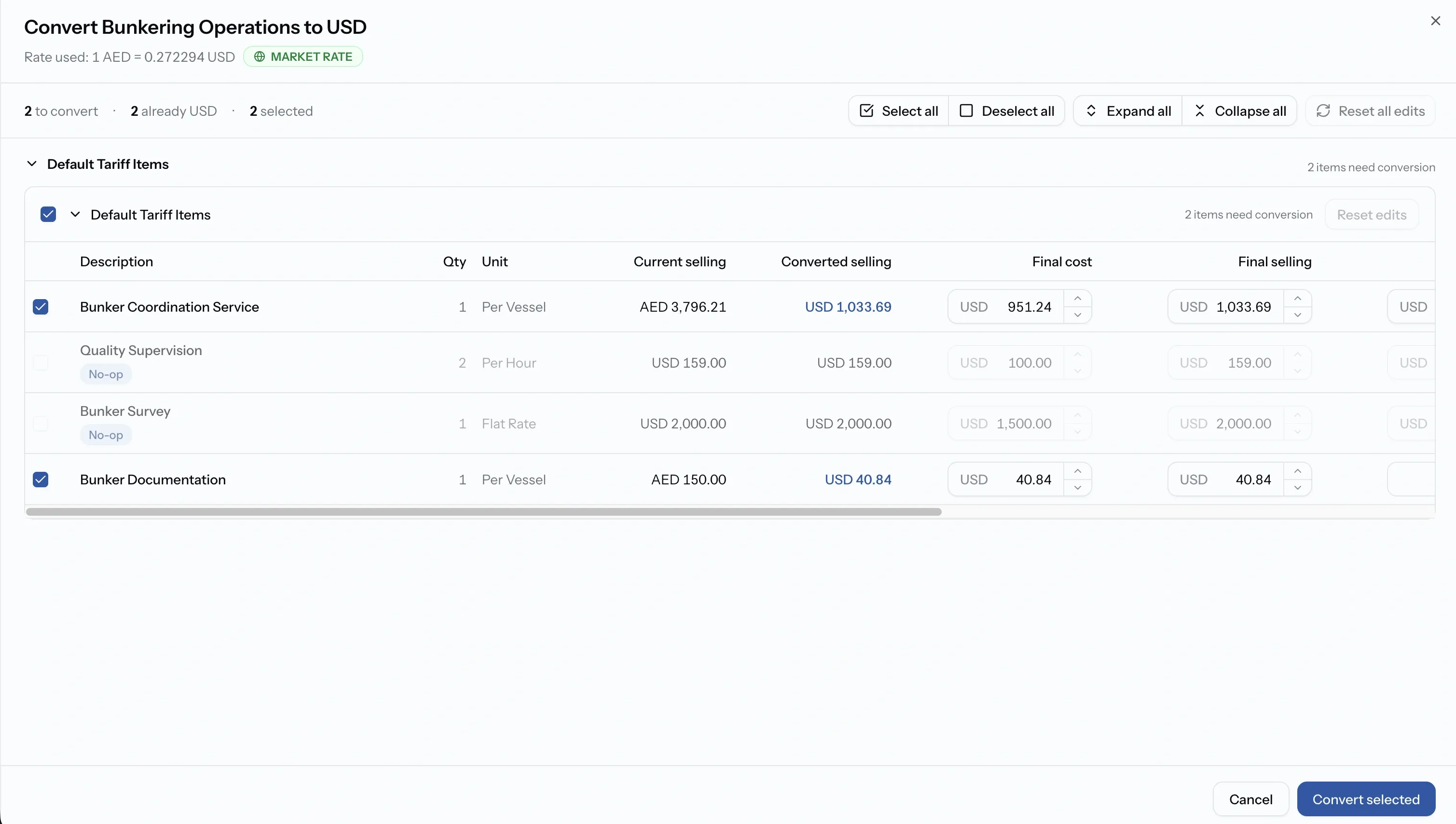
The panel lists each line with its current price, the rate being applied and the converted figure, with cost price and markup underneath. Lines already in the target currency are marked as no-ops and left alone
Step 04
Adjust anything awkward
Type over any converted figure. A straight rate conversion often gives odd numbers, and rounding them here is easier than fixing them afterwards. Edited lines are flagged
Step 05
Confirm
Nothing is saved until this point, so it is worth opening the panel just to see what a conversion would do
Common issues
A line I did not want to charge for is on the quote
Its Billing Category is Billable. Switch it to Non-billable and it will not appear on a quote at all
I picked the wrong currency on one line
Open the line and change it. For several lines at once, convert them from the service page instead
I cannot see pricing anywhere
Operations and Viewer never see pricing in PortzApp. This is intentional
FAQ
01
02
03
04