
Manage your services
My Services page is where you keep the catalog honest. What is live, what is paused, what has coverage but no pricing, and what needs taking off the market.
Before you start
Managing services here needs the Admin, Manager, Operations or Finance role. Deleting one is Admin or Manager.
For why the catalog is shared, and how your company profile and this page stay in sync, read the Services & Port Coverage feature page.
Key takeaways
Your company profile and the Service catalog hold the same services.
Where you add a service decides its ports. From the company profile it covers everywhere. From the catalog you choose.
Deactivating a service keeps its ports and pricing. Deleting keeps nothing.
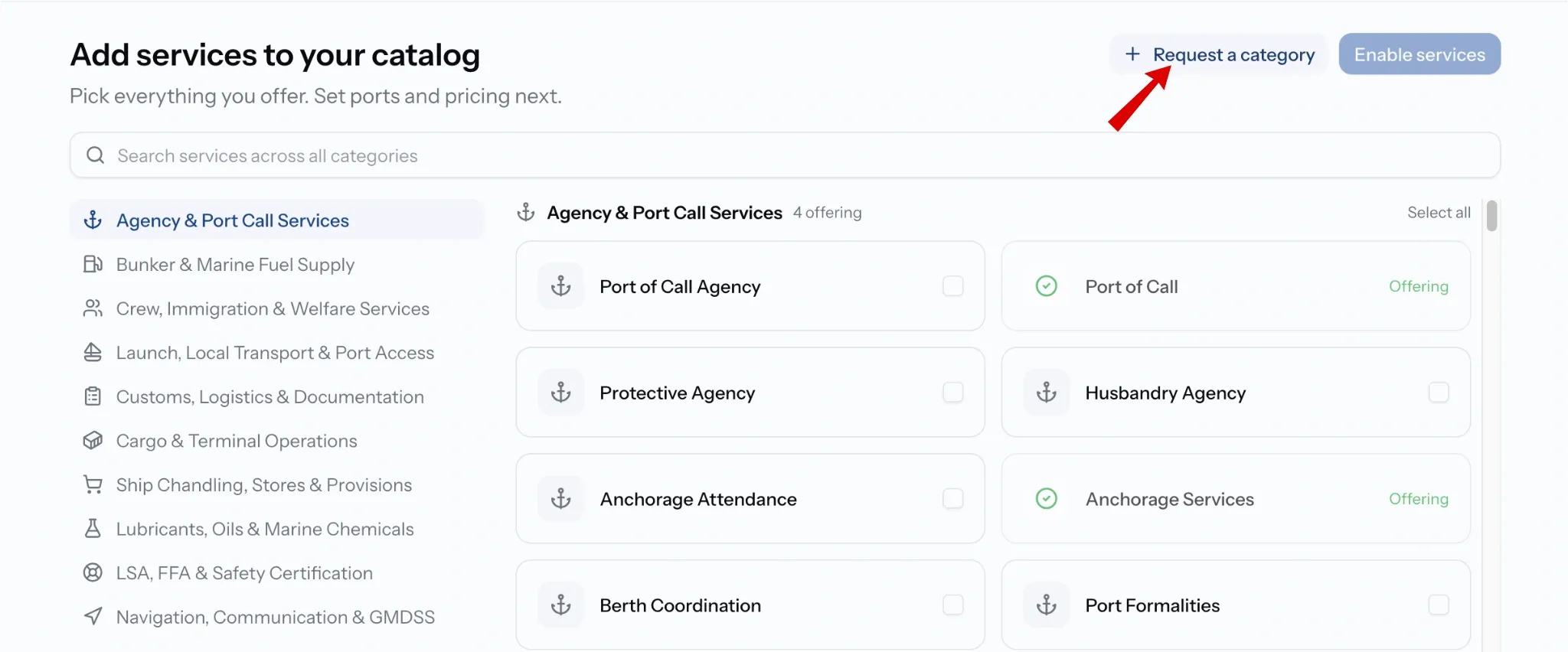
You cannot type your own service in. Missing ones go through Request a category.
How this differs from the Services on your Company Profile
Both places use the same services, so adding a service in either place adds it to both.
The difference is what you can manage from each place. The Services page gives you more options for managing your services, while the company profile is where services are part of your overall company information.
Step 1. Open the Service catalog
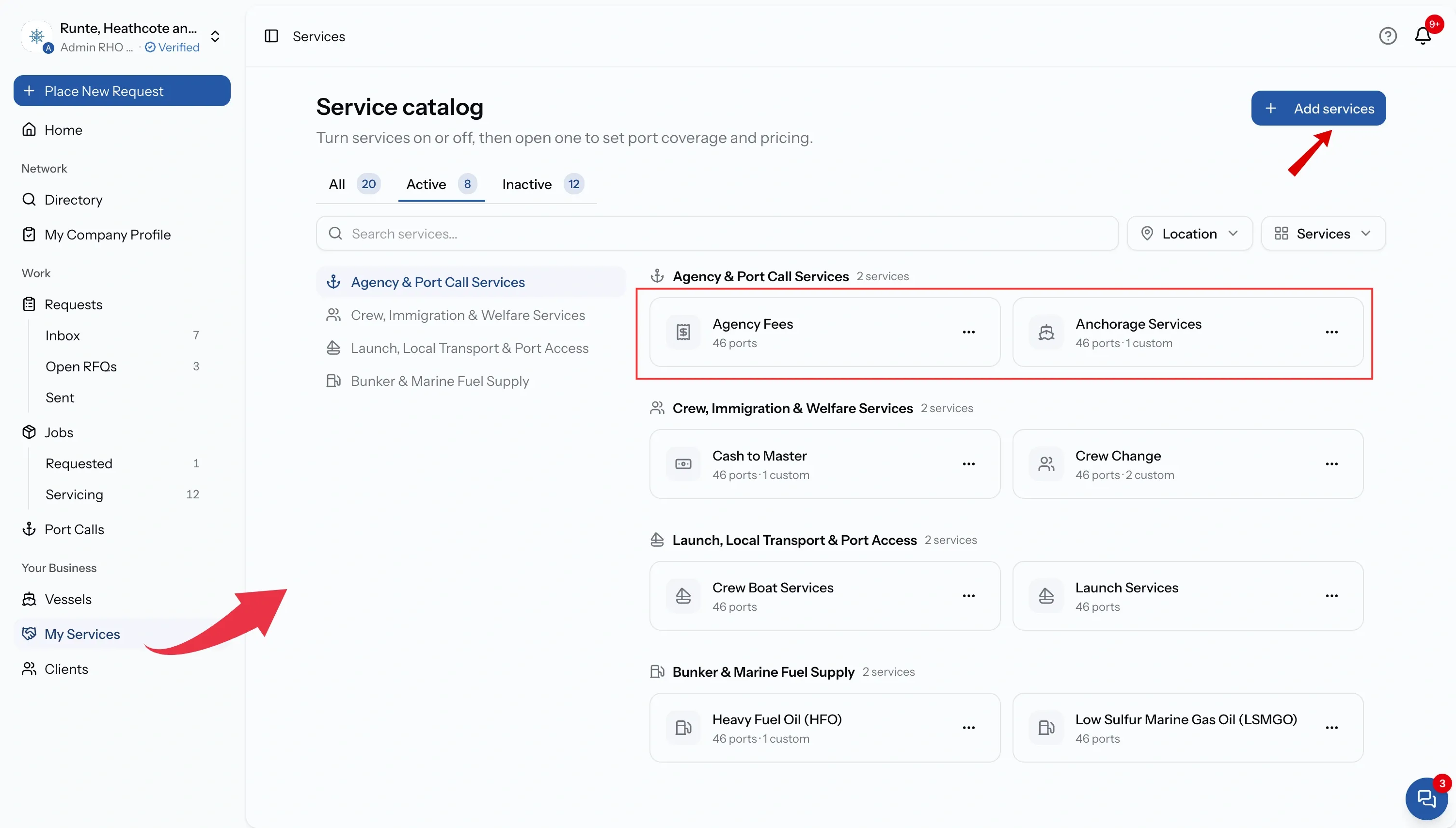
Choose My Services in the sidebar, under Your Business. The page is headed Service catalog.
Three tabs sit at the top with a count on each: All, Active and Inactive. It opens on Active.
Check the Inactive count first. A service someone switched off months ago and forgot about is the most common thing people find here.
Every service in the list shows two things:
- How many ports it runs at. A service with none is not offered anywhere.
- Whether it has custom port specific pricing.
Step 2. Add services
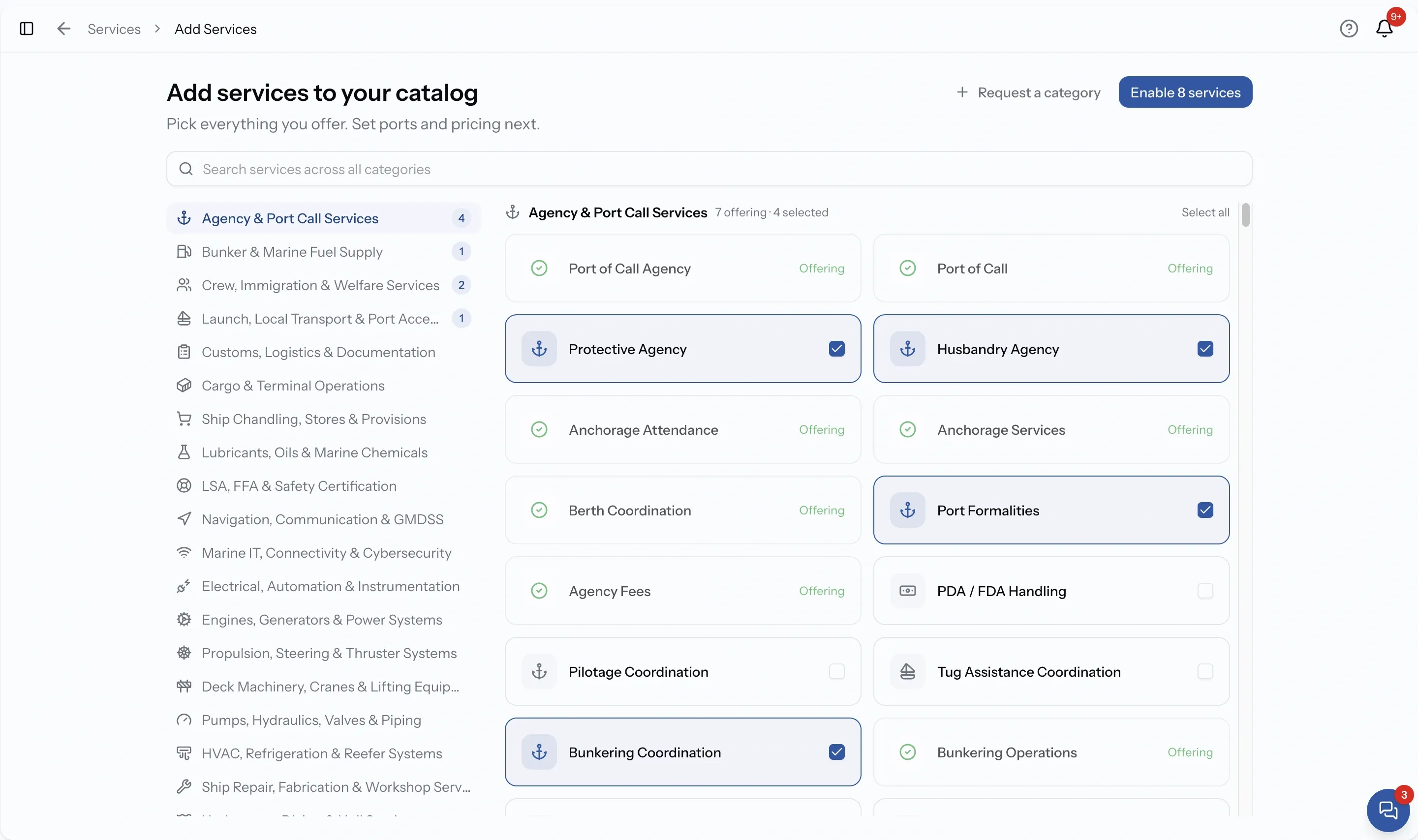
Press Add services, top right.
Every provider on PortzApp works from the same catalog, so you select what you offer rather than typing it. That is what lets a buyer searching for bunkering at Fujairah find you, instead of matching however you happened to word it.
Select everything you genuinely offer, across as many categories as apply, and confirm in one go. If you do something and never list it, buyers filtering for it will not find you.
If the button is greyed out, you do not have permission to add services. Ask an admin or manager at your company.
Set the ports next
A service added here starts with no ports, so nobody can request it yet. That is on purpose. Adding from the catalog is the route for services you offer at some ports rather than all of them, so PortzApp waits for you to say which.
Open the service and set where it runs. See Manage port availability.
If you do offer it everywhere you work, adding it from your company profile instead is quicker, because it goes live at every port your company covers.
Step 3. Find what you need
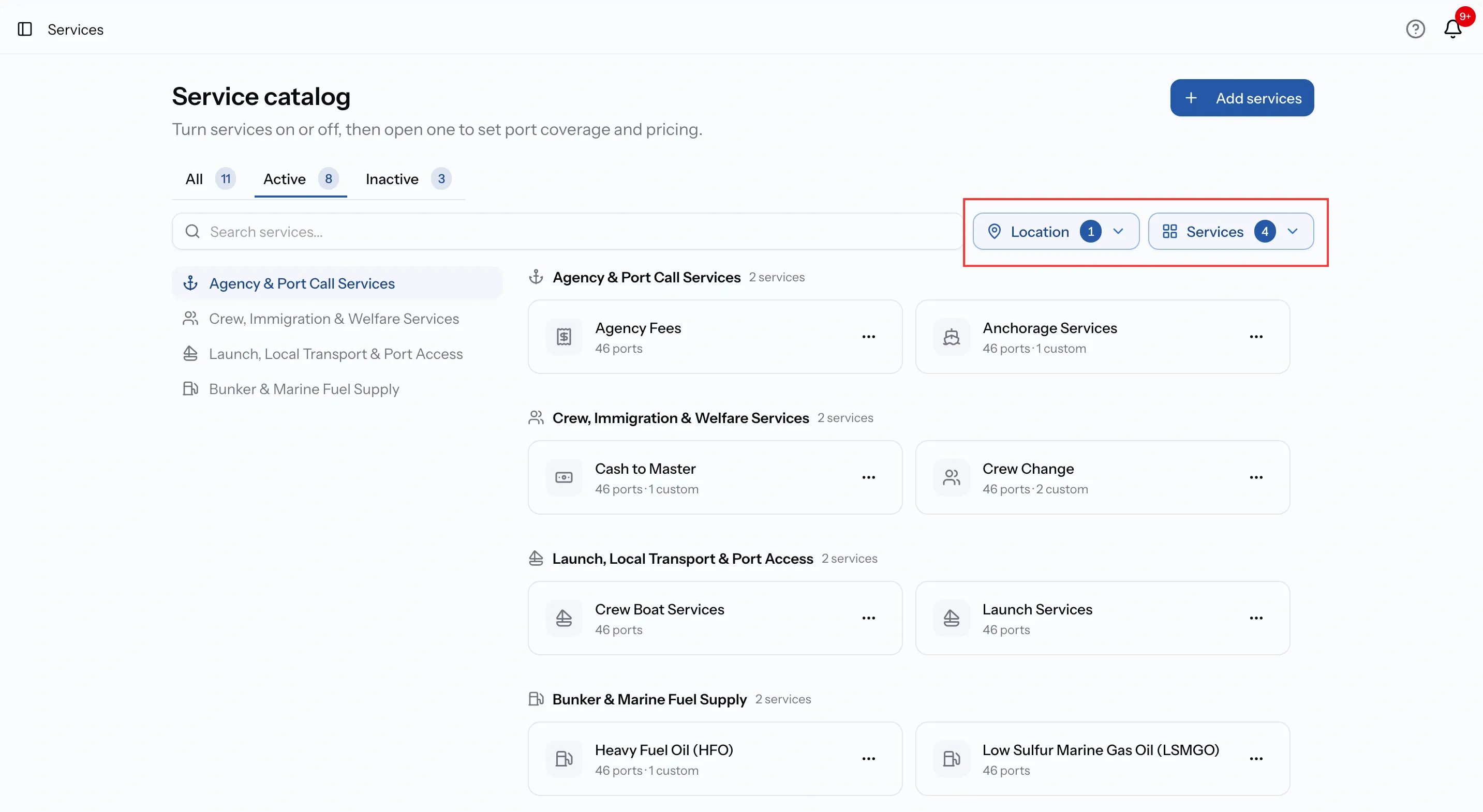
A full catalog gets long. Three things narrow it:
- Search services finds one by name.
- Services filters by category or sub-category.
- Location filters by port or country.
Location is the useful one. It answers "what do we offer at Jebel Ali" in a single click, which is the question clients ask.
What is inside a service
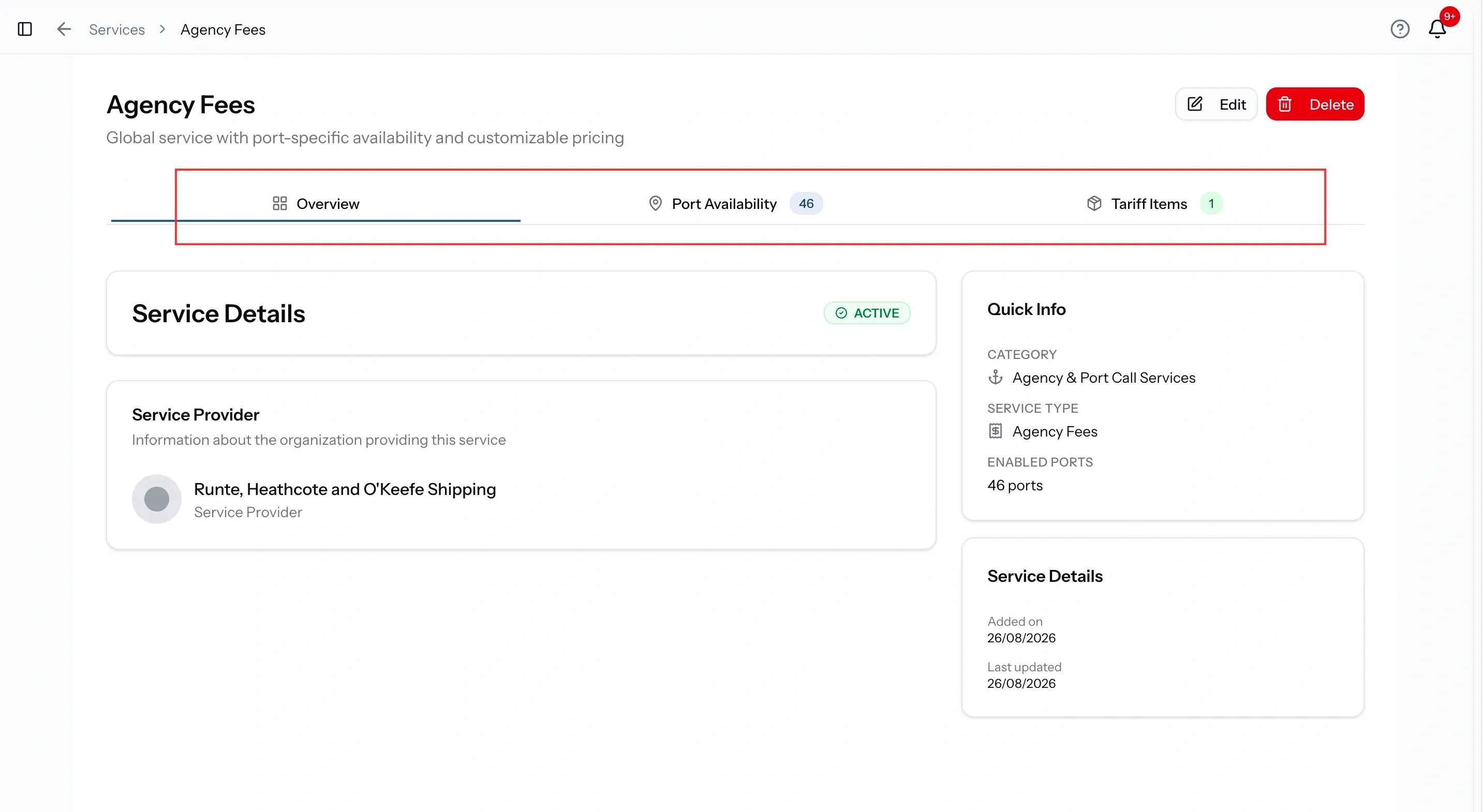
Open a service and you get three tabs.
- Overview. Quick information about the service, including its category, enabled port count, date added, and last updated date.
- Port Availability. Where it runs. Covered in Manage port availability.
- Tariff Items. What it costs. Covered in Set your default tariff items.
The last two carry a number, so you can see at a glance whether a service has ports and pricing without opening either tab.
Active and inactive
A service is either Active or Inactive. It only changes what buyers see.
Active means you are offering it. It shows on your public profile and buyers can send you requests for it.
Inactive means you are not. Buyers cannot see it or request it. Its ports, pricing and history stay exactly as they were.
Inactive does not mean unfinished. It means not on the market right now.
Switch a service off, and back on again
Deactivate a service you are not offering at the moment. Nothing is lost, so switching it back on later takes one click.
It is the right choice for seasonal work, for something you have paused, or for a service you are not ready to quote on yet.
Reactivate it from the Inactive tab. Everything comes back as it was. Do check its ports still match where you work, because your coverage may have changed while it was off.
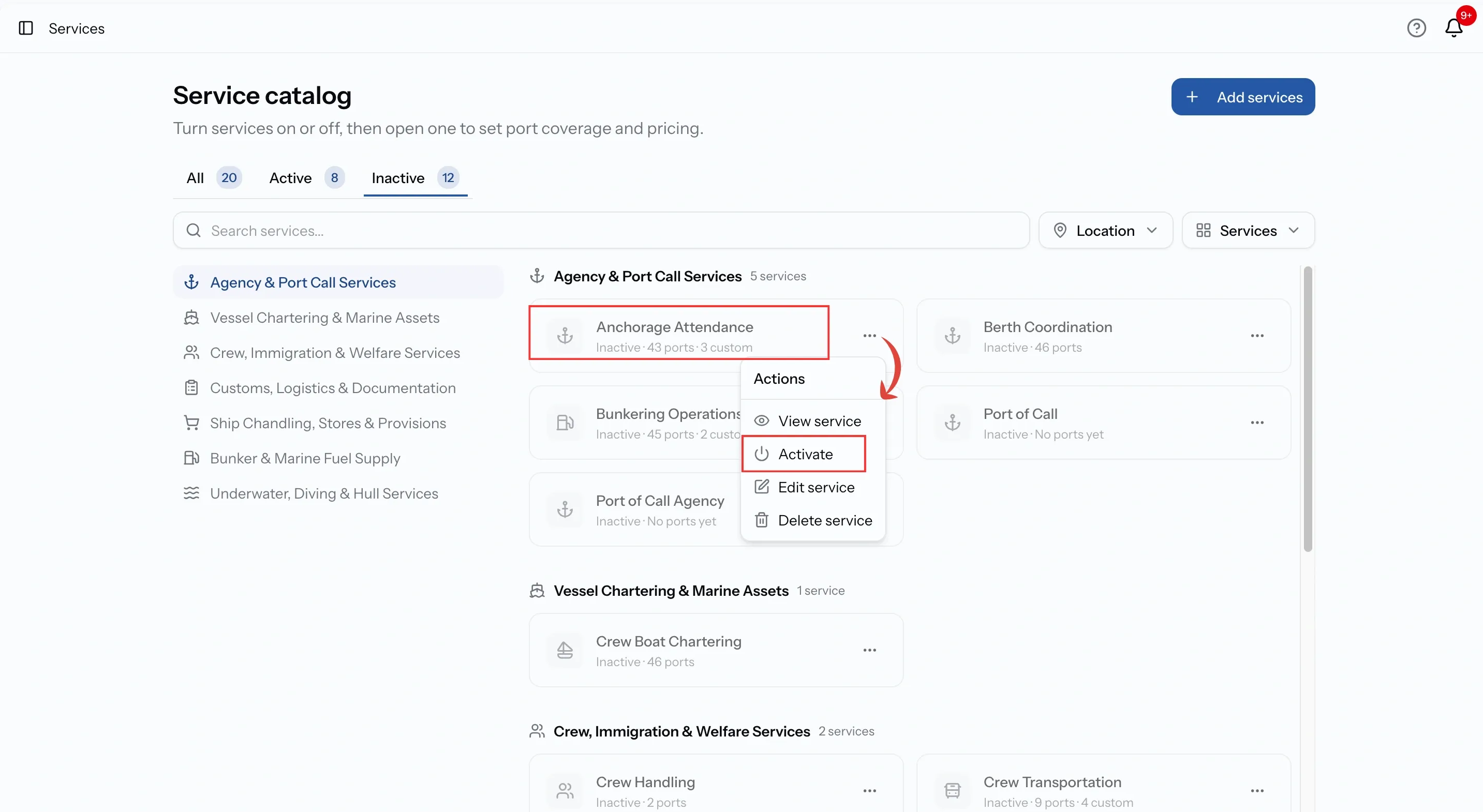
Deleting a service
Deleting removes the service and everything attached to it. Its ports go, its pricing goes, and none of it comes back.
Only Admins and Managers can do it, and you rarely need to. Deactivating hides a service just as well and lets you change your mind.
Delete only when you ticked something by mistake and never set it up.
When your service is not listed
The catalog is shared, so you cannot add to it yourself. That is deliberate. It means a buyer's search finds every provider who offers a service, not only the ones who worded it the same way.
If something you offer is genuinely missing, use Request a category. PortzApp reviews it, and once approved it is available to every provider.
Until then, select the closest category and describe what you actually do on your company profile.
Common issues
I added a service and it shows 0 ports
That is normal when you add from the catalog. Open the service and set where it runs
A service has ports but no pricing
Buyers can request it, but you will build every quote from scratch. Add tariff items
A service I did not add is on the list
Somebody added it on your company profile. Both places hold the same services
Worth doing now
Look for the gaps
Go through your catalog and look for two things: services with no ports, and services with no pricing. Both are work you cannot win, and both are quick to fix.
FAQ
01
02
03
04