
Financial Reports
See how profitable your work is: revenue, costs and net margin across your jobs, broken down by client, job and tariff item, with exports and reports emailed on a schedule.
FOR SERVICE PROVIDERS
Financial reports are available to service providers, for the Admin, CEO, Manager and Finance roles. Only Admins can set up scheduled reports.
Key takeaways
Reports are built from your jobs' disbursement accounts, so they match what you charged and what it cost.
Every figure is before tax, and each job is converted at the exchange rate locked on that job.
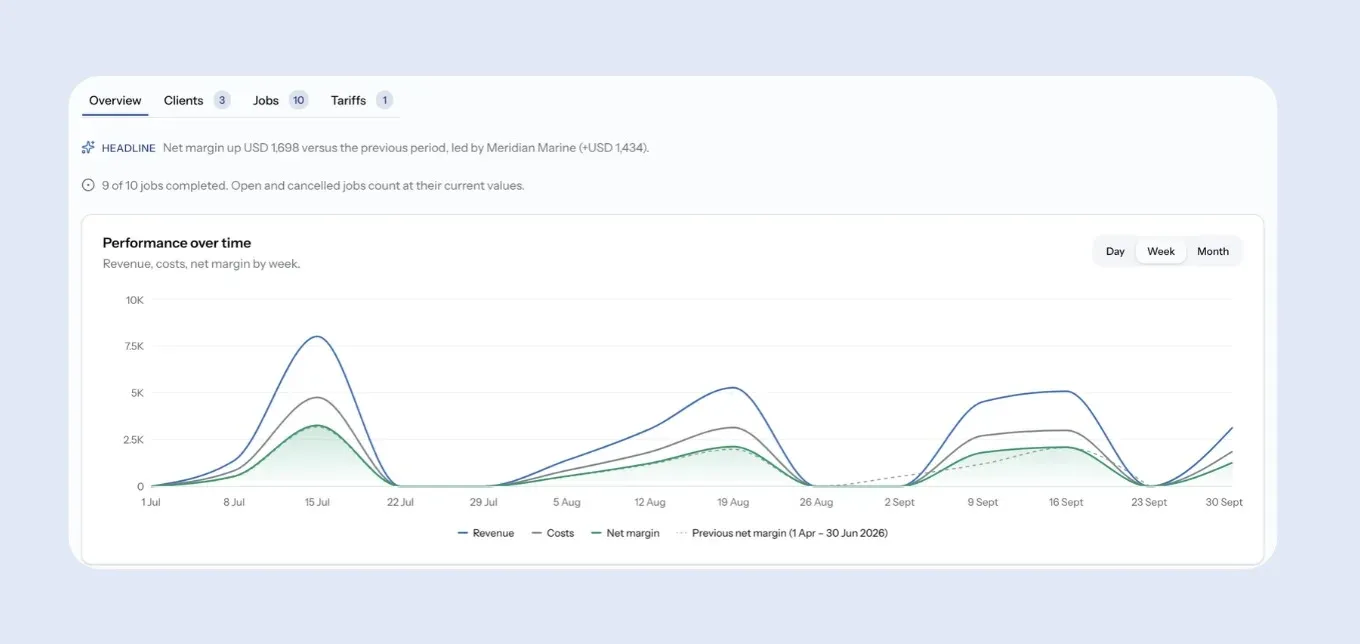
Each period is compared with the one before, so you can see what changed.
Look at the whole business, or by client, job or tariff item.
Admins can have reports emailed daily, weekly or monthly.
Where to find it
Select Financial reports in the sidebar, under Your Business. The page opens on the last 3 months, compared with the 3 months before.
What the figures mean
All figures come from the services and items on your jobs' disbursement accounts, before tax.
Figure
Revenue
What it includes
What you charged your clients: the billable items on your jobs.
Figure
Costs
What it includes
What the work cost you: the cost price of billable items, plus non-billable expenses.
Figure
Net margin
What it includes
Revenue minus costs, plus any non-billable revenue.
Figure
Margin rate
What it includes
Net margin as a share of revenue.
Choosing what to look at
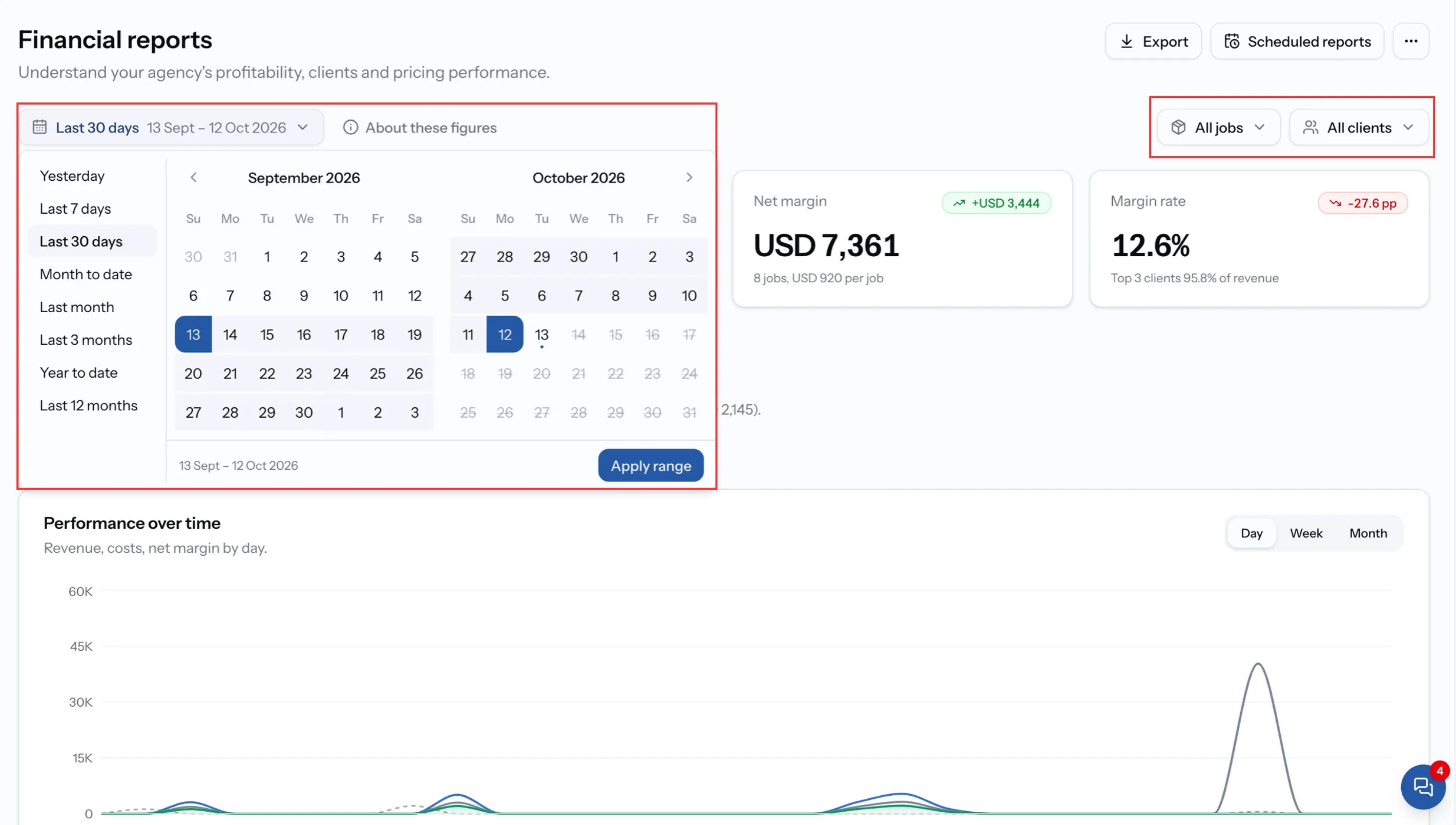
Pick a period from the presets, from Yesterday to Last 12 months, or set your own dates. Every period is compared with the period before it, so each figure shows how it changed.
Narrow the report further with filters:
- Client: one client, or all of them.
- Job type: standard jobs from a quotation, manual jobs, or both.
- Status: jobs in particular statuses. Every status is included unless you choose.
- Specific jobs, One port call or One service: focus on just those.
Jobs are dated by when they were completed, or by when they were created if they are still open. About these figures on the page explains this, with any notes about older jobs.
Currency
Each job's figures are converted at the exchange rate locked on that job. Select Change currency to see the whole report in another currency. Every figure on the page changes together, and the rate used is shown, including if it is your own rate.
Four ways to look at it
- Overview: revenue, costs, net margin and margin rate, with a headline on what changed, a Performance over time chart, your most profitable clients, ports and vessels, Quote vs actual, and your recent jobs.
- Clients: every client in the period with their margin and how it changed. Select one to see the whole report for that client.
- Jobs: every job in the period with its margin, and how it compares with the quote.
- Tariffs: each tariff item used on a disbursement account in the period, how often it was applied, and the margin it earned.
Quote vs actual
For standard jobs from an accepted quotation, Quote vs actual compares the margin you quoted with the margin the job finally made. It shows where pricing slipped once the work was done.
A closer look at one job
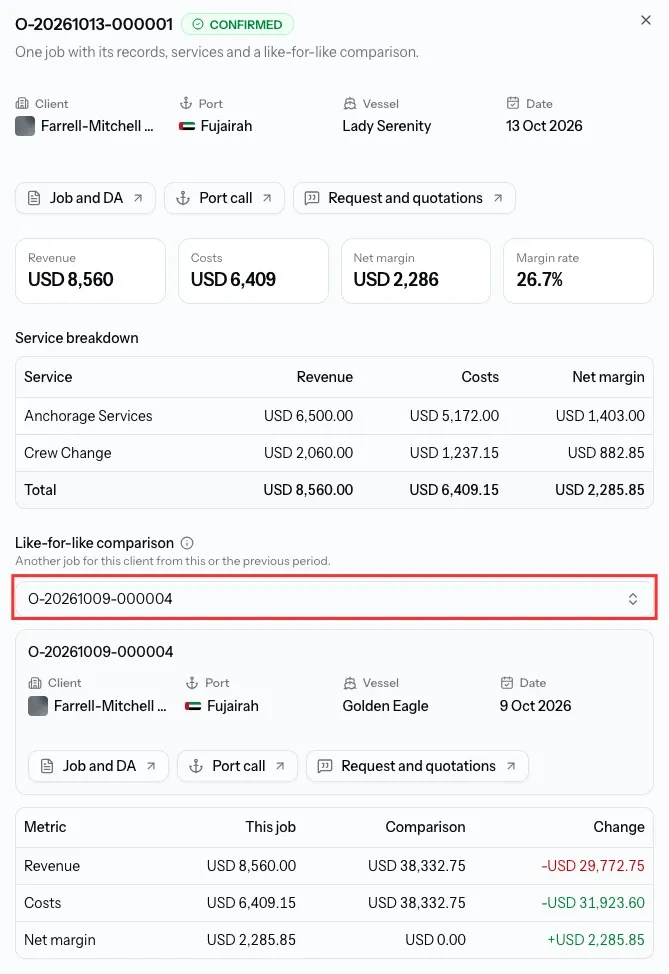
Open any job to see its services, links to the job, port call and quotations, and a like-for-like comparison with another job for the same client. Differences can come from scope or quantities, not only price.
Exporting
Select Export to download the report as a CSV file, for a spreadsheet or your accounting team. Choose what each row is:
- Clients: one row per client, with its totals for the period.
- Jobs: one row per job.
- Tariff items: one row per tariff item applied on a disbursement account.
You can choose the currency, name the file, and include column headings.
Reports by email
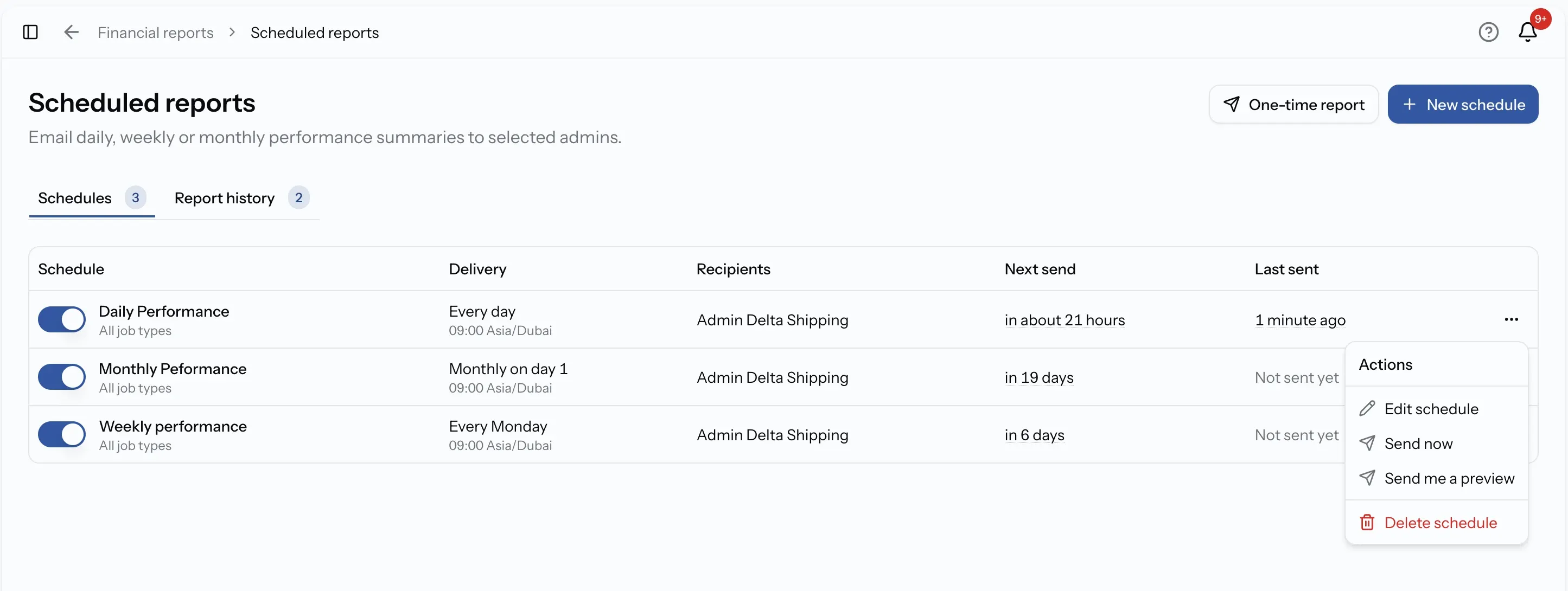
Admins can have a report emailed automatically under Scheduled reports:
- Daily: yesterday, compared with the day before.
- Weekly: the last 7 days, compared with the 7 before, on the day you choose.
- Monthly: the previous calendar month, compared with the month before, on the day you choose.
Each schedule sets its time, timezone, the jobs included, and who receives it. Reports go to Admins only, and recipients are checked before every send. Emailed reports cover completed jobs, in your company's default currency.
You can also Send a one-time report at any time. Every report sent, scheduled or one-time, is saved in the report history with its figures as they were when sent, and you can open the live report from there.
Step by step
Manage your financial reports
Choose the period, filter the report, export it as a CSV, and schedule reports to your Admins by email.
Common issues
I cannot see Financial reports
Reports are for service providers with the Admin, CEO, Manager or Finance role.
A job is missing from the report
Check the period and filters. Jobs are dated by completion, or by creation if still open.
The emailed report does not match the page
Emailed reports cover completed jobs in your default currency. The page includes every status unless you filter it.
Quote vs actual shows nothing
It only covers standard jobs from an accepted quotation. Manual jobs have no quote to compare with.
FAQ
01
02
03
04
05