
Build and submit a quotation
Turn a request into a priced quote. Start from your own tariffs, shape the lines, keep your margin private, set the validity and terms, then send it, and revise it when the buyer asks.
Have these ready
A request to quote, either one sent to you in your Inbox or one you picked up from Open RFQs. Your company must be verified, and you need the Admin, Manager or Finance role.
Tariffs help a lot. With them in place your prices fill in for you, so you check a quote instead of typing it. See Set your default tariff items.
Five things that shape every quote
Your tariff writes the first draft. PortzApp uses your price for that port if you have one, and your default price if not.
The buyer pays for billable lines only. Cost prices, markup and non-billable lines never leave your side.
The currency is yours to choose, but it locks the moment you submit.
A quote holds for 30 days unless you pick another date, up to a year away.
A revision starts from your last quote, except for the files attached to its lines.
Open the quote builder
You open the builder from the request itself. The button depends on where the request reached you.
From the Inbox
Open a request that was sent to your company and select Submit Quote at the top of the page.
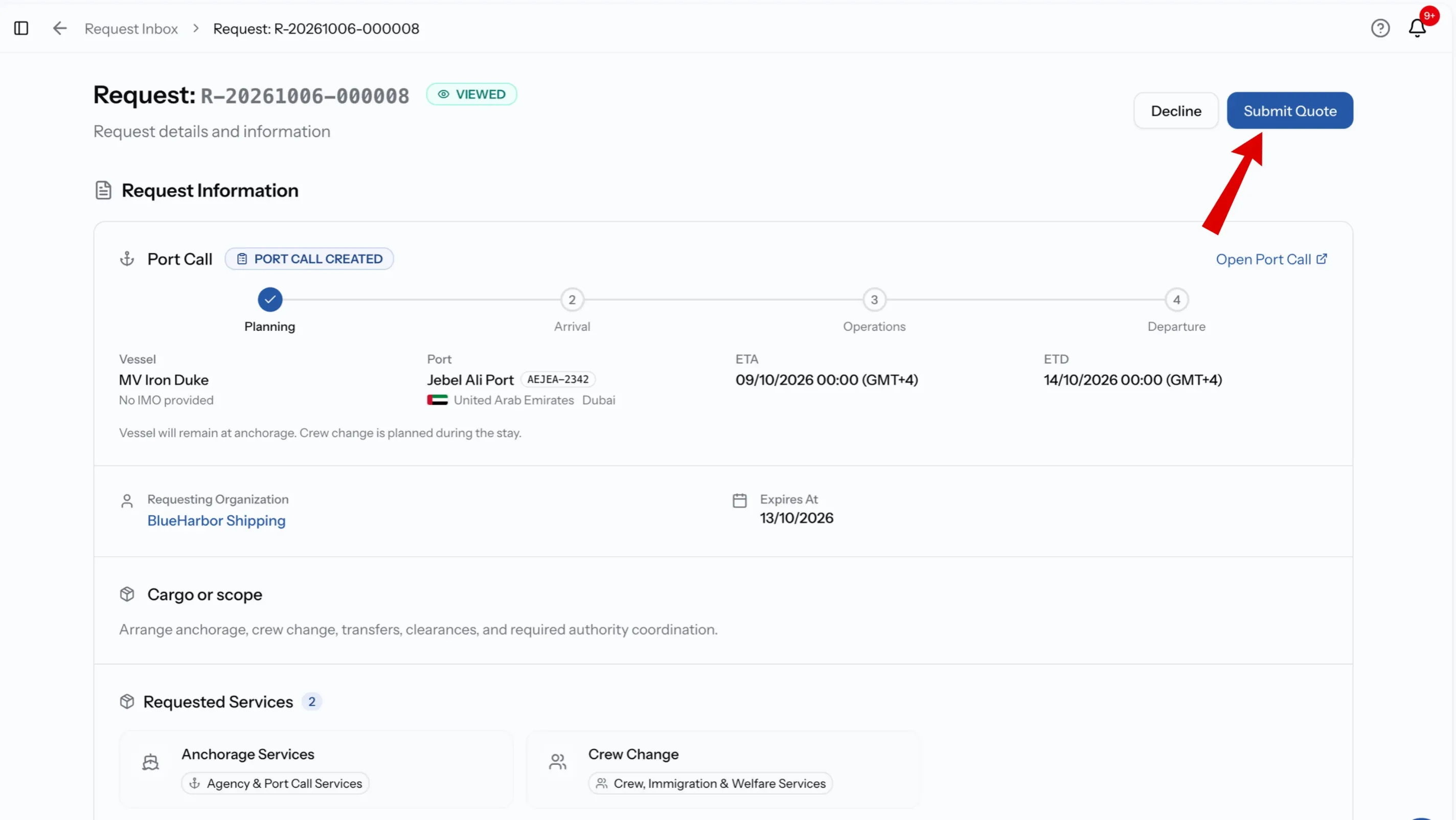
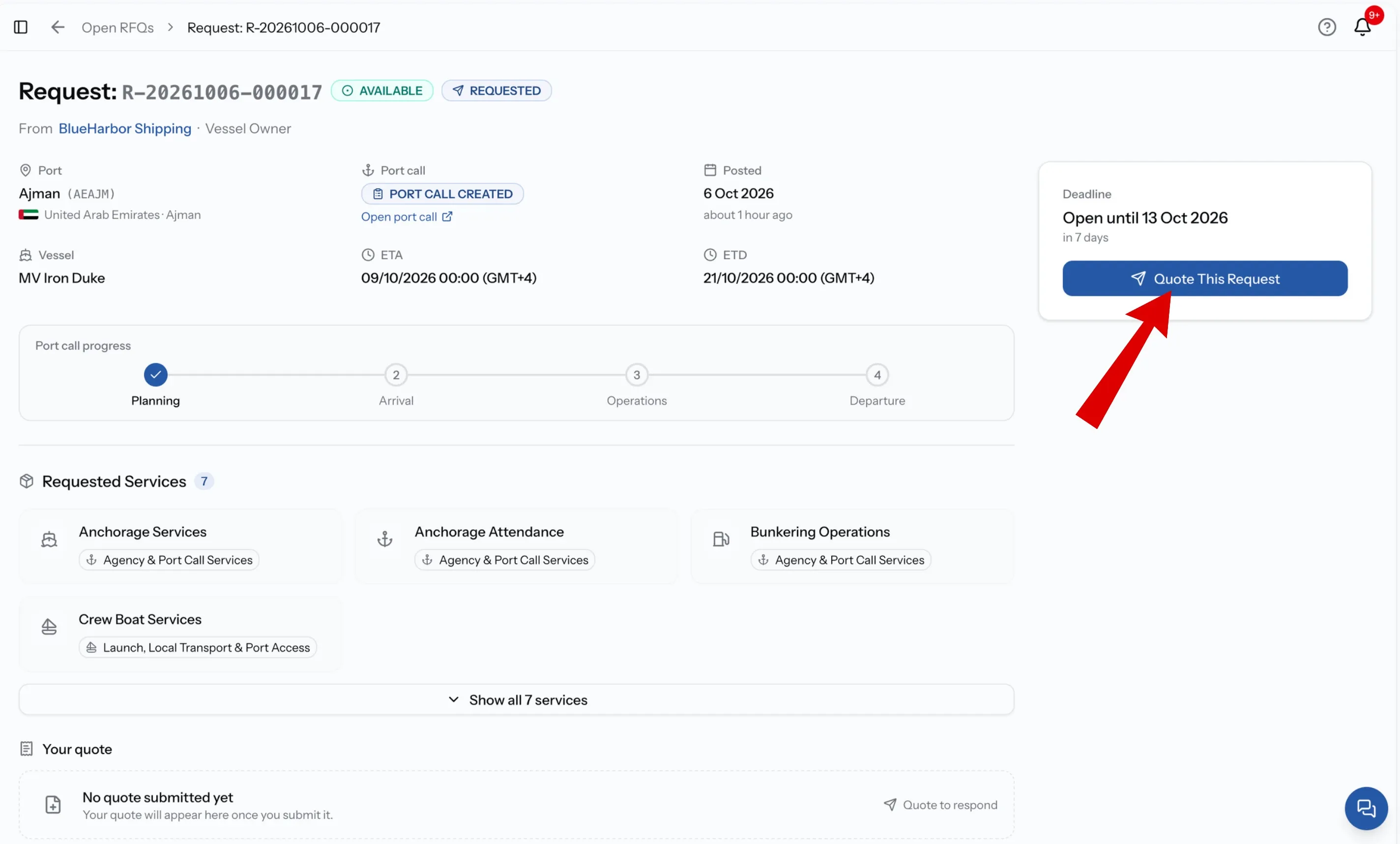
From Open RFQs
Open an RFQ from the market and select Quote This Request in the Deadline card on the right. PortzApp adds your company to the request and takes you straight to the builder.
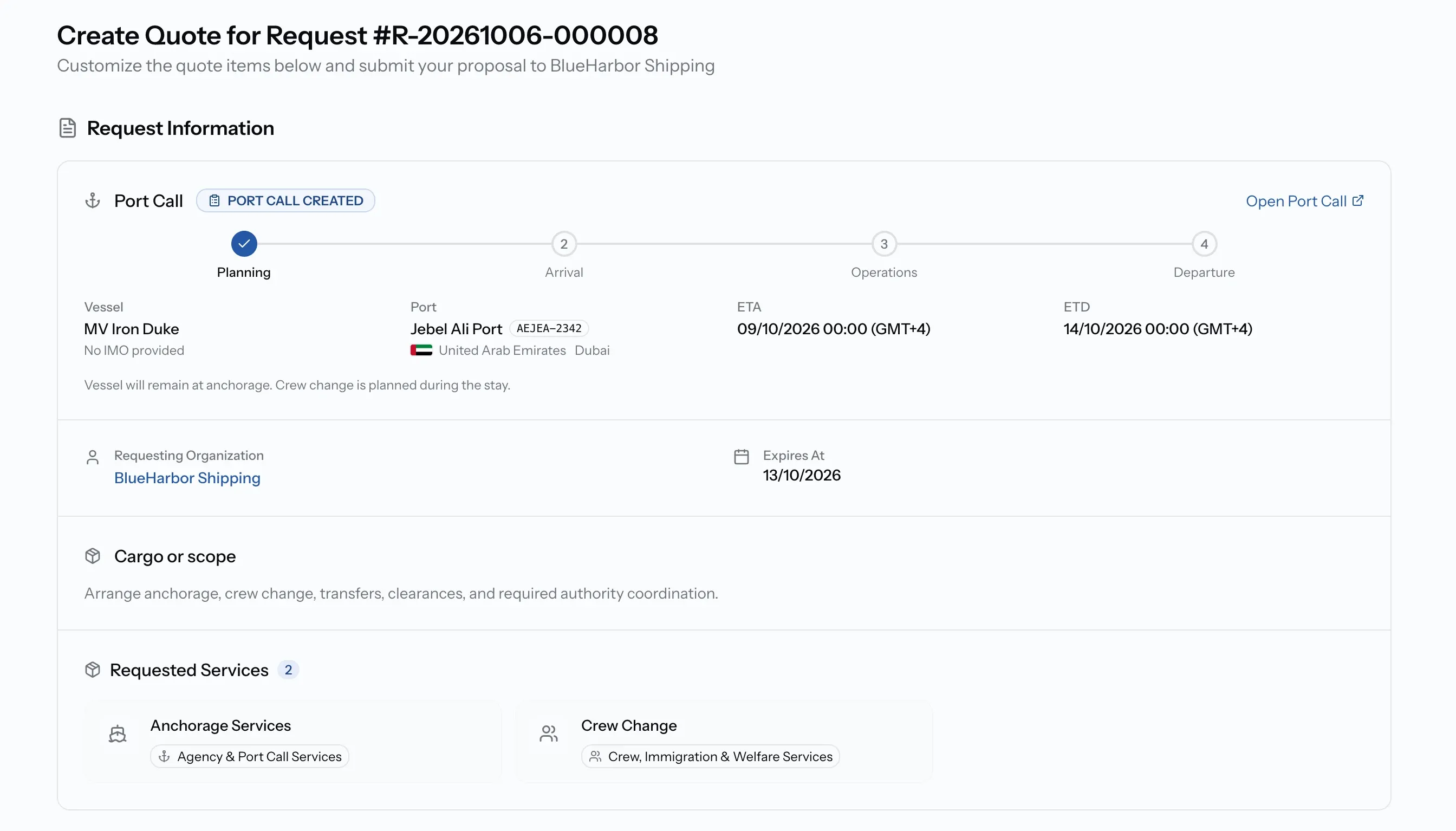
Create Quote for Request
Either way, the builder opens as Create Quote for Request, followed by the request number. Request Information stays at the top, so the port, schedule, vessel and scope are in view while you price.
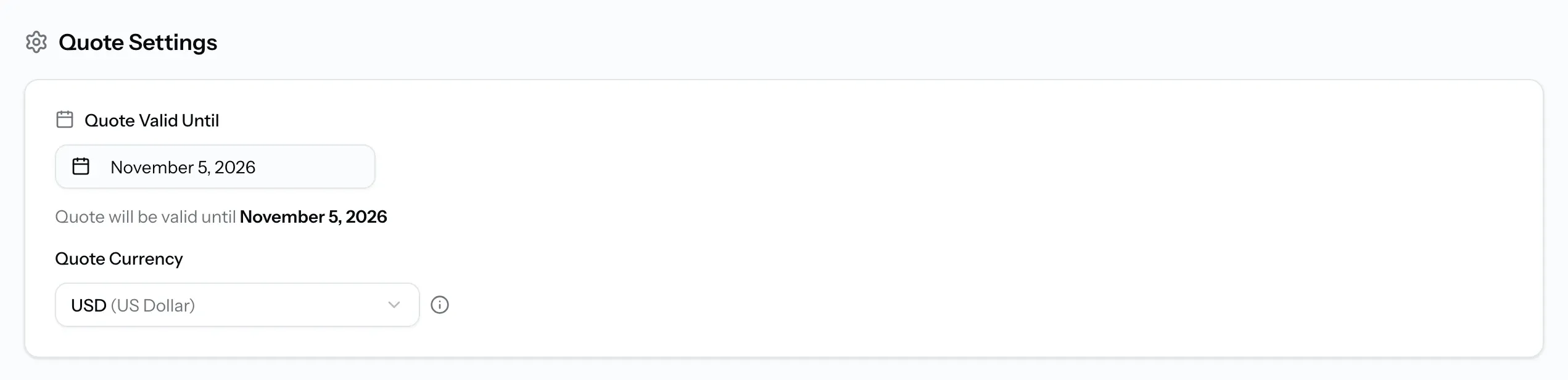
Set the Quote Settings
Quote Settings holds the two choices that apply to every item in the quote.
Quote Valid Until
How long you hold these prices. It starts 30 days from today. Pick 15, 30, 45, 60 or 90 days, or any date from tomorrow up to a year away. The buyer sees this date, so make it the date your prices really expire.
Quote Currency
The currency the buyer is quoted in. It starts as your organization's default currency. Change it here if the buyer expects another currency.
Quote Currency locks when you submit
The quote currency locks once you submit, and every revision keeps it. If the buyer wants a different currency later, that has to be a new quote on a new request.
Review the prefilled items
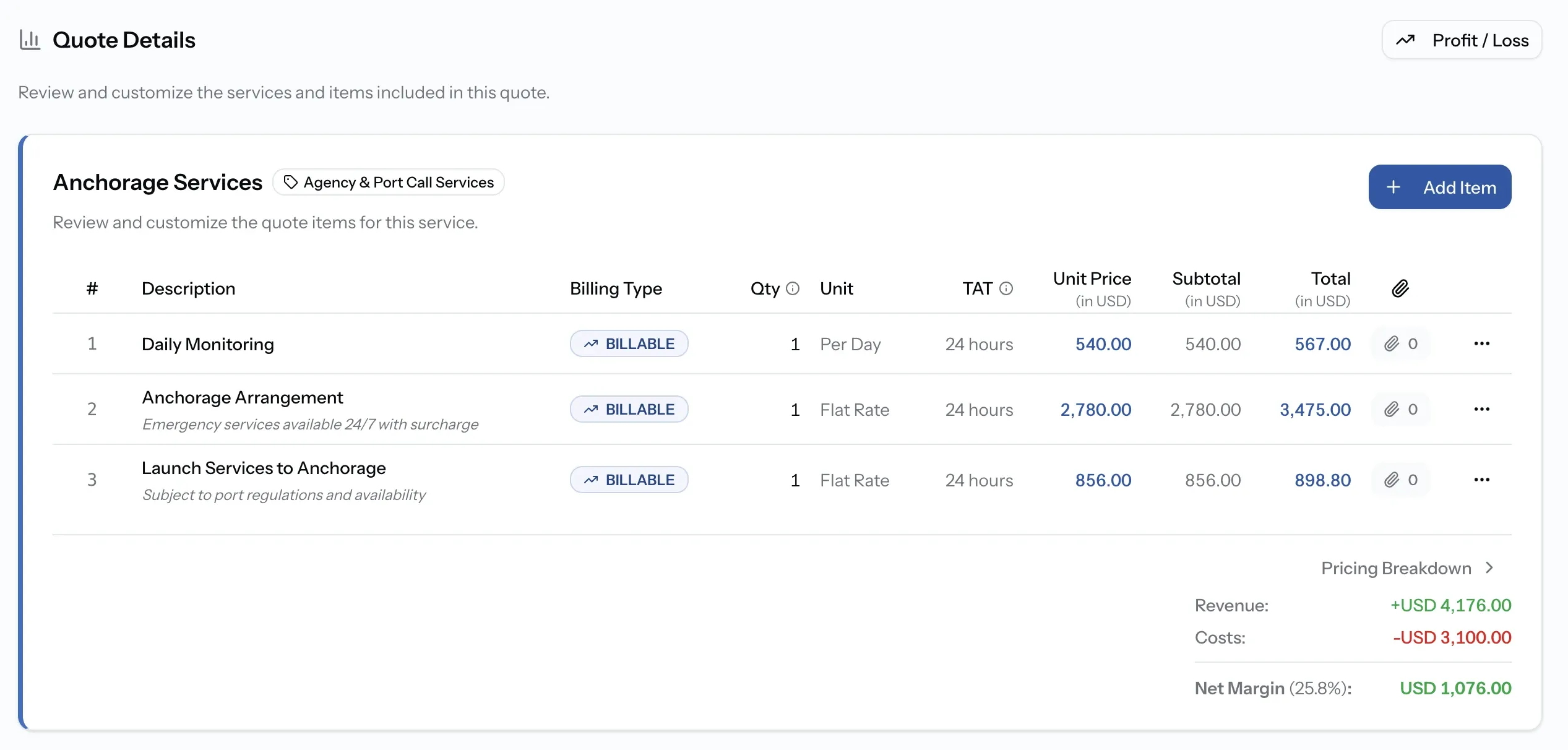
Under Quote Details, every service the buyer asked for has its own card. If you offer that service, its lines are already filled in from your tariff:
- your price list for that port, if you have set one, or
- your default price list for the service, if you have not.
Treat those lines as a starting point. Tariff quantities rarely match a real call exactly, so check each one against the request.
A card that reads No configured tariff exists for this service. Add custom quote items below. starts empty. That happens when you have not set the service up, and for services the buyer wrote in themselves, marked Custom.
To get more quotes prefilled, see Set your default tariff items and Customize pricing for a port.
Add a line of your own
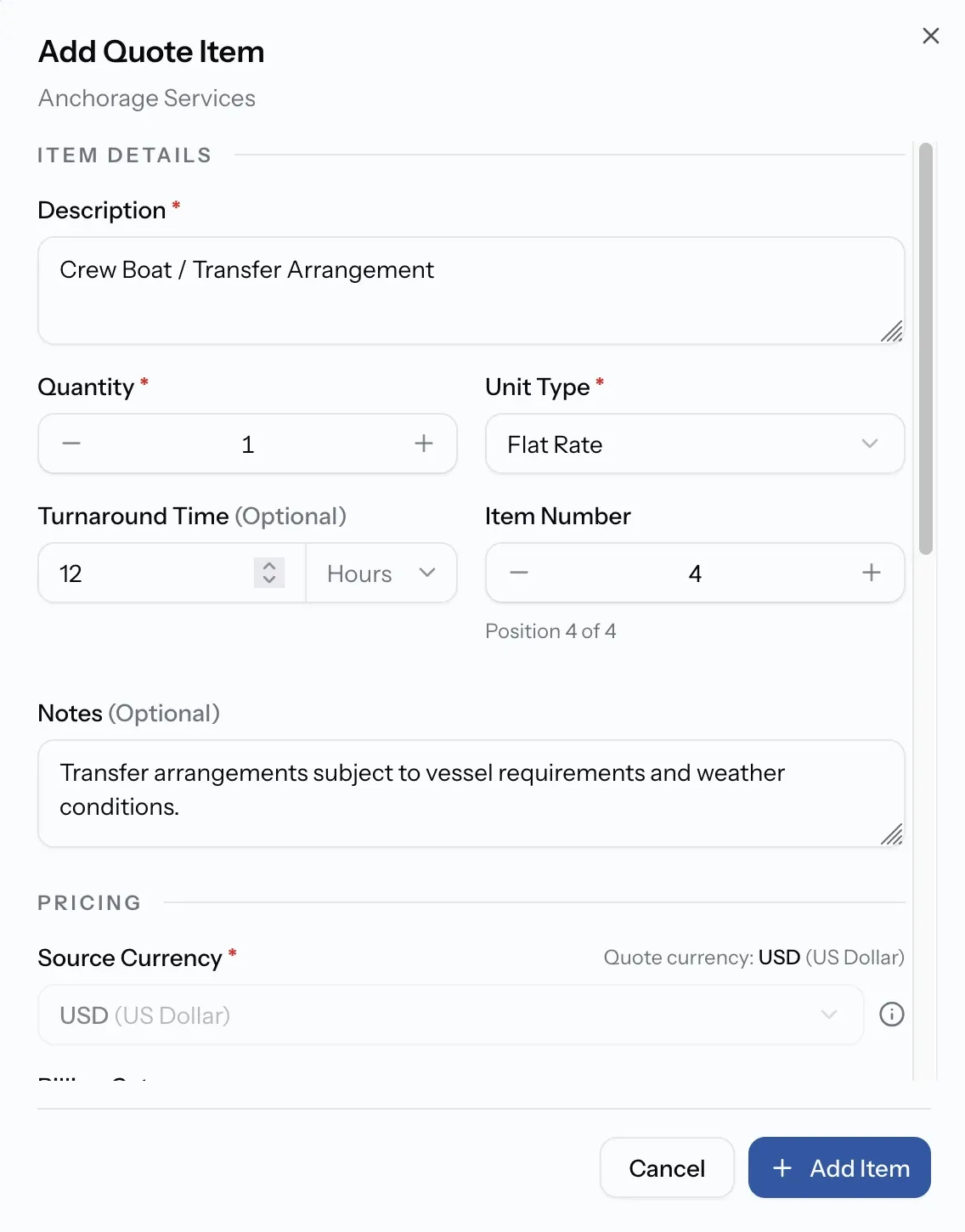
Select Add Item on a service card. The same form opens when you choose Edit on an existing line.
Step 01
Fill in Item Details
Enter the Description, Quantity and Unit Type. These three are required. Turnaround Time and Notes are optional but help the buyer, and Item Number sets where the line sits within the service.
Step 02
Choose the Billing Category
Choose Billable if the buyer pays for it. Choose Non-billable if it is for your own records, then pick Revenue or Expense.
Step 03
Enter the Selling Price
A billable item needs a Selling Price. Add a Cost Price to track margin, and turn on Add Markup to build the price from cost. A non-billable item takes a Unit Price instead.
Step 04
Turn on Add Tax
Enter the Tax Percentage if tax applies. Subtotal, Tax and Total update as you type.
Step 05
Add File Attachments
Attach anything the buyer should see with this item, such as a rate sheet or a supplier quote, then save the item.
Billable or non-billable
Billable
The buyer pays for it.
Non-billable
Nobody is charged on this. It records money you receive (Revenue) or spend (Expense) on the job.
Billable
You enter a Selling Price, with an optional Cost Price and Markup.
Non-billable
You enter a Unit Price.
Billable
The buyer sees the line, its price, tax, total and attachments, but never your cost or markup.
Non-billable
The buyer never sees the line at all.
Billable
Counts towards the Billed Total the buyer is quoted.
Non-billable
Counts only in your own Pricing Breakdown and Profit / Loss.
Check the pricing
Before the buyer sees a price, put the items in order and make sure the quote works for you.
- Item actions: Each item's menu has Edit, Move Up, Move Down and Delete. Deleting asks you to confirm with Remove Item.
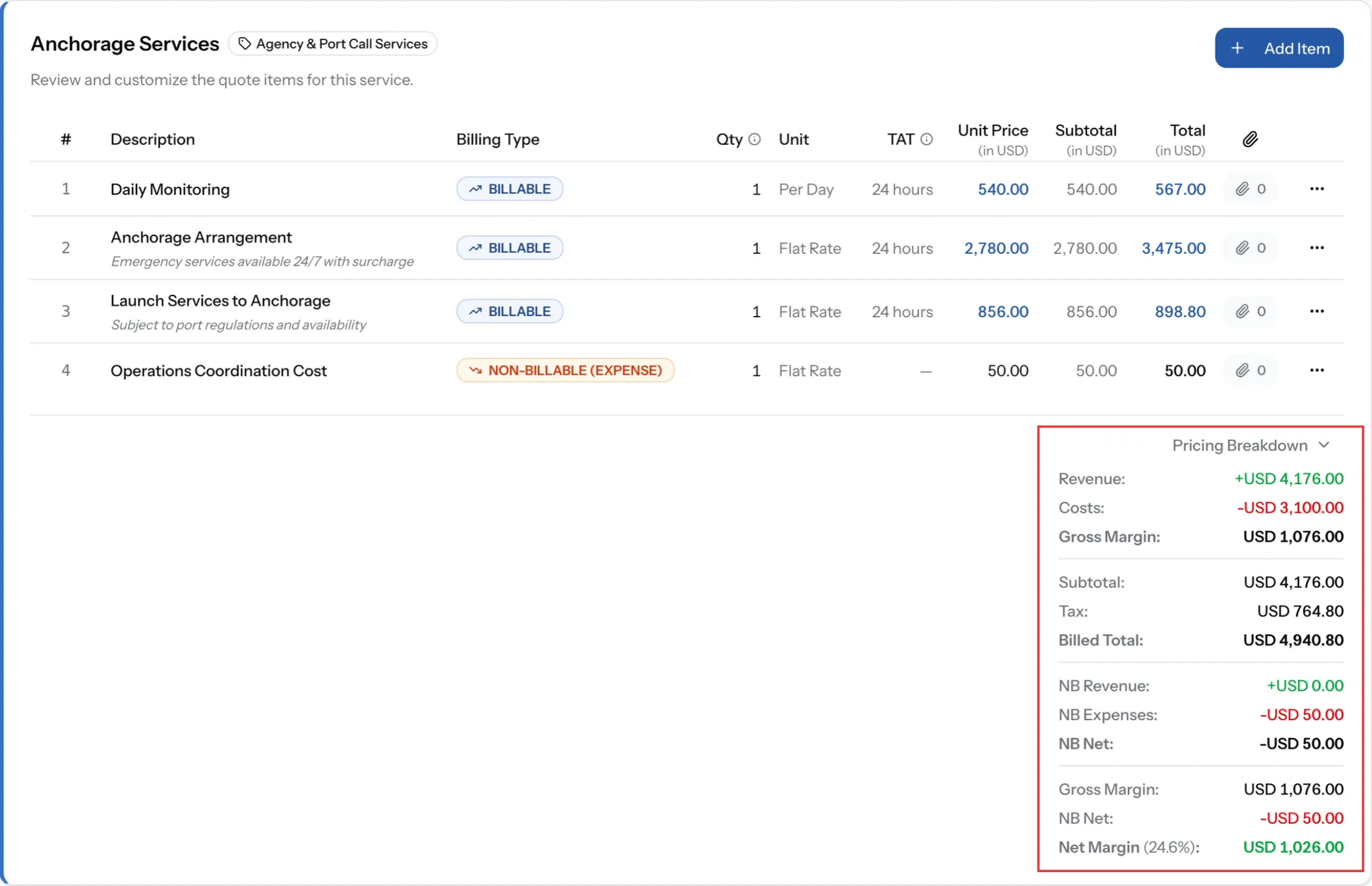
- Pricing Breakdown: Under each service, it shows what that service bills, what it costs you and the margin left over.
- Profit / Loss: At the top of Quote Details, it shows the whole quote at once, non-billable revenue and expenses included.
- Quote Summary: Along the bottom of the page, it shows the Subtotal, Tax and Billed Total exactly as the buyer will be quoted.
Add Additional Information
Additional Information closes the quote with two fields the buyer reads alongside your prices.
Terms and Conditions
Payment terms, exclusions and the assumptions your prices rest on.
Additional Notes
Anything else worth knowing, such as how timing will be agreed with the vessel and terminal.
A clear line here usually saves a round of questions after you submit.
Submit the quote
Once every service is priced and your terms are in, the quote is ready to go.
Step 01
Check the Quote Settings
Confirm Quote Valid Until and Quote Currency at the top. The currency cannot change after this.
Step 02
Select Submit Quote
It sits in the Quote Summary bar at the bottom of the page.
Step 03
Select Send Quote
The buyer is notified straight away. Your status on the request becomes Quoted, and your quote appears on the request page exactly as they see it.
Publish your PDA
When you submit a quote, PortzApp automatically generates a pro forma disbursement account (PDA) from it as a Draft. The buyer cannot see it until you publish it, so you can check it first.
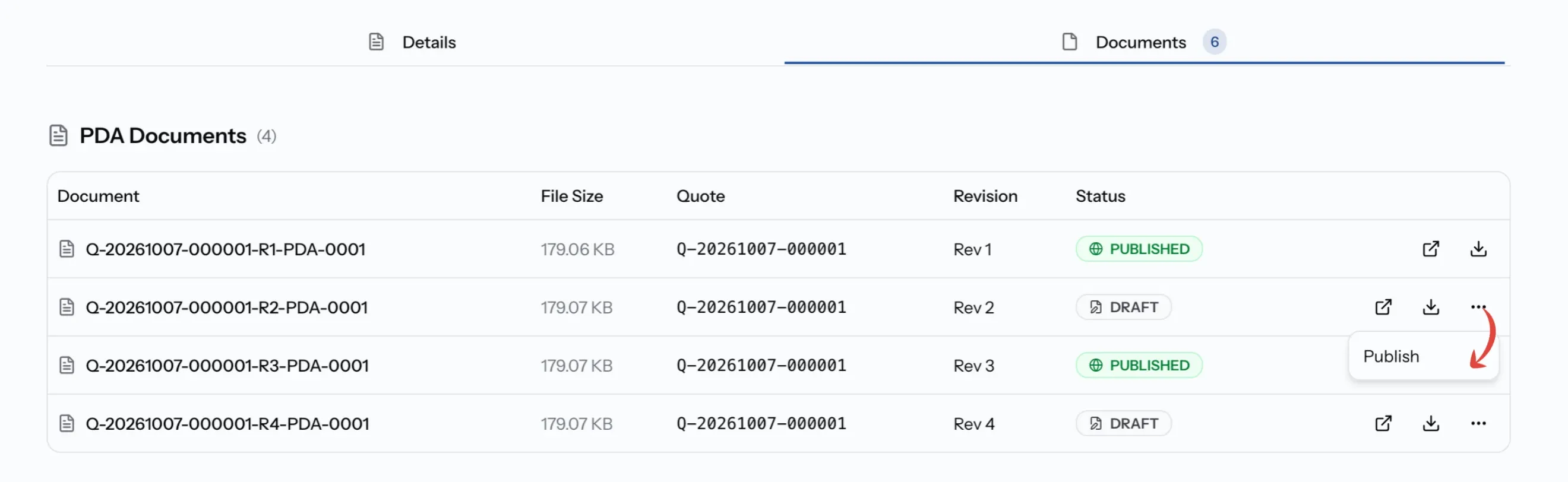
Open the request and select the Documents tab. PDA Documents lists one for each quote and revision you have submitted, with its Status:
- Draft: only your company can see it. Open or download it to check.
- Published: the buyer can see it with your quote.
To share a draft, open its menu and choose Publish. A published PDA cannot be taken back, so check it before you publish. A revised quote gets its own PDA, which also has to be published.
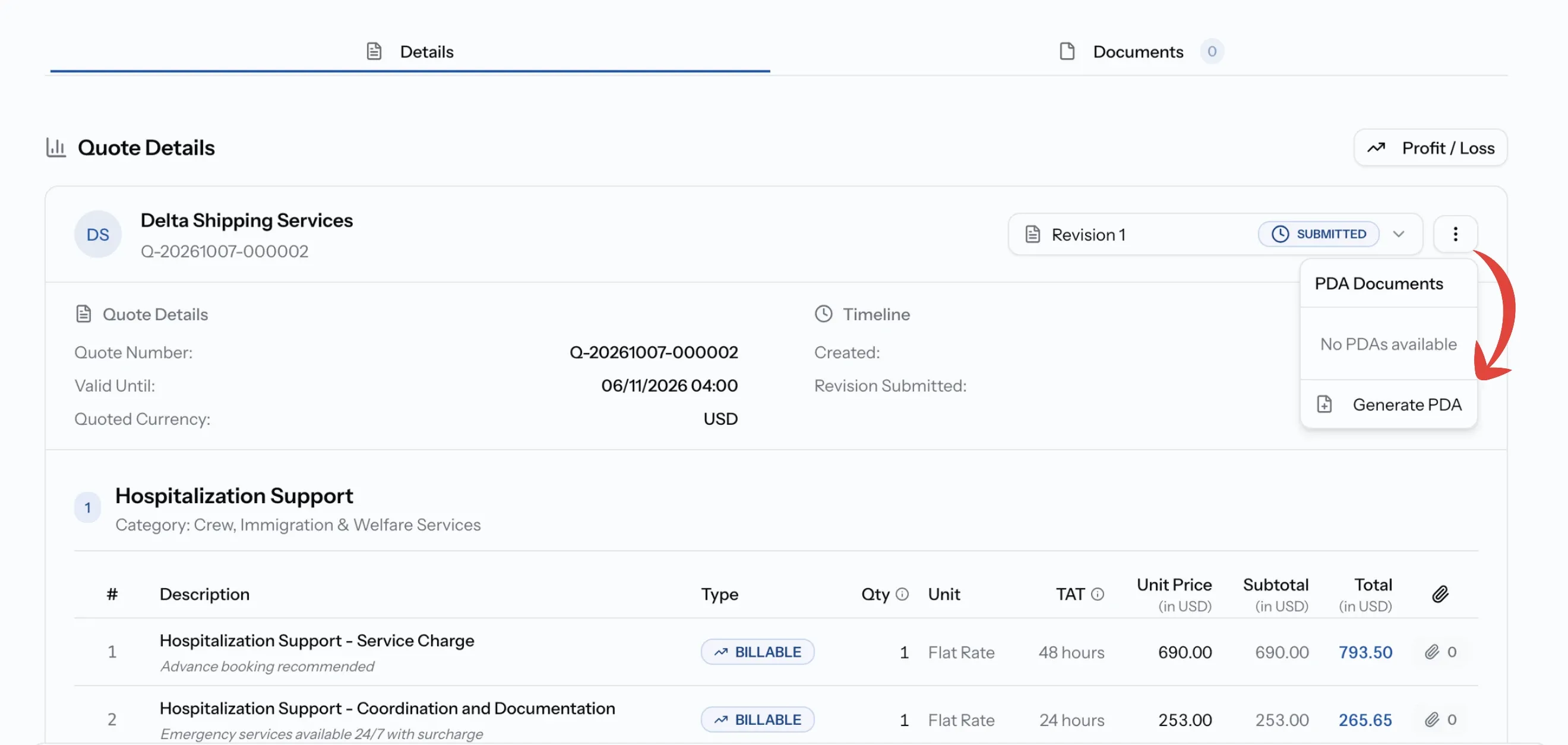
If no PDA is listed
Open the PDA Documents menu at the top of your quote and choose Generate PDA. It is created as a draft, ready to check and publish in the Documents tab.
Who can publish a PDA
Admin, Manager and Finance can publish. CEO can view and download PDAs but cannot publish them. Operations and Viewer cannot see them.
Submit a revised quote
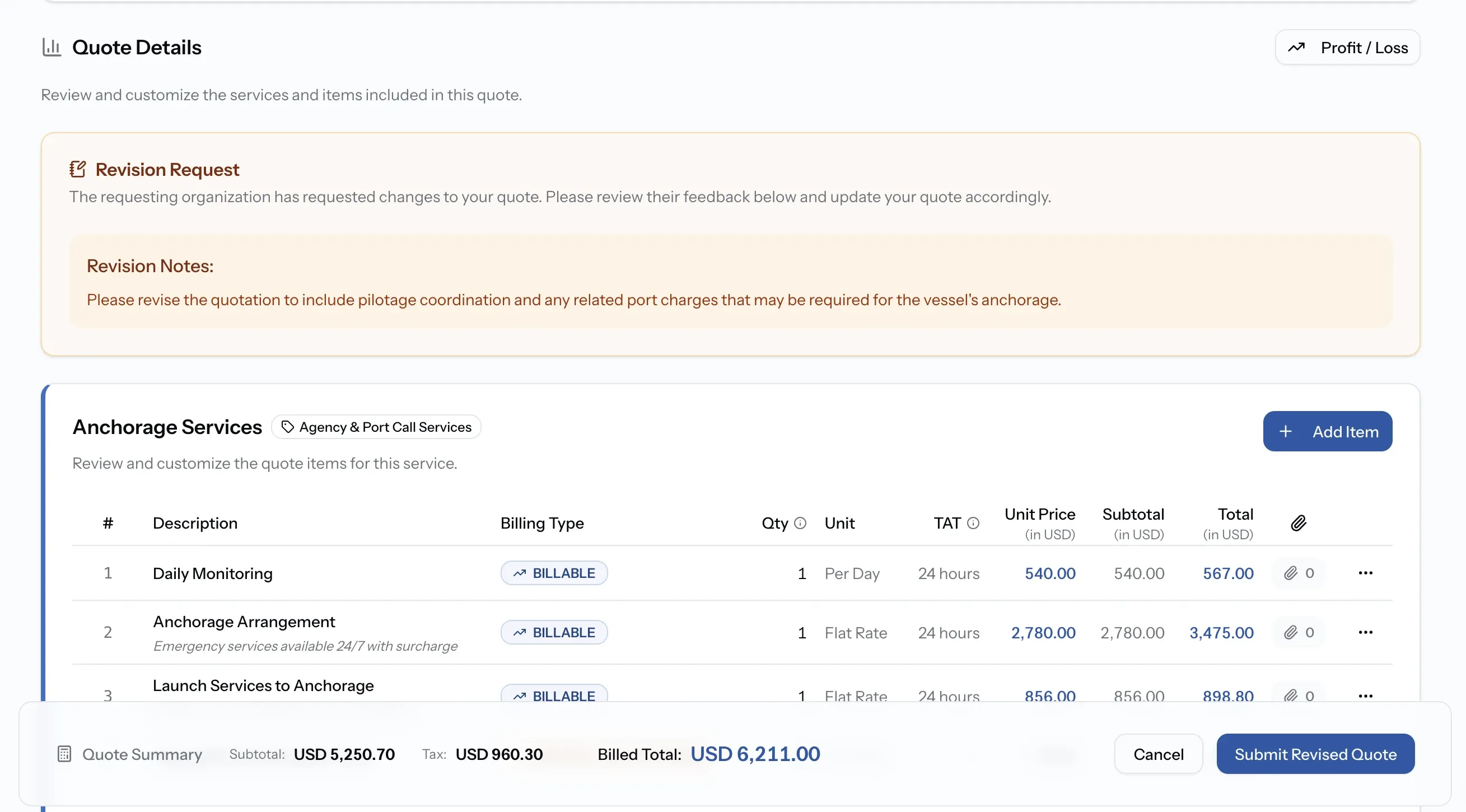
When the buyer asks for changes, the request shows Revision Requested and a Submit Revised Quote button. Select it and the builder opens again as Revise Quote.
Revision Request
A card at the top shows the buyer's notes, so you can answer each point.
What carries across
Your services, items, terms and notes carry across, so you only change what the buyer raised. Two things work differently:
- Quote Currency stays as it was. Revised quotes always keep the original currency.
- File Attachments do not carry across. Each revision has its own files, so attach them again where they still apply. Earlier files remain on the request's Documents tab.
Select Submit Revised Quote, then Send Quote. The new version replaces the old one for the buyer.
After acceptance
Manage the disbursement account on a job
An accepted quote becomes a job, with your services and items already on its disbursement account. Learn how to track the work, add extra charges and send each service for approval.
Troubleshooting quotes
Submit Quote is greyed out
Look for Exchange rate required near the top of Quote Details. An item priced in another currency needs a rate before the quote can be submitted. Add it in your organization settings.
A service card has no items
There is no tariff to draw from, either because you have not set the service up or because the buyer wrote it in themselves. Add the items with Add Item.
The prefilled prices look wrong
PortzApp uses your price for that port when one exists, and your default price otherwise. Check the port pricing for this request's port.
File Attachments are missing from the revision
Attachments belong to each revision. Add them again on the items they support. The earlier ones are still on the request's Documents tab.
The buyer cannot see the PDA
It is still a Draft. Publish it from the request's Documents tab. A revised quote has its own PDA, which also needs publishing.
What you can do now
You can open a request in the quote builder, start from your tariffs, add and price your own items, keep cost and margin private, set validity, currency, tax and terms, submit the quote, publish its PDA, and answer a revision request with a revised quote.
FAQ
01
02
03
04
05
06
07