
Find and quote on open RFQs
Open RFQs are requests a buyer has opened to the market rather than sending to named companies. Find the ones in your markets, read what the buyer needs, and quote without waiting for an invitation.
Before you start
Your company needs to offer services on PortzApp, such as a ship agent, supplier, broker, freight forwarder, vendor or service provider. Open RFQs only appears in the sidebar for these companies.
You can browse open RFQs before your company is verified. To quote, your company must be verified, and you need the Admin, Manager or Finance role. See Get your company verified.
For how the open market works and who can see an open request, read the Open RFQ Marketplace feature page. This guide covers finding and quoting on one.
The short version
Open RFQs are in Requests, then Open RFQs. Nobody invites you. You choose which ones to quote.
What you see depends on your RFQ markets. On Standard that is your registered country. On Pro you can add countries or see every market.
Your company needs a registered country before any open RFQs appear.
Quote This Request takes you straight to the quote builder.
There is no decline on an open RFQ. If it is not for you, leave it.
Where open RFQs are
Select Requests in the sidebar, then Open RFQs.
An open RFQ is a request the buyer opened to the market rather than sending it to named companies. That happens when they start a request from the sidebar or a port call, or tick Also share with other verified service providers on a request to companies they chose.
Requests sent to your company by name are in your Inbox instead.
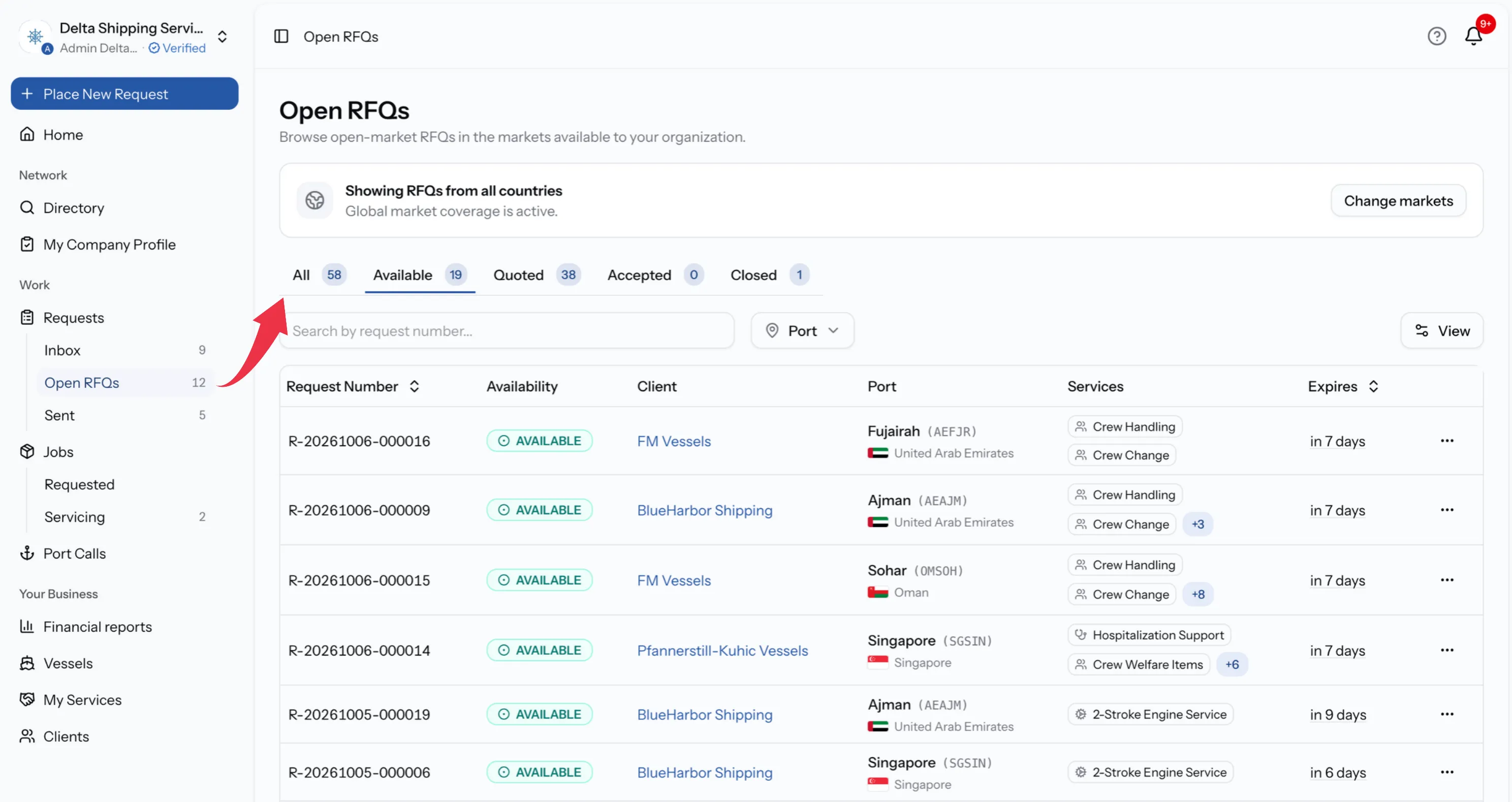
Your RFQ markets
Open RFQs are shown by country. The card at the top of the page shows which markets you are seeing:
- Showing RFQs in your registered country, on Standard.
- Showing RFQs in a number of countries, when you have chosen more on Pro. Your registered country is always included.
- Showing RFQs from all countries, when you have switched to a global view on Pro.
On Pro, select Change markets, pick the countries you want, or turn on every market, then select Show RFQs. On Standard, the card offers More markets with Pro instead.
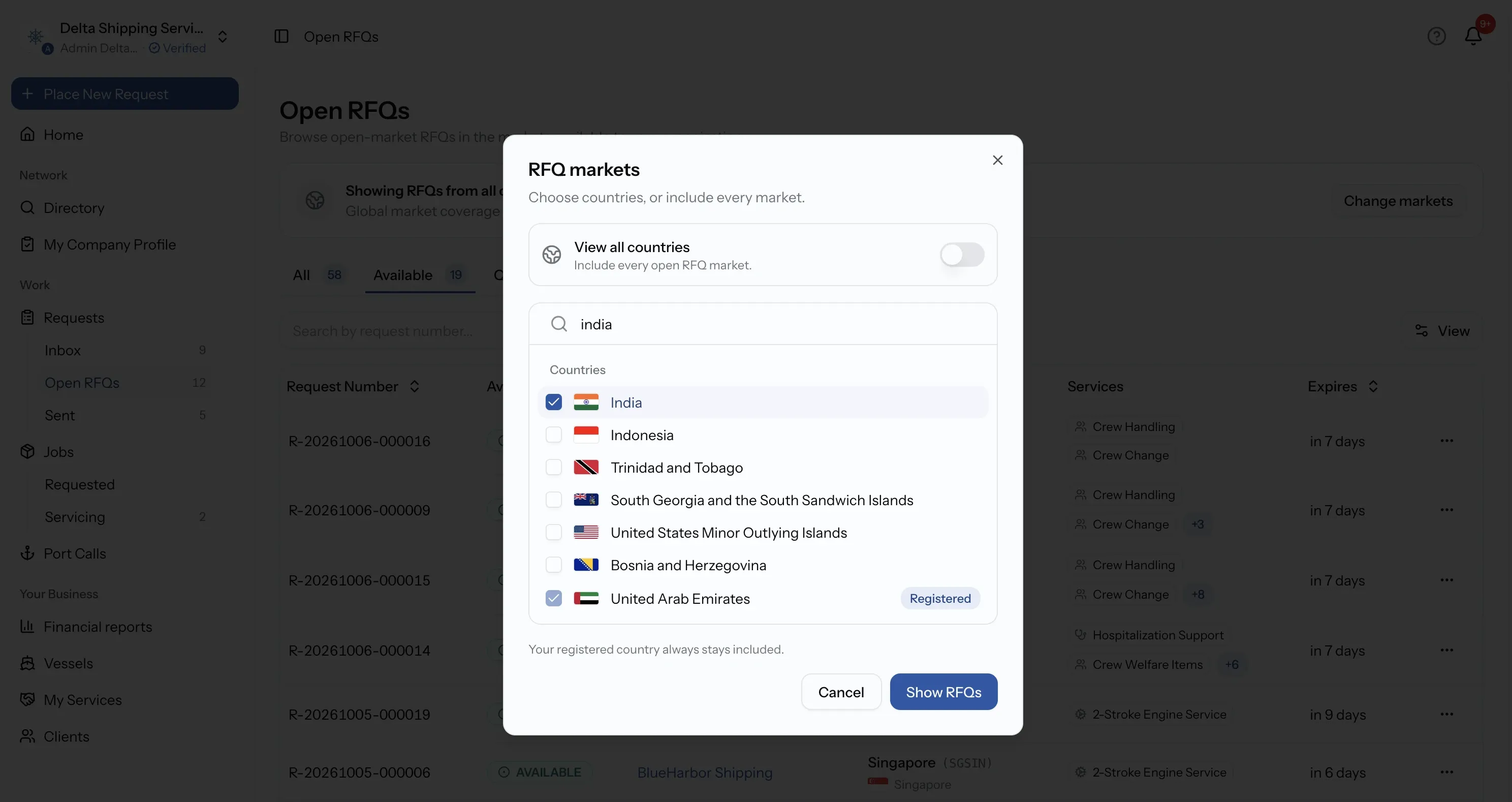
Add your country first
If your company has no registered country, the page shows Add your country to see open RFQs instead of a list. Select Add your country, choose where your company is registered, and save. PortzApp keeps your organization and company profile in sync with it.
The Open RFQs tabs
The page opens on All. Available is where new work is.
Tab
All
What it holds
Every open RFQ in your markets, plus the ones you have quoted.
Tab
Available
What it holds
Open RFQs you have not quoted yet and can still quote.
Tab
Quoted
What it holds
Open RFQs you have quoted, including those where the buyer asked for a revision or you sent one.
Tab
Accepted
What it holds
Open RFQs where the buyer accepted your quote. Each links to its job.
Tab
Closed
What it holds
Open RFQs that ended with you on them, such as when the buyer chose another provider or cancelled.
Narrow the list
Each row shows the request number, whether it is still Available, the Client, the vessel and port, how many Services are requested, when it was Published and when it Expires.
Filter by port to focus on the places you work, and search by request number. Select a row to open the RFQ.
Only open requests appear here. Once a request expires, is cancelled or is turned into a job, it leaves the list unless you quoted on it.
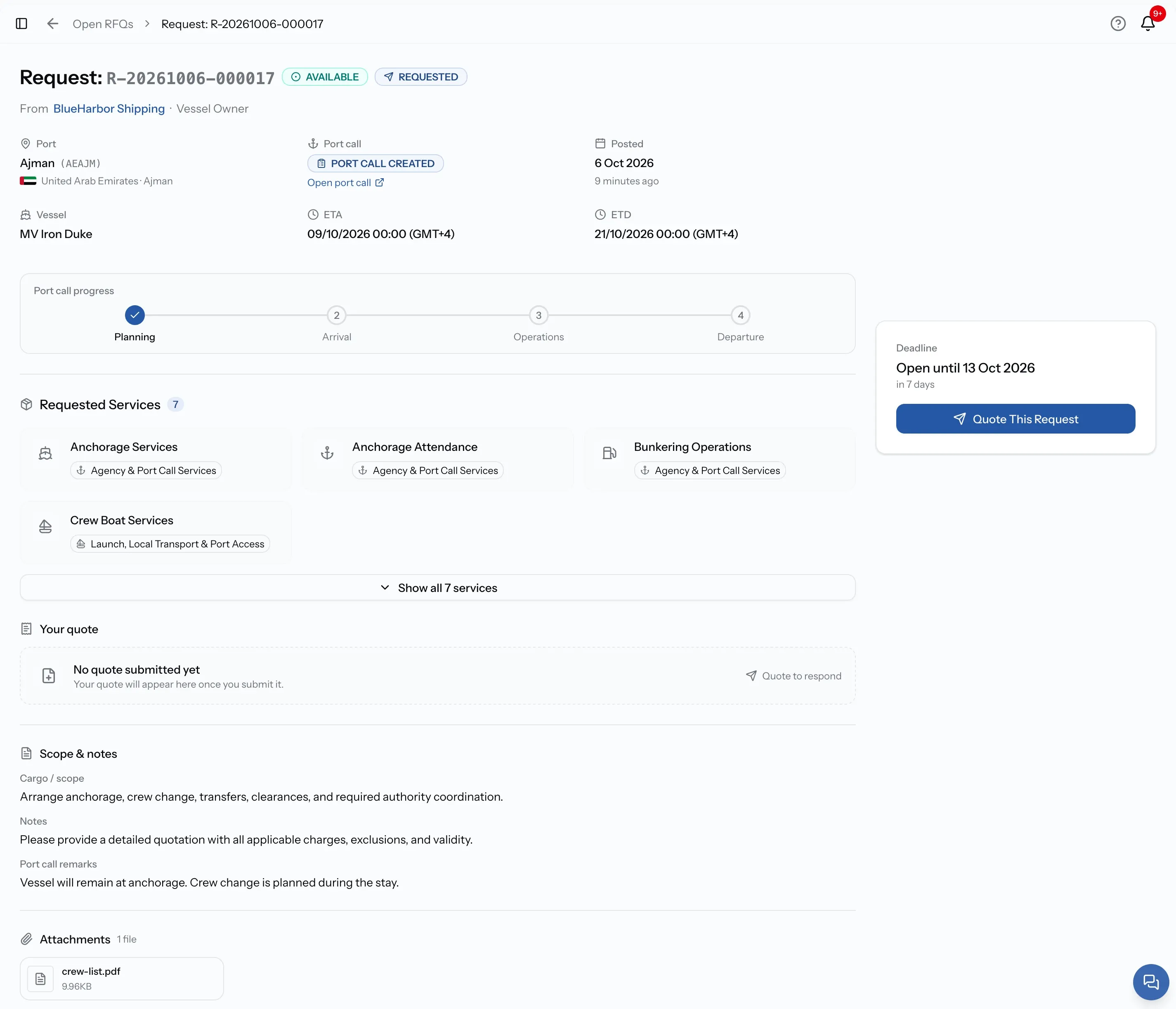
Read the RFQ
The header shows the request number with an Available badge, and who it is From. When the buyer has a published company profile, their name links to it, so you can see who you would be working for before you quote.
The page then shows what the buyer sent:
- Port, ETA and ETD, with times in the port's local time.
- Vessel, when the buyer included one. You may see the name without an IMO number.
- The requested services, including any the buyer wrote in themselves.
- Scope & notes: cargo or scope, notes, and operational or port call remarks.
- Attachments, which you can open or download.
On the right, the Deadline card shows Open until and the date.
Quote an open RFQ
Quote when you can do the work at that port. You do not need an invitation, and the buyer sees your quote alongside any others.
Step 01
Check the deadline
The right card shows when the RFQ closes. After that it no longer accepts quotes.
Step 02
Select Quote This Request
The button is in the right card. PortzApp adds your company to the request and opens the quote builder.
Step 03
Build and submit your quote
Price the requested services and submit. The buyer is notified and can compare your quote with others.
Not verified yet?
You can browse and read every open RFQ in your markets, but Quote This Request stays locked and shows Verify your company to quote. The RFQ page also shows Verify your company to quote open RFQs, with Verify company to start. See Get your company verified.
After you quote
The RFQ moves to the Quoted tab, and from then on it behaves like any other request you have quoted:
- If the buyer asks for changes, you see Revision Requested with their notes, and a Submit Revised Quote button.
- If they accept your quote, it moves to Accepted and links to the job.
- If they accept someone else's quote or cancel the request, it moves to Closed.
There is no Decline on an open RFQ. Nobody asked you directly, so if it is not right for you, simply leave it.
Only Admin, Manager and Finance can quote. For anyone else, Quote This Request is greyed out with a note to contact an admin. See Roles and Permissions.
More markets
See open RFQs beyond your home country
On Pro you can add the countries you work in, or switch to every market, and keep one queue of opportunities for your whole team.
Common issues
Open RFQs shows Add your country
Your company has no registered country, and open RFQs are shown by country. Select Add your country, choose where you are registered, and the list appears.
The list is empty
There are no open RFQs in your markets right now, or a port filter is hiding them. Clear the filter. On Pro, add more countries with Change markets.
Quote This Request is greyed out
Your company may not be verified, the RFQ may have expired, or your role cannot quote. The note under the button says which.
I want to see RFQs in another country
On Standard you see your registered country only. On Pro, select Change markets to add countries or include every market.
What you can do now
You can find open RFQs in your markets, widen those markets on Pro, read what a buyer needs, and quote without waiting for an invitation.
FAQ
01
02
03
04
05