
Customize pricing for a port
When your rates at one port are genuinely different, give that port its own copy of the tariff rather than editing your defaults. Customizing copies your active default lines across, and from then on that port follows only itself.
Before you start
You need the Admin, Manager or Finance role.
The port must already be enabled on this service. If it is not, see Manage port availability first.
Set your default tariff items before customizing anything. Customizing copies your defaults, so doing it in the other order gives you an empty port to fill in by hand.
Key takeaways
A port is either on defaults or fully custom. There is no halfway.
Revert to Default deletes the port's custom lines and puts it back on your defaults.
Customize only where the numbers are genuinely different, because every custom port is one more to maintain.
When to customize, and when not to
Your default tariff is what a service charges everywhere it runs. That works until it does not: a port where your costs are higher, a terminal with its own fees, an agreement that only applies in one place.
Customizing is the right answer when the numbers are different at one port. It is the wrong answer for two situations that look similar:
- A one-off job. If this quote is unusual rather than this port, adjust the lines on the quote itself and leave your tariff alone.
- A rate that has changed everywhere. Edit your defaults instead. Editing one port fixes one port and quietly leaves the others wrong.
A customized port stops following your defaults. This is the part worth understanding before you start.
Once a port has its own lines, that is all it uses. Add a line to your defaults later, change a price, retire something, and none of it reaches a port you have customized. You have to make the change there too.
Give a port its own pricing
Step 01
Open the Tariff Items tab
Open the service from your Service catalog and choose Tariff Items. Above the list is a port selector, which opens on Default Tariff Items
Step 02
Pick the port
Open the selector and search for the port. Each one carries a badge telling you whether it is already customized
Step 03
Choose Customize This Port
Your active default lines are copied to the port with every field intact: prices, markup, currency, quantity, tax, notes.
Step 04
Change what differs
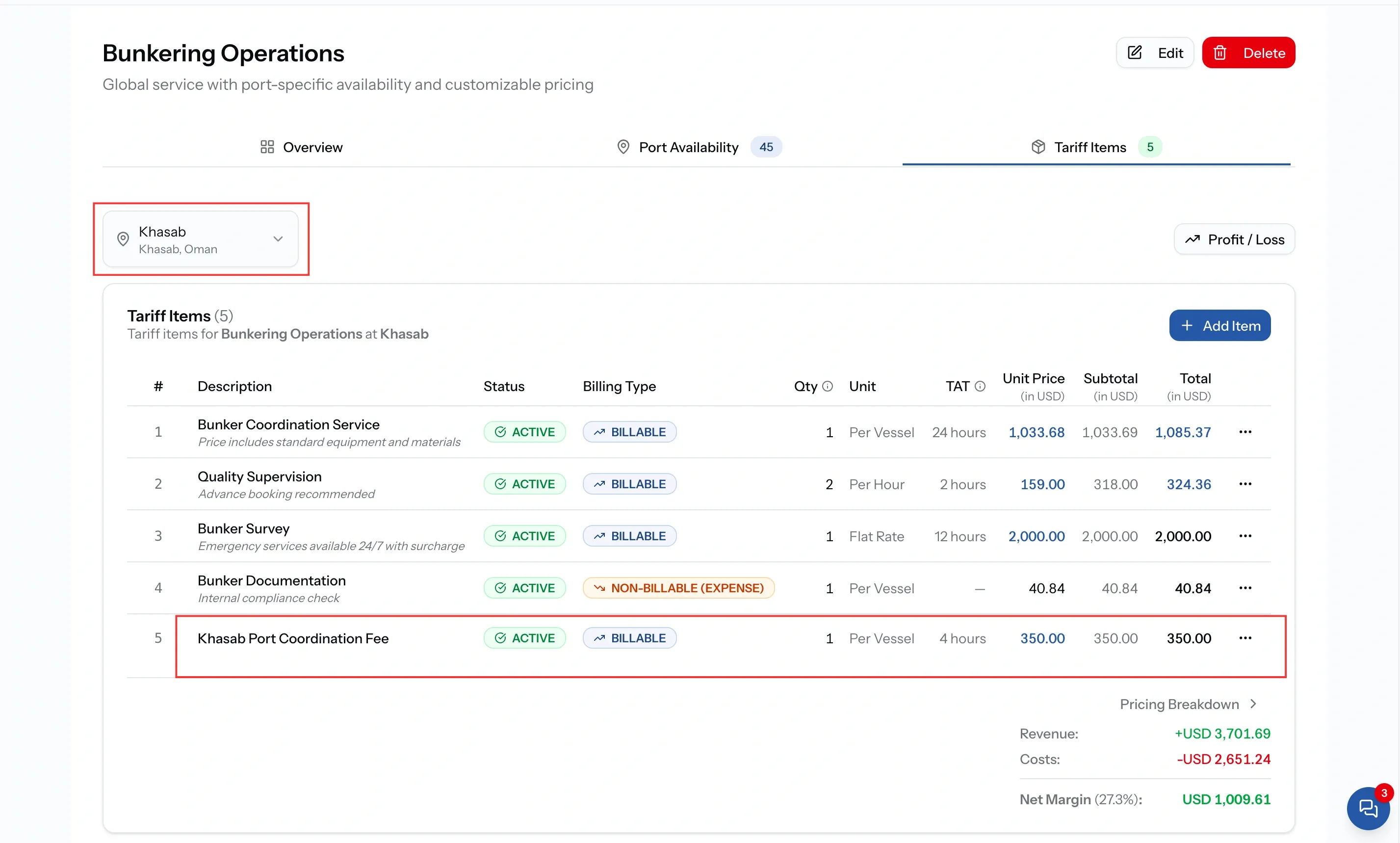
You can add new tariff lines that apply only to this port, or edit the details and pricing of the existing lines.
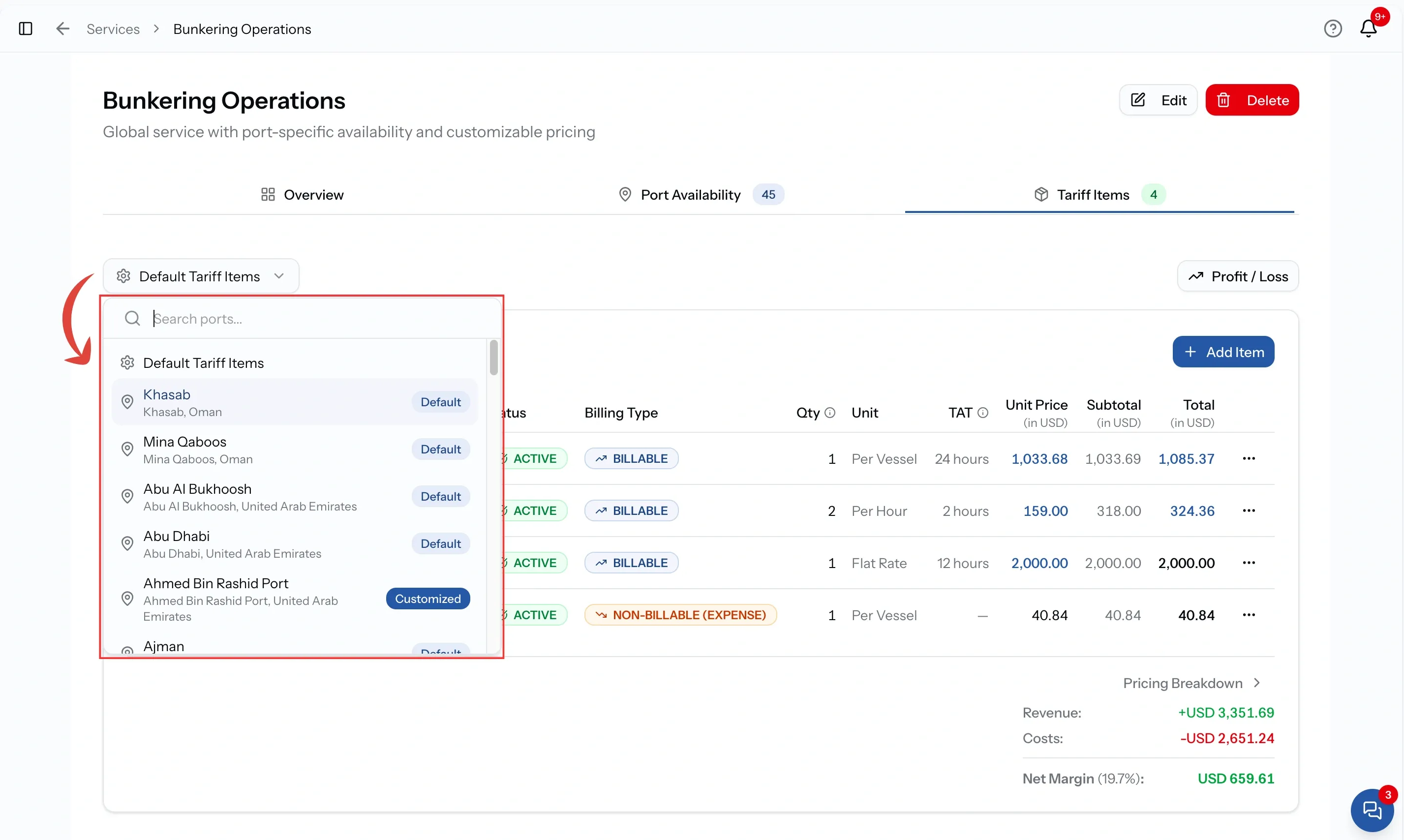
Before you click Customize This Port
Selecting a port that is still on defaults does not change anything. You are looking at what that port charges, which at this point is exactly what your defaults charge.
That is a useful state to sit in. Check the lines first, confirm this is really the port you meant, and only then customize. Nothing is committed until you press the button.
If a port is not in the selector at all, the service does not run there yet. Enable it first, and see Manage port availability.
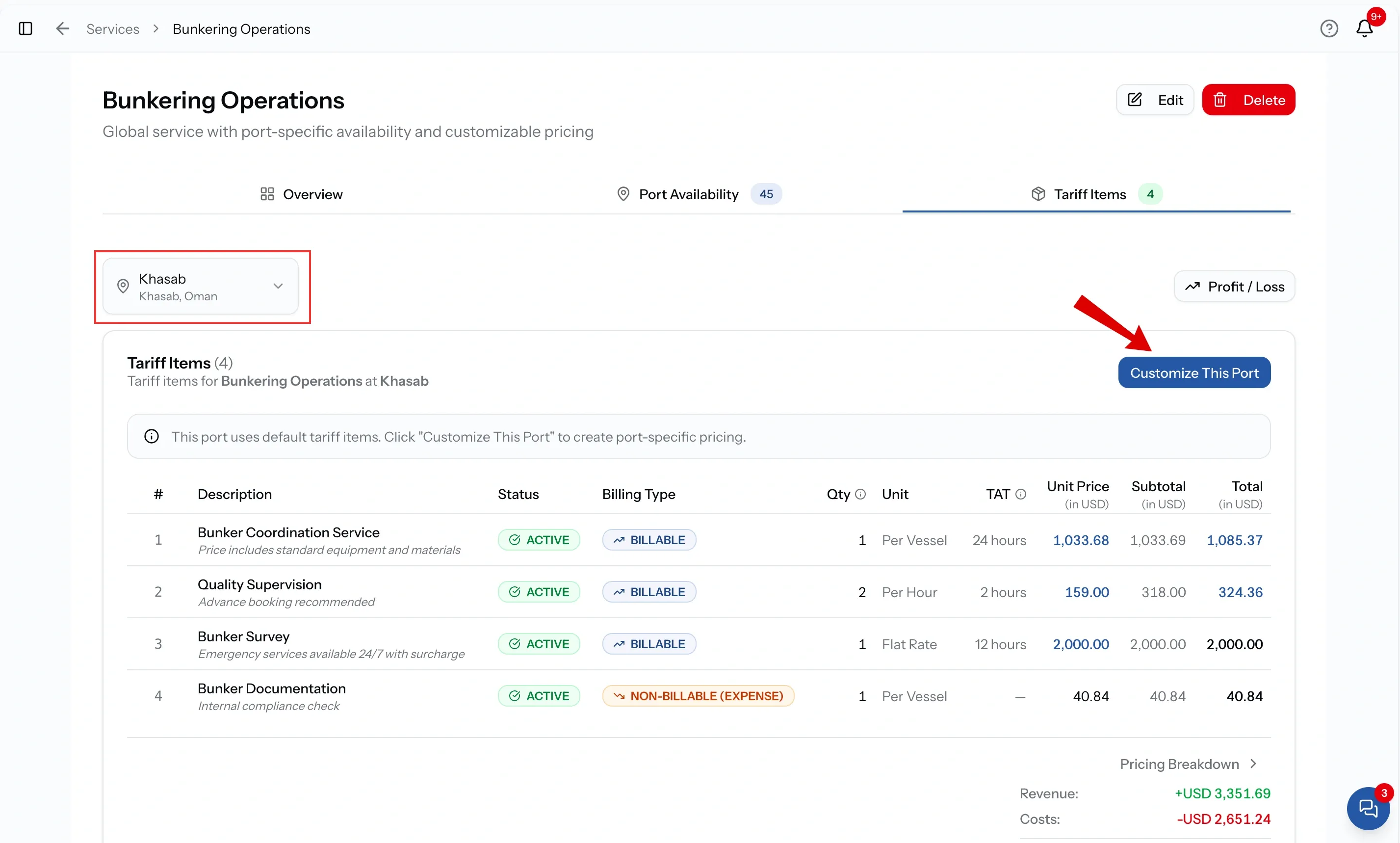
What gets copied
Customizing copies your active default lines. Anything you have set to inactive is left behind, which is usually what you want, and worth knowing if a line you expected does not appear.
Everything else comes across exactly as it was: description, quantity, unit type, selling price, cost price, markup, currency, tax, turnaround time, notes, and the order the lines are in.
So the port starts out charging precisely what your defaults charge. Nothing has changed for a buyer yet. What you have done is give yourself somewhere to make changes that will not affect anywhere else.
Editing the port's lines
Stay on the Tariff Items tab with the port still selected. Everything you do here now applies to this port alone.
- Change prices, markups and quantities on the copied lines.
- Add lines that exist only at this port, such as a local fee that applies nowhere else.
- Delete copied lines that do not apply here.
- Reorder them, since this port's quotes follow this port's order.
The form is the one you already know from your defaults, with the same required fields and the same Pricing Preview. The only difference is which port the line belongs to.
Switch the selector back to Default Tariff Items at any point and you are editing your defaults again. Check which one you are on before you start typing.
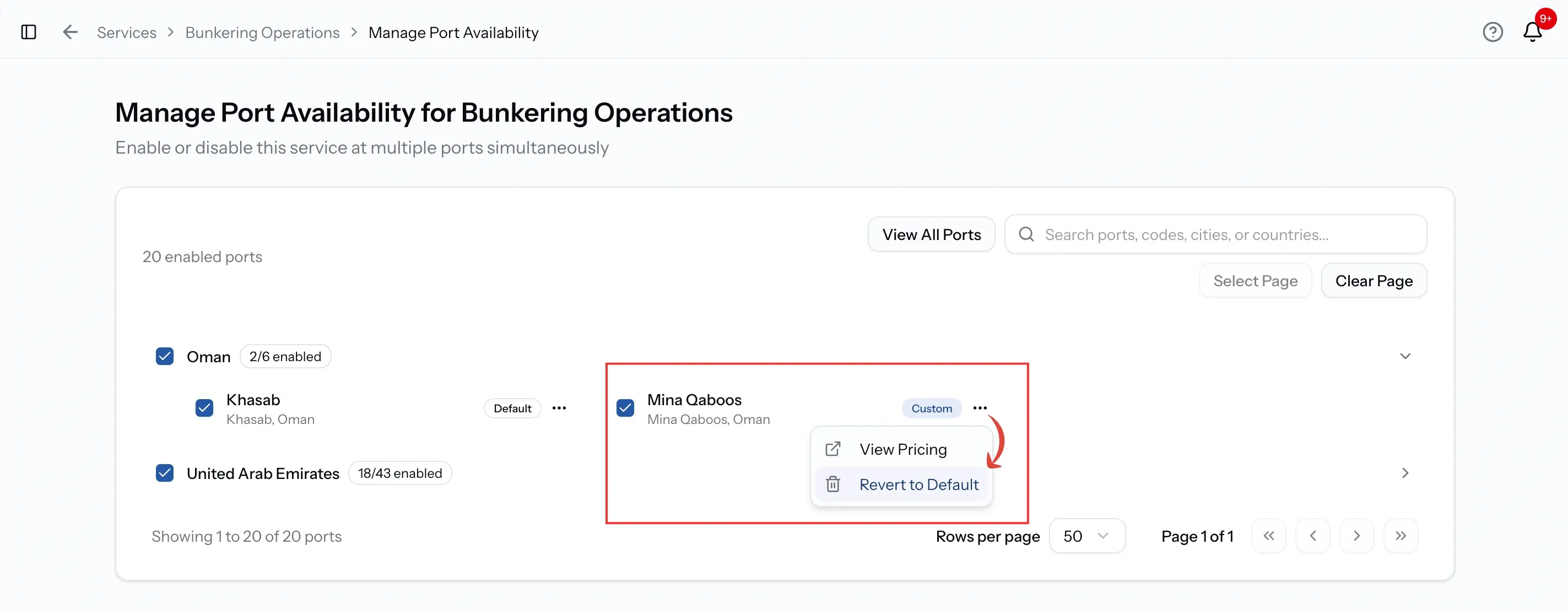
Seeing which ports are custom
The port selector badges each port as you scroll it, which is what you want while you are working on one service.
For a wider view, Manage Port Availability lists every port at once with a badge on each row. Its row menu also has View Pricing, which opens a read-only page for that port showing exactly what it charges. That page is worth knowing about when somebody asks why a number came out the way it did and you do not want to open anything editable.
Putting a port back on defaults
Go to Manage Port Availability, open the menu on that port's row, and choose Revert to Default.
Read the confirmation before you accept it. Reverting deletes every custom line on that port. It does not archive them and it does not turn them off. The port then goes back to following your defaults, and any line you had added only there is gone.
If you might want those numbers back, write them down first. If you customized the port by mistake and have not changed anything yet, you lose nothing, because the lines were only ever a copy of your defaults.
Keeping custom ports in step
Every port you customize is one more thing to keep track of. A couple of habits can make this easier to manage:
Customize as few ports as you can. If several ports need the same different rate, it may be a sign that your defaults need updating rather than creating multiple custom ports.
When you change a default, check your custom ports. The badges show which ports were not affected by the change. A quick check helps make sure your pricing is up to date across all ports.
If a custom port has changed so much that you no longer want to maintain it separately, revert it and customize it again. This gives you a fresh copy of your current defaults to work from.
Common issues
The port is not in the selector
The service does not run there yet. Enable the port first, then come back and customize it
Customize This Port is unavailable
Adding and changing tariff lines needs the Admin, Manager or Finance role
I changed a default and this port did not update
Customized ports follow only their own lines. Make the change there as well
I customized the wrong port
Revert it. If you had not changed anything, you lose nothing, because the lines were a copy of your defaults
FAQ
01
02
03
04
05
06