
Send a request for services
Tell providers what you need, where, and when, in one form. You choose who sees it: companies you name, any verified provider covering that port, or both at once.
Before you start
Your company must be verified before a request can go out. You can build the whole thing first and publish it the moment verification comes through, so this is not a reason to wait. See Get your company verified.
Nothing else is required. You do not need a vessel, and you do not need to know which companies to ask.
For what a request is and how it fits the rest of PortzApp, read the Requests & RFQs feature page. This guide is how to send one.
The short version
One form, three steps: what you need, where and when, and who receives it.
You can send to companies you name, open it to the market, or do both at once.
A vessel is optional. Turn it off and send the request without one.
A port is required, but it does not have to come from the list. If yours is missing, type it in.
Four ways to start
All four open the same form. Where you begin decides who can receive the request, so this choice matters more than it looks.
One company from the Directory
- Find them by name, or by filtering on service and port
- Choose Request quote on their company profile
- They become the recipient of your request
Several companies at once
- Turn on Select multiple, tick the companies, press Request selected
- All of them become recipients of one request
- Available on Pro
From the sidebar
- Starts a request with no companies attached
- Goes to the open market rather than to named companies
- Right when you do not have anyone particular in mind
From a port call
- Starts from the visit the work belongs to
- The request appears on that port call's page and timeline
- Carries the port call's context with it
Where you start decides who receives it
This is the one thing worth understanding before you open the form.
Starting from the Directory attaches companies to your request. Whether you ask one or several, they arrive as recipients and you do not choose them again later. Finding and choosing them is its own job. See Search for a maritime company.
Starting from the sidebar or a port call attaches nobody. The request goes to the open market, where any verified provider covering that port can pick it up.
The next four sections show what the form looks like the moment it opens from each route, so you know what you are looking at and what is left to do.
Starting from one company
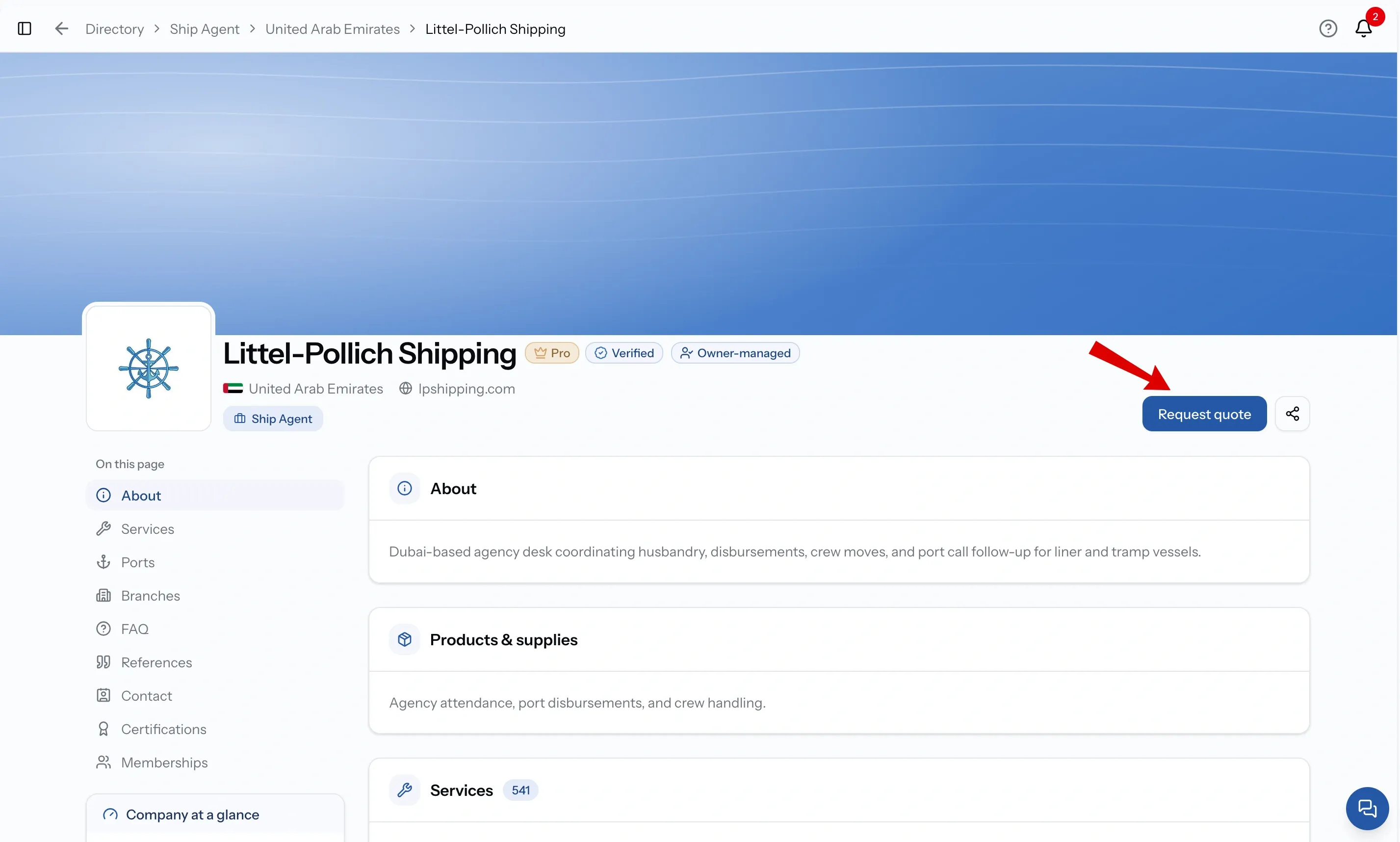
Take this route when you already know who you want. Open their page in the Directory and choose Request quote.
The form opens with the services that company offers already selected. You can review the services and make any changes you need, then add the port, dates and other details for your request.
The difference shows only at the end. When you reach step 3, that company is already listed as your recipient, so there is nothing left to decide.
Starting from several companies
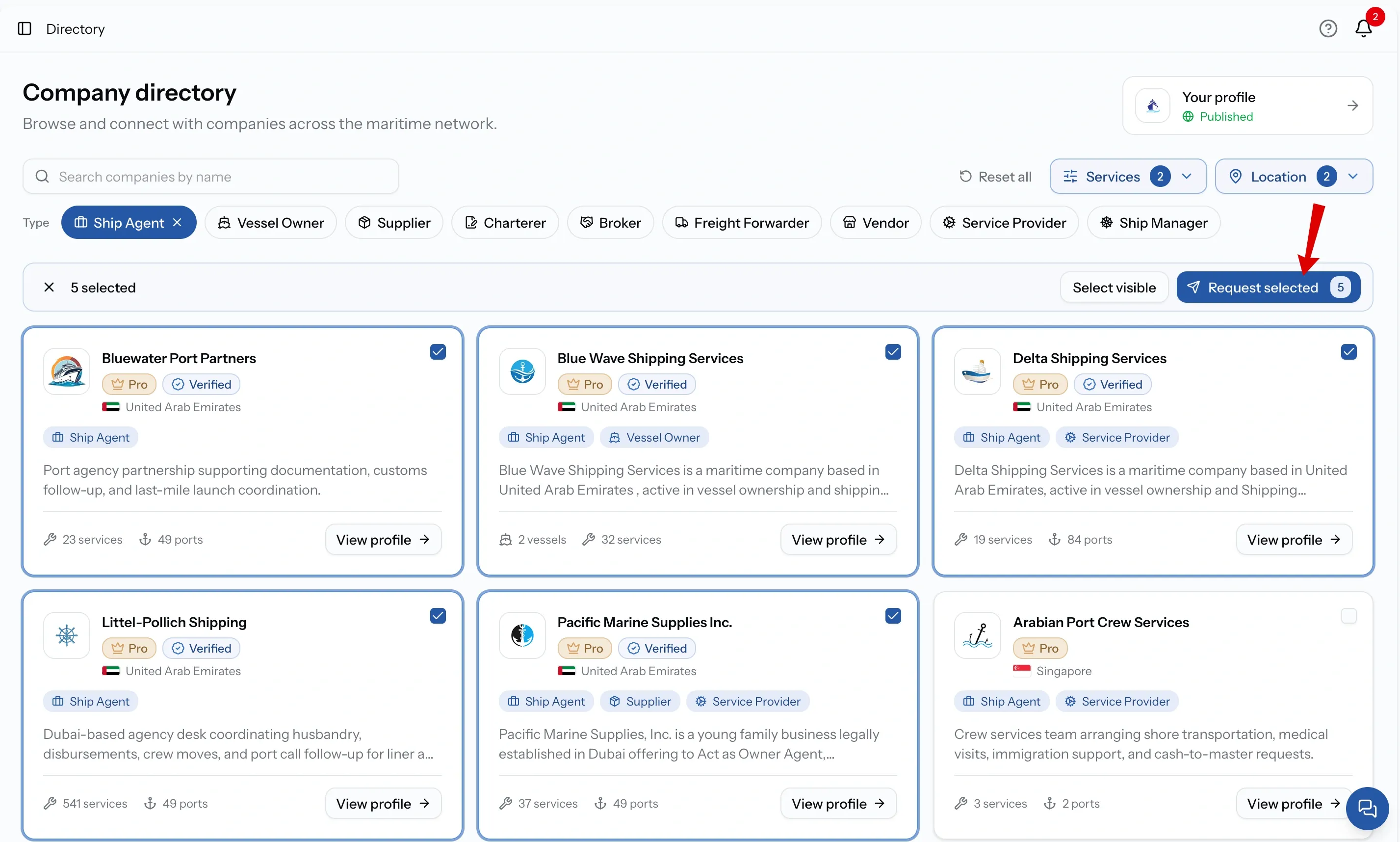
On Pro you do not have to send one request per company. In the Directory, turn on Select multiple, tick every company worth asking, and press Request selected. One request goes to all of them, and their quotes arrive on the same page to compare.
This route changes the form in two places rather than one. At step 1, the service filters you were searching with arrive as your selected services. At step 3, every company you ticked is listed as a recipient.
That first point is why the Search guide pushes you to filter rather than search by name. Filtering is not only how you find the right companies, it is also how the request starts writing itself.
Starting from the sidebar
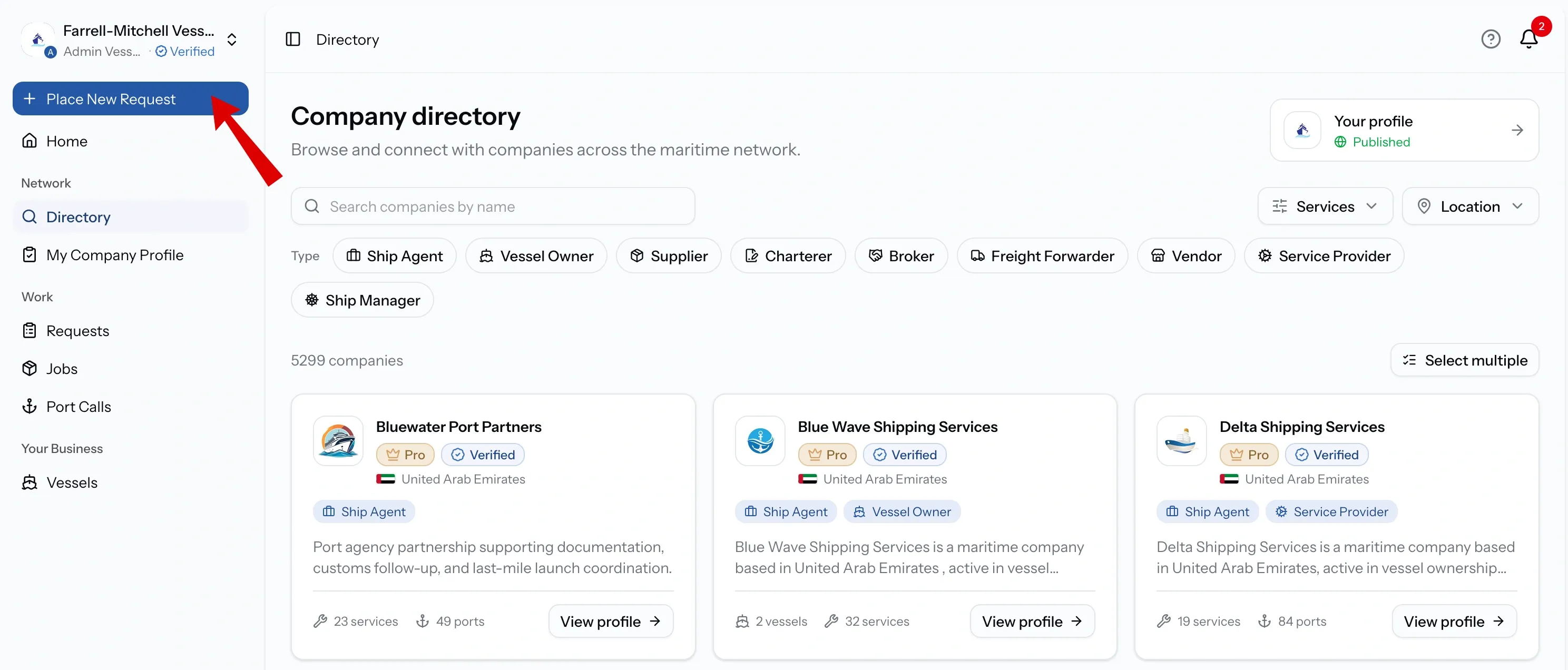
Place new request in the sidebar opens the form completely empty and attaches nobody.
Because no companies are on it, the request is an open one from the start. Any verified provider covering that port can see it and quote.
This is not a lesser route. For a port you have never used, letting providers come to you often beats guessing which three companies to ask.
Starting from a port call
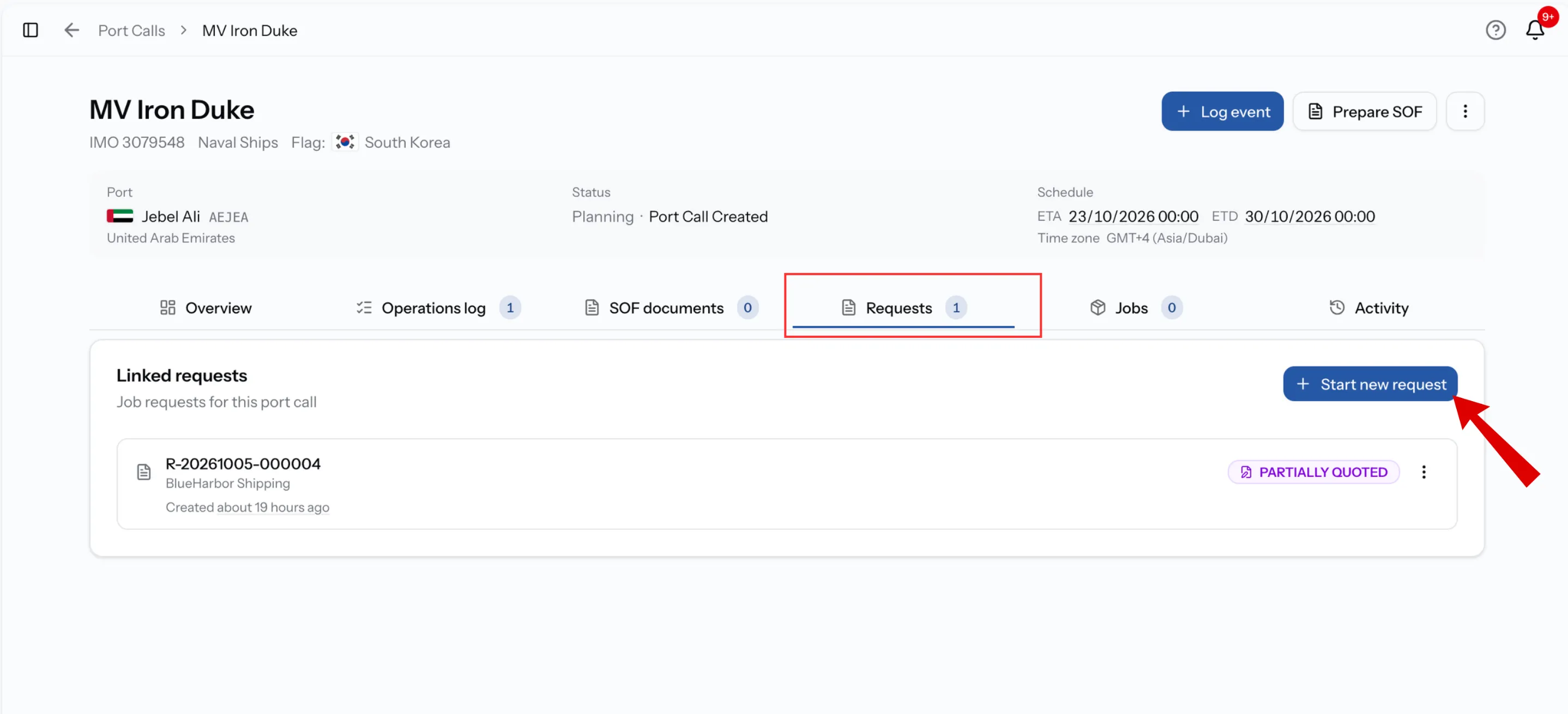
Use this when the visit is already set up and you need something else for it.
The port call already knows the vessel, the port and the dates, and brings all of it into the form with you. Step 2 is largely done, so you only choose the services. That makes it the natural way to send a second or third request against the same visit.
The request stays linked to the port call and appears on its page and timeline. No companies are attached, so it goes to the open market. If you change your mind you can continue without the port call, keeping everything you have added.
How a request comes together
However you arrived, the form is the same three steps. It shows where you are and what is still missing, and will not let you move on until each step has what it needs.
Step 01
Services
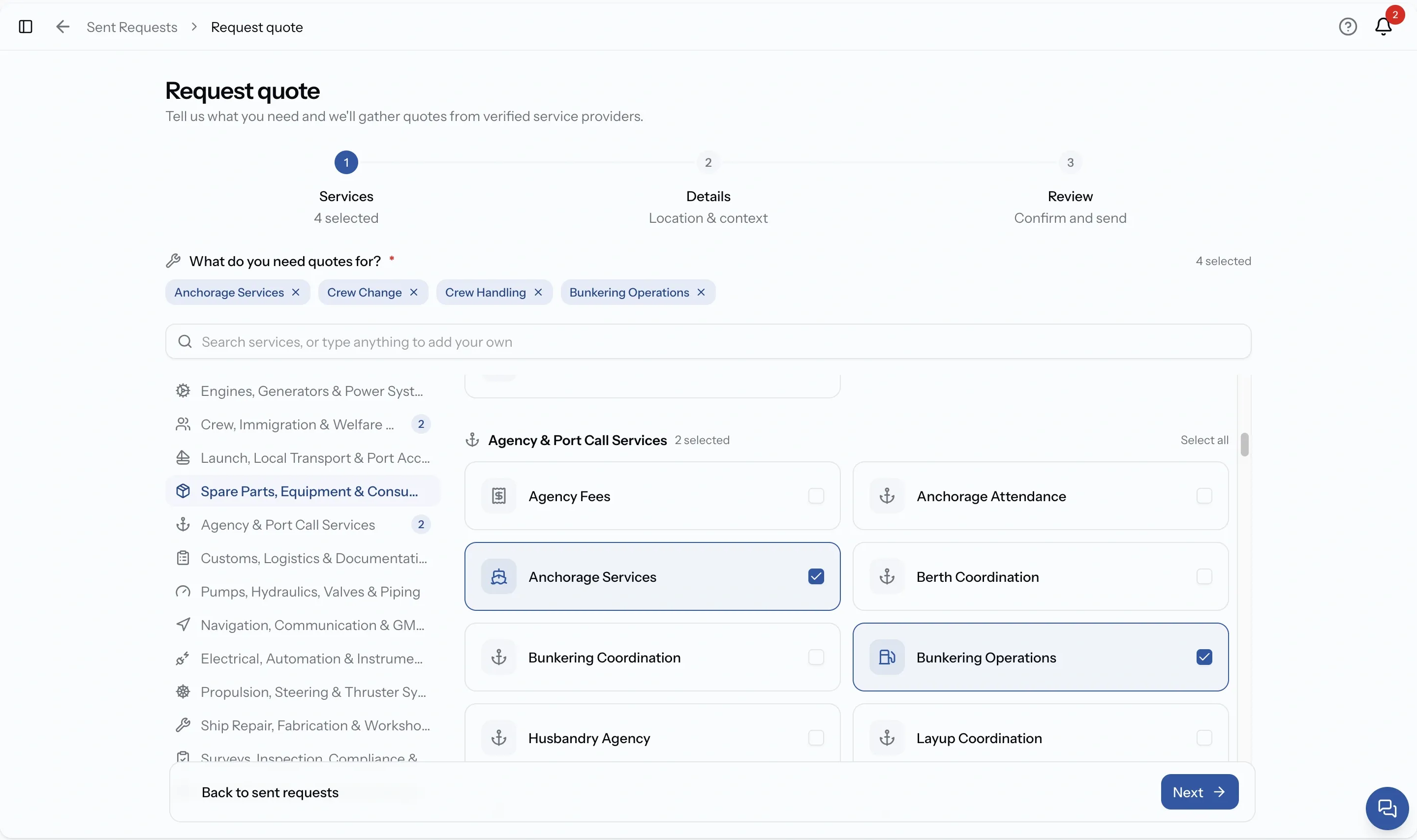
What you need. Pick from the catalog, or write in anything that is not there. At least one is required
Step 02
Details
Location and context. Country and port, dates, remarks, the vessel if there is one, scope, notes and files
Step 03
Review
Confirm who receives it, and publish
Step 1. Choose your services
Pick everything you need at this port in one request. There is no advantage to sending three requests for three services, and a provider who can see the whole picture usually quotes better.
Your choices collect beside the picker as you make them, so the list builds up in front of you.
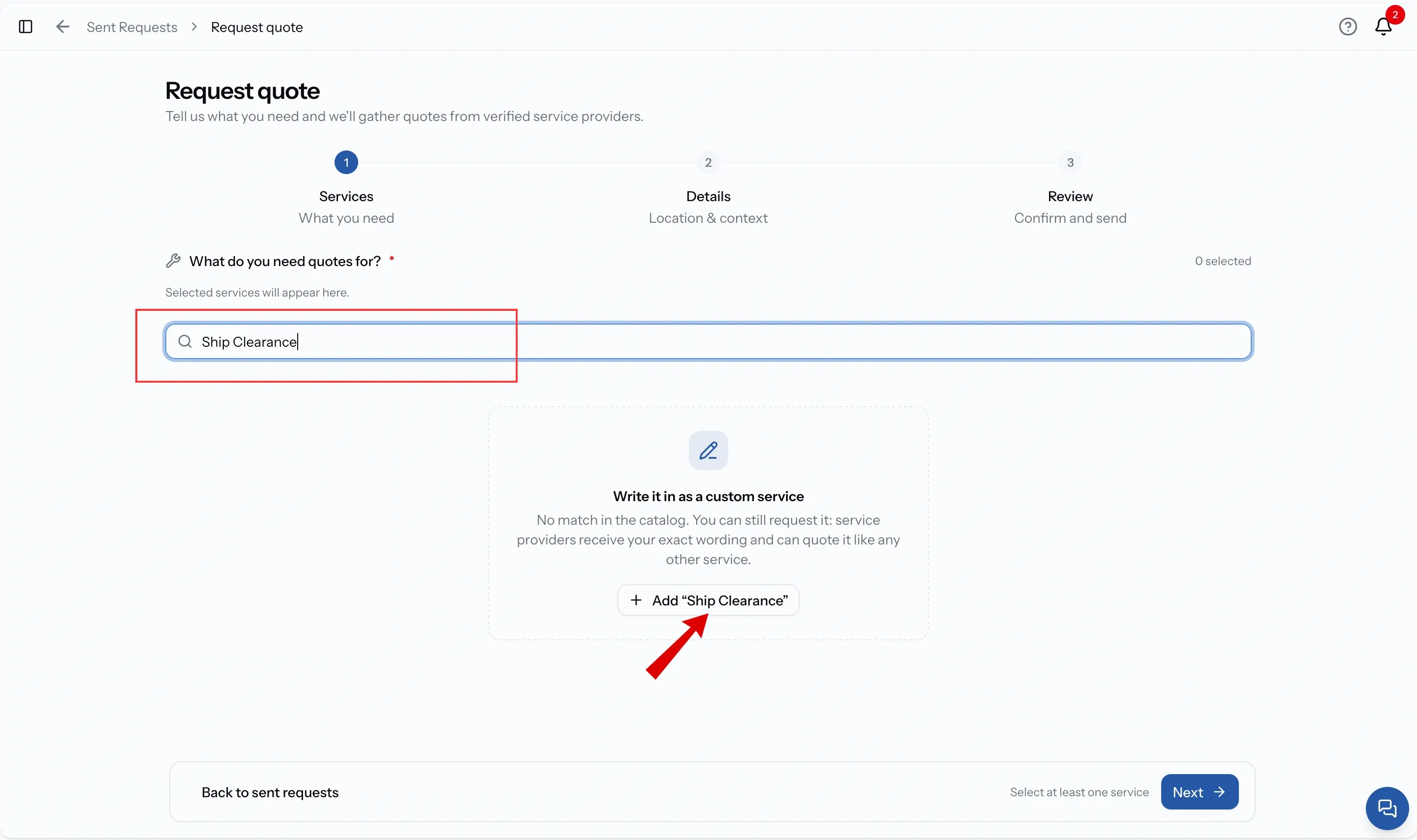
If a service is not in the catalog, write it in as a custom service. It goes on the request in your own words and providers quote it like any other line.
Use a custom service only when what you need is genuinely unusual, rather than as a shortcut to avoid finding the right category. Catalog services help match your request with providers who offer them, while a custom service may reach fewer providers.
Step 2. Location and schedule
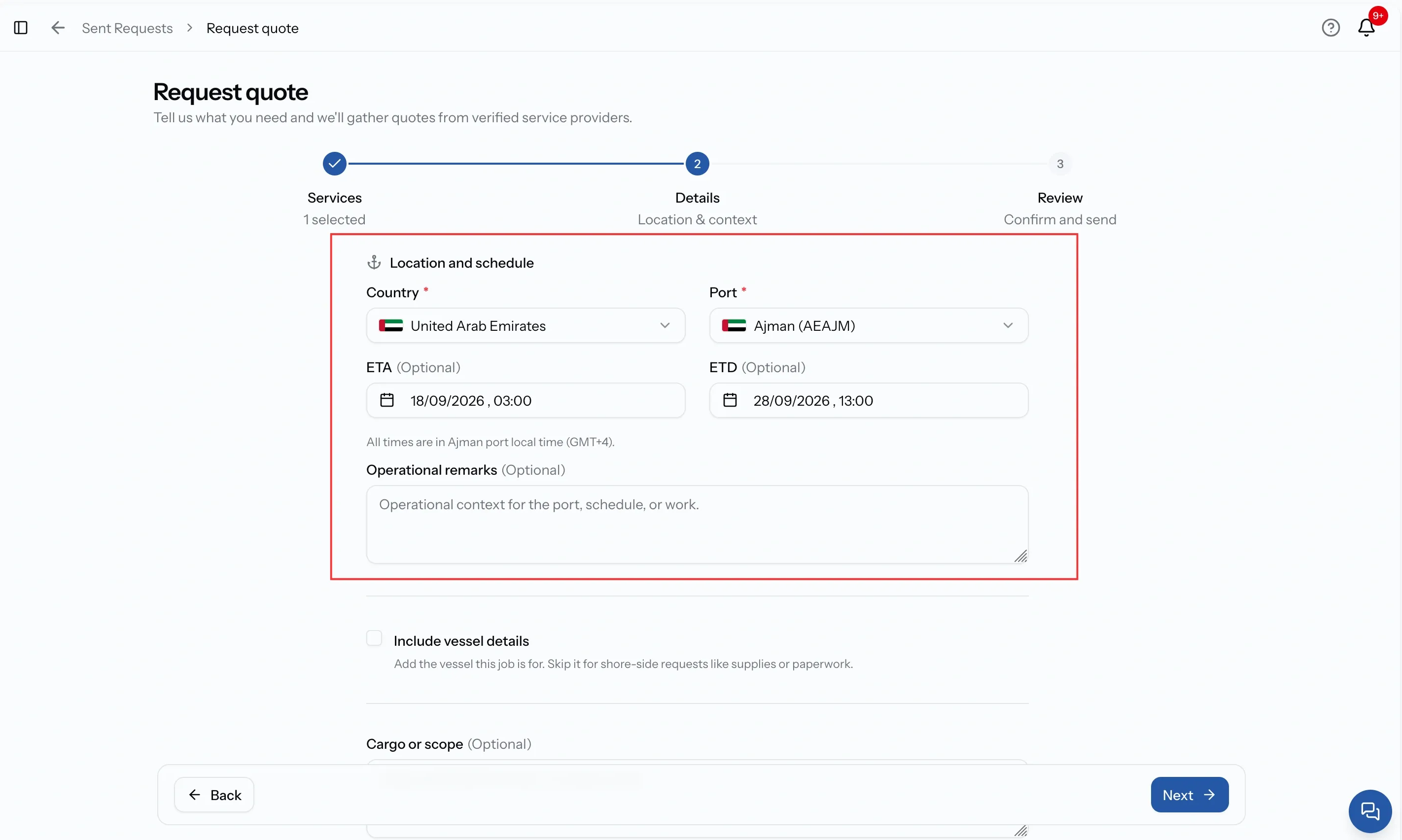
The step opens with the group that decides where and when.
Country and port
Both are required. The quickest way is to search the port directly: type a name into Search any port, pick it, and the country fills itself in. You can also type a country name into the port search to see that country's ports, or set the country first and search within it.
Search works on name, code or city, so a port you cannot find by name is often there under its code.
ETA and ETD
Both optional, and both worth filling in. A provider who knows your window can tell you whether they can meet it, and one who does not will either quote cautiously or come back with a question.
These times are in the port's local time, not yours. That matters whenever you and the vessel are in different places.
Operational remarks
Optional, for context about the port, the schedule or the work itself.
If you add a vessel further down, this field renames itself to Port call remarks, because that is what it has become. It is the same field either way.
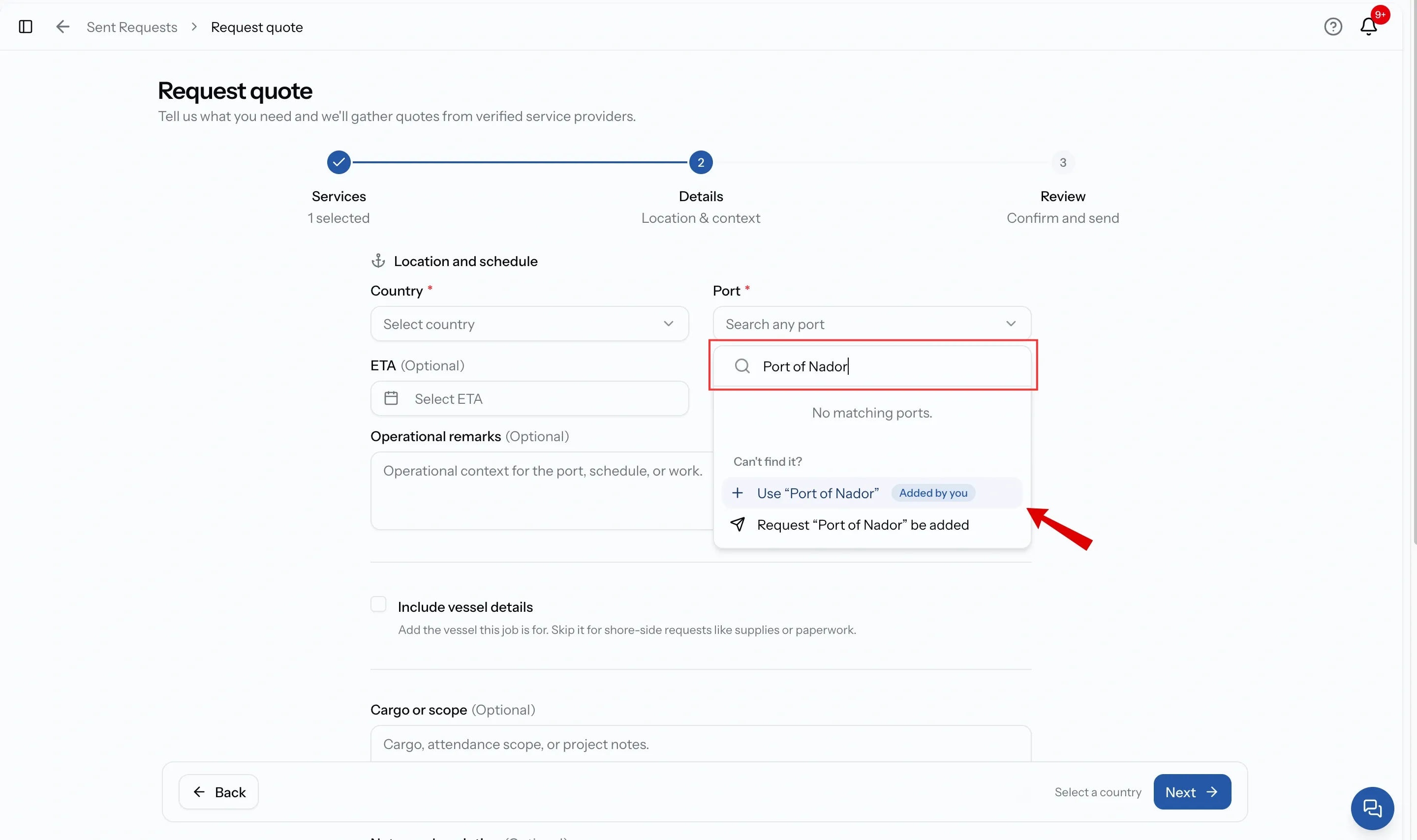
If your port is not on the list, you have two options:
Type the port name and continue. The request will use the port name you entered, and providers can quote for it as usual.
Request to add the port. You can ask the PortzApp team to add the port to the list so it can be used by everyone and matched with relevant providers.
Whichever option you choose, search carefully first. Some ports may be listed under a different name than you expect.
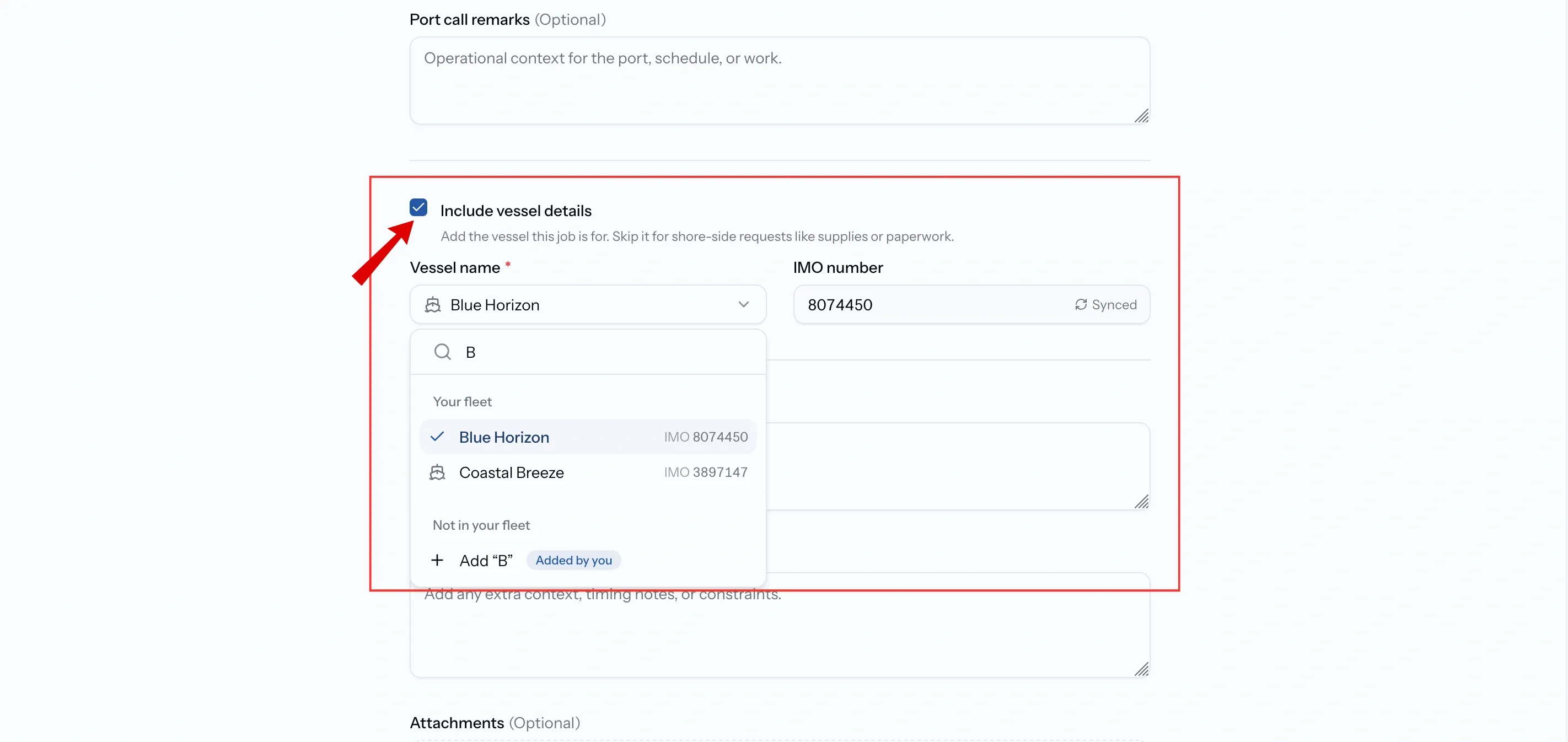
Include vessel details
Below the schedule, you’ll see a checkbox to add vessel details. It is off by default.
Leave it unticked if the request does not relate to a specific vessel, such as supplies or paperwork. If the request is for a vessel, tick the checkbox to open the vessel fields, where you can identify the ship in two ways.
Providers will only see the vessel name and type. The full vessel record remains private and is shared later when you accept a quote.
What to do about the vessel
Three options, and none of them is the wrong answer.
No vessel
- Leave Include vessel details unticked
- Right for shore-side work like supplies or paperwork
- Also right when the vessel is not fixed yet
One from your fleet
- Tick the box, then search your fleet and pick it
- The IMO comes from the vessel record and is read-only here
- To change it, edit the vessel itself
Typed in by hand
- For a vessel that is not in your fleet
- The name on its own is enough
- IMO is optional
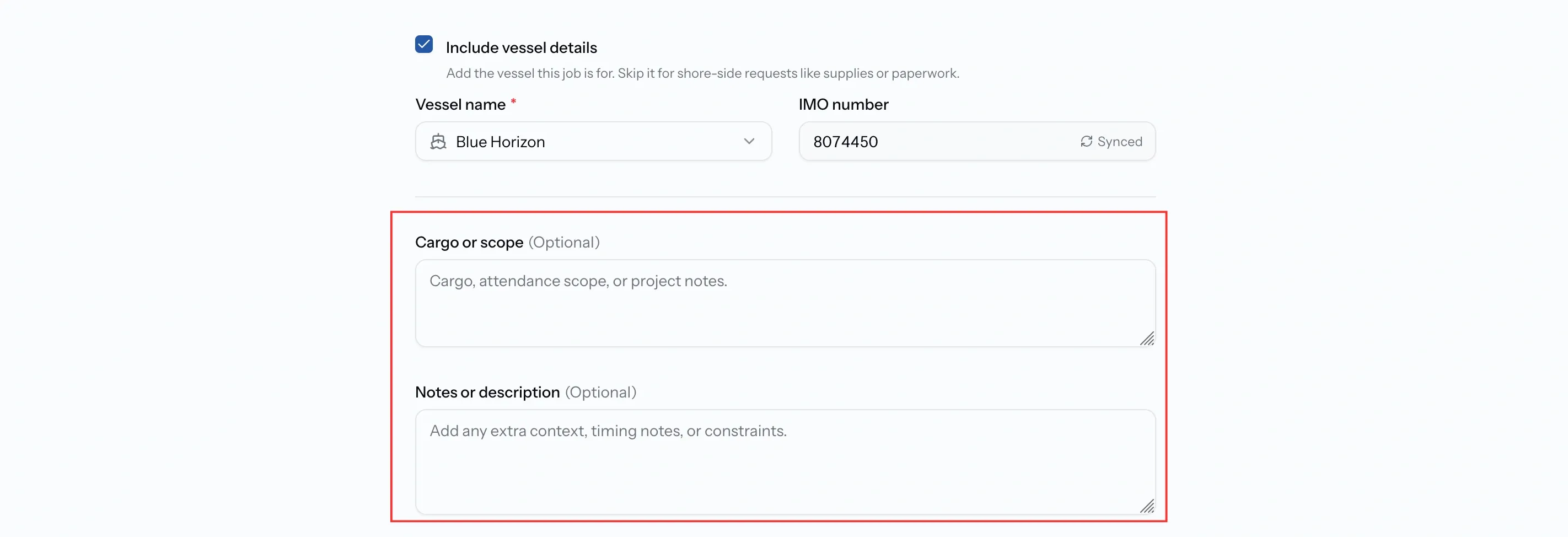
Cargo, scope and notes
Two optional fields sit below the vessel, and they do different jobs.
Cargo or scope is what the work actually involves. Cargo, attendance scope, or project notes. This is the field that most often decides whether a quote comes back useful or generic.
Notes or description is everything else: timing constraints, access, who to contact on arrival.
Neither is required, and both change the quality of what comes back. A provider who has to guess will either quote high or ask a question that costs a day.
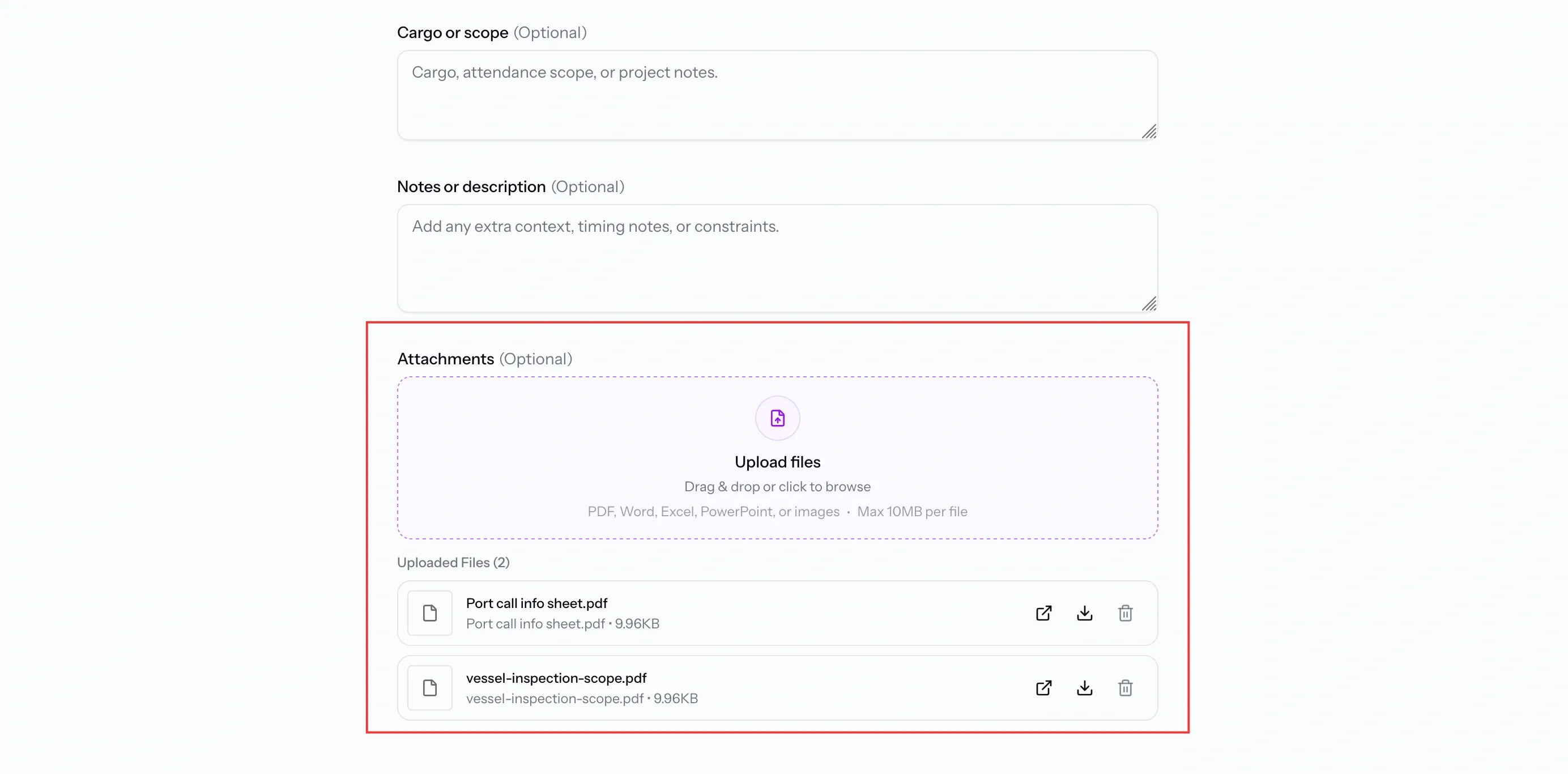
Attachments
Files go out with the request to everyone who receives it. Stowage plans, a previous account, a scope document, anything a provider would otherwise have to write and ask you for.
Drag them in or click to browse. PDF, Word, Excel, PowerPoint and images are accepted, up to 10MB each.
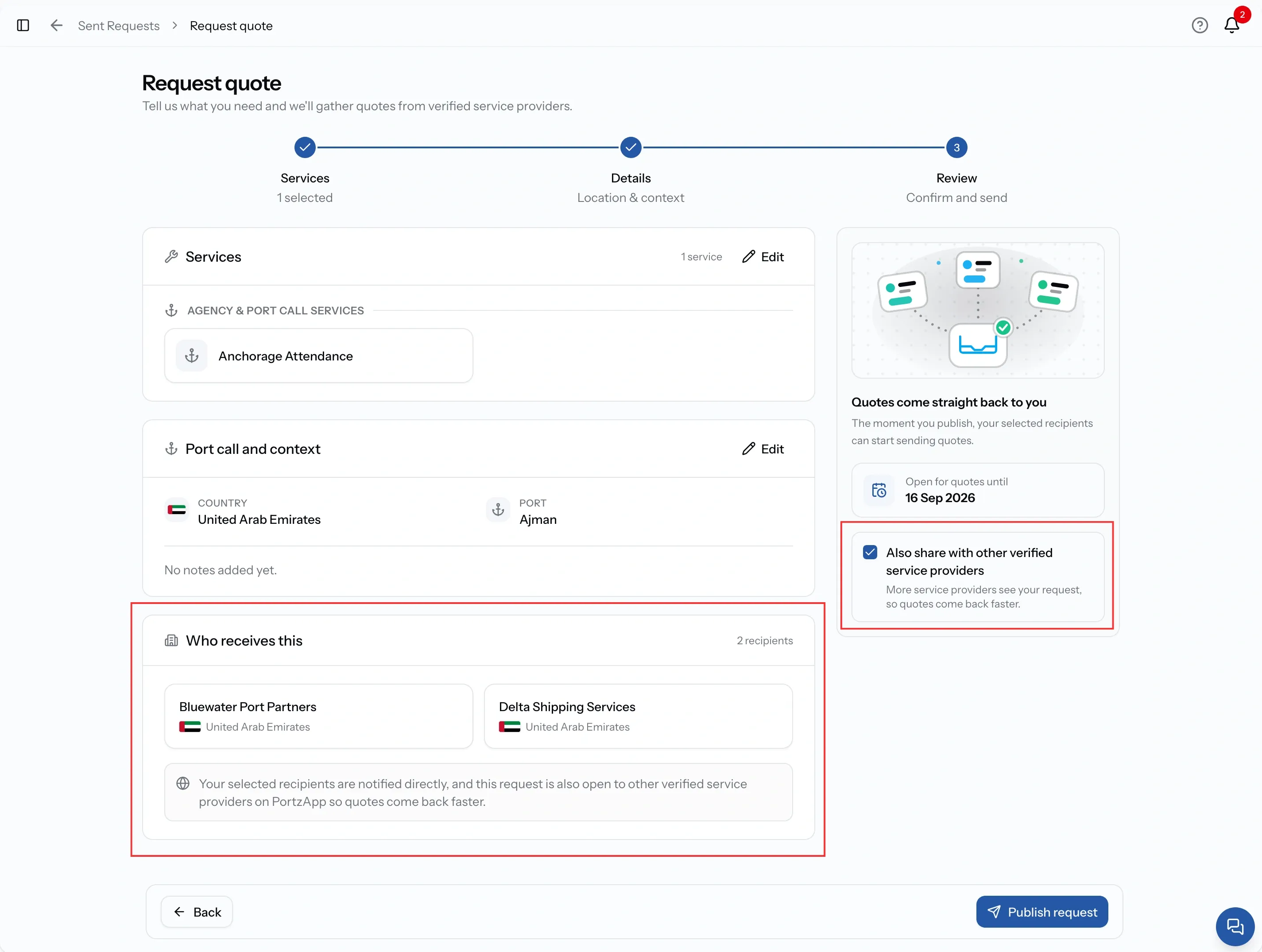
Step 3. Who receives it
This is where the routes show their difference, and there are only two things you can be looking at.
If companies are listed
You came from the Directory. They receive the request directly, and you also get a checkbox: Also share with other verified service providers.
Tick it and your chosen companies still get it first-hand, while everyone else covering that port can find it too. For a port you do not know well, that is usually the right answer.
If no companies are listed
You came from the sidebar or a port call, so the request is already open to the market. Any verified provider covering that port can see the request and submit a quote.
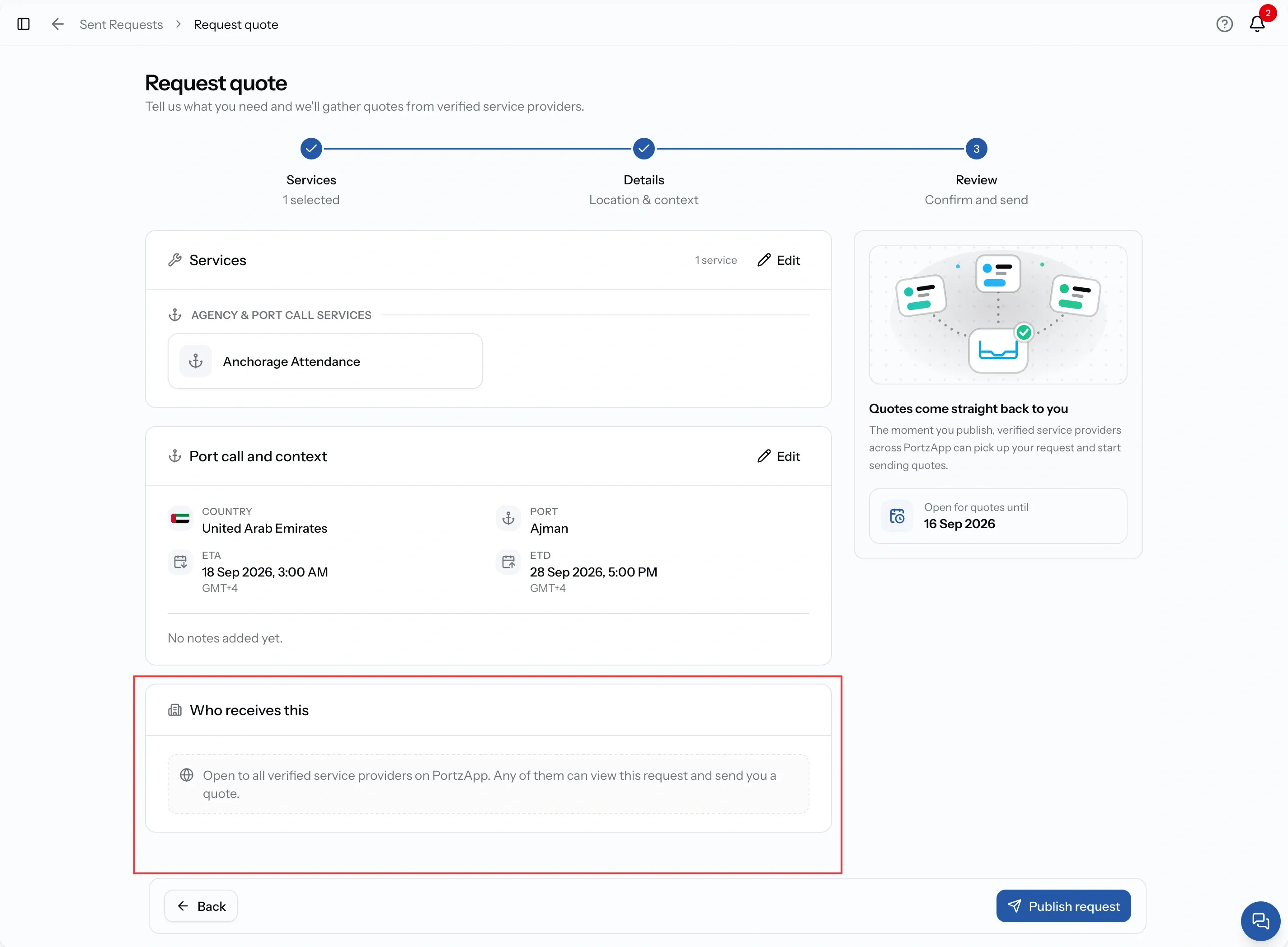
Setting a deadline
A request stays open for quotes for 7 days. You do not choose or change this when creating the request.
In step 3, Open for quotes until shows the date when the request will close, so you know the deadline before publishing.
If seven days is not enough, you can extend the deadline after the request has been sent. See Manage your sent requests.
Publishing it
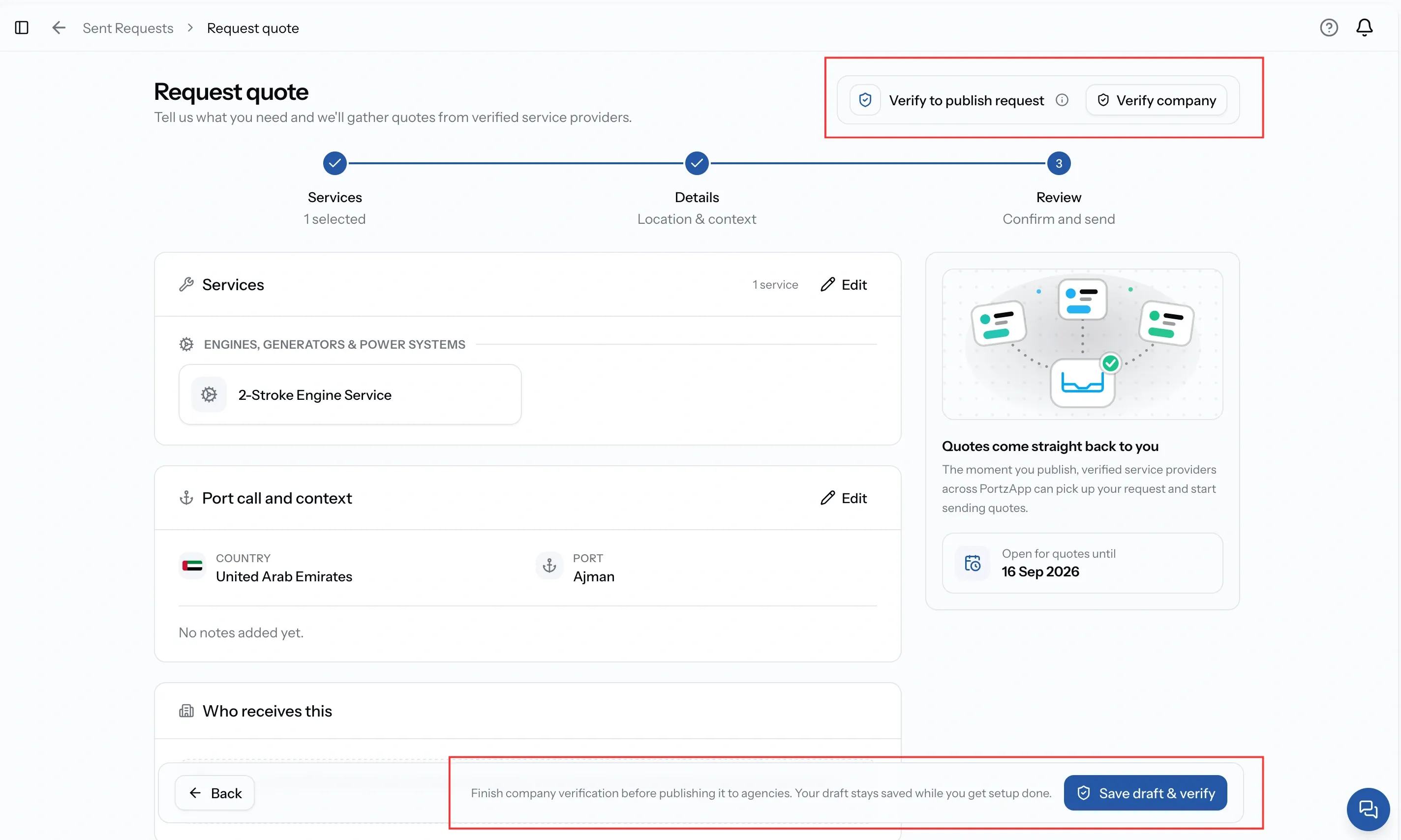
When everything is ready, select Publish request. The request will be sent to everyone listed in step 3.
If your company is not yet verified, the button will show Save draft & verify instead. Your request is saved as a draft and will be ready to publish once verification is complete. See Get your company verified.
What happens next
The request lands in the inbox of every company on it. If it is open to the market, it also appears in Open RFQs for providers covering that port.
From here everything happens on one page, reachable from Sent Requests. You will watch each provider move through their own states as they read it, quote it or decline it, and quotes arrive on that same page for you to compare.
After you publish
Manage your sent requests
Every request you send is under Requests in the sidebar, or Requests › Sent if your company also provides services. From there you can follow each provider, give a request more time before its deadline, or cancel it when you no longer need it.
Common issues
I want to send to specific companies but cannot
Start from the Directory rather than the sidebar. Choosing a company there is what attaches them to the request
Services were already selected on step 1
They carried through from the filters you searched with in the Directory. Adjust them and carry on
A company has no Request quote button
They do not sell services. Search for a maritime company explains which company types can be asked
FAQ
01
02
03
04
05
06