
Manage your sent requests
Every request your company sends lives on one page. See where each one stands, follow every provider on it, give a request more time, or close it when you no longer need it.
Before you start
You need at least one request, sent or saved as a draft. See Send a request for services.
Anyone in your organization can open Sent Requests. To extend or cancel a request you need the Admin, Manager, Finance or Operations role. CEO and Viewer can follow requests but cannot change them.
For what each part of a request means and how requests fit into PortzApp, read the Requests & RFQs feature page. This guide covers what to do once a request has gone out.
The short version
Sent Requests opens on Awaiting Quotes, which shows the requests that still need providers to respond.
A request has a status, and so does each provider on it. Read both.
A request with no quotes expires when its deadline passes. Once one quote is in, the request stays open until you act, but each quote carries its own Valid until date.
Extend before the deadline passes. An expired request cannot be reopened.
Cancelling closes the request for every provider and tells them. It cannot be undone.
Where your requests live
Select Requests in the sidebar. What you see next depends on what your company does on PortzApp.
If your company only buys services
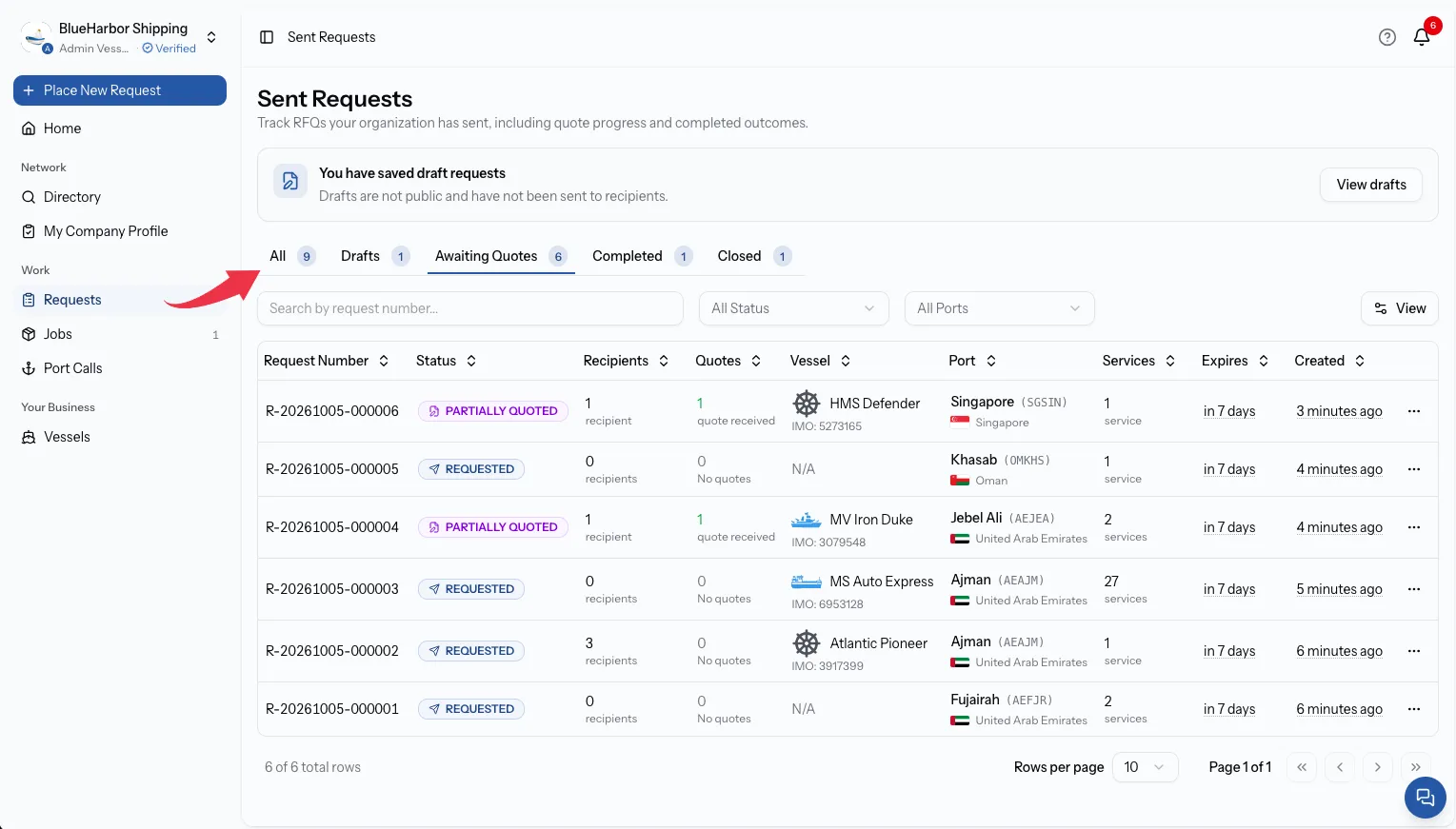
Vessel owners, ship managers and charterers send requests but do not receive them. For these companies, Requests is a single link with no submenu. Select it and Sent Requests opens straight away.
If your company also provides services
Ship agents, suppliers, brokers, freight forwarders, vendors and service providers can send requests too, for example for work they subcontract. The same applies to a company that is both, such as a vessel owner that is also a ship agent.
For these companies, Requests expands into three items:
- Inbox holds requests other companies sent directly to you.
- Open RFQs holds open requests in the markets you cover.
- Sent holds the requests your company sent.
Choose Sent to open Sent Requests.
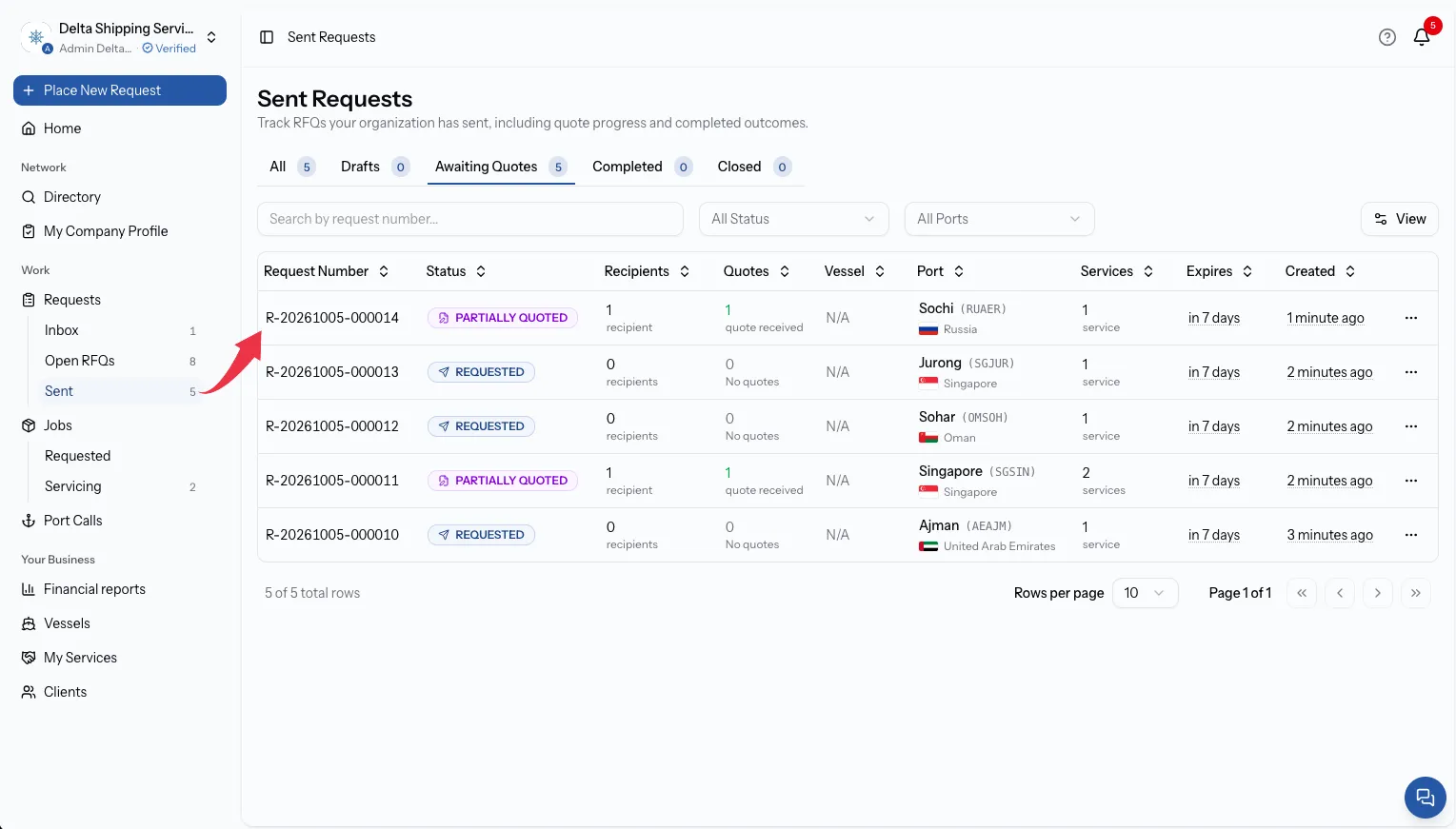
Either way you land on the same page. Every request your organization has created is here, including requests other people on your team sent.
The page opens on the Awaiting Quotes tab rather than All, because those are the requests that may still need something from you. The number next to each tab shows how many requests it holds.
The five tabs
Tab
All
What it holds
Every request, whatever its status.
Tab
Drafts
What it holds
Requests you saved but never published. No provider can see them.
Tab
Awaiting Quotes
What it holds
Published requests that are still open: Requested and Partially Quoted.
Tab
Completed
What it holds
Requests where you accepted a quote and a job was created.
Tab
Closed
What it holds
Requests that ended without a job: Cancelled and Expired.
Saved drafts
When you have drafts, a banner at the top of the page says You have saved draft requests. Select View drafts to see them. Drafts are not public and have not been sent to anyone.
Selecting a draft, or choosing Resume draft from its menu, reopens the request form with everything you saved. Finish the remaining steps and publish from there. A draft cannot be deleted. It stays in the Drafts tab until you publish it.
Inside a request
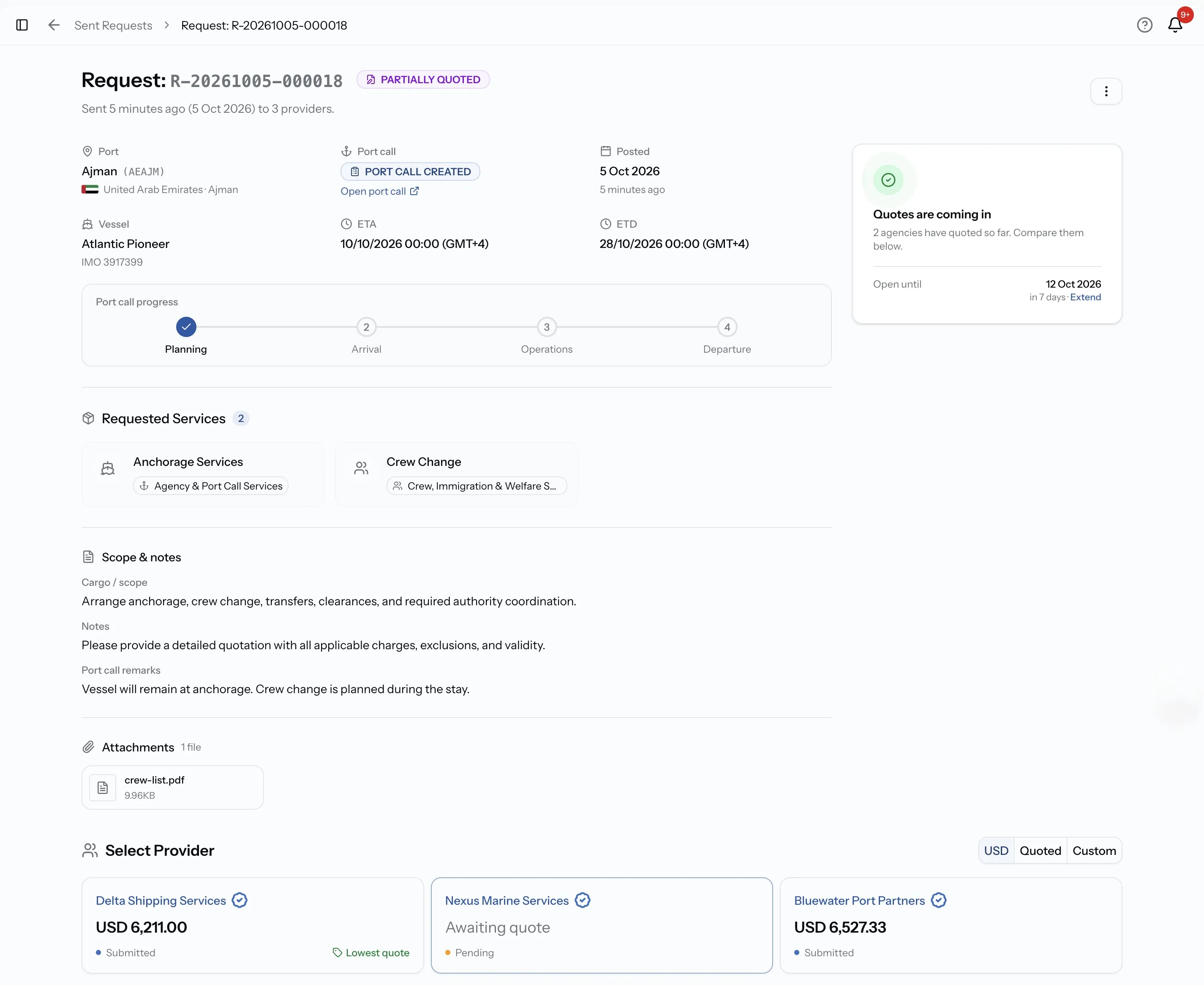
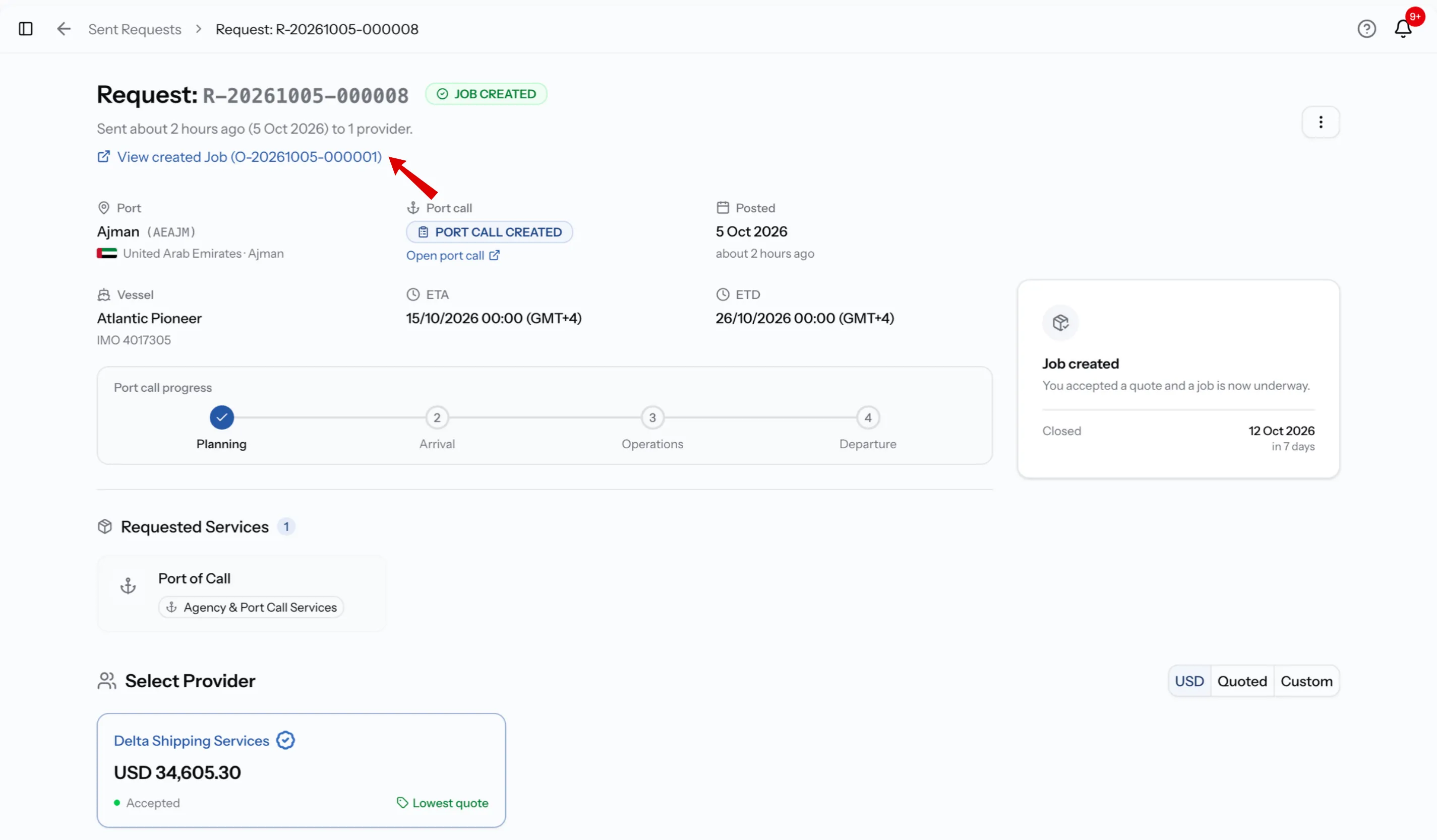
Once a request is published, selecting it opens its request page. The header shows the request number and its status. Below it is a line such as Sent 5 minutes ago (3 Oct 2026) to 3 providers.
The left side holds everything you sent: port, dates and vessel, the requested services, scope and notes, and any attachments. This is exactly what providers see.
The card on the right shows where the request stands and when it closes.
Request statuses
The status in the header covers the whole request. It changes on its own as providers respond, and when you extend, cancel or accept.
Status
Draft
What it means for you
Saved but never published. Nobody can see it. Selecting it reopens the request form, where you can finish and publish it.
Status
Requested
What it means for you
Published and waiting. No quotes have arrived yet. This request expires if its deadline passes, so extend it if you still need quotes.
Status
Partially Quoted
What it means for you
At least one quote is in, and more may still arrive. The request does not expire, even after the deadline passes, and stays open until you accept a quote or cancel. Each quote still has its own Valid until date.
Status
Job Created
What it means for you
You accepted a quote. The work continues on the job, and the request header links to it.
Status
Cancelled
What it means for you
The request is closed. This happens when you cancel it, or automatically when every provider on it declines.
Status
Expired
What it means for you
The deadline passed before any quote arrived. It cannot be extended or reopened.
The status card
The card on the right tells you the same thing in plain words. While the request is open it reads Your request is live, then changes to Quotes are coming in once the first quote arrives.
Under that is Open until, the closing date, followed by how far away it is and an Extend link. When the request has ended, the card shows Closed with the date instead, and there is no Extend link.
New quotes and responses also reach you as notifications and by email, so you do not have to keep the page open.
Following each provider
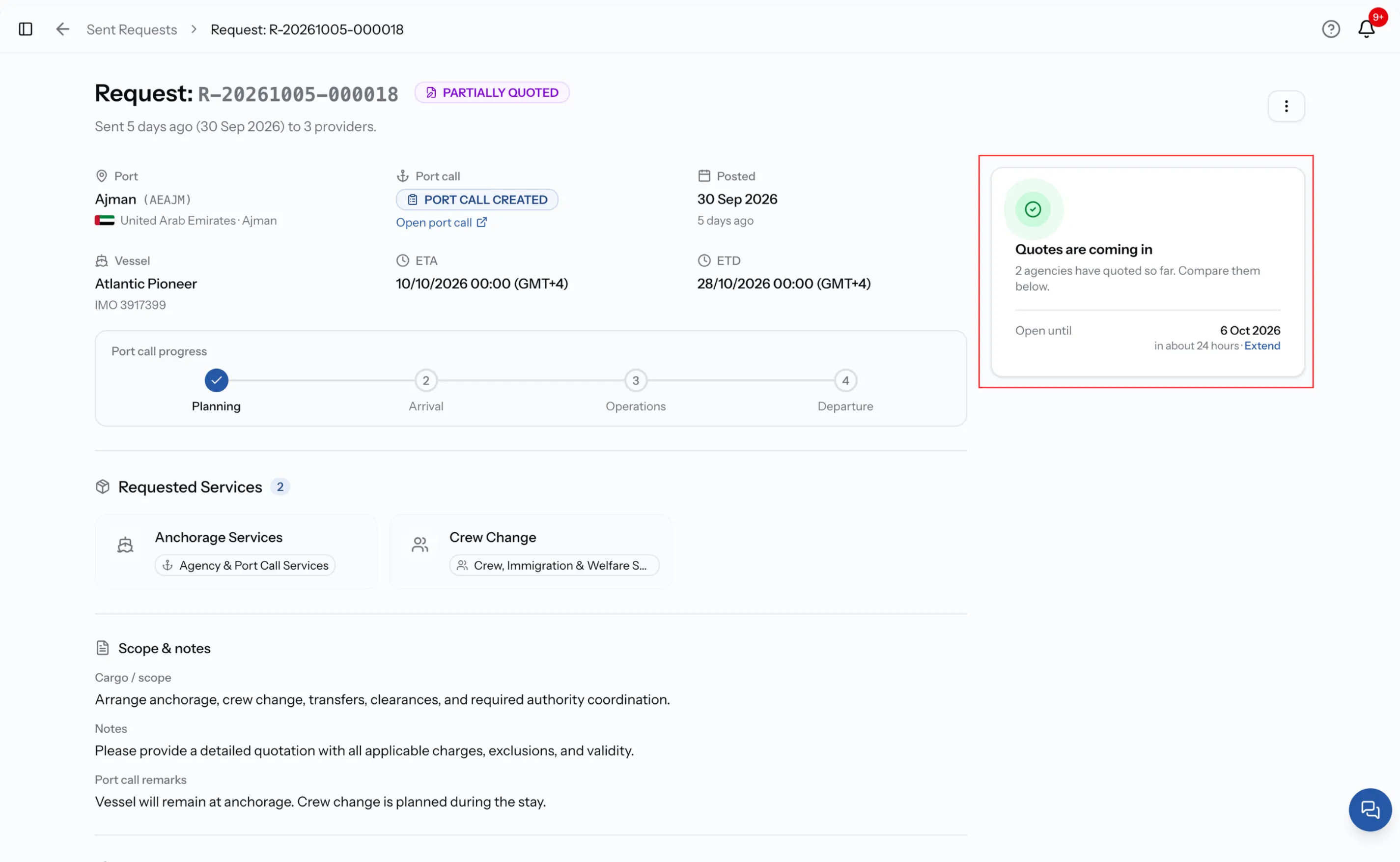
Below the request details is the place where providers and their quotes appear. What you see there depends on who the request went to.
A request sent to companies you chose
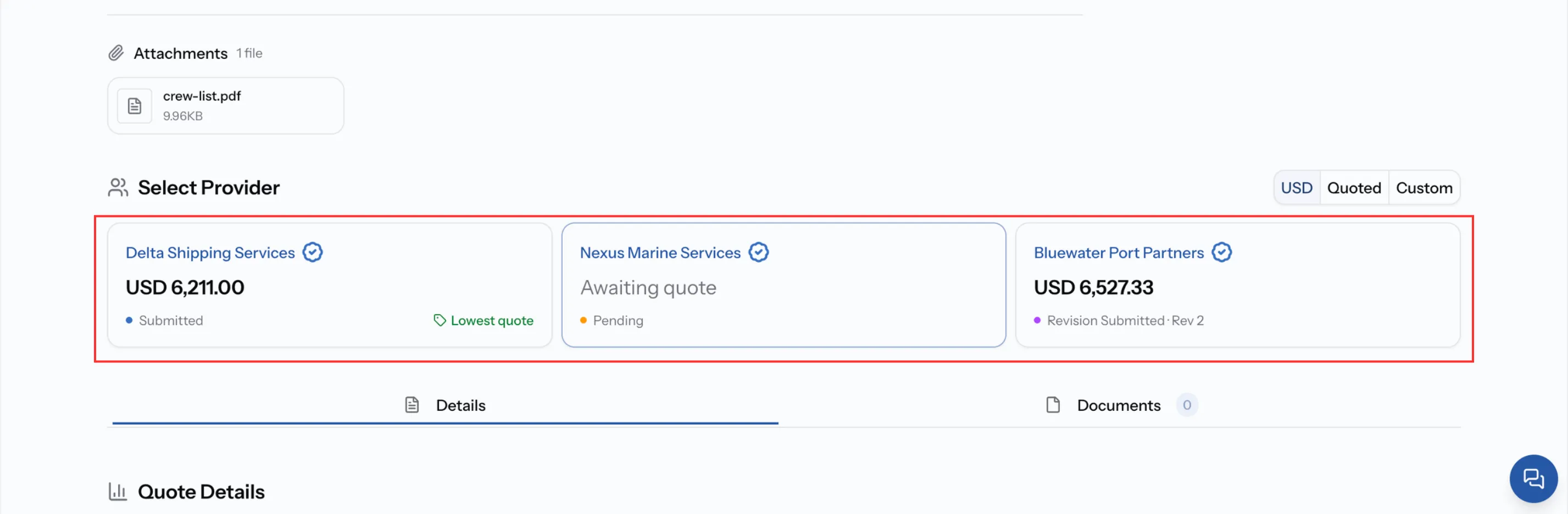
If you sent the request to companies from the Directory, every one of them is listed under Select Provider from the moment you publish, whether they have quoted or not.
Each card has a status that shows how far that provider has got. Until they quote, the card shows Awaiting quote in place of an amount.
A request open to the market
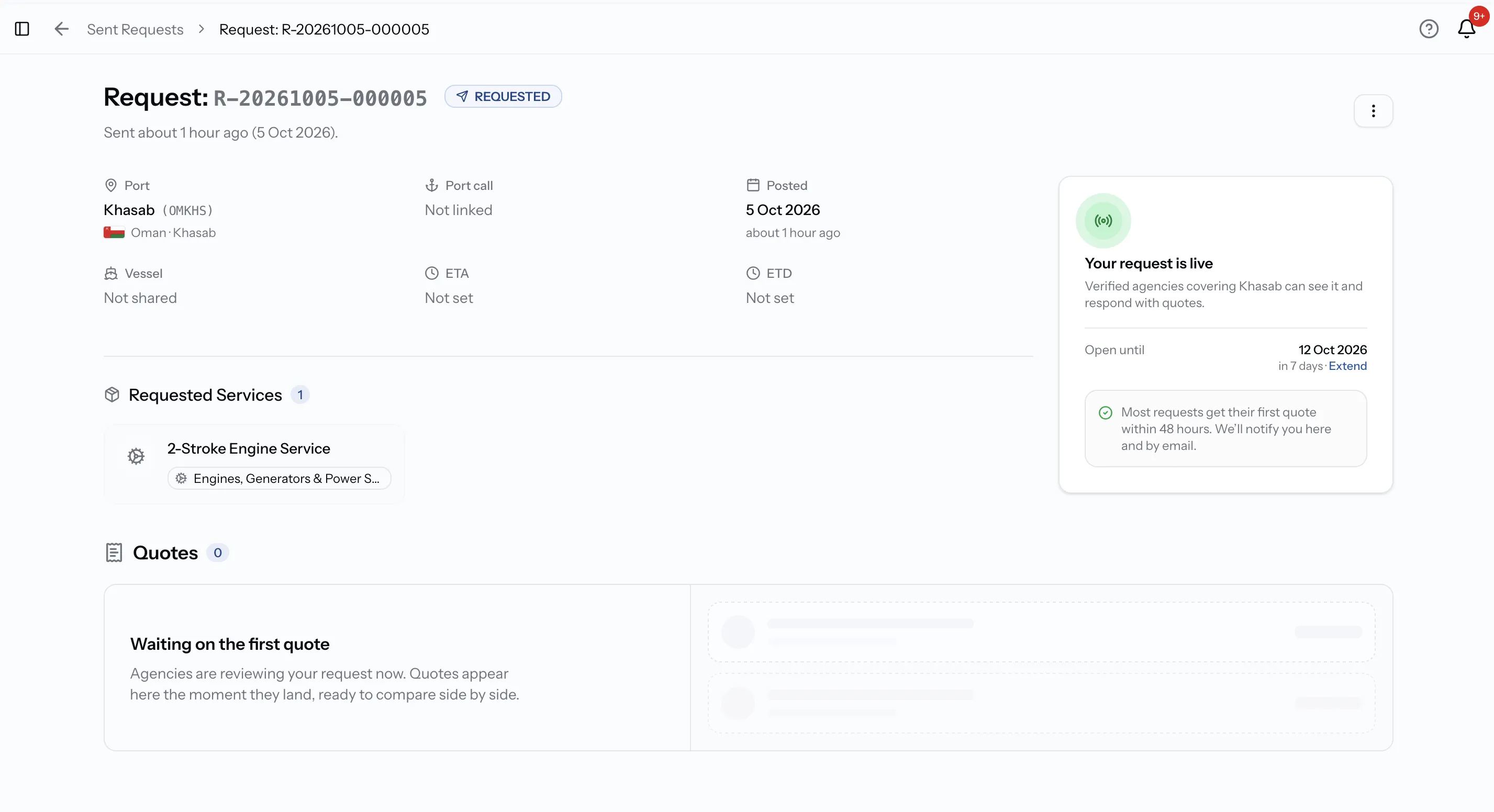
An open request has no providers on it to begin with. Until the first quote arrives, the page shows Waiting on the first quote with an empty Quotes section, and the status card confirms that verified providers covering your port can see the request.
Each provider appears under Select Provider once they quote, so the list builds up as quotes come in.
If you sent the request to chosen companies and also shared it with other verified providers, you see both: your chosen companies from the start, and providers from the wider market as they quote.
Once a provider has quoted
The card shows the quote's stage instead of the provider's status, such as Submitted or Revision Submitted, with the revision number once there has been more than one. The lowest quote is marked.
Provider statuses
Status
Pending
What the provider has done
They have received the request but not opened it.
Status
Viewed
What the provider has done
They have opened the request.
Status
Quoted
What the provider has done
They have sent a quote.
Status
Revision Requested
What the provider has done
You asked for changes to their quote. The next move is theirs.
Status
Revision Quoted
What the provider has done
They have sent a revised quote
Status
Accepted
What the provider has done
You accepted their quote.
Status
Declined
What the provider has done
They chose not to quote.
Status
Closed
What the provider has done
The request ended, either by being cancelled or because you accepted a different quote. They can no longer respond.
If your role is Operations or Viewer, provider cards show Quote submitted instead of an amount. Prices are visible to Admin, Manager, Finance and CEO.
Give a request more time
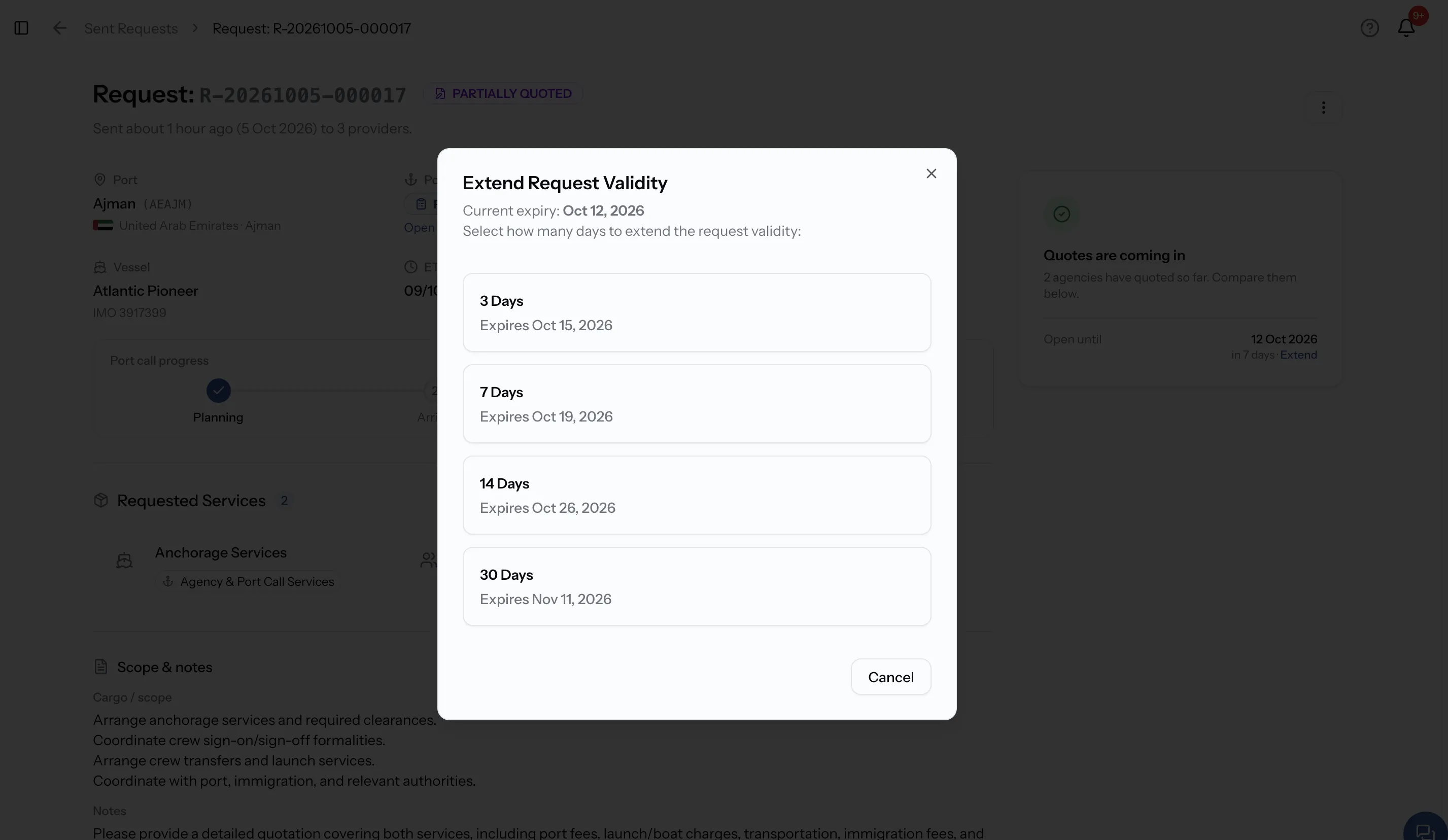
Every request goes out with a seven-day deadline. Extend it while the request is still open, for example when nothing has come in yet, or when a provider asks for more time to price the job.
- Select Extend on the status card, or open the menu at the top right of the request and choose Extend Request.
- Check the current deadline shown in the dialog.
- Choose 3, 7, 14 or 30 Days. Each choice shows the date the request would then close.
The days are added to the current deadline, not to today. Extend as many times as you need.
Extend before the deadline, not after
A request that reaches its deadline without a single quote becomes Expired, and Extend is no longer available. To try again, send a new request.
If at least one quote has arrived, the request does not expire. It stays Partially Quoted past the deadline, so the quotes you have are not lost.
Quotes are a separate matter. Each one shows a Valid until date set by the provider, which is how long they hold that price. If a quote's date has passed, use Request Revision to ask the provider to confirm or update it before you accept.
Cancel a request
Cancel when you no longer need the work: the call was cancelled, the plans changed, or you arranged it some other way.
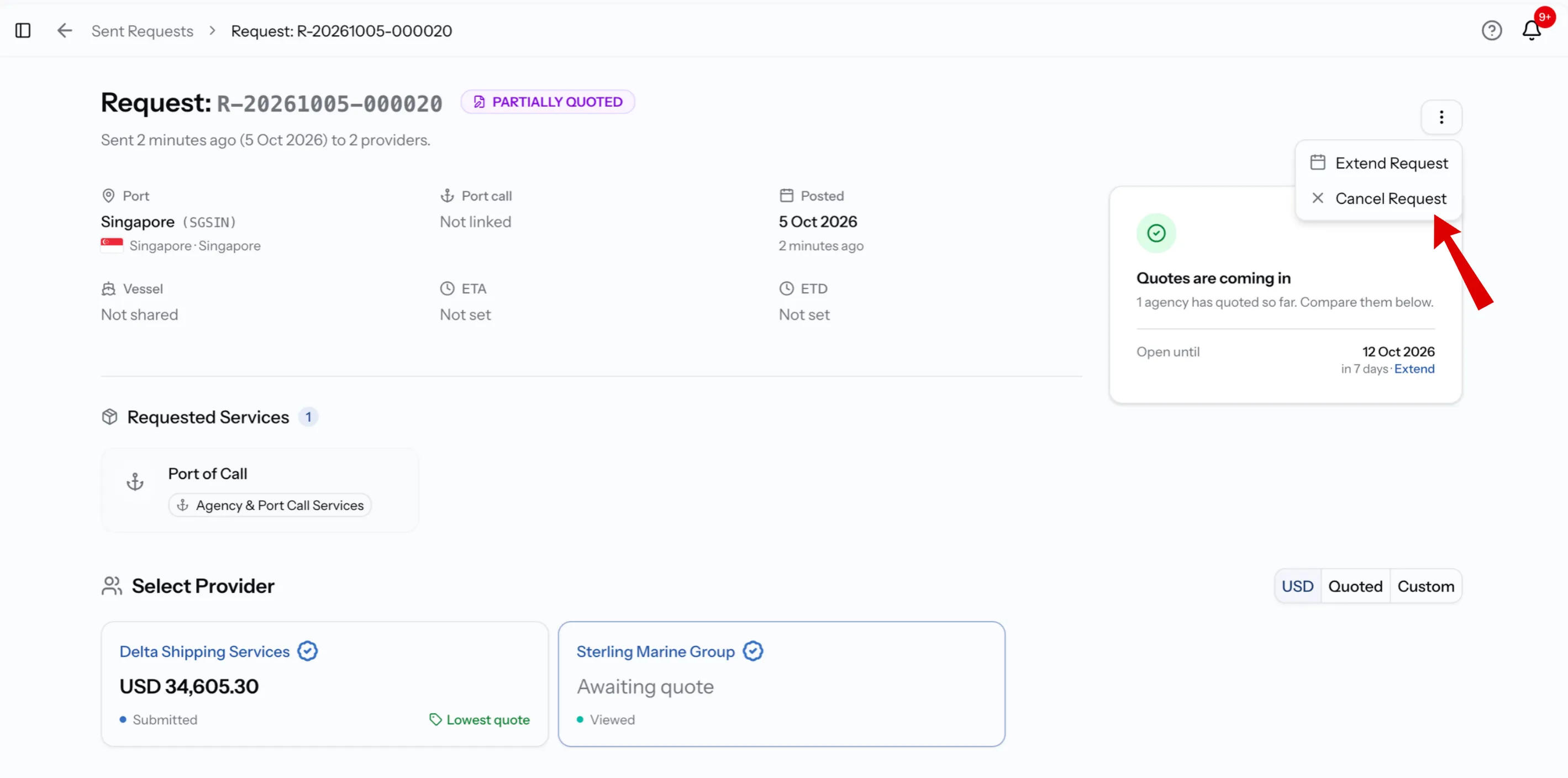
- Open the menu at the top right of the request and choose Cancel Request.
- Read what cancelling does. The dialog lists three things:
- Marks the request as cancelled
- Closes every provider's response, including quotes already received
- Notifies every provider that the request was cancelled
- Choose Cancel Request to confirm, or Keep Request to back out.
Cancelling cannot be undone, and a request cannot be deleted, so a cancelled request stays in the Closed tab.
How a request ends
Every request ends in one of three ways, and only one of them is your decision to make.
Job Created
You accepted a quote.
- The request moves to the Completed tab
- Every other provider on it is closed
- The header links to the new job
Cancelled
You cancelled it, or every provider declined.
- Every provider is closed and notified
- The request moves to the Closed tab
- It cannot be reopened
Expired
The deadline passed with no quotes.
- Only happens while the request is Requested
- Extend is no longer available
- Send a new request to try again
When the quotes arrive
Quotes land on this same page, one card per provider, ready to compare. From there you can ask a provider for a revision or accept a quote.
Accepting a quote creates a job and closes the request for every other provider. The request header then shows View created Job with the job number, and the work continues from the job page.
Next step
Compare quotes and choose a provider
Once quotes are in, compare them side by side in one currency, open each line item, ask a provider for a revision, and accept the one that fits. Accepting creates the job and closes the request for everyone else.
Common issues
I cannot find a request I sent
The page opens on Awaiting Quotes. Check All or Closed, and select Reset Filters if a search or filter is still applied.
I see Inbox and Open RFQs, not just my sent requests
Your company also provides services, so Requests holds both directions. Requests sent to you are in Inbox and Open RFQs. Requests you sent are under Sent.
My open request shows no providers
That is expected. On an open request, providers only appear once they quote. Until then the page shows Waiting on the first quote. If the deadline is close, extend it.
Extend and Cancel are greyed out
Either the request has already ended (Job Created, Cancelled or Expired), or your role cannot change requests. Hover over the option to see which. Ask an Admin or Manager if it is your role.
My request was cancelled but nobody cancelled it
Every provider on it declined. When that happens, the request cancels itself. Send a new one to a wider group, or open it to the market.
I need to change a request I already sent
A request cannot be edited once it is published. Cancel it, then send a new one with the correct details.
What you can do now
You can find any request your company has sent, read its status and each provider's status, extend the deadline before it runs out, and cancel a request cleanly when you no longer need it.
FAQ
01
02
03
04
05
06