
Search for a maritime company
Finding a company is easy. Finding the right one takes a minute longer. Here is how to search so the results are useful, how to read a company page before you commit, and how to ask for a price.
This guide is about searching well and choosing well. For what the Maritime Directory is, the full list of filters, and everything a company page can hold, read the Maritime Directory feature page.
Key takeaways
Filter by service and port together. A name search cannot tell you who covers your port.
A company page shows what a company can prove, not just what it claims. Read it that way.
Check port coverage before anything else. A company listing your service but not your port cannot help you.
Filter properly and your services carry through into the request draft.
Step 1. Search by filter, not by name
Search by name when a principal has given you one, or when you are checking whether a company you already work with is on PortzApp.
The rest of the time, do not search at all. Filter.
Service and port together is the combination that matters. Everything else narrows the list, but only those two tell you whether a company can do this job, here. Company type is useful afterwards, when you want a supplier rather than an agent for the same service.
It pays off twice. If you go on to ask several companies at once, the service filters you searched with carry through into the request draft, so you are not typing them again.
Step 2. Read the page for what it proves
A thin page is not proof of a bad company, and a full one is not proof of a good one. What separates them is evidence.
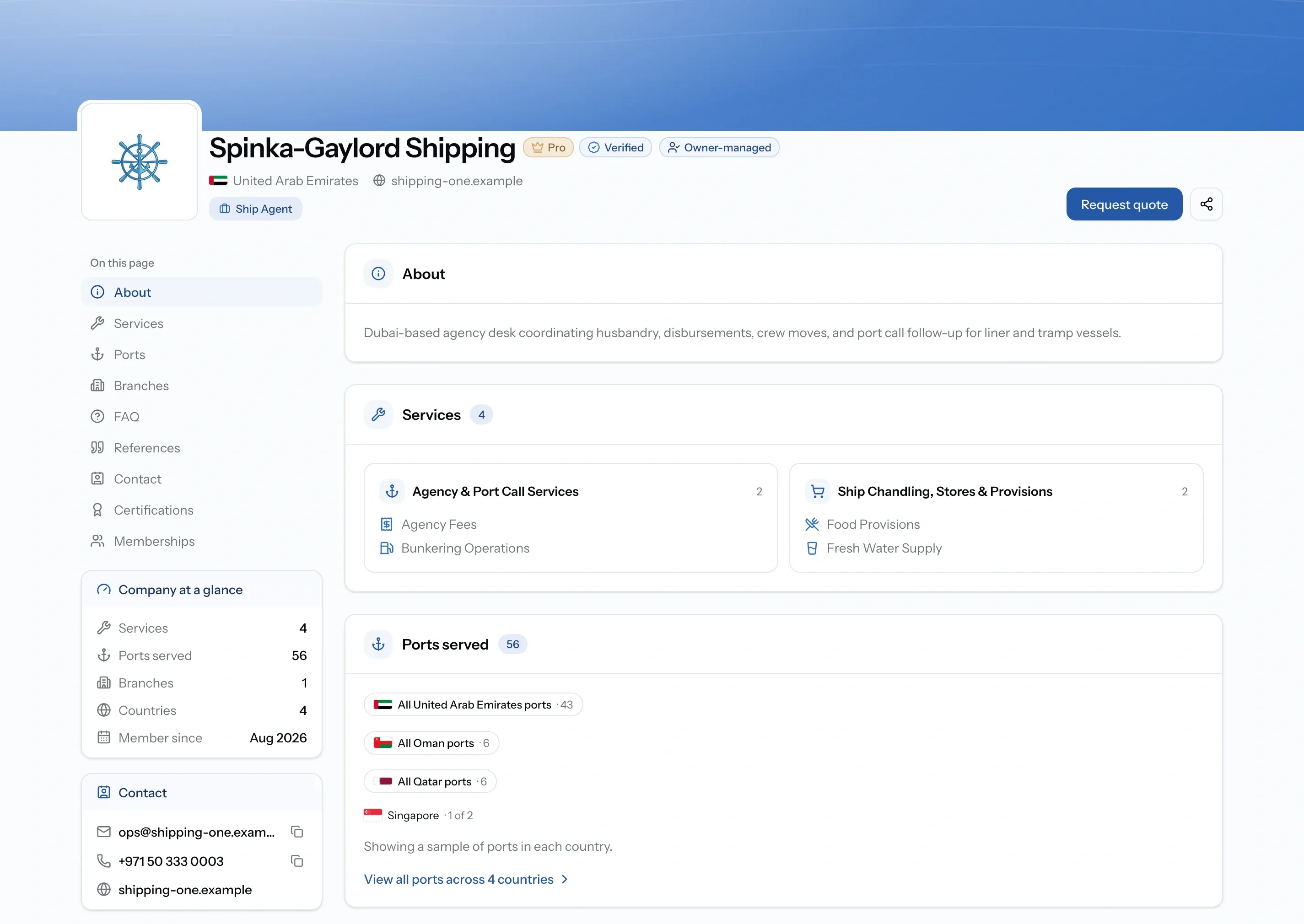
Work down in this order:
Port coverage first. Services and Ports is the section that decides it. A company listing your service but not your port cannot help you, however good they look.
Then what they can prove. Certifications, memberships, and documents are the difference between saying and showing. Where paperwork matters, read this before anything else.
Then who vouches for them. References name the companies they have worked for and what the work was.
Then whether anyone is nearby. Branches tell you if there is somebody near the berth, or whether it is all handled remotely.
Before you spend a deadline on them
Check
Do they cover your port, not just your service?
Where to look
Services and Ports
Check
Can they prove what the job requires?
Where to look
Certifications, Memberships, Documents
Check
Has anyone worked with them before?
Where to look
References
Check
Is there anyone near the berth?
Where to look
Branches
Check
Is the page maintained by them?
Where to look
The owner-managed badge, with the date they claimed it
Check
Have PortzApp checked their documents?
Where to look
The Verified badge
Step 3. Ask one company
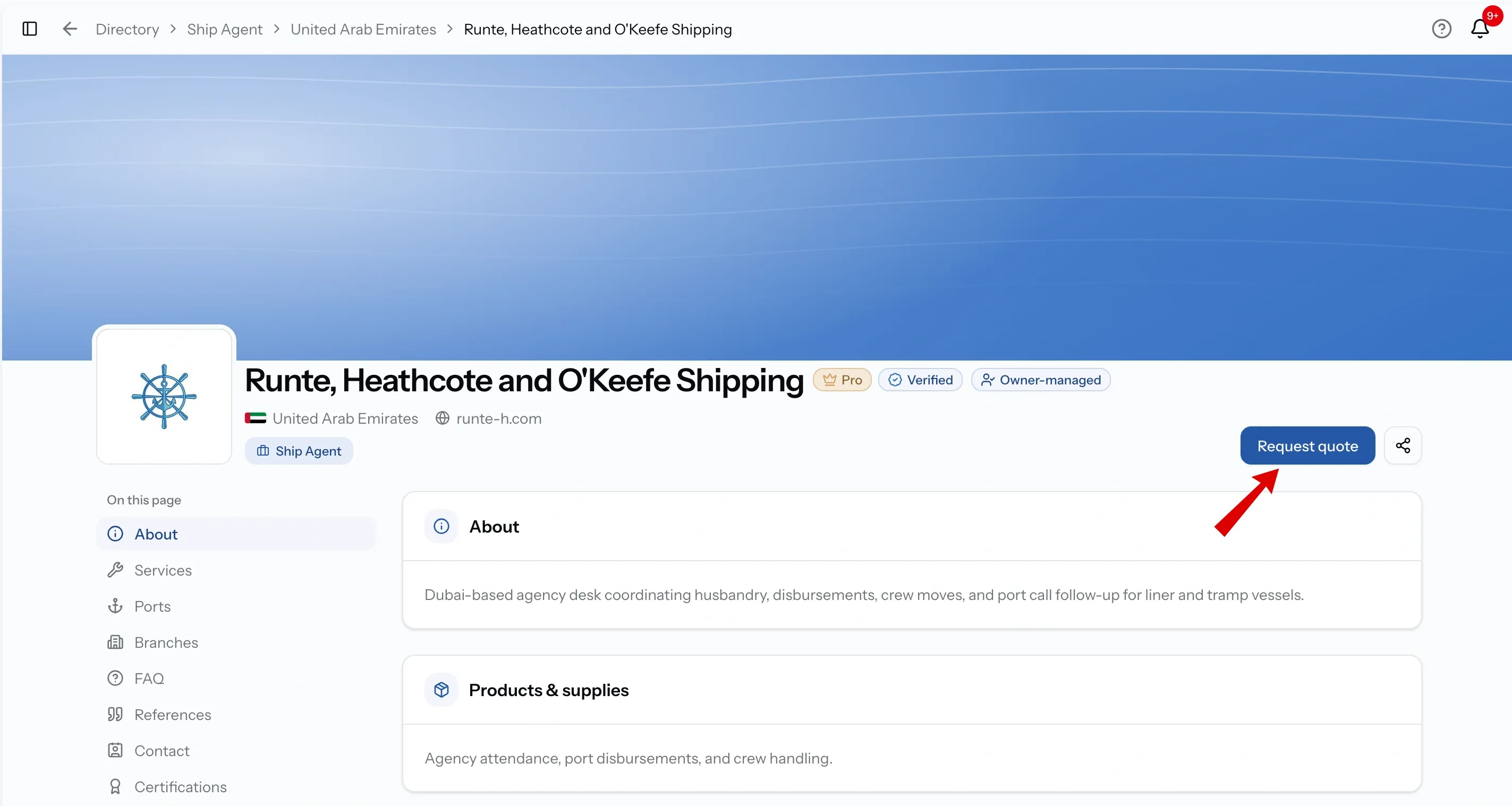
On their page, choose Request quote. It opens the request form with that company already set as the recipient, so all you add is what you need, where and when.
Not every company can be asked. The Directory holds both sides of the market. Vessel owners, charterers and ship managers are listed so they can be found and so they can buy, not so they can quote. On their pages the Request quote button is simply not there. A missing button means that company does not sell services. It does not mean their profile is incomplete or that something has gone wrong.
If you need someone to do the work, filter by company type to the ones who provide services.
Step 4. Ask several at once, on Pro
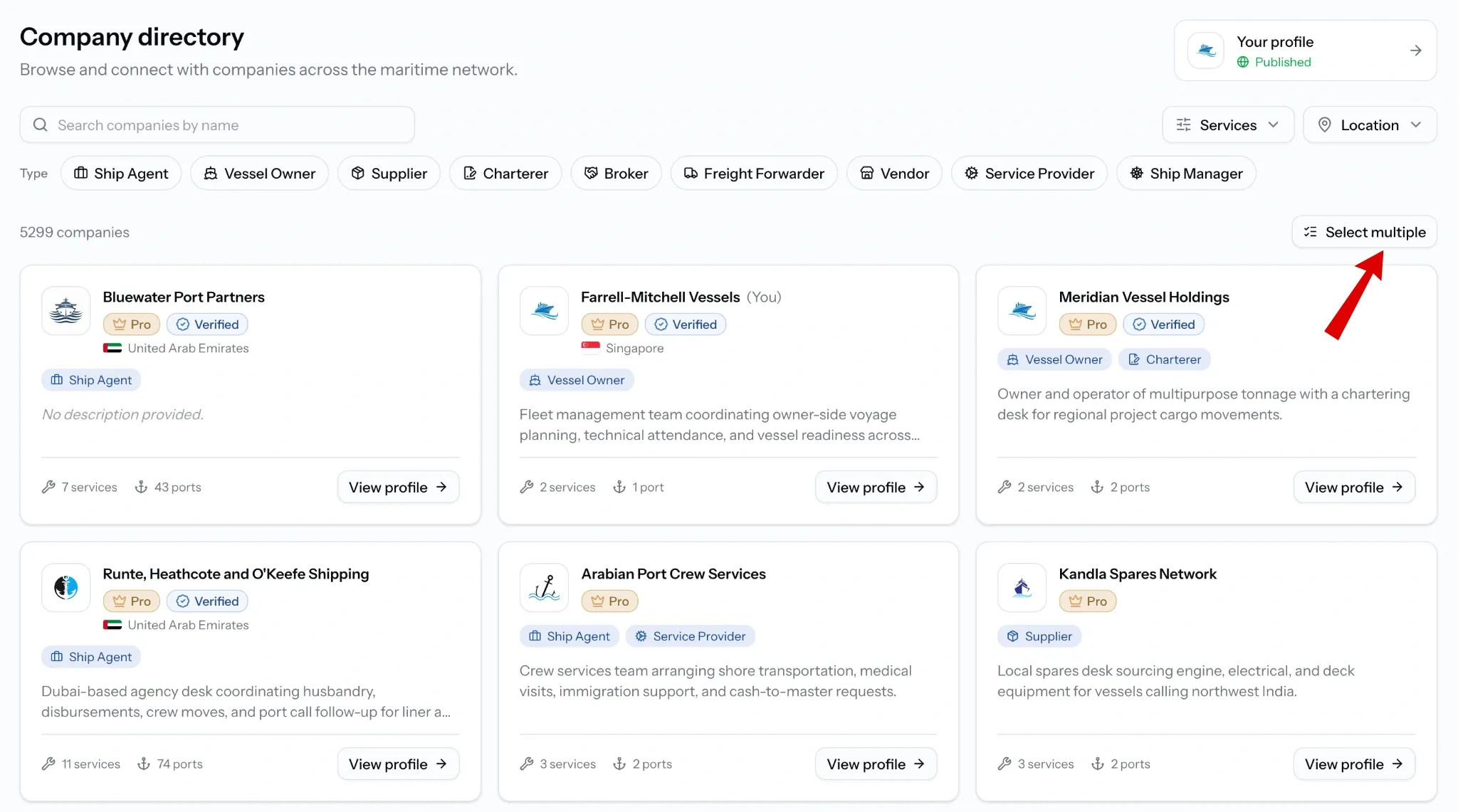
Asking a group in one action is a Pro feature. On the free plan the selection toolbar is replaced by an upgrade prompt, and you can still ask companies one at a time.
On Pro, switch on Select multiple, tick the companies you want, and press Request selected.
Two things cannot be ticked: your own company, and any company that does not sell services. Vessel owners, charterers and ship managers fall into the second group, so if a card will not tick that is usually why.
The draft it creates carries the service filters you were searching with, which is the payoff for filtering properly in Step 1.
Common issues
Request quote is not on their page
That company does not sell services. Vessel owners, charterers and ship managers are in the Directory to be found rather than to quote. Nothing is wrong with the page
A card will not tick
It is your own company, or one that does not sell services
My ticked companies disappeared
Changing your filters drops any selection that is no longer in the results. Finish narrowing first, then tick
Where this leaves you
A shortlist of companies who cover your service at your port, checked against what they can actually prove, and a draft request ready to send to one or several of them.
FAQ
01
02
03
04