
Get found by buyers in the Directory
If buyers are not finding you, it is almost always your coverage. Here is how to check your own listing, what to update when your ports or services change, and what to do when the answer is still nobody.
Before you start
Your profile has to be published to appear at all. If it is not, start with Create your company profile.
This guide is for companies that sell services. If you only operate vessels, there is no coverage to maintain.
Key takeaways
Buyers filter by service and location together, so both have to be right.
Ports served on your profile sets where you cover. Coverage is then refined service by service on the Services page.
Changing your catalogue does nothing until the profile change is published.
Look at your own card in the Directory. It is the fastest check there is.
How buyers find you
Buyers rarely browse. They filter by company type, service and location, then read what comes back. Name search only helps somebody who already knows you exist.
So one question decides everything: are your services switched on at the ports you actually work?
Two places answer it, and they are the same catalog seen from two sides. Your profile sets the broad shape, which services you offer and where you cover. The Services page is where that gets refined, service by service. Editing either one updates the other.
Step 1. Check how you appear
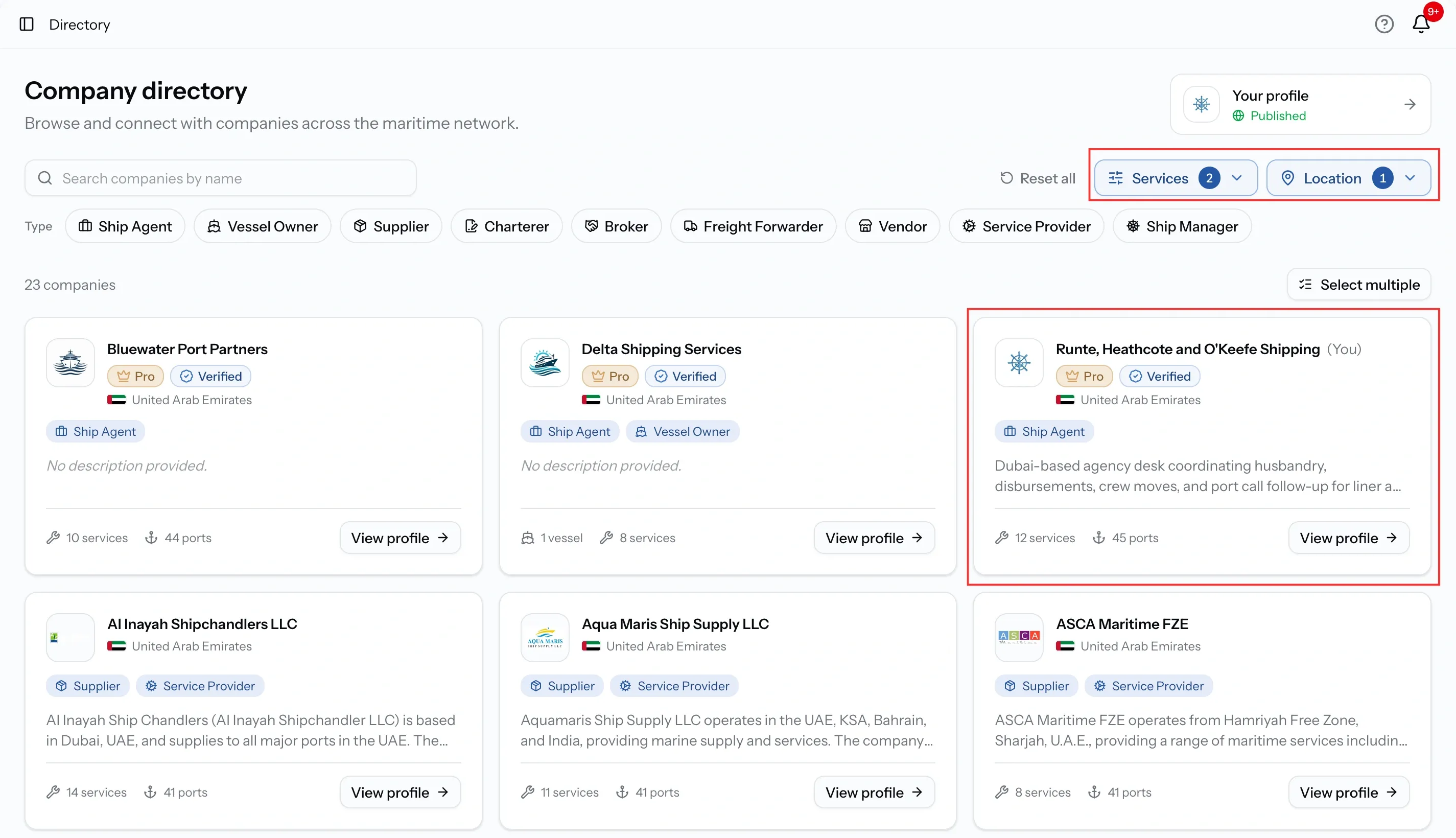
Start from the buyer's side rather than the editor. Open the Directory and find your own company, which sits in the results alongside everyone else.
Three things to look at:
- The port count on each service. Anything showing 0 ports is offered nowhere.
- Your badges. Verified sits next to your country and company type.
- Whether you appear at all. Filter by one of your own services at one of your own ports. If you are not in that result, no buyer running that search will find you either.
Worth knowing that a profile with no coverage still appears in the Directory. Somebody searching your name or company type will find you. What you will not do is turn up in the service and port searches that bring in work.
Step 2. Set your services
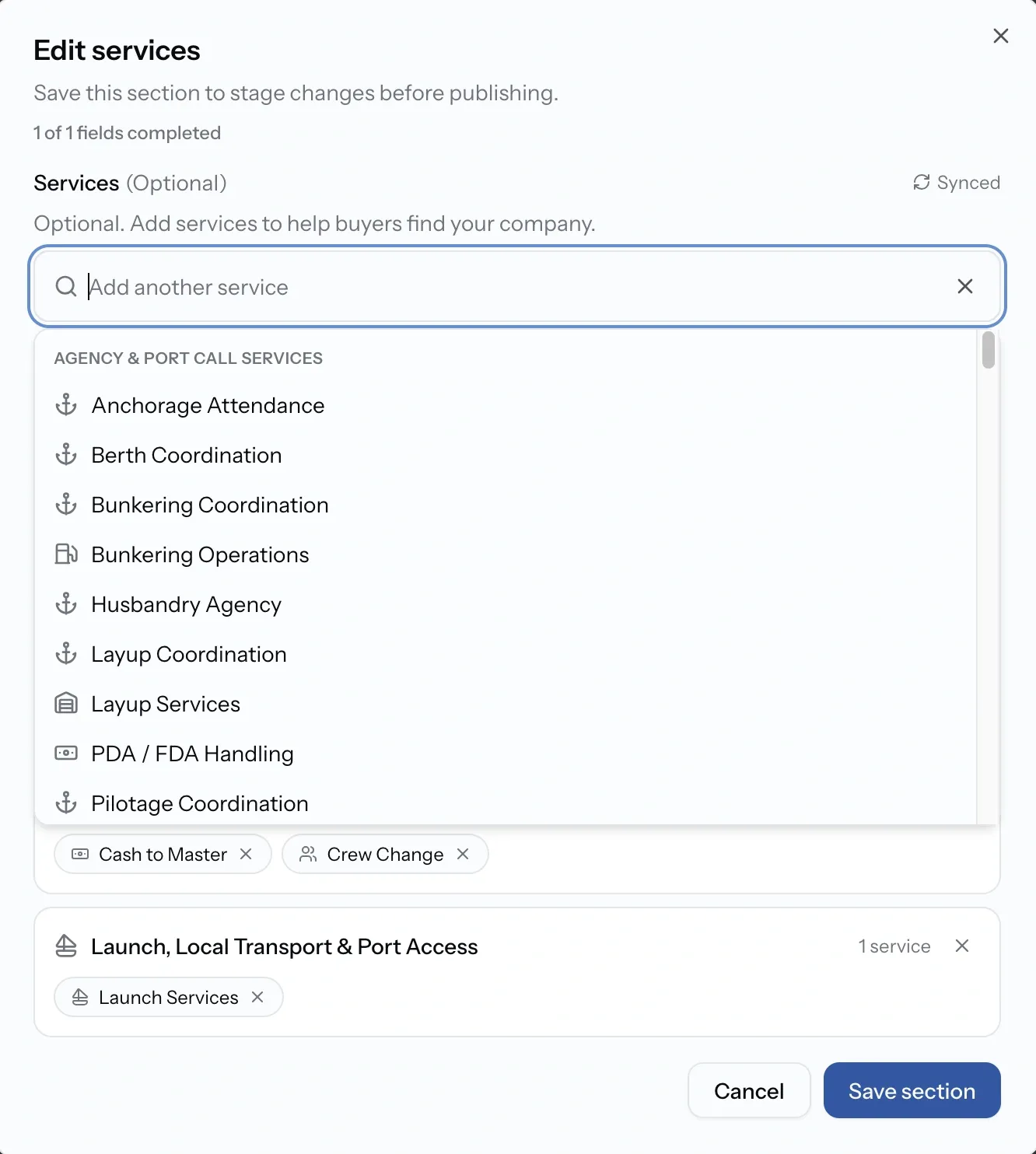
Open your company profile and edit the Services card.
Services come from a shared catalogue rather than free text, so this is a matter of selecting what you offer across as many categories as apply. They appear on your page grouped by category, which is how buyers read them.
Two things happen when you save:
- Selecting a service makes it active in your catalog, and enables it at every port you currently serve. You are not left with an empty service to fill in later.
- Removing one makes it inactive rather than deleting it. Its ports and tariff items are kept, so putting it back later is one tick.
Because a new service opens everywhere you cover, only add ones you can actually deliver across your patch. If you offer something at two ports out of thirty, add it here and narrow it afterwards on the Services page.
Step 3. Set where you cover
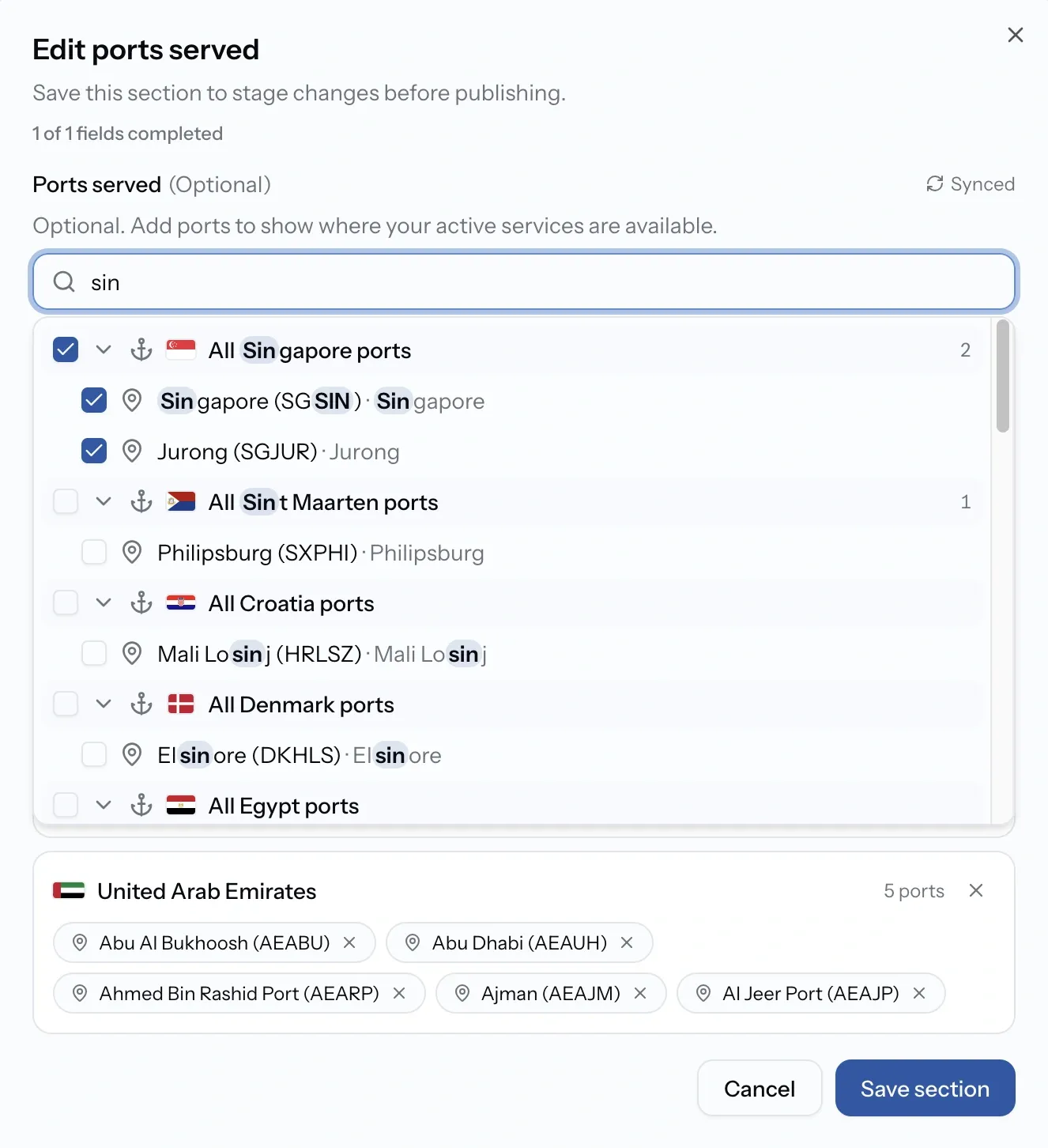
Now edit Ports served. This is where your company works, expressed the way you would actually describe it: whole countries at a time, individual ports where the coverage is narrower, and exclusions for ports inside a country you do not work.
It applies across your services rather than to one of them, which is the part people get wrong. You are drawing your patch, not configuring a single service.
It is also a boundary. A service can only be active at ports inside Ports served. So saving this disables coverage anywhere now outside the line, including ports you had enabled for a specific service. Widen the profile first, then refine.
If your coverage varies by service, and it usually does, set the outer shape here and tune each service on the Services page. See Manage port availability.
Step 4. Publish the changes
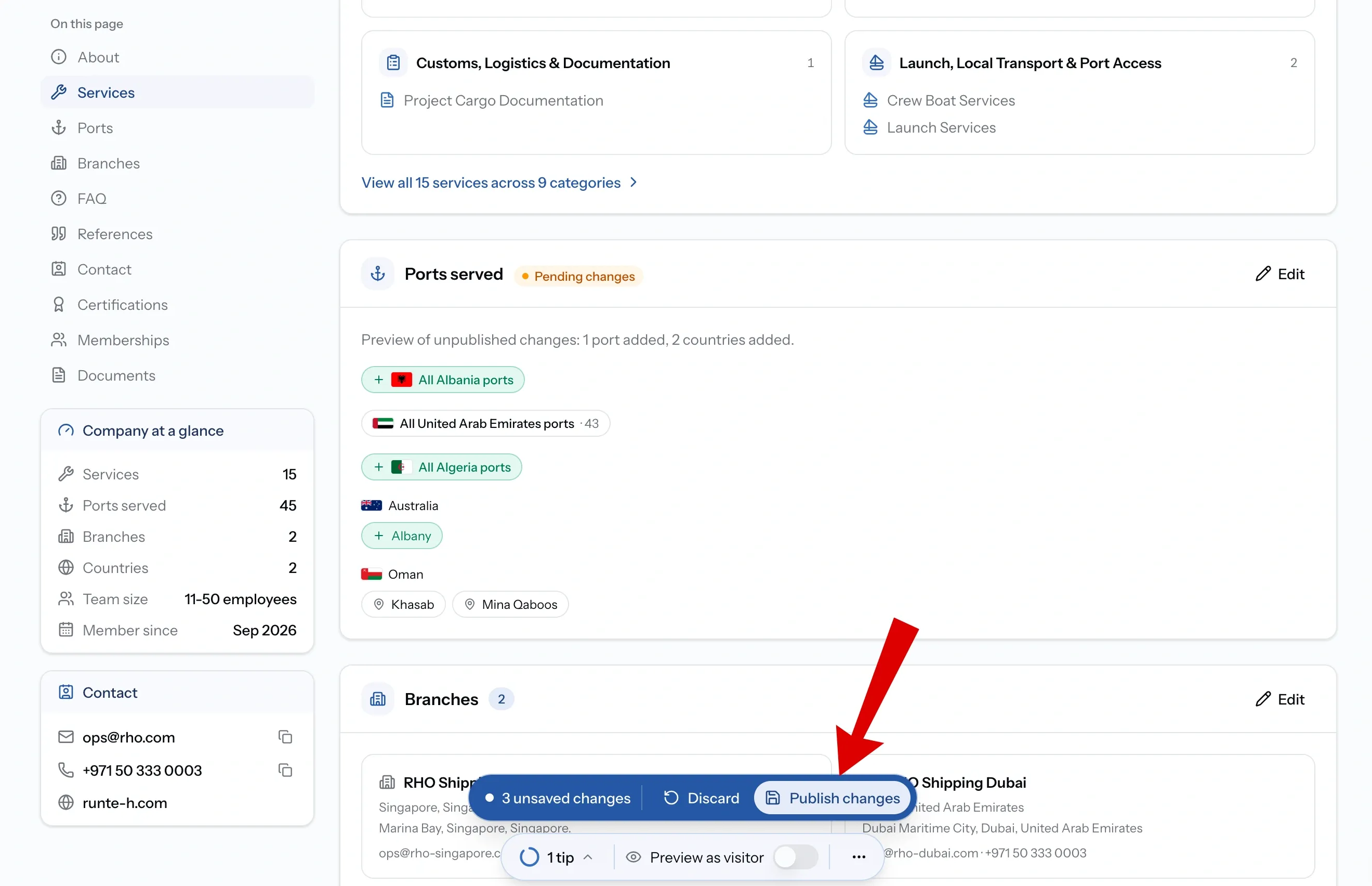
Nothing you have just done reaches a buyer yet.
Edits to a published profile are held as pending changes, and your live page stays exactly as it was until you publish them. That is useful when you are reworking a whole catalogue over several days, and it is the reason you can spend an afternoon fixing coverage and see no difference at all.
Publish the changes, then go back to Step 1 and look at your own card again. That loop is the whole job.
Keeping it current
Four things happen over a year, and each one sends you back through Steps 2 to 4.
You take on a new port. Add it to every service that now reaches it, not just the one that prompted the change.
You stop covering a port. Take it off, or you keep receiving requests you cannot service and spend your time declining them. Out of date coverage costs the buyer a deadline as well as costing you.
You add a service. It starts with no ports, so set them straight away rather than meaning to come back.
You stop offering something. Deactivate it in My Services rather than deleting it, and its ports and pricing survive if you bring it back.
REACH BEYOND YOUR HOME MARKET
By default you work in the country your organization is registered in. Two things widen that:
- Open RFQs from other markets. Seeing requests outside your registered country needs Pro, and your ports still have to be switched on, because a request in a port you do not cover is not deliverable work.
- Placement in search. Pro companies carry the badge on their card and get priority placement in results.
Common issues
I cannot edit Services or Ports served
Both are Admin only on the profile. Ask an Admin at your company
I cannot see Services or Ports at all
Those cards only appear for companies that sell services
A competitor with less coverage ranks above us
Pro companies get priority placement in results. Coverage decides whether you appear, and the plan affects where
FAQ
01
02
03
04
05