
Create your company profile
Building your company profile is an Admin job. Three steps, and the middle one changes depending on whether you sell services, operate vessels, or do both. Here is each of them field by field, what gates publishing, and what to do once you are live.
Before you start
You need the Admin role. If you are not an Admin, ask one at your company to do this, or to make you one.
Have your company logo, your registration number and a monitored public email address to hand. Those three are what people stop to go and find.
Before creating a company profile, search the maritime directory to see if your company is already listed. If PortzApp has already created a page for your company, claim it instead of creating a second one.
This guide walks the setup field by field. For what a company profile is for, how coverage affects discovery, and the mechanics of preview and pending changes, read the Company Profiles feature page.
Key takeaways
Three steps. The middle one is different for service providers and vessel operators.
Nine things must be filled in before you can publish, and verification is only one of them.
Start verification first. It is the only item that waits on another person.
Once live, your page has a public link that opens for anyone.
Before the three steps: start verification
Verification is the only requirement that depends on somebody else. The PortzApp team reviews by hand, so submit it now and build the profile while it is with them. Leaving it until last is the most common way to lose a day on this.
The three steps
Setup runs in three parts, and the middle one changes depending on what your company does.
Step 01
Identity
Who you are. Name, registration, roles and logo
Step 02
What you offer or operate
Services and ports, a fleet, or both.
Step 03
Contact
The details other companies use to reach you.
Step 1. Identity
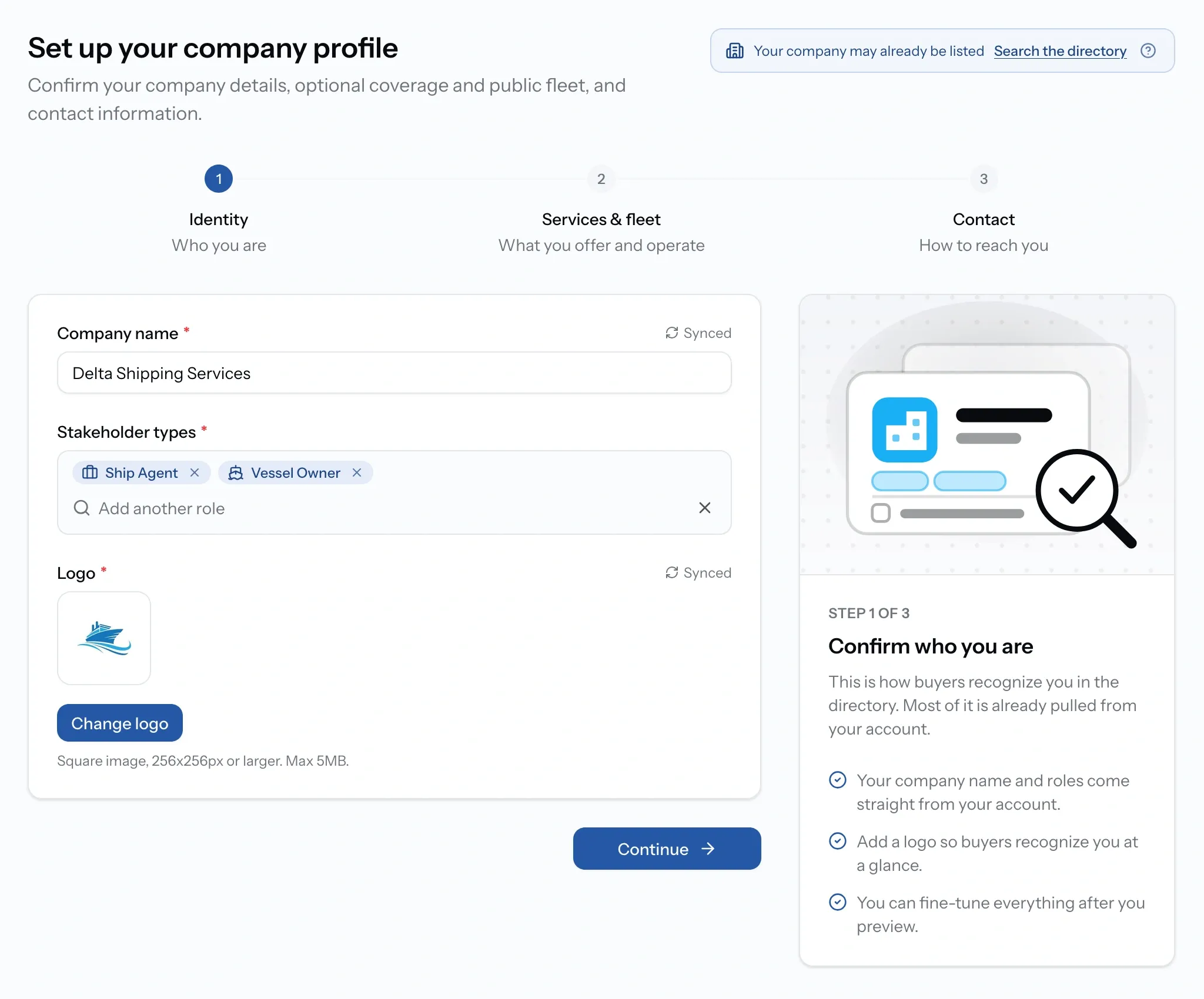
Your name and roles carry over from sign-up, so this is mostly a check.
- Company name. Use your legal name, the one on your company verification document. It is what buyers see and what PortzApp calls your organization.
- Stakeholder types. What kind of company you are. They decide what Step 2 asks for, so tick everything that applies.
- Logo. Required to publish. It sits on your directory card as well as your page, so use a square version.
Step 2. What you offer or operate
This step renames itself based on your stakeholder types:
- Coverage, "What you offer", if you provide services.
- Fleet, "What you operate", if you operate vessels.
- Services & fleet, "What you offer and operate", if you do both.
This is a real permission, not a label. A provider cannot manage a fleet here and a vessel operator cannot manage coverage, whatever their role.
The step is optional. You can publish without it. What you cannot do is be found without it.
Which version of Step 2 you get
If you provide services
Called Coverage, subtitled "What you offer"
If you operate vessels
Called Fleet, subtitled "What you operate"
If you provide services
Pick services from the PortzApp catalogue and set the ports each reaches
If you operate vessels
Publish the vessels you want providers to see
If you provide services
Decides whether buyers find you in filtered searches
If you operate vessels
Saves providers a round of questions before they quote
If you provide services
Ship agents, suppliers, brokers and other providers
If you operate vessels
Vessel owners, charterers and ship managers
Step 2a. If you provide services: Coverage
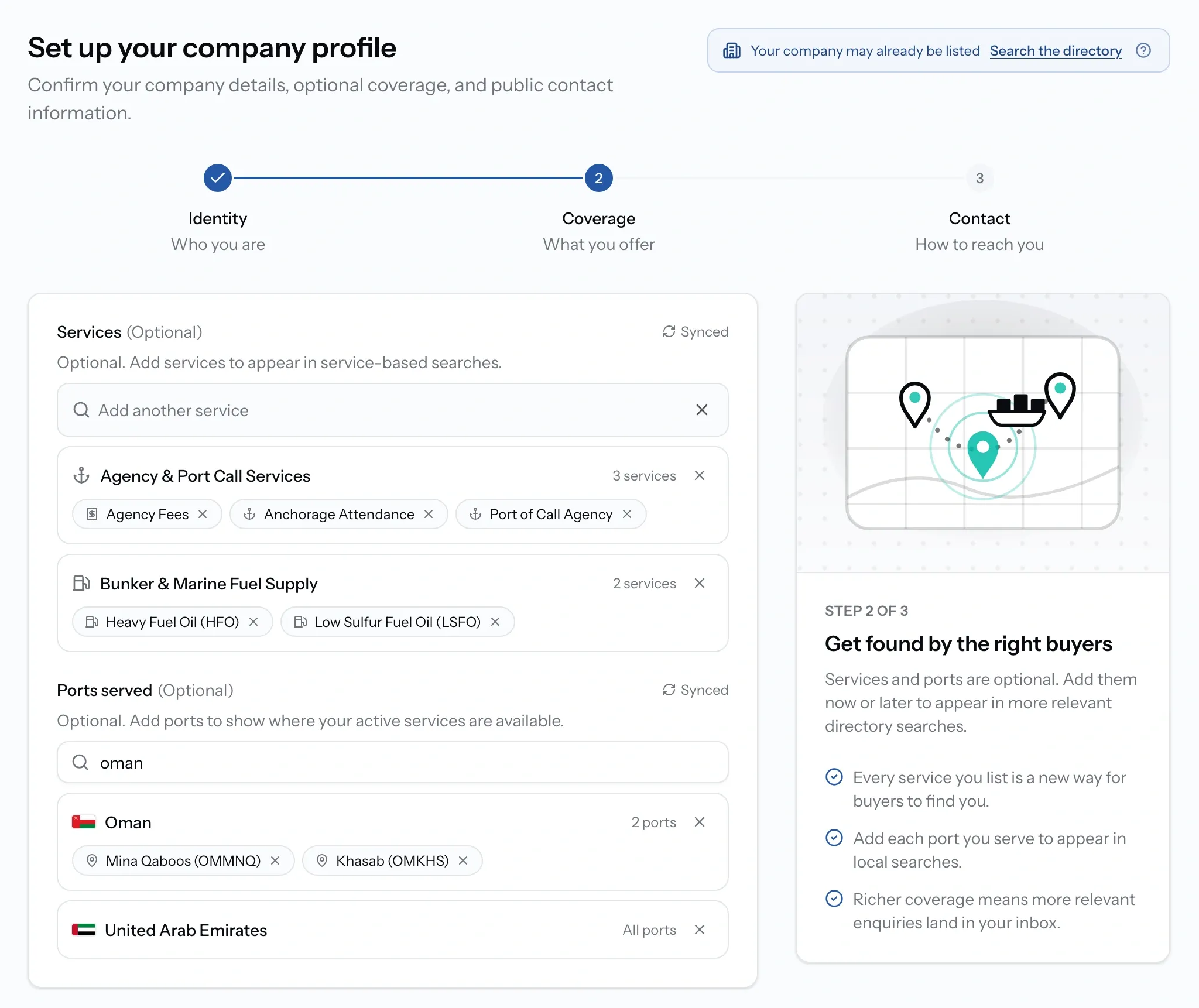
Pick your services. They come from a shared catalogue rather than free text. If something you do is genuinely missing, ask support to add the category and it becomes available to everyone.
Set the ports for each one. Take a whole country, or name individual ports. This is what puts you into filtered searches, and a service left with no ports reaches nobody, showing as 0 ports on your directory card.
The step is optional. You can publish without it. What you cannot do is be found without it.
Step 2b. If you operate vessels: Fleet
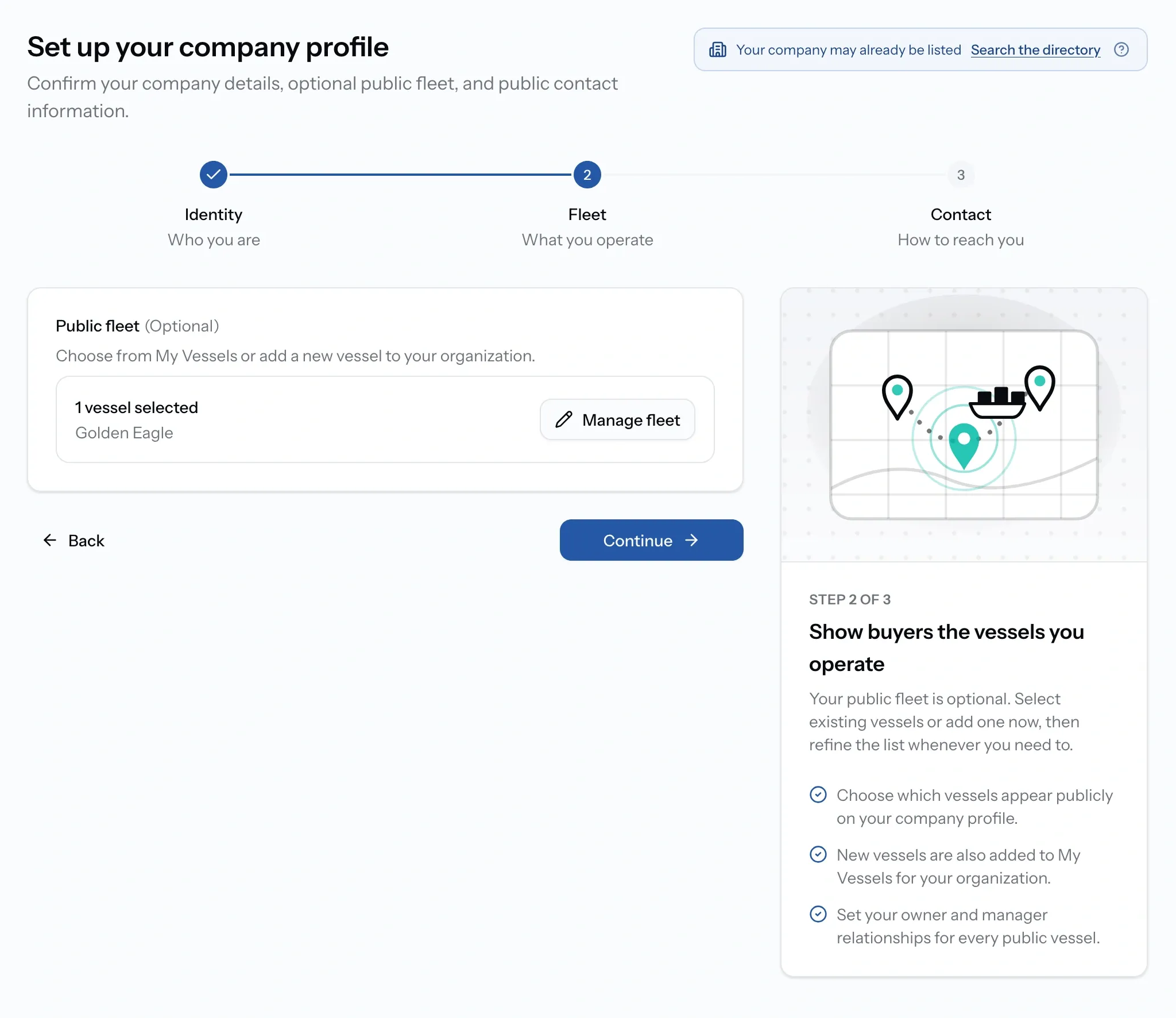
Publish the vessels you are happy for providers to see. For each, they get the vessel type, IMO number, tonnage, and the role your company holds over it. A provider who can see what you run does not have to ask about tonnage and vessel type before quoting.
Your published fleet is not your vessel records. The vessels under Vessels stay private, and a provider sees full detail only when you share one on a specific job. This is a shop window, not a disclosure.
Optional. Skip it if you would rather publish nothing about your vessels.
Step 2c. If you do both: Services & fleet
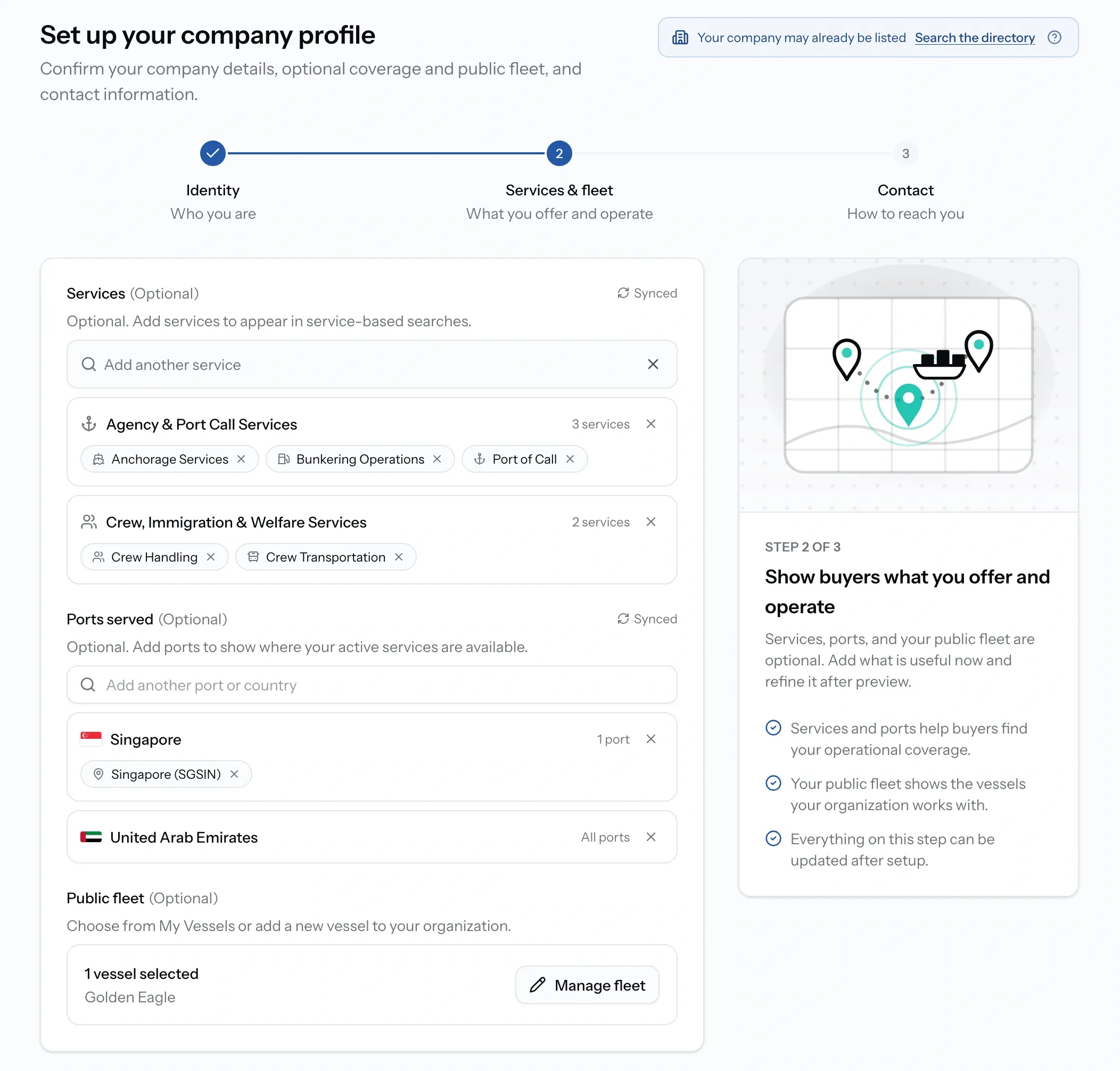
Companies that buy and sell get one step holding both halves, subtitled "What you offer and operate". Ship agents are the common case, since they sell agency services and handle vessels at the same time.
Work through it in this order:
Services and ports first. This is the half that makes you findable, and it is the half people run out of patience on. Get every service mapped to its ports before you move down the page.
Then the fleet. Optional, and quicker, because it is only choosing which vessels to show.
Each half keeps its own rules. A service with no ports still reaches nobody, and your fleet is still separate from your private vessel records. On your published page both appear as their own sections, so buyers see what you offer and providers see what you run.
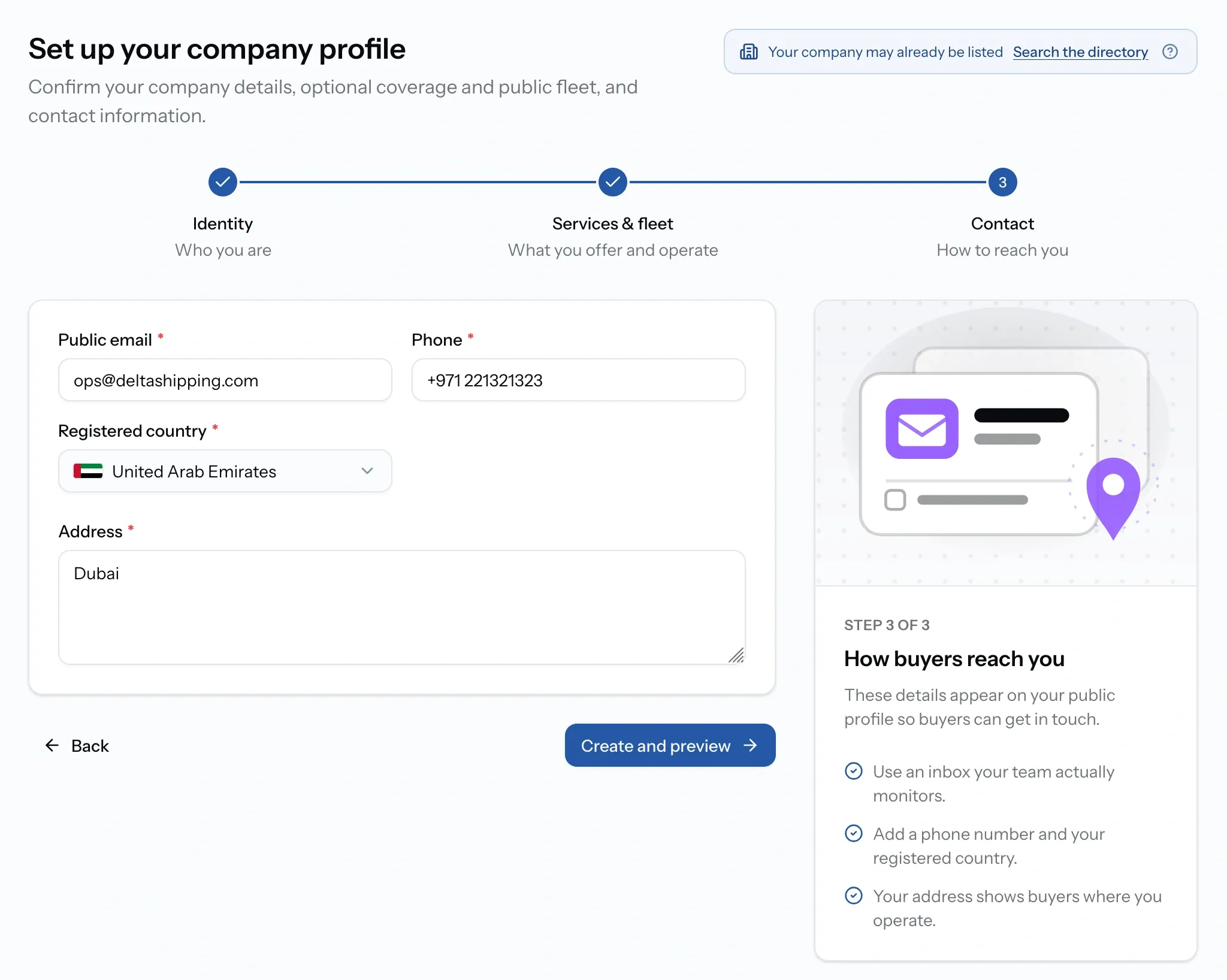
Step 3. Contact
Four fields, and one of them is not what you expect here.
- Public email, phone and address. All required to publish. Public means public, so a monitored inbox and a switchboard beat someone's personal mobile.
- Registered country. Where your company is registered. Also required.
Add your business details
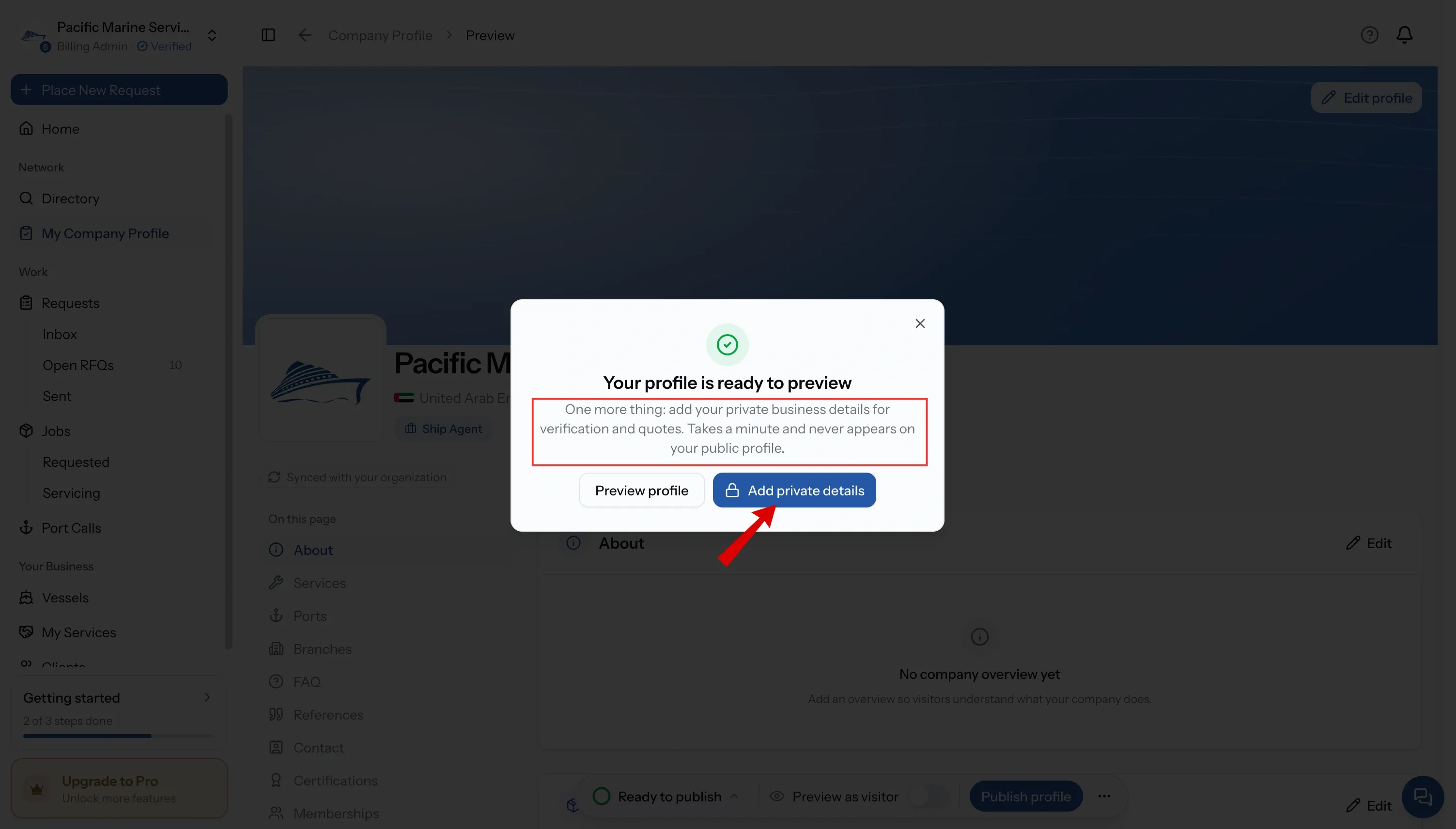
Finishing the steps gives you a profile ready to preview, and PortzApp points you at what to add next: your business details.
These are private. They do not appear on your public page and buyers never see them. They are the company information PortzApp holds about you, including your tax ID, how many people you employ and your annual revenue.
One of them is not optional. Your company registration lives here, and you cannot publish without it. Add that now and leave the rest for whenever you're ready.
Add the optional sections
Everything else is edited straight from your own page, which carries an edit control on each section. None of it is required to publish, and all of it is what stops your page reading like a stub.
- About. A description of your company, and the first thing a buyer reads.
- Website. A link to your own site, and the one thing a buyer will follow to check you exist outside PortzApp.
- Certifications. What your company holds, from the PortzApp list.
- Industry memberships. The bodies you belong to.
- Cover image. The banner across the top of your page.
- Documents. Brochures and supporting files buyers can open.
- Branches. Your other offices, so buyers can see who is near the berth.
- References. Companies you have worked for, and what the work was.
- FAQs. Answers to the questions buyers keep asking you.
All of these are covered in Manage your company profile.
Preview, then publish
Preview once. It shows the page as a buyer sees it, and the public view leaves out anything you have not filled in rather than showing a gap, so it reads shorter than the editor suggests.
Then publish. You appear in the Maritime Directory with your Verified badge, and companies can find you and send you requests.
Publish as soon as the requirements are met rather than waiting for the page to feel finished. Being listed is what lets anyone find you at all.
Keep it current
Once published, edits are held as pending changes and the live page stays as it was until you publish them. You can rework a whole section across a week without a half-finished version being what buyers see.
If you provide services, coverage is the section worth revisiting most often. Every port you pick up or drop changes who can find you, and a service left without ports reaches nobody. Get found by buyers in the Directory covers what to change and when.
If you operate vessels, keep your published fleet in step with what you actually run, so providers are quoting on the right vessel.
A profile cannot be deleted. Unpublish is the way off the Directory, and it keeps everything.
Common issues
The publish button is unavailable
Your company is not verified yet. Build the rest of the page while you wait, and publish once verified
I finished setup but cannot publish
Add your company registration in business details, and check your verification has come back approved. The publish panel names whatever is outstanding
I cannot edit my company profile
The whole profile is Admin only. Ask an Admin at your company, or ask them to make you one
What you'll have
A published page in the Maritime Directory carrying your Verified badge, with your services mapped to the ports they actually reach or your fleet on show, and a public link you can put anywhere.
FAQ
01
02
03
04
05
06