
Manage your company profile
Your profile is live. This is everything you do to it afterwards: the sections you can add, how edits reach the public page, and how to take it down if you need to.
Before you start
You need the Admin role. The whole company profile is Admin only.
If your profile is not published yet, start with Create your company profile.
Key takeaways
Every section is edited from your own page, and all of it is Admin only.
Nothing you change reaches the public page until you publish the changes.
Certifications and memberships come from a PortzApp list, not free text.
FAQs can be written and left unpublished until you are happy with them.
A profile cannot be deleted. Unpublish is how you come off the Directory.
Both buyers and providers visit company profiles. A buyer checks a supplier before sending a request, while a provider checks a vessel operator before quoting on one. Whichever side you are on, the company you are about to deal with opens your page first, and everything they know about you at that moment is on it.
Where everything lives
Open your own page and you get it as everyone else sees it, laid out as a set of cards with an edit control on each. Work down them in order:
- About. Who your company is.
- Products & Supplies. What you carry, if you sell goods.
- Fleet. The vessels you want seen. Only if you operate vessels.
- Services. What you sell. Only if you sell services.
- Ports. Where those services reach. Only if you sell services.
- Branches. Your other offices.
- FAQ. The questions you keep being asked.
- References. Companies who will vouch for you.
- Company details. Get in touch, your certifications and memberships, your documents, and a way through to your private business details.
Your logo and cover image are edited from the top of the page rather than from a card.
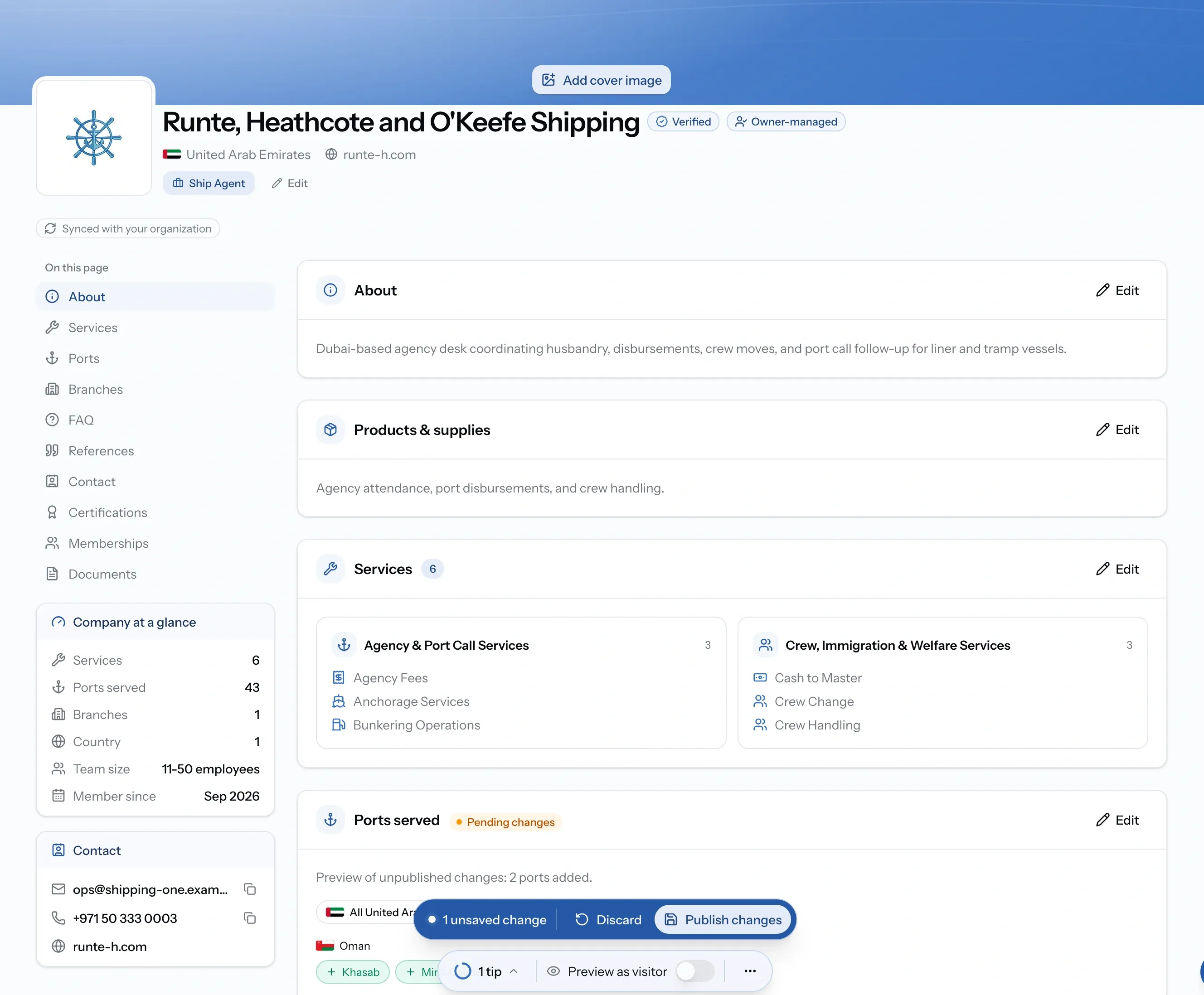
About
First on the page and the first thing anyone reads. Say what you do, where you do it and how long you have been doing it. Three sentences is plenty.
Keep it about your company rather than your catalogue or your fleet. Both of those have their own section, and repeating them here wastes the one part of the page where you get to say who you are.
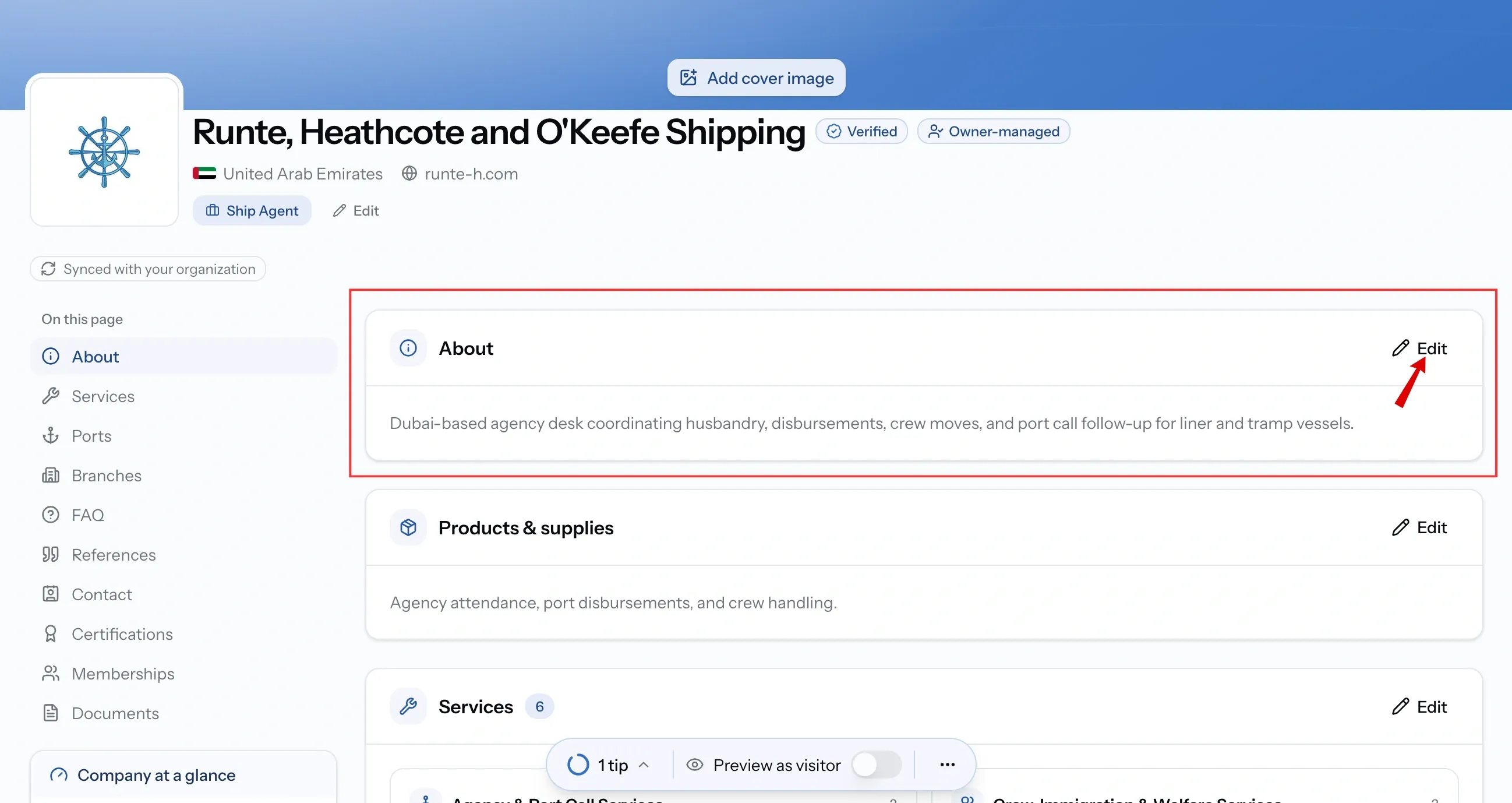
Products & Supplies
It is free text, and that is what makes it useful. Services come from a fixed catalogue that cannot describe what you actually stock or handle, so this is where you say it in your own words. A chandler lists provisions, bonded stores and cabin supplies. A supplier lists the brands and grades they carry. If your company deals in goods at all, they go here.
Whoever is reading wants to know whether you have the specific thing they need, and a catalogue category rarely answers that.
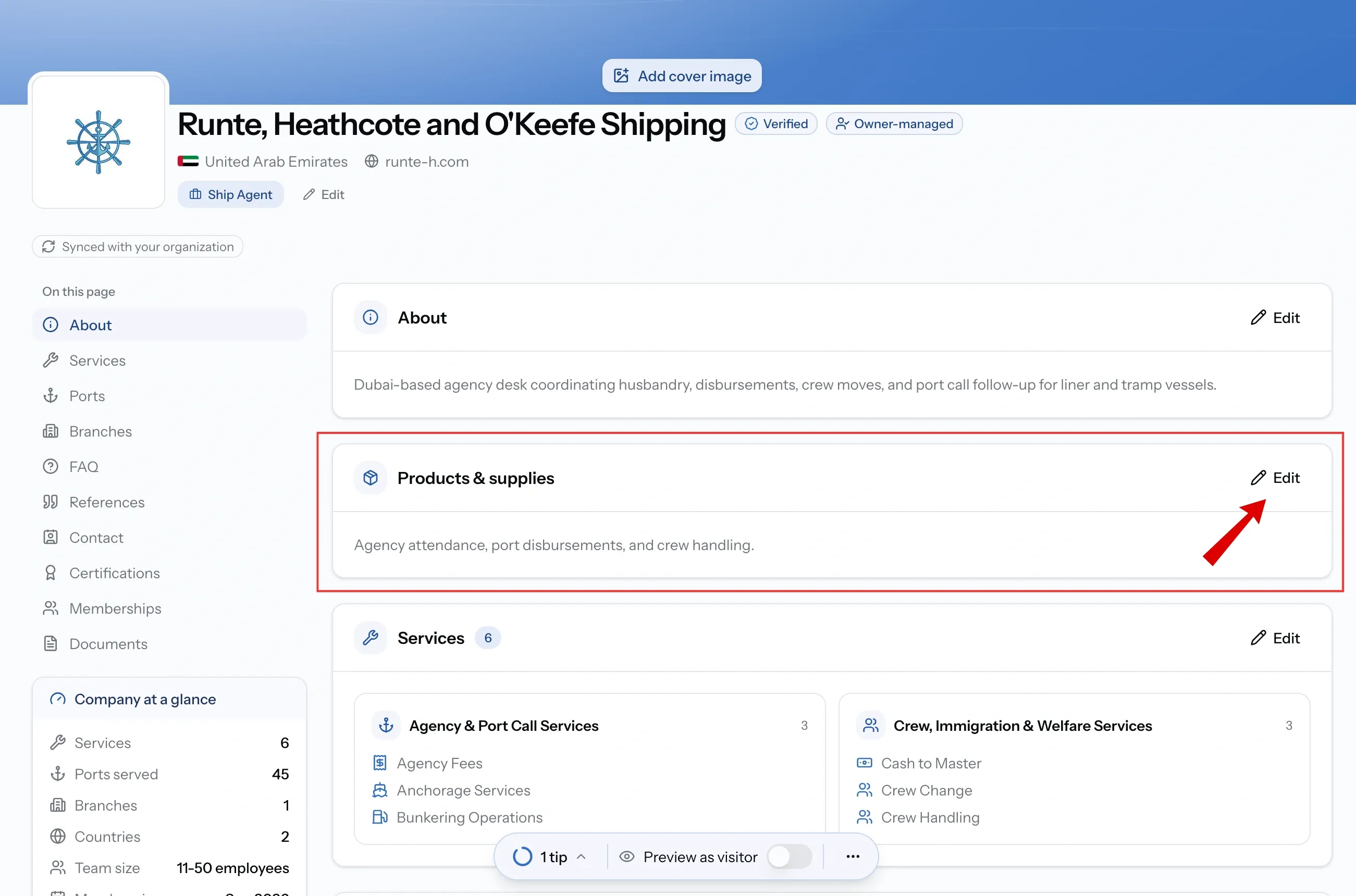
Fleet
Only appears if your company operates vessels.
Choose which of your vessels appear publicly. Providers see the vessel type, IMO number, DWT and the role your company holds over each one, which is usually enough for them to quote without coming back to ask you first.
Your published fleet is not your vessel records. The vessels under Vessels in the sidebar stay private. A provider sees a vessel's full detail only when you share it on a specific job. This is a shop window, not a disclosure.
Worth revisiting whenever your fleet changes.
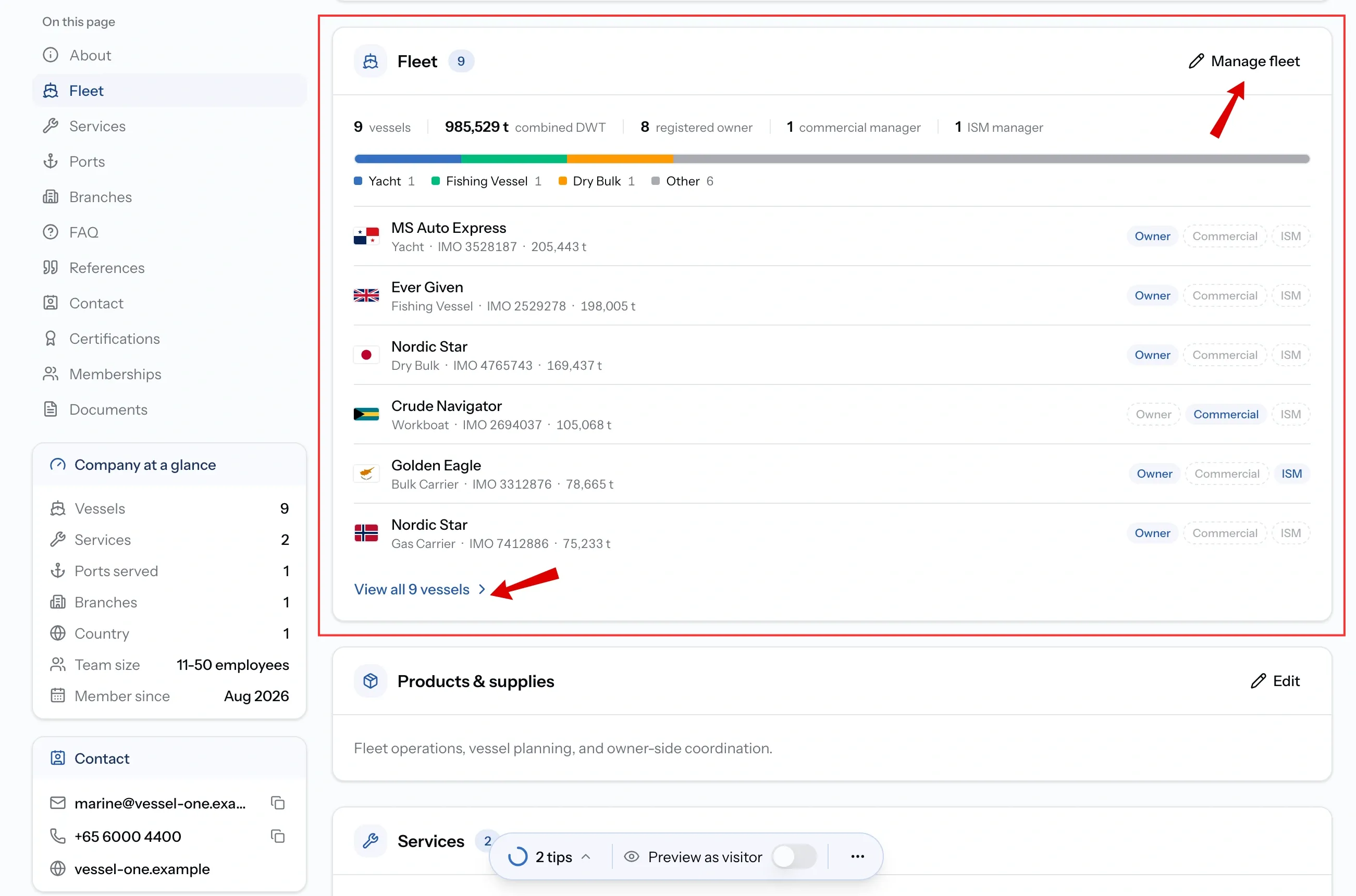
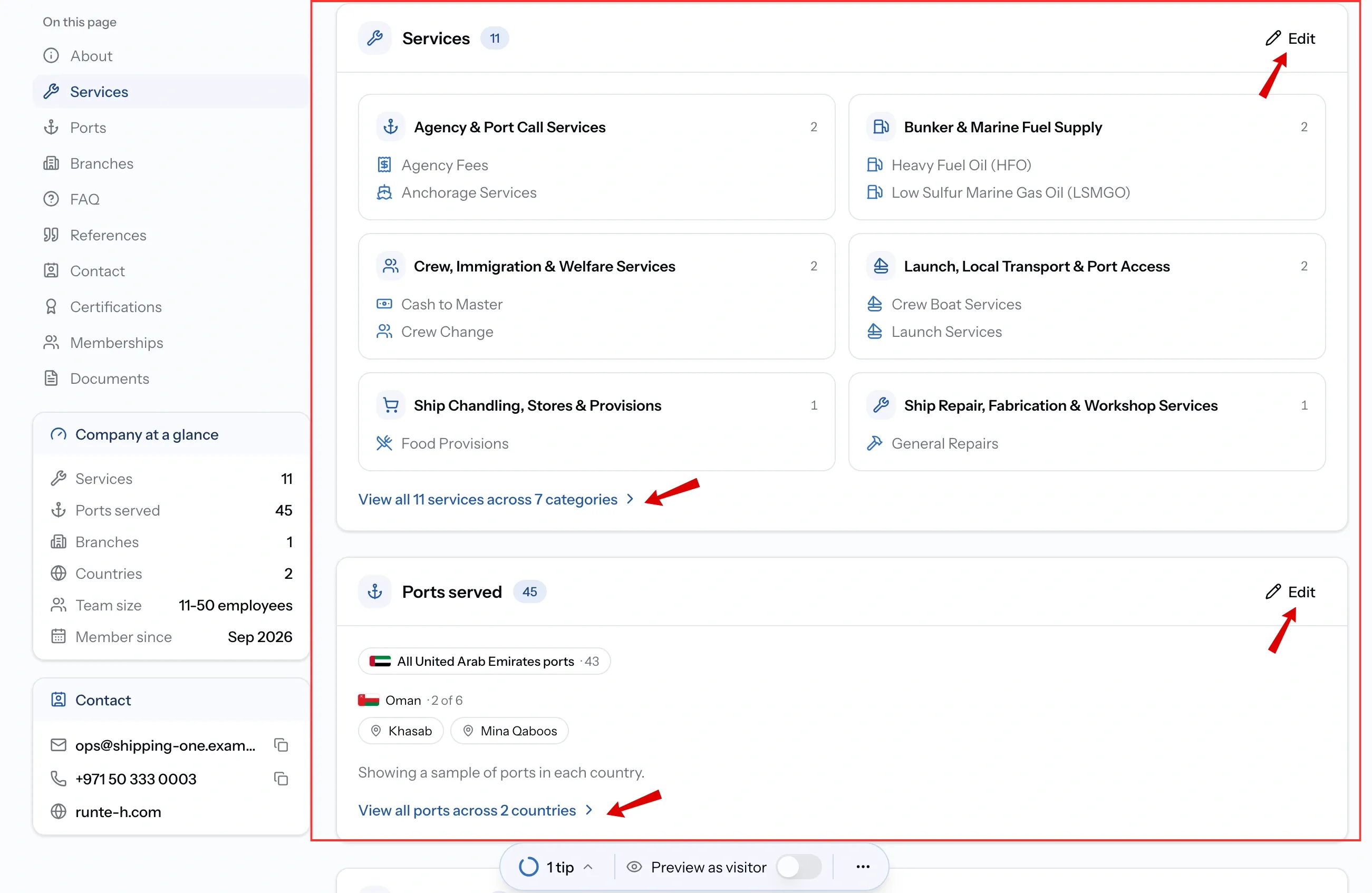
Services and Ports
These two only appear if your company sells services, and they decide whether buyers find you at all.
Services is what you sell, picked from the PortzApp catalogue. Ports is where each of those services reaches. Together they are what puts you into the searches buyers actually run, because buyers filter by service and port at the same time rather than browsing a list.
These two move more than the rest of your page, since coverage changes every time you take on a port or step back from one. Get found by buyers in the Directory covers keeping them current.
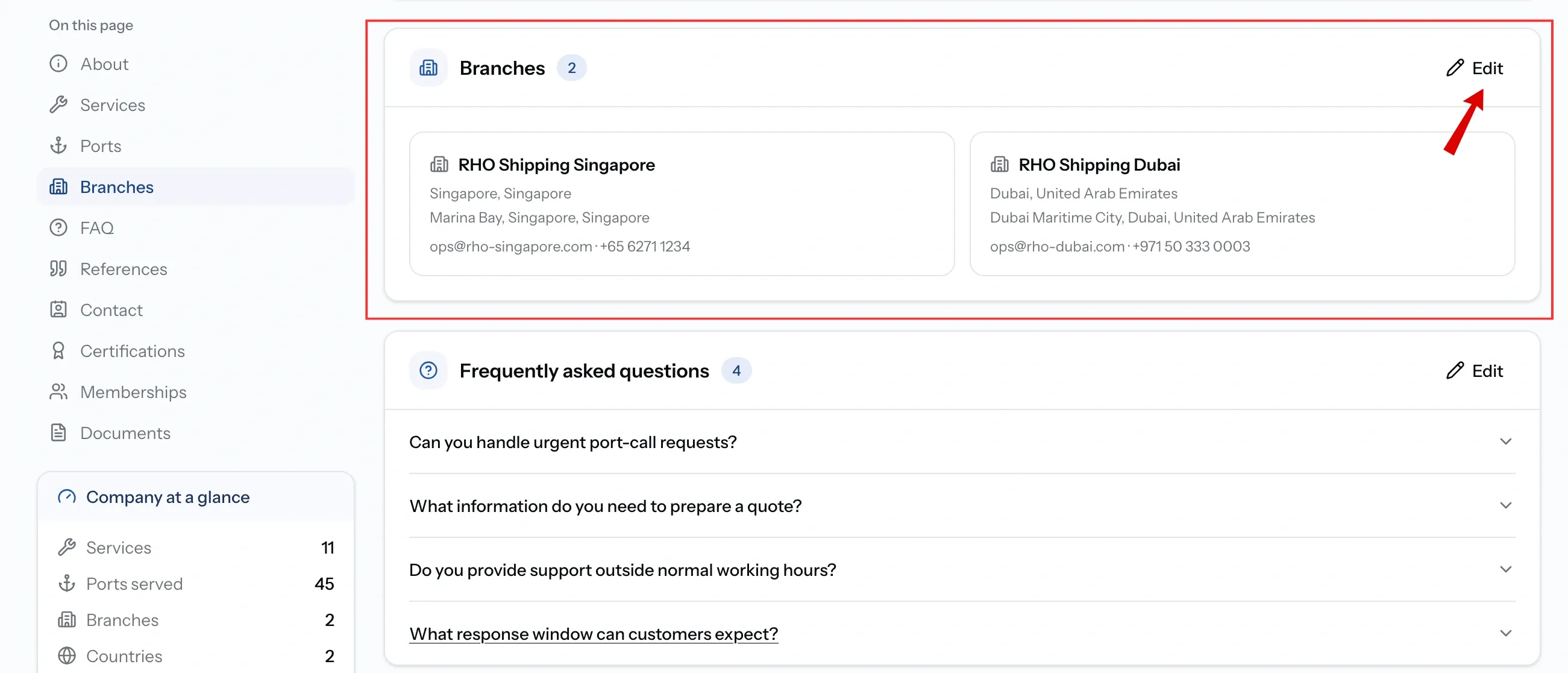
Branches
Your other offices, and how the other side sees that you have people on the ground where they need them.
Only the name and country are required, but a branch with nothing else says little. Add the city, address, phone and email so someone needing support at a specific port can reach the right office directly.
Worth the effort if you work across several ports or regions. A local presence is often the reason a company picks you over one that would handle it remotely.
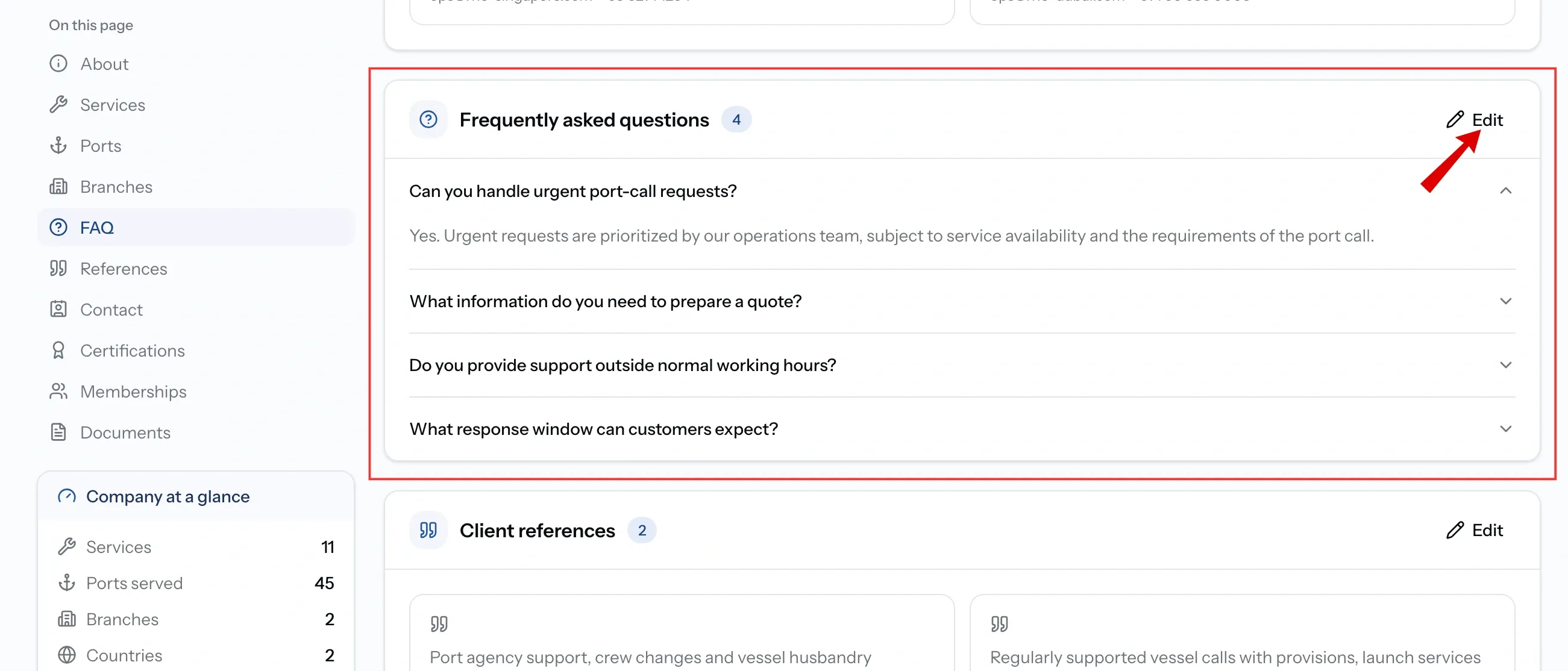
FAQ
Use FAQs to answer the questions customers and partners are likely to have before they contact you.
Add clear answers about your response times, quoting process, payment terms, service coverage and other common questions. This gives people the information they need upfront and helps them understand how your company works before they decide to work with you.
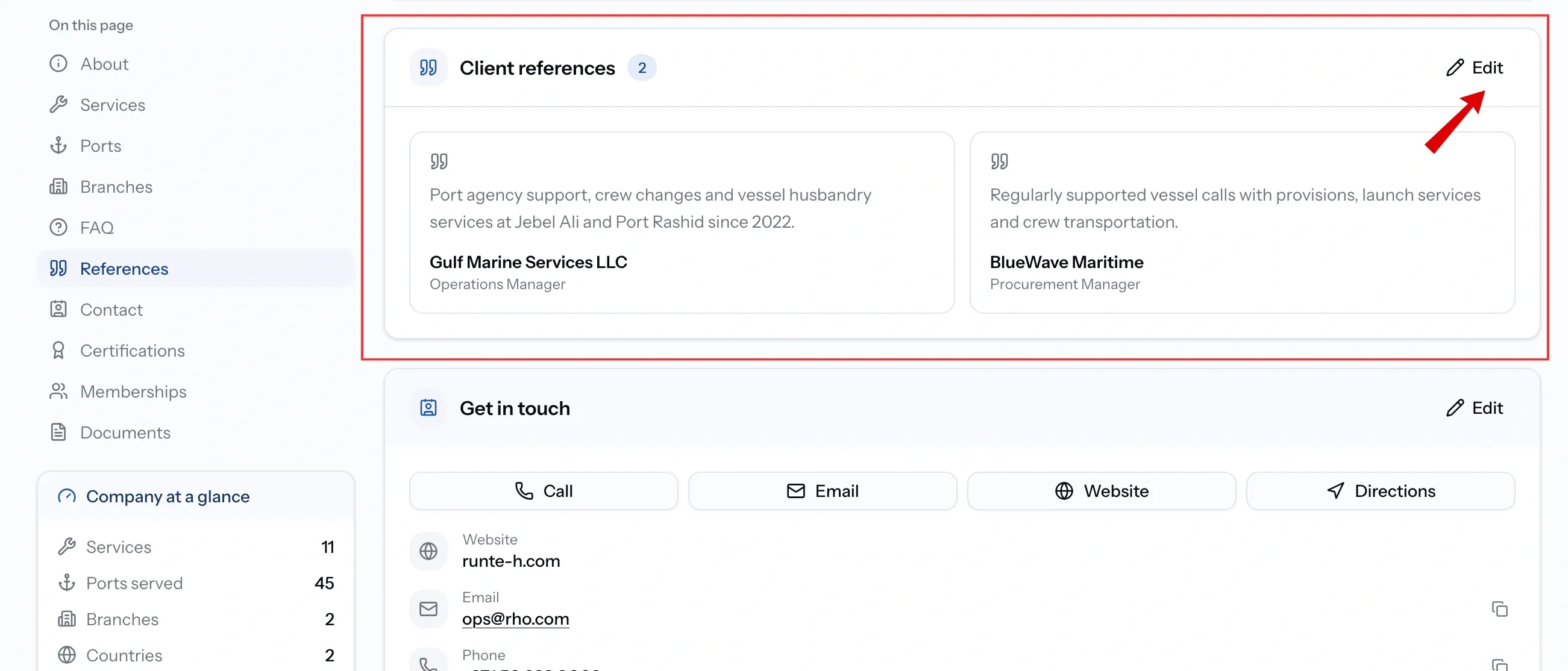
References
Add companies you have worked with and a contact who can confirm the relationship.
Include the contact’s name, email and company, and add their role and a short description of the work where possible. A specific description of the services you provided gives potential customers and partners a clearer idea of your experience than a company name alone.
Company details: Get in touch
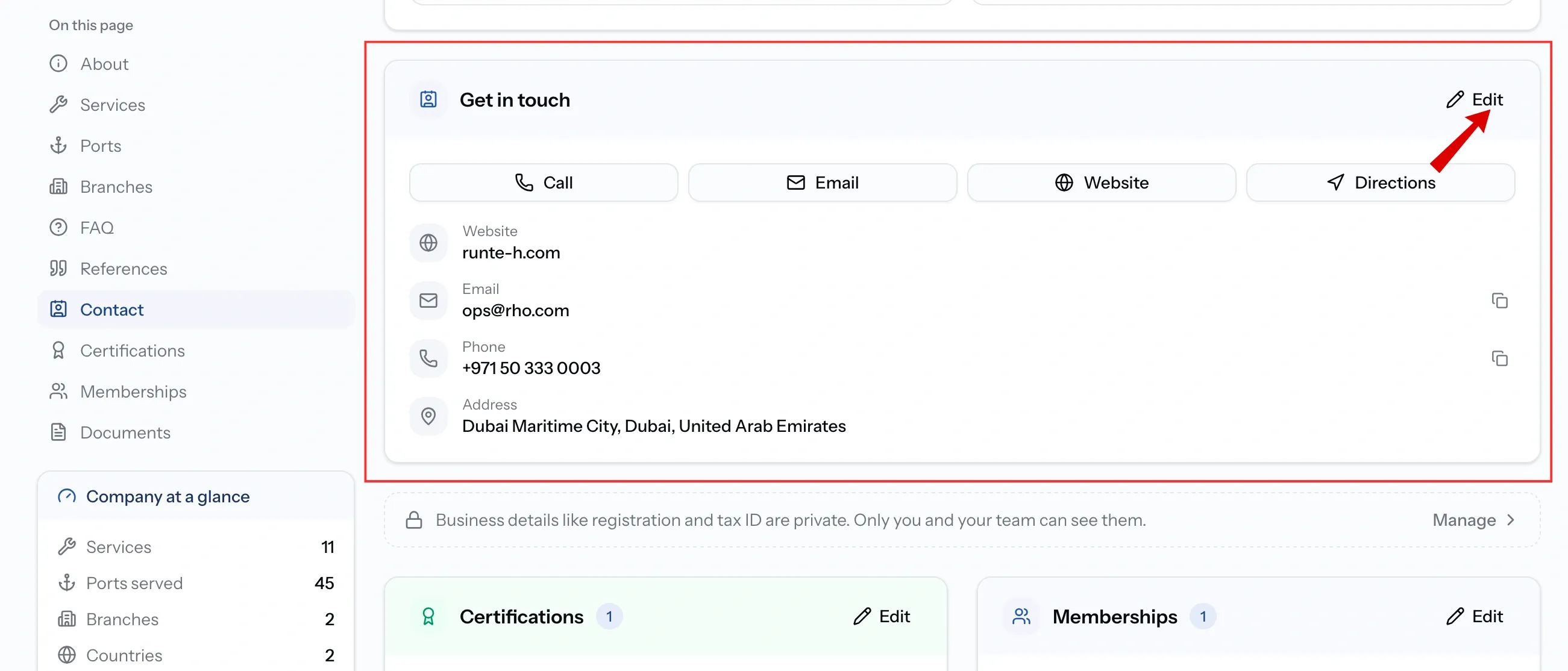
Your Get in touch card shows the main contact details for your company, including your website, email, phone and address.
These details are set during company setup and can be kept up to date here. They are what buyers and providers will use when they need to contact you, so make sure the email is monitored and the phone number reaches the right team. Your website is optional, but adding it gives visitors a way to learn more about your company outside PortzApp.
Certifications, memberships and documents
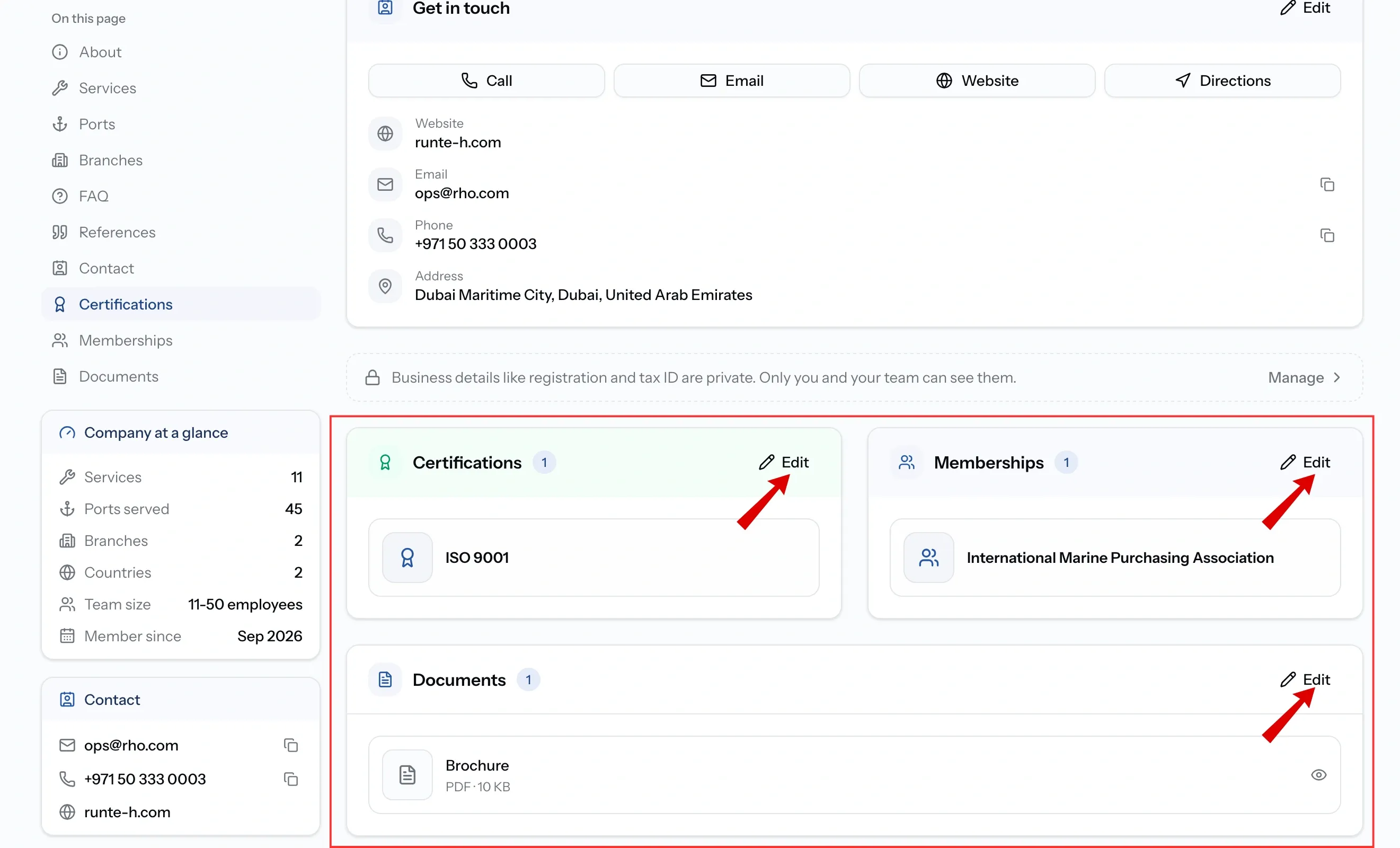
Add the certifications and memberships your company holds. They tell anyone reading your profile what you are qualified for and which industry bodies you belong to.
Attach the certificate to each one as you add it. A certification with its certificate behind it is something a reader can check for themselves. Without one, they have to take your word for it.
Documents is a separate section, for anything else you want people to be able to open. Each document needs:
- A display name, so the reader knows what they are opening.
- A type: Trade license, Certification, Brochure or Additional.
Business details
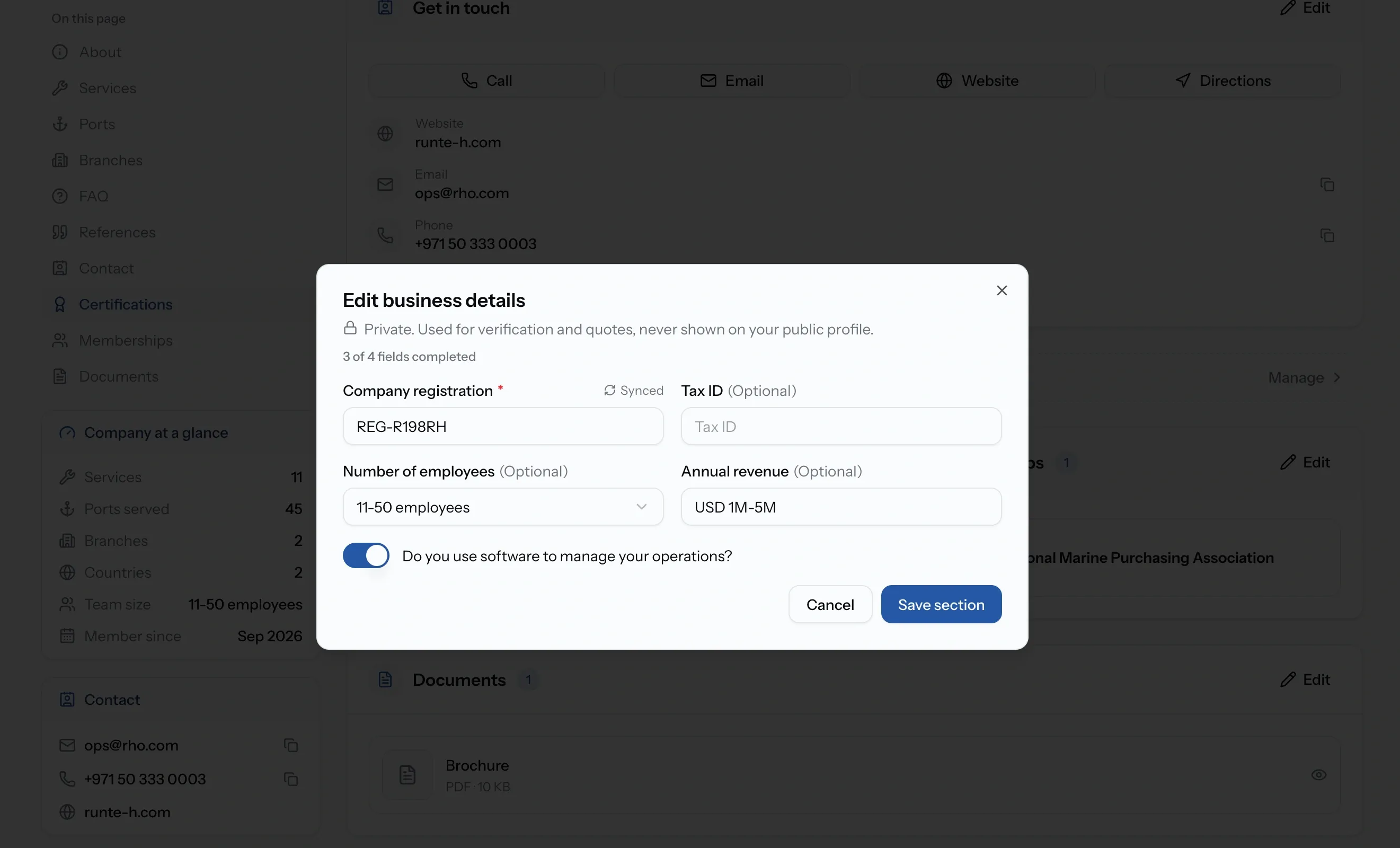
Your page carries a note saying business details like registration and tax ID are private, and only you and your team can see them. Follow it through to edit them.
- Company registration is required. You cannot publish without it, and nobody outside your team ever sees it.
- Tax ID, number of employees, annual revenue and whether you use software to manage your operations are all optional and all private.
Logo and cover image
Both are edited from the top of your page rather than from a section.
Your logo is required and already in place, since you cannot publish without it. It appears on your directory card in search results as well as on your page.
Your cover image is optional. It is the banner across the top, and the one piece of the page that is purely presentation.
How your edits reach the public page
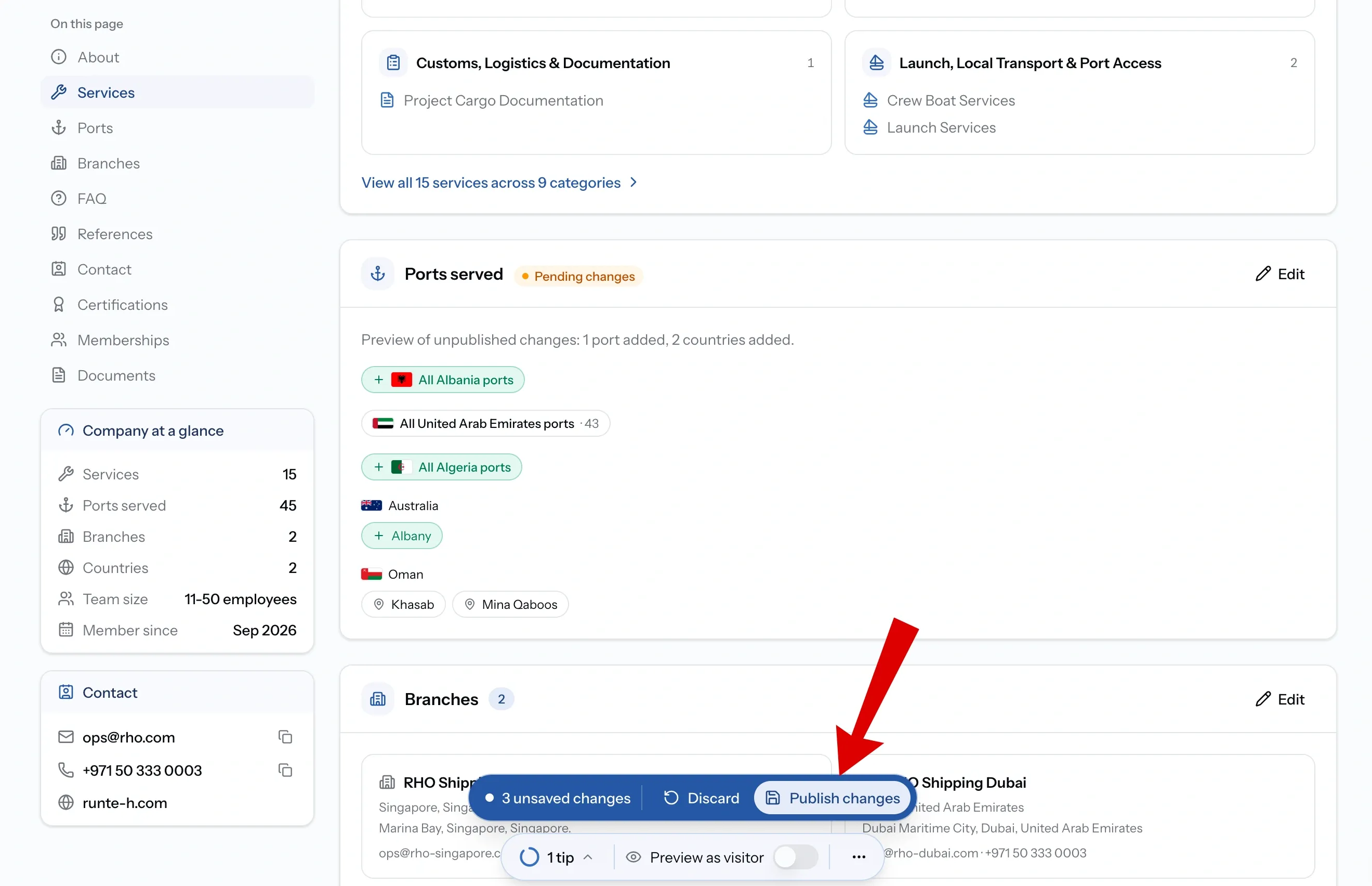
Changes to a published profile are saved as pending changes. Your live page stays exactly as it was until you publish them.
That is useful rather than awkward. You can rework a whole section over several days, preview it, and publish once, so nobody sees a half-finished version.
It also explains the most common surprise on this page: if nothing looks different after you have worked on it, your edits are saved but not published. Publish the changes and the live page catches up.
Unpublish, republish, and why you cannot delete
Unpublish takes your page off the Maritime Directory. Nothing is deleted, nobody finds you, and everything you have built stays as it is. Republish whenever you want and it comes back complete.
Worth doing if you are pausing operations, restructuring, or have a reason not to be visible for a while. It is a better answer than emptying your page out.
A profile cannot be deleted. There is no delete, at any role. Unpublish is the way off the Directory, and it is built so you never lose the work.
Common issues
I edited the page and nothing changed
Your edits are pending. They reach anyone else only when you publish the changes
I cannot edit any of this
Managing company profile is Admin only. Ask an Admin at your company
I want to remove our profile
It cannot be deleted. Unpublish takes it off the Directory and keeps everything
What you'll have
A page that tells the other side everything they need to know before they get in touch, with credentials backed by documents, references who will vouch for you, and branches that show where you actually are.
FAQ
01
02
03
04