
Claim your company profile
If PortzApp has already built a page for your company, claim it rather than starting a second one. Anyone can submit the claim, and an Admin confirms it at the end.
Before you start
Anyone in your organization can start a claim, but an Admin has to confirm the transfer at the end. Worth knowing before you begin, so the right person is around.
Your company does not have to be verified yet, but review only begins once it is.
This guide walks the claim itself. For what claiming is, the full list of claim statuses, and what happens to your existing profile when a claim is applied, read the Profile Claiming feature page.
Key takeaways
Anyone can submit a claim, but only an Admin can finish it.
Reviewed within 48 hours of your company being verified.
Submit before you are verified and the claim is held, with nothing to resubmit.
Step 1. Find your page
Three ways in, and they all end at the same dialog.
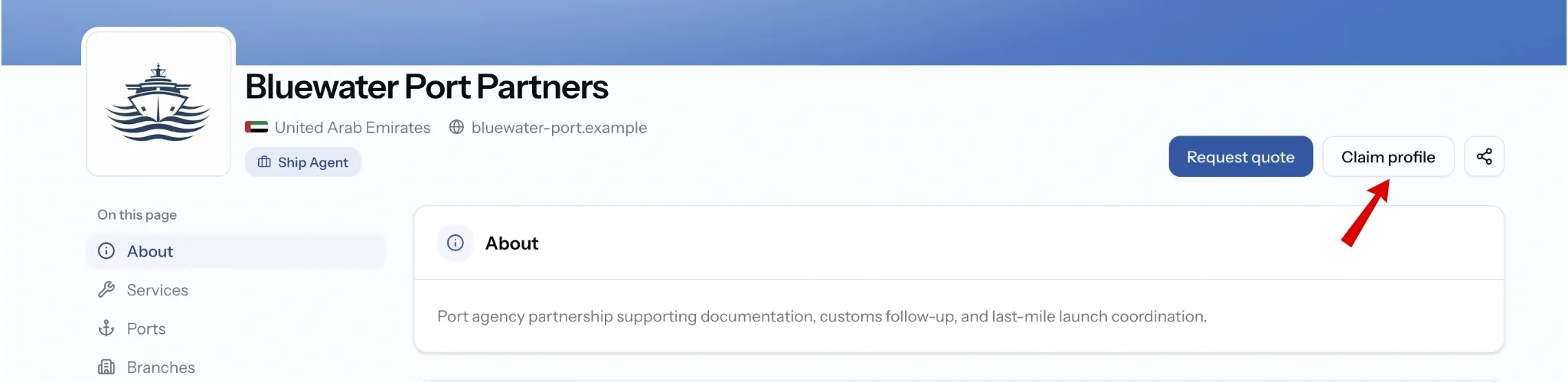
Search the Directory
Search for your company name in the Maritime Directory. A page PortzApp has prepared appears in the results like any other company. Open it and choose Claim profile.
Worth trying variations of your name. Prepared pages carry whatever PortzApp knew at the time, which may not be exactly how you write it.
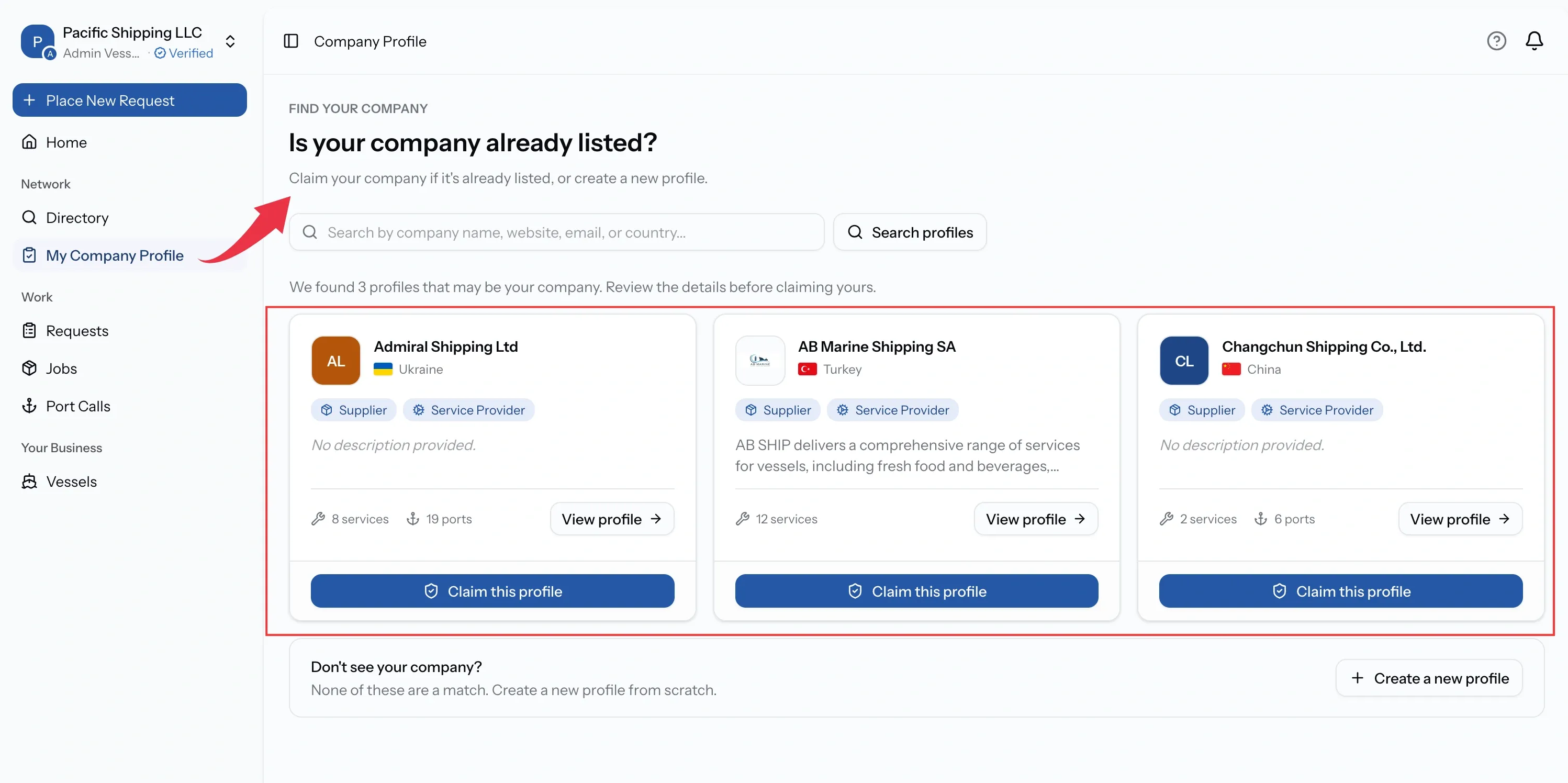
Similar companies shown while you set up your profile
PortzApp looks for directory pages that resemble your company and offers them to you during profile setup. If one of them is yours, claim it from there rather than carrying on and building a second page.
This is the easiest one to miss, because it appears while you are busy doing something else.
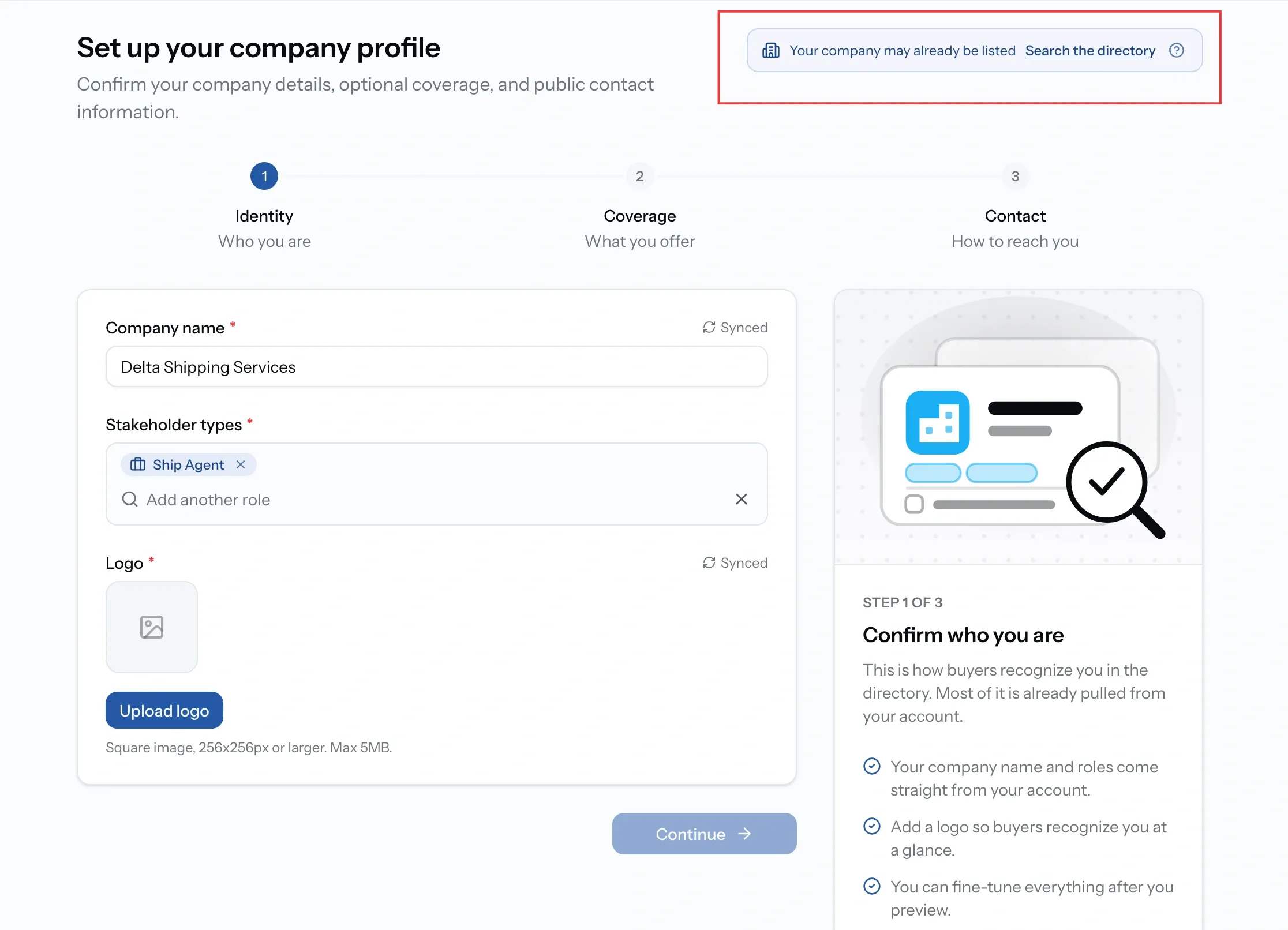
The prompt at the top of step one
Step one of creating your company profile opens with Your company may already be listed, and a way to search the Directory from there.
Use it before you fill anything in. Two minutes checking is cheaper than building a page and then discovering the real one already existed.
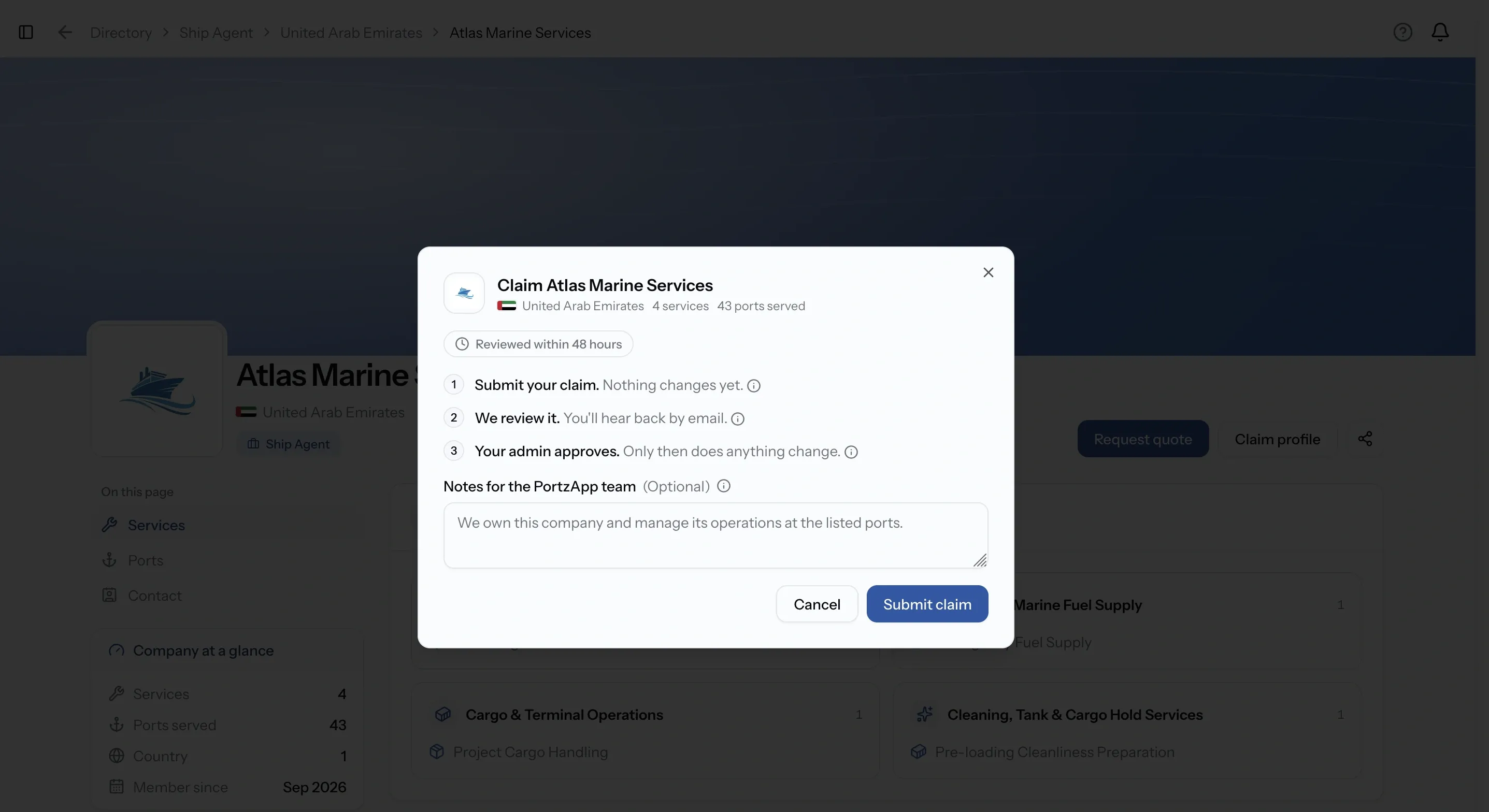
Submit your claim
There is one field, Notes for the PortzApp team, and it is optional. Fill it in anyway, because proof of ownership is what moves a claim quickly. Three things help most:
- An email address on your company's own domain.
- Your company registration number.
- Your role at the company.
Then press Submit claim.
What happens when you submit
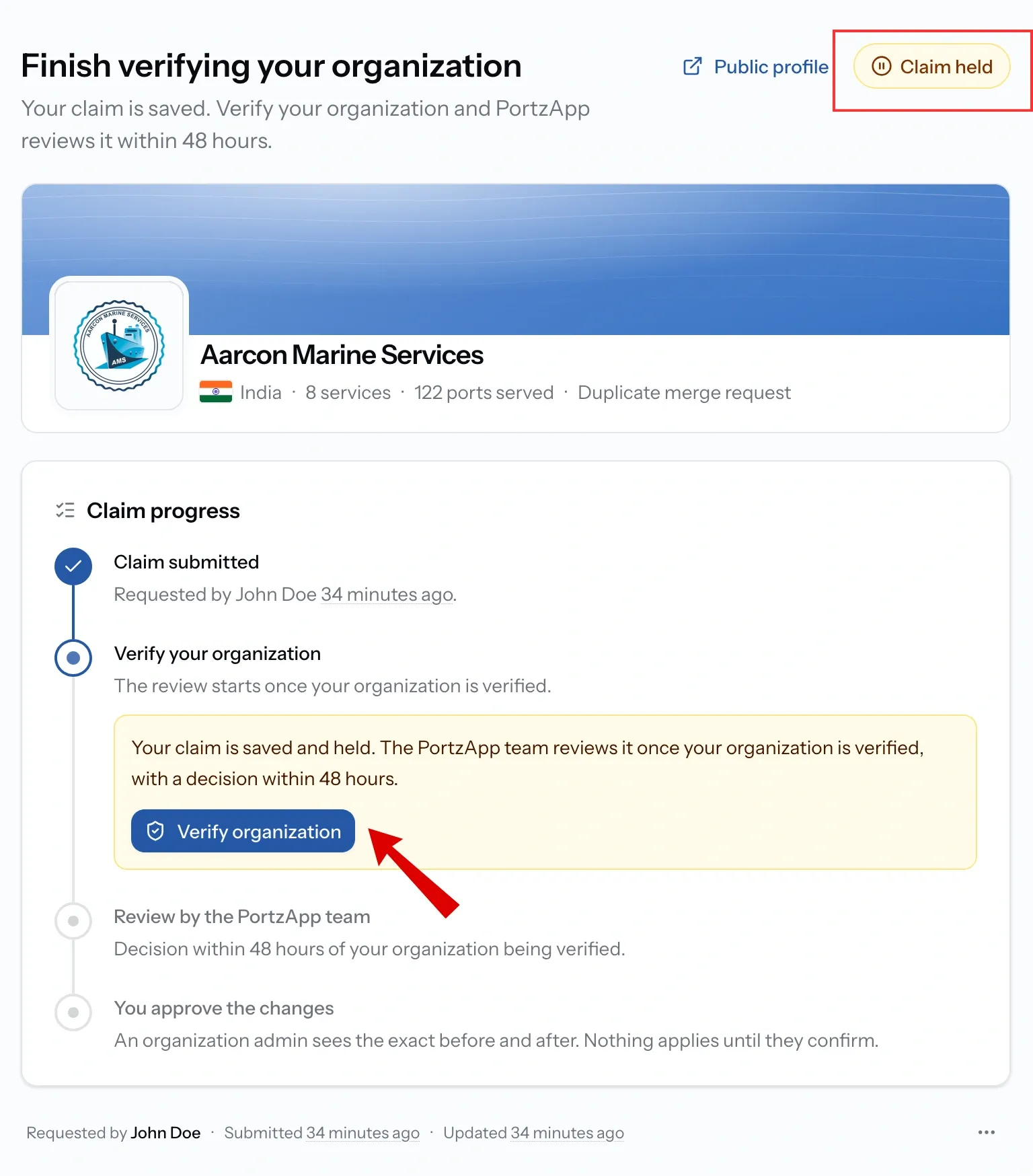
Your claim gets its own page with a Claim progress stepper. Four steps, and it shows you exactly where you are:
- Claim submitted. Recorded with who requested it and when.
- Verify your organization. The review starts once your organization is verified.
- Review by the PortzApp team. A decision within 48 hours of your organization being verified.
- You approve the changes. An organization admin sees the exact before and after. Nothing applies until they confirm.
If your organization is already verified, the claim moves straight to review and you hear back within 48 hours.
If it is not verified yet, the page is headed Finish verifying your organization and carries a Claim held badge. Your claim is saved, there is nothing to resubmit, and a Verify organization button takes you straight there. The moment verification comes through, review starts on its own.
You approve the changes
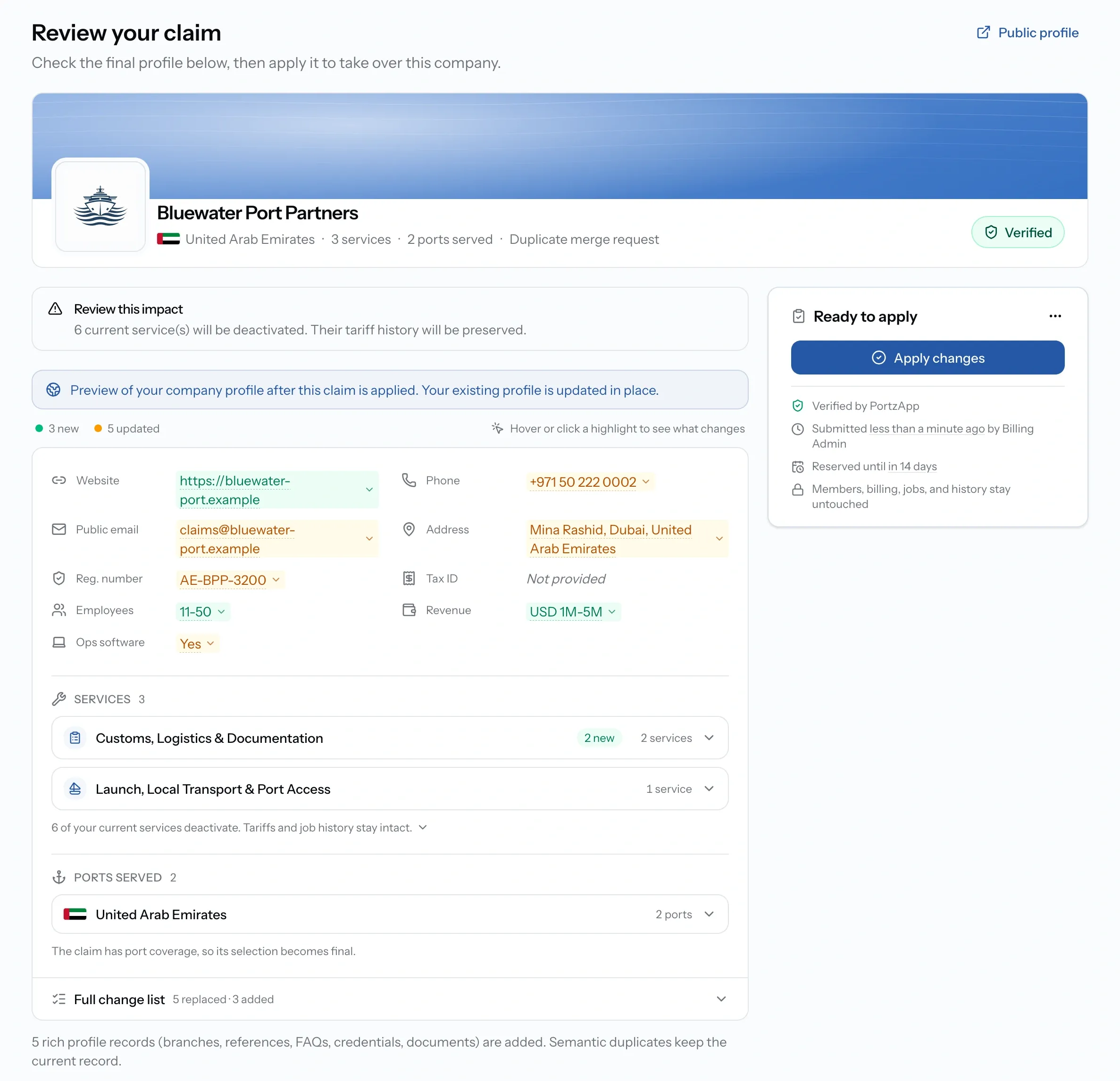
Claim approval by PortzApp is not the last step. When the team approves your claim, you are emailed, and the claim moves to You approve the changes.
The email is a prompt, not a completion. Somebody still has to open the claim and apply it, and that somebody has to be an organization admin. The page puts it plainly: an organization admin sees the exact before and after, and nothing applies until they confirm.
That step is your chance to check what is about to change. Read the impact notice, because some of your current services may deactivate as part of the merge. Their tariffs and job history are kept.
Cancelling a claim, and what happens if it expires
Cancel from the claim page if you claimed the wrong company or no longer need it. Whoever submitted the claim can cancel it, and so can an organization admin. Nothing is lost, and you can start a fresh claim whenever you like.
A claim cannot be edited once submitted. If something in it is wrong, cancel and start again rather than looking for a way to change it.
Claims expire if nobody applies the changes after PortzApp approves them. The window is not immediate, but it does run out, and an expired claim cannot be revived. You start from the beginning.
Common issues
I got the claim approval email but the page has not changed
The email tells you it is approved, not that it is applied. An organization admin still has to open the claim and confirm the changes
I started a claim and cannot finish it
Confirming the transfer is Admin only. Ask an Admin at your company to complete it
My claim says it is held
Your company is not verified yet. The claim is safe and review starts by itself once verification completes
I already built a profile and then found our page
Claim it anyway. You will be shown both merged together and can choose what carries across before confirming
FAQ
01
02
03
04
05
06
07