
Manage port availability
A service is only offered where you switch it on. Here is how to set the ports for one service, change a lot of them at once, and read what the badges are telling you.
Before you start
To manage port availability for services, you need the Admin, Manager, Operations, or Finance role. These roles have permission to view and update which ports a service is available at.
For more background on how coverage works across your whole catalog, including how coverage is managed across your services and ports, read the Services & Port Coverage feature page.
Key takeaways
A service is only offered at the ports you enable for it.
Enable a port here and it applies to this service only, and joins your company's ports served.
Disabling a port that had its own pricing means those rates stop being used.
How it works
Step 01
Open the service
Its Port Availability tab shows where it runs today.
Step 02
Enable the ports you work
Tick them on, untick the ones you no longer cover.
Step 03
Save
Nothing changes until you do.
Two ways in, and they stay in step
Ports can be set from your company profile or from a service, and the two keep each other up to date. There is no order to follow.
On your company profile, ports served is the broad brush. Add a port there and it is switched on for every service you offer. Use it when you have taken on a port and you work everything there.
Here, you are working on one service at a time. Enable a port for this service and only this service changes. The port also joins your company's ports served, so it shows up in that list.
One thing to watch in the other direction. Removing a port from ports served on the profile takes it away from every service that used it, because the profile speaks for all of them.
Step 1. Open the Port Availability tab
Open a service from your Service catalog and choose the Port Availability tab. The number on the tab is how many ports the service currently runs at.
The tab lists those ports, grouped by country, and each one carries a badge telling you its state.
If it says the service is not enabled at any ports yet, that is normal for a service you added from the catalog. Services added from your company profile arrive with your existing coverage already switched on.
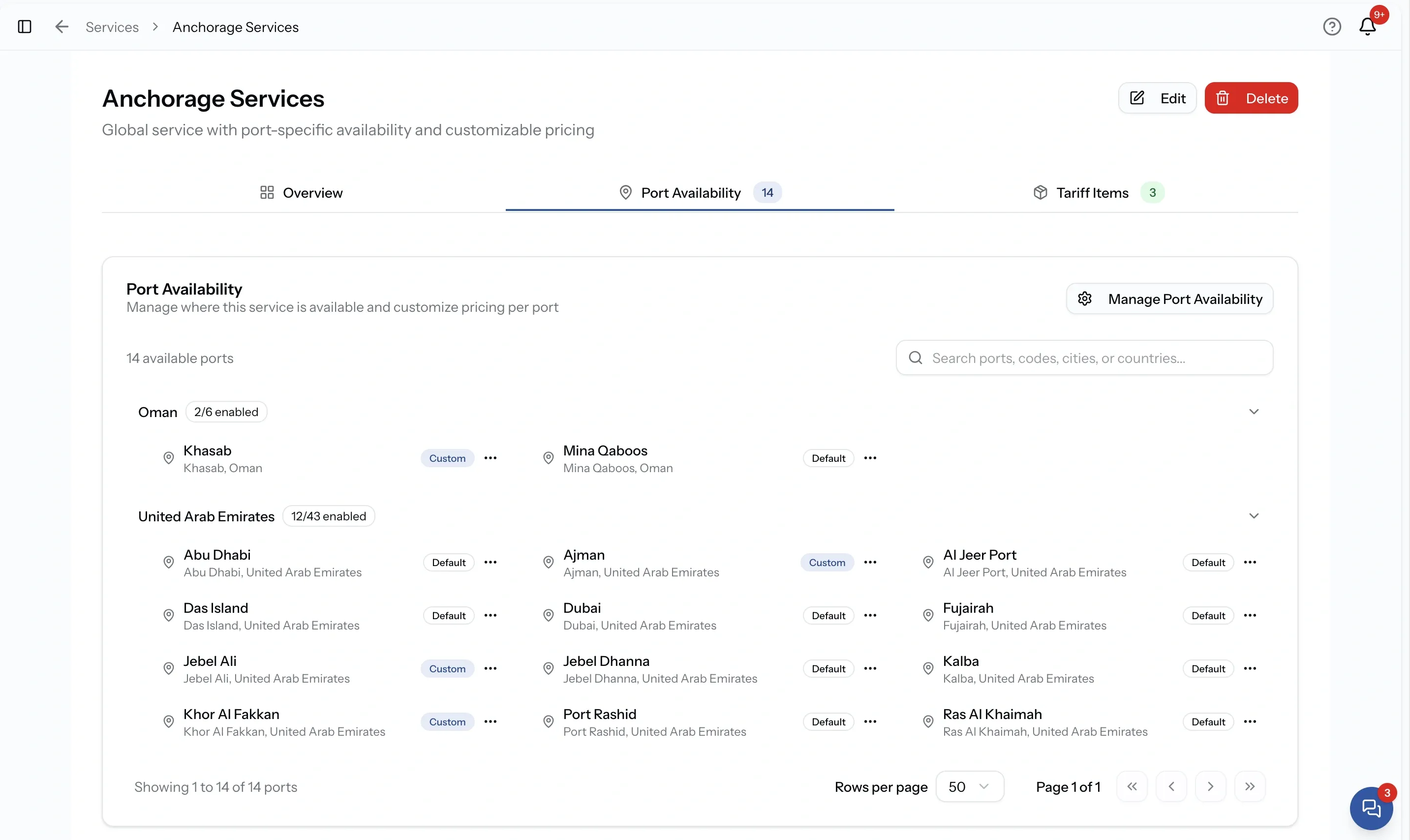
What the badges mean
Every port shows one of three states.
Not enabled
The service is not offered here
- The service is not offered at this port
- Tick it on to start offering it
Default
Offered, using your standard rates
- The service runs here
- It uses your default tariff items
Custom
Offered, with its own rates
- The service runs here
- You have set prices for this port specifically
Step 2. Change where it runs
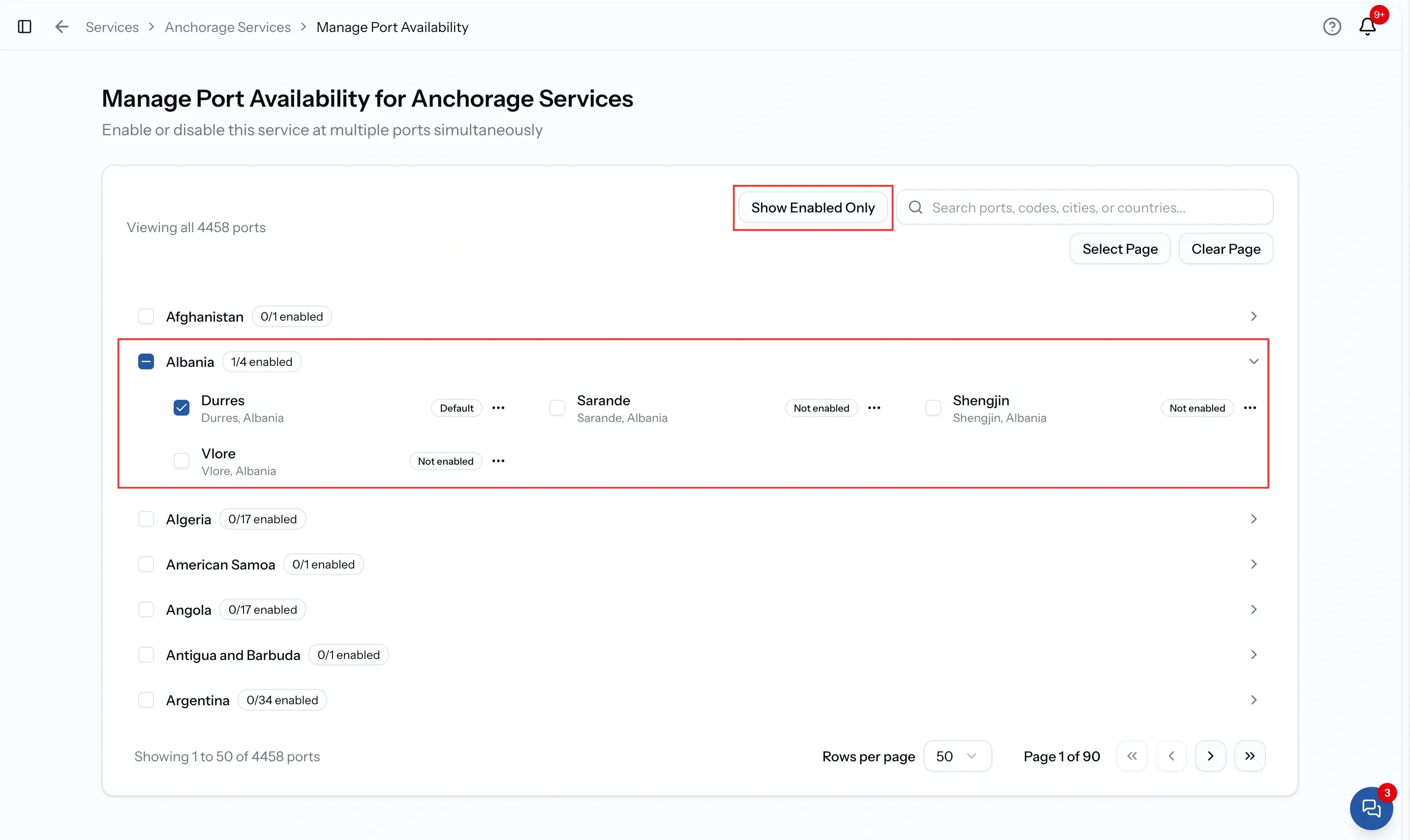
Open Manage Port Availability. Every change to coverage happens here, whether you are adding one port or redrawing a whole region.
The page is headed with the service name and does what it says: enable or disable this service at multiple ports at the same time.
Ports are grouped by country, and each country shows how many of its ports you have enabled out of the total. That count is the quickest way to spot a country where your coverage has gone thin.
Tick a port to start offering the service there. Untick one to stop. Before you untick anything, check its badge, because a port marked Custom has rates you built for it and switching it off means those rates are no longer used.
Finding a port
Search reaches ports by name, code, city or country, so a partial code is usually the fastest way in when you know exactly which port you want.
There is also a view toggle. Show Enabled Only narrows the page to where the service already runs, which is what you want when you are auditing rather than adding. View All Ports puts everything back.
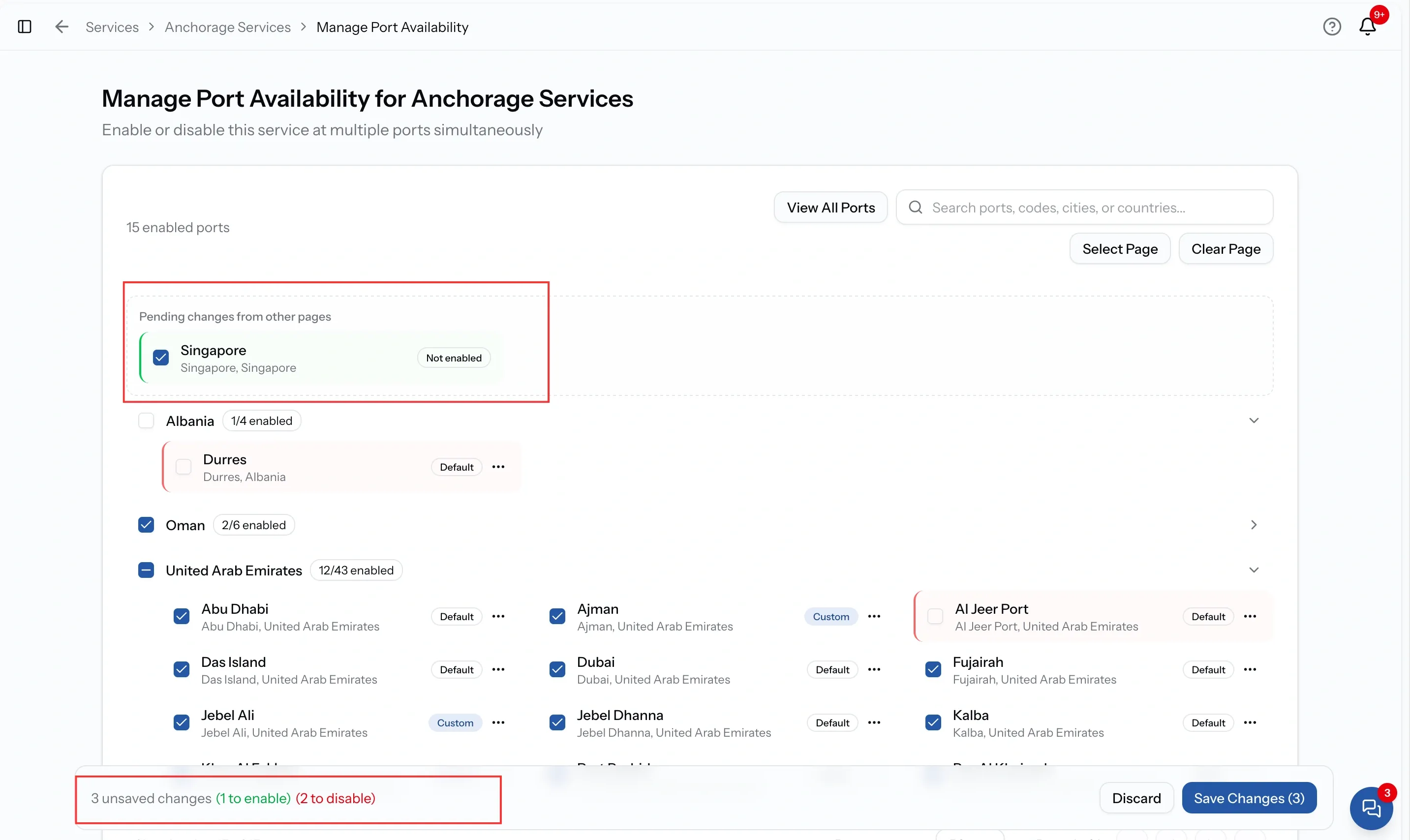
Nothing saves until you say so
This is worth knowing before you start clicking.
Your changes are held while you search for another port. Tick ports in one country, move to the next, and the earlier ones are remembered. A panel shows pending changes from other pages so you can see what is stacking up.
When you save, you are shown what is about to happen as a count of ports being enabled and disabled. Read it. Redrawing coverage across several countries is one deliberate save at the end, and that summary is your last chance to catch a mistake cheaply.
Whole countries or individual ports
Both work, and most providers use a mixture.
Take a whole country where you genuinely cover all of it. It is quicker, and it keeps working as ports are added to that country.
Pick individual ports where your coverage is narrower. A country ticked wholesale when you only work two of its ports means requests you have to decline, which costs the buyer a deadline as well as costing you.
Neither choice is permanent, so start with what is true today.
Common issues
I cannot tick ports on the Port Availability tab
That tab is a view. Open Manage Port Availability to make changes
Enabling one port changed our company profile
That is intended. A port you enable here joins your company's ports served, so it shows in that list
A port switched itself off
Somebody removed it from ports served on the company profile, which takes it away from every service
FAQ
01
02
03
04
05