
Secure your account
Set up two-factor authentication, keep your recovery codes, add a passkey, sign out devices you do not recognise, and get back in if you lose access.
Before you start
For two-factor authentication, you need an authenticator app on your phone, such as Google Authenticator, Microsoft Authenticator or 1Password. For how each option works, see User Accounts & Linked Emails.
What to know first
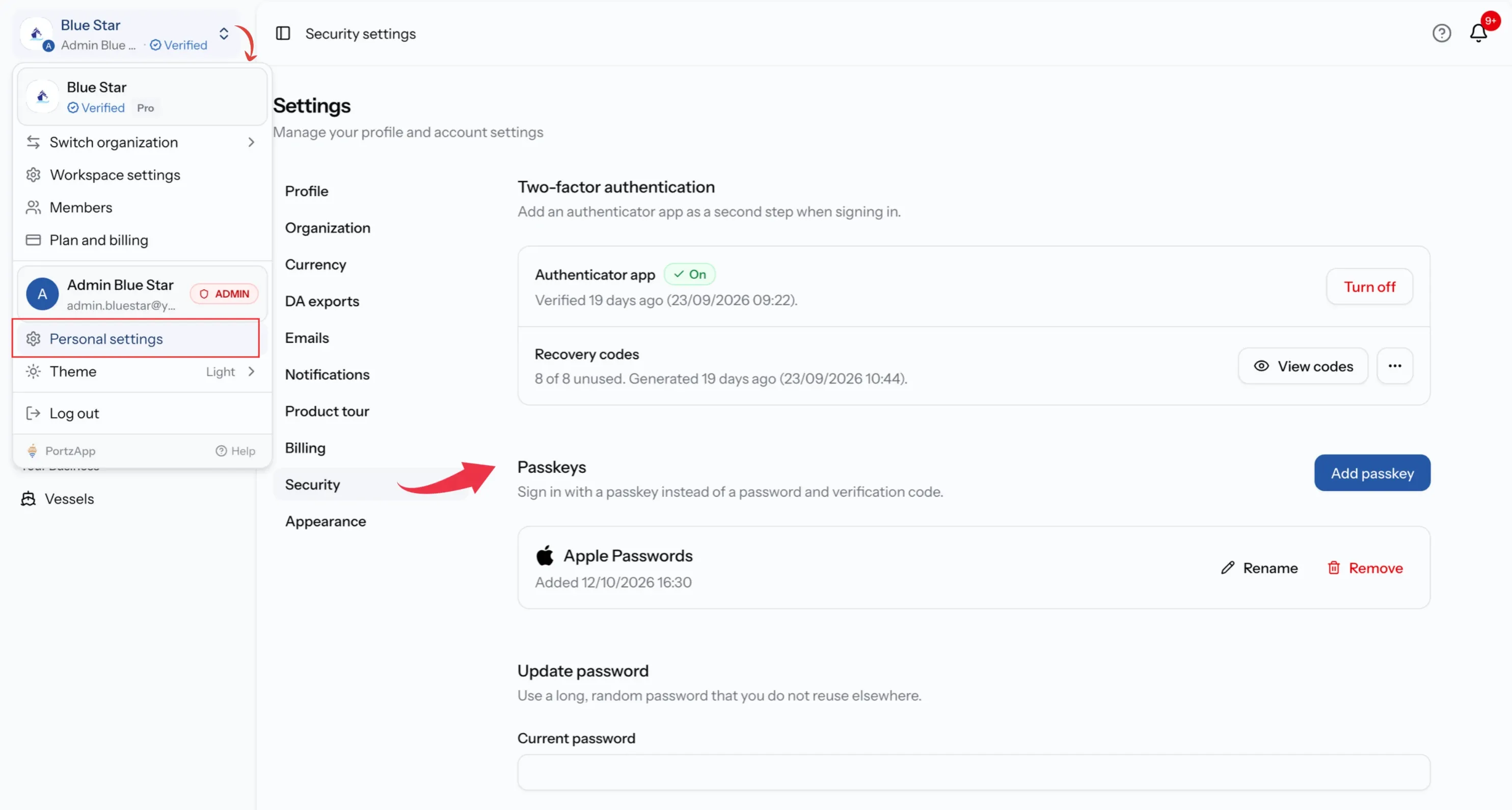
Everything is under Security, in your personal settings.
Save your recovery codes. They are your way back in if you lose your phone.
A passkey lets you sign in without a password or code.
If you lose both your phone and your codes, an Admin can reset your two-factor.
Open your security settings
Select your name at the top of the sidebar to open the account menu, choose Personal settings, then select Security. To change your password, see Manage your password and email addresses.
Set up two-factor authentication
Add a code from your phone as a second step when signing in.
Step 01
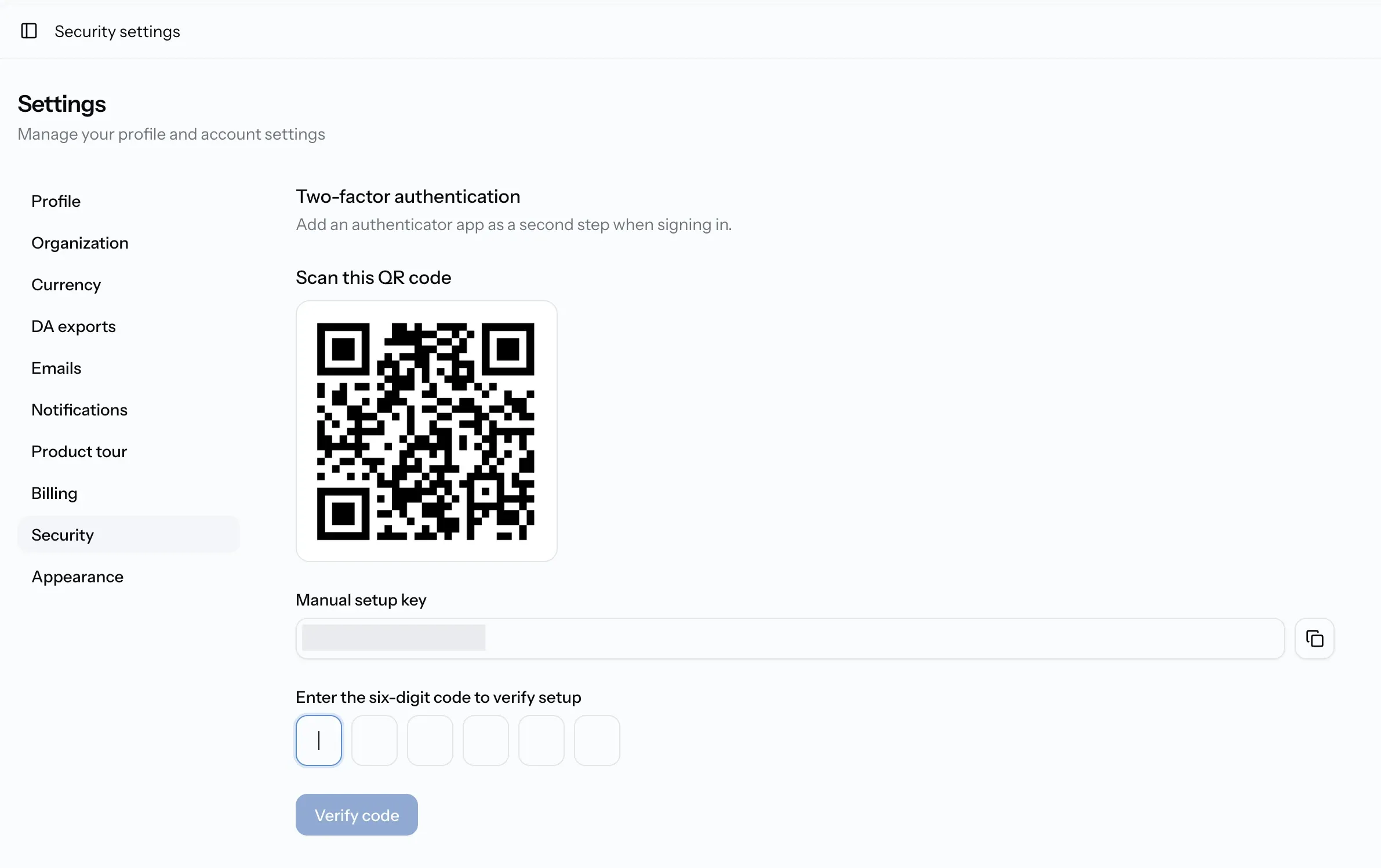
Select Set up two-factor authentication
Under Two-factor authentication.
Step 02
Scan the QR code
Use your authenticator app. If you cannot scan it, copy the Manual setup key into the app instead.
Step 03
Enter the six-digit code
Type the code your app shows to verify the setup.
Step 04
Save your recovery codes
These are 8 backup codes for signing in if you lose your phone. Select Save recovery codes to download them, and keep the file somewhere safe, not only on your phone. Setup finishes once they are saved.
Sign in with two-factor
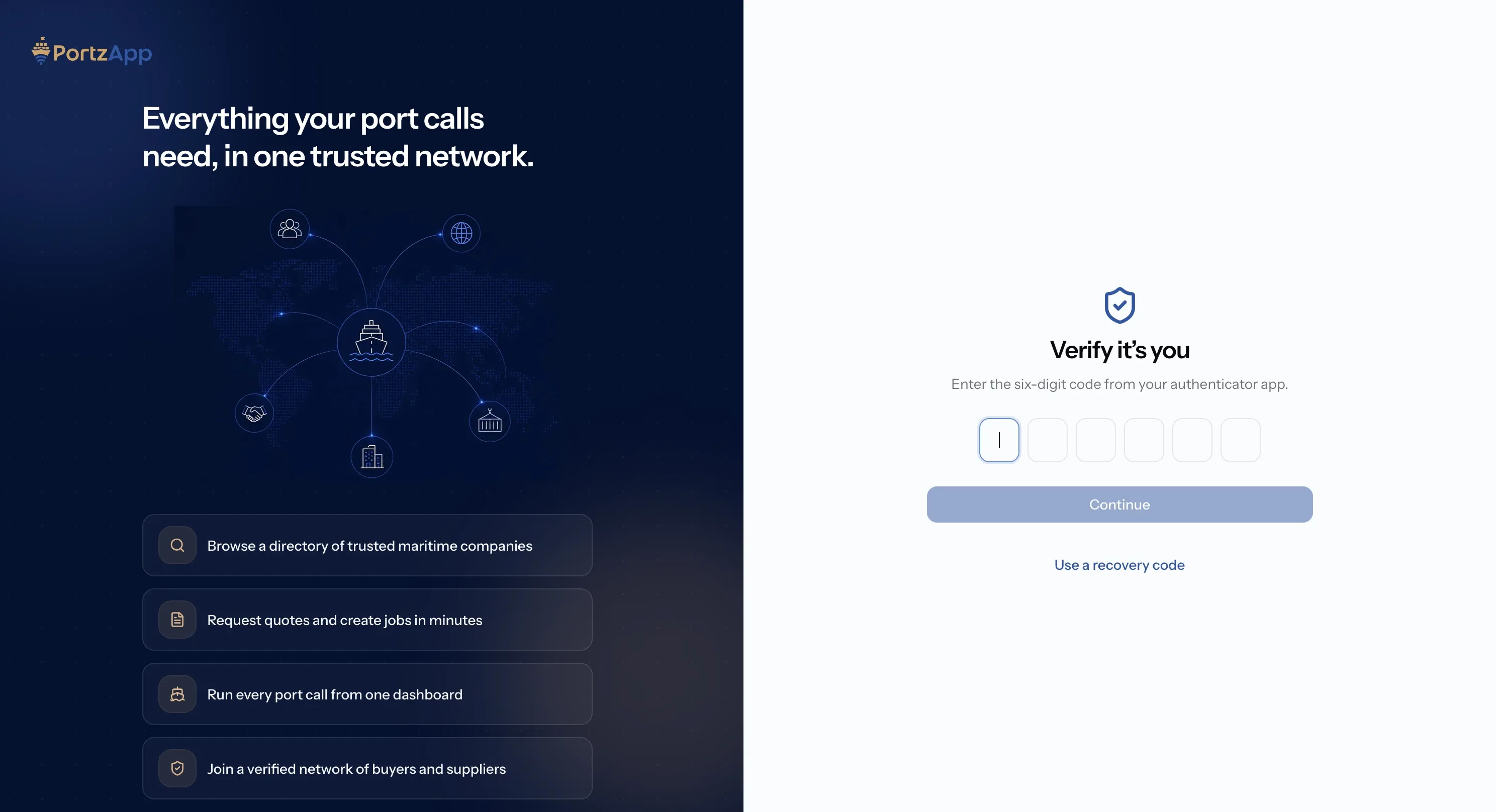
Once two-factor is on, signing in has two steps:
- Enter your username or email, and your password, as usual.
- Open your authenticator app and type the six-digit code it shows.
No phone with you? Use a recovery code instead. Recovery codes are 8 backup codes you saved when you set up two-factor. Each one works in place of the code from your app, but only once. Choose Use a recovery code and type one of them.
Get new recovery codes
Do this when you have used most of your codes, or think someone else has seen them.
Step 01
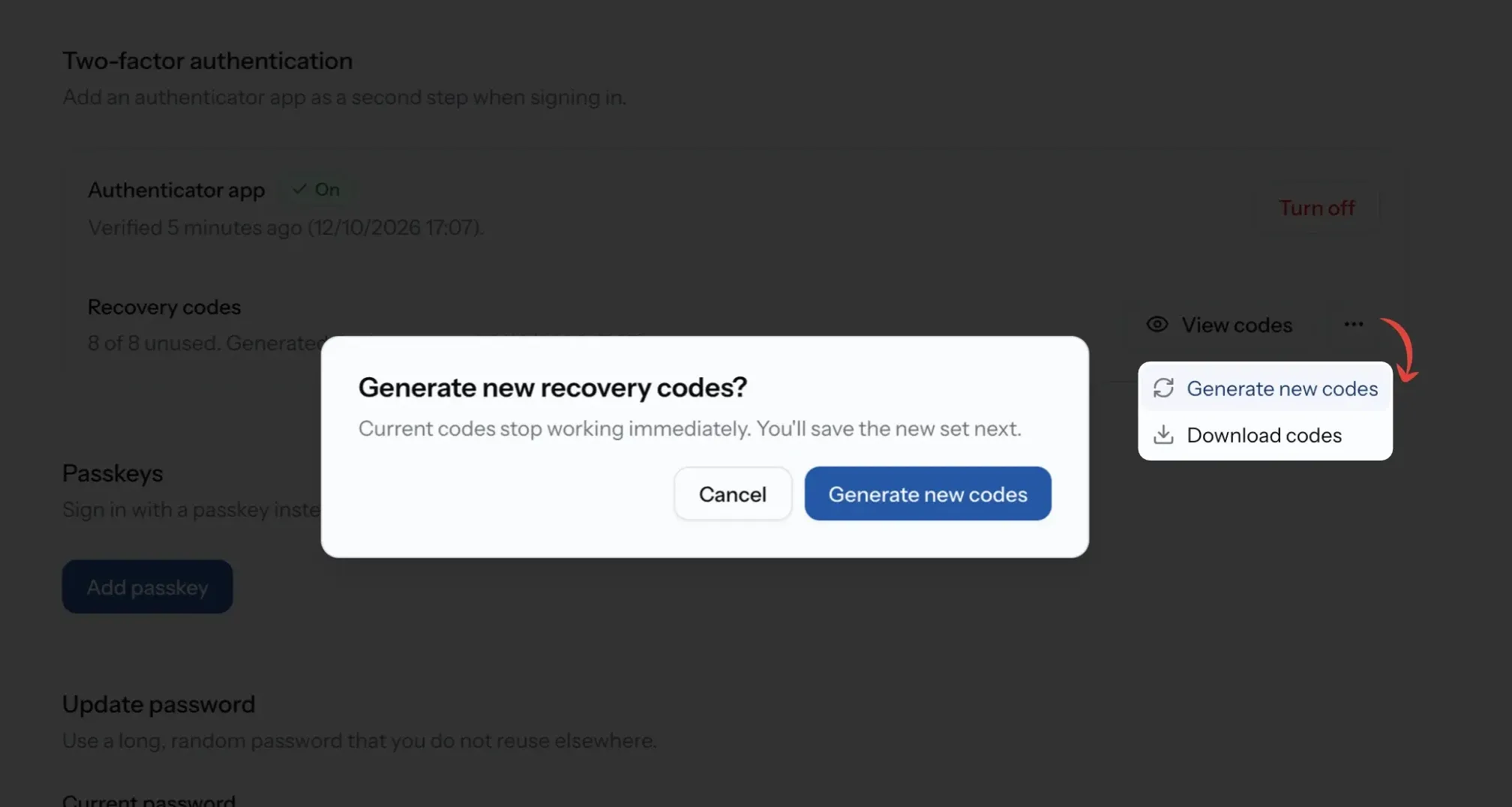
Select Generate new codes
It is under Recovery codes, in Security. You may be asked for your password.
Step 02
Confirm
Your old codes stop working straight away.
Step 03
Save the new codes
Select Save recovery codes to download them, and keep the file somewhere safe before you close the page.
Turn two-factor off
You will sign in with just your password again. If Turn off is not there, two-factor is required for your account.
Step 01
Select Turn off
It is under Two-factor authentication, in Security.
Step 02
Confirm
Two-factor is turned off, and your recovery codes stop working.
If you lose access
Losing your phone or recovery codes does not mean losing your account. What to do depends on what you lost, and whether you are still signed in on another device. If you are, you can usually fix it yourself from Security.
Find your situation below.
What to do if you lose access
What happened
You changed phones or deleted the authenticator app, but PortzApp is still open on your laptop or another browser
What to do
On that device, open Security and select Generate new codes. To move two-factor to your new phone, turn it off and set it up again. If you cannot turn it off, ask an Admin to reset it.
What happened
You did not save the manual setup key
What to do
Nothing to do. You only need it once, during setup. If you set up two-factor again, you get a new one.
What happened
You lost your recovery codes, but still have your phone
What to do
Sign in as usual with the code from your app, then open Security and select Generate new codes. Save the new set.
What happened
You have no phone and no recovery codes, and are signed out
What to do
You cannot sign in yourself. Ask an Admin at your organization to reset your two-factor. See the steps below.
What happened
You are an Admin and lost your phone and codes
What to do
Ask another Admin to reset your two-factor. If you are the only Admin, contact PortzApp support.
Reset a member's two-factor
For Admins, when a member has lost both their phone and their recovery codes.
Step 01
Open Members
From the account menu at the top of the sidebar.
Step 02
Choose Reset two-factor authentication
In the member's row menu, then confirm.
Step 03
The member signs in again
They are signed out everywhere and get an email. They sign in with their password and set up two-factor again if it is required.
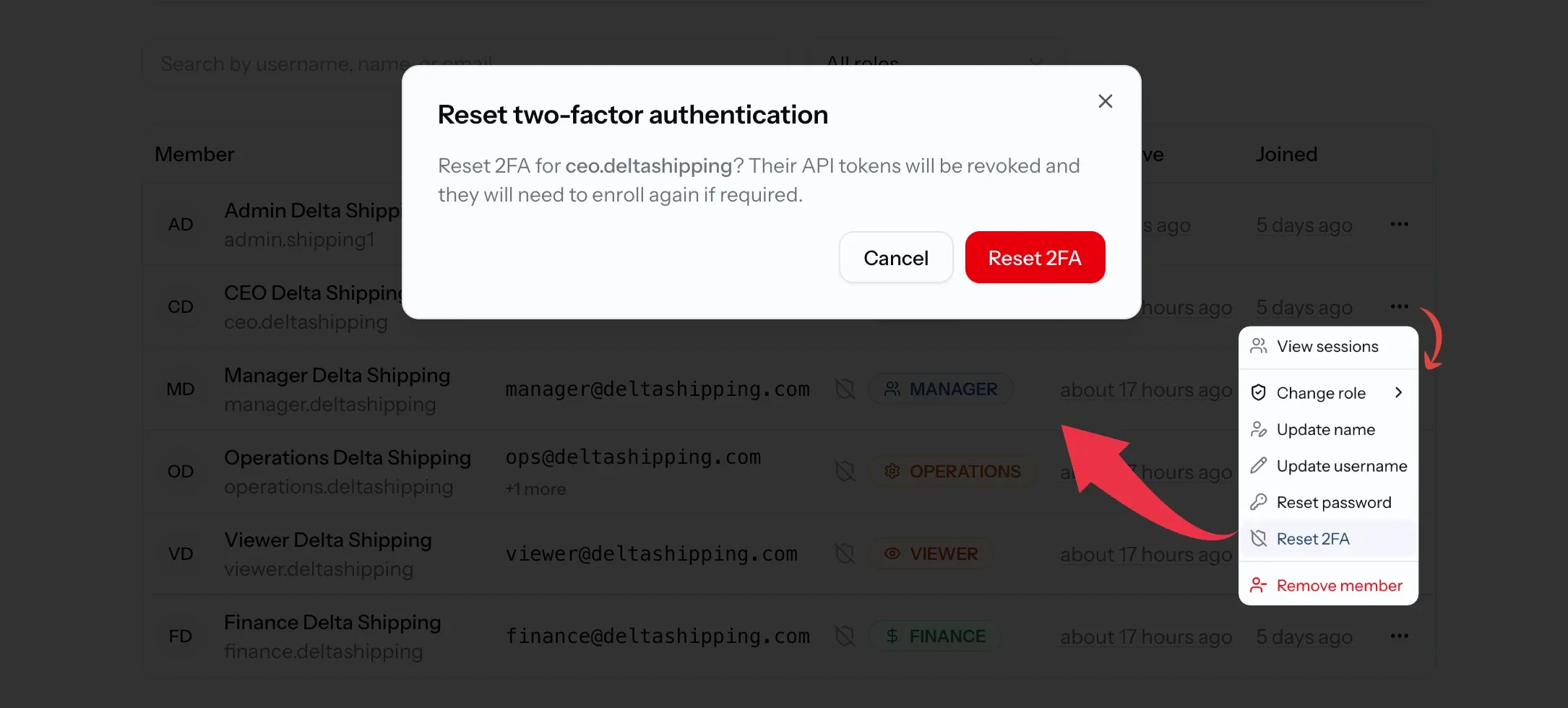
If you are the only Admin
Nobody in your organization can reset your two-factor. Contact PortzApp support using the contact form, from the email on your account, with your username and company name. To avoid this, keep at least two Admins, and keep your recovery codes somewhere other than your phone.
Add a passkey
Sign in with your fingerprint, face or device PIN instead of a password and code.
Step 01
Select Add passkey
Under Passkeys.
Step 02
Follow your device's prompt
Confirm with your fingerprint, face or PIN, or save it in your password manager.
Step 03
Sign in with it next time
On the sign-in page, select Sign in with a passkey.
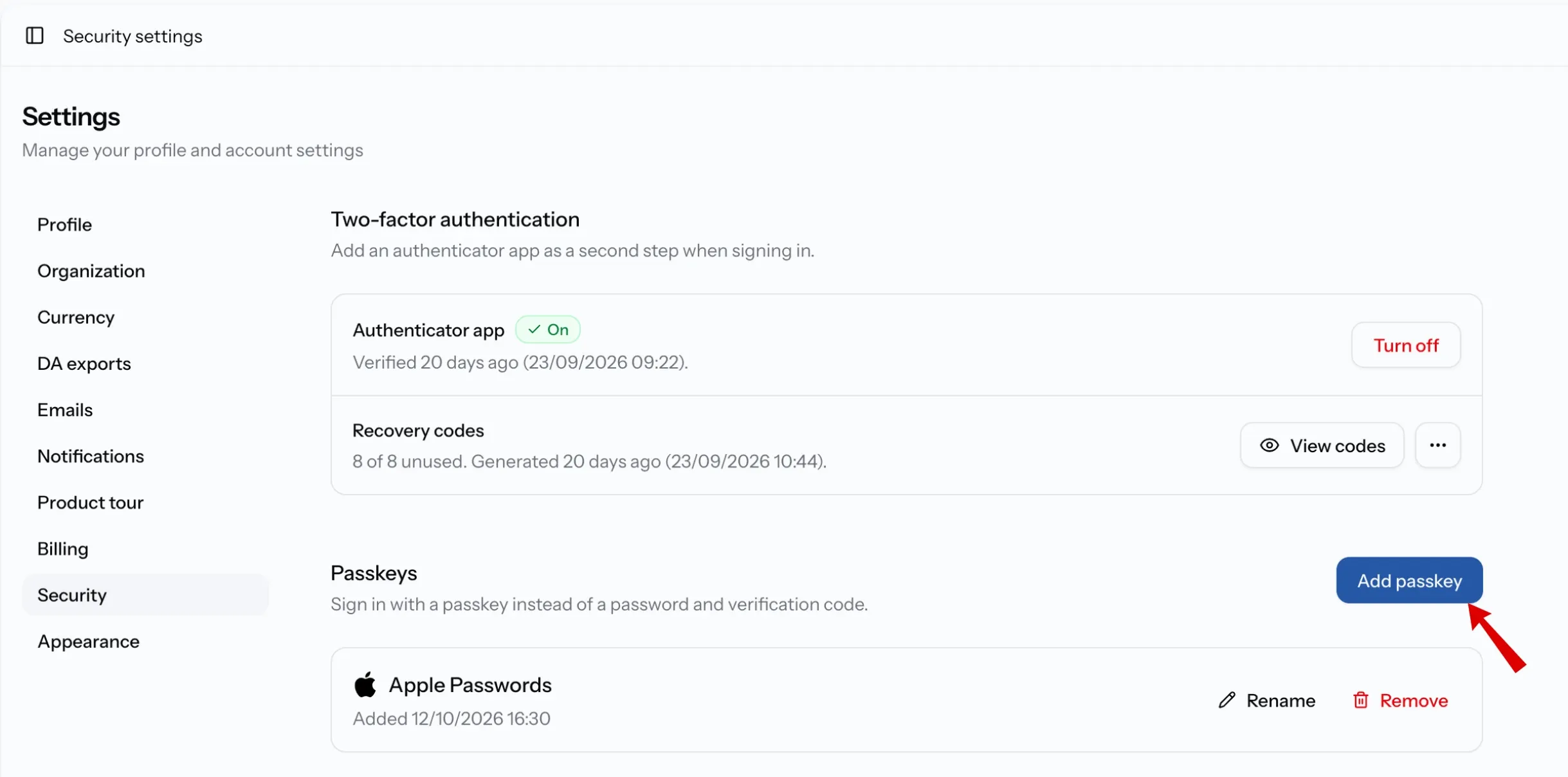
To keep track of your passkeys, open a passkey's options and choose Rename to give it a name you recognise, such as "Work laptop". Choose Remove to delete one you no longer use, for example on a lost device.
Sign out a device
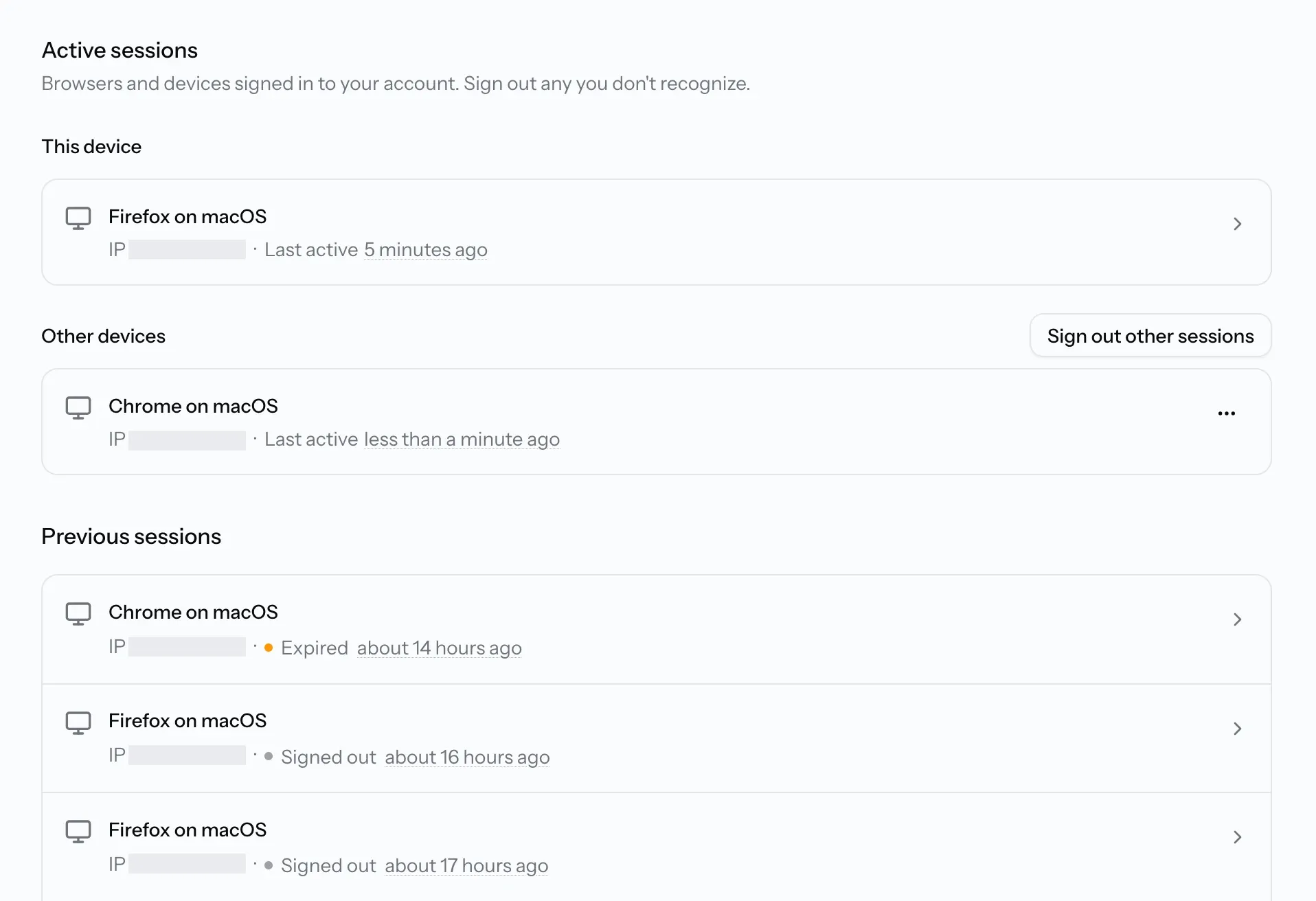
Active sessions, at the bottom of Security, lists the browsers and devices signed in to your account, with This device at the top.
- To sign out a device you do not recognise, open its options and choose Sign out.
- To sign out everywhere except here, select Sign out other sessions.
For Admins: your team's sessions
Open Members from the account menu. Select Review sessions to see where everyone is signed in, or open a member's row menu and choose View sessions to see only theirs. Sign a member out of any browser you need to, for example when a device is lost.
Common issues
I lost my phone and cannot sign in
Choose Use a recovery code on the sign-in page. Without your codes, ask an Admin to reset your two-factor.
I keep getting signed out
On the Standard plan, signing in on another device signs out this one. Use one device at a time.
I cannot turn off two-factor
Your organization or PortzApp requires it, so it stays on. To move to a new phone, ask an Admin to reset it.
The six-digit code is not accepted
Use the latest code your authenticator app shows, and check your phone's time is set automatically.
FAQ
01
02
03
04
05
06