
Complete your initial setup
Your setup checklist has three tasks standing between looking around and trading. Verify your email, verify your company, then build your profile.
Before you start
You need an account. If you have not signed up yet, start with Create your account.
For the company verification task you will need your company's registered name and one official document showing it, such as a trade licence, certificate of incorporation, tax registration certificate, or proof of registered address.
Key takeaways
Three tasks, in order. The checklist tells you which one is next.
Verify your email first. Verifying your company stays locked until you do.
Verifying your company is what lets you send requests, quote on them, and publish your profile.
Your profile can wait. You can skip it and come back.
If you signed up as an individual, this is where your company gets its real name.
How it works
Three tasks, in this order. Each one unlocks more of PortzApp.
Step 01
Verify your email
Open the link we send you.
Step 02
Verify your company
Your registered company name and one document.
Step 03
Build your company profile
Your page in the Maritime Directory.
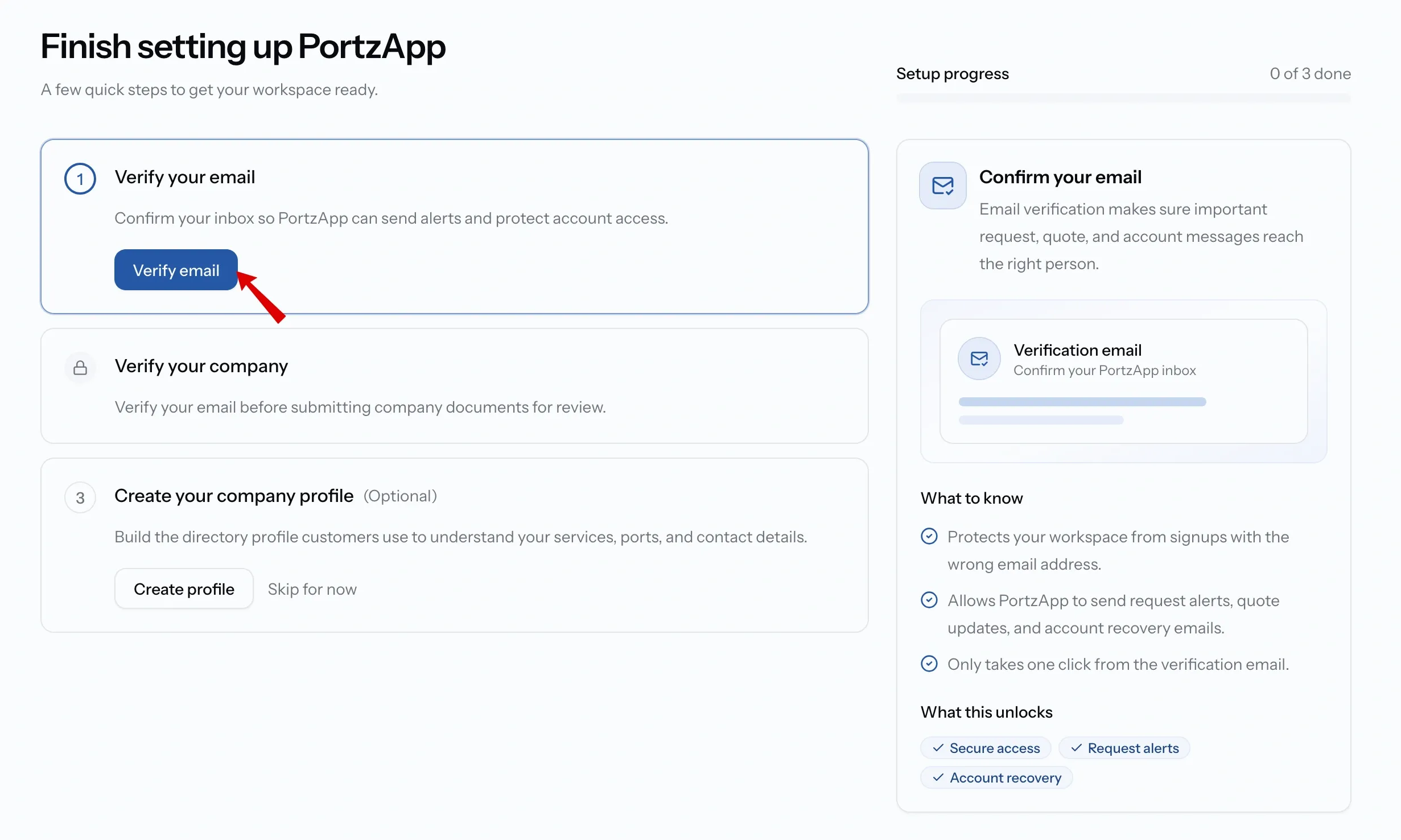
Step 1. Verify your email
We sent a link when you signed up. Open it and the task is done.
Lost it? Press Verify email on the checklist to send a fresh one. There is a short wait between sends, so the button may count down before you can press it again.
Do this one first. Verifying your company stays Locked until your email is confirmed.
Step 2. Verify your company
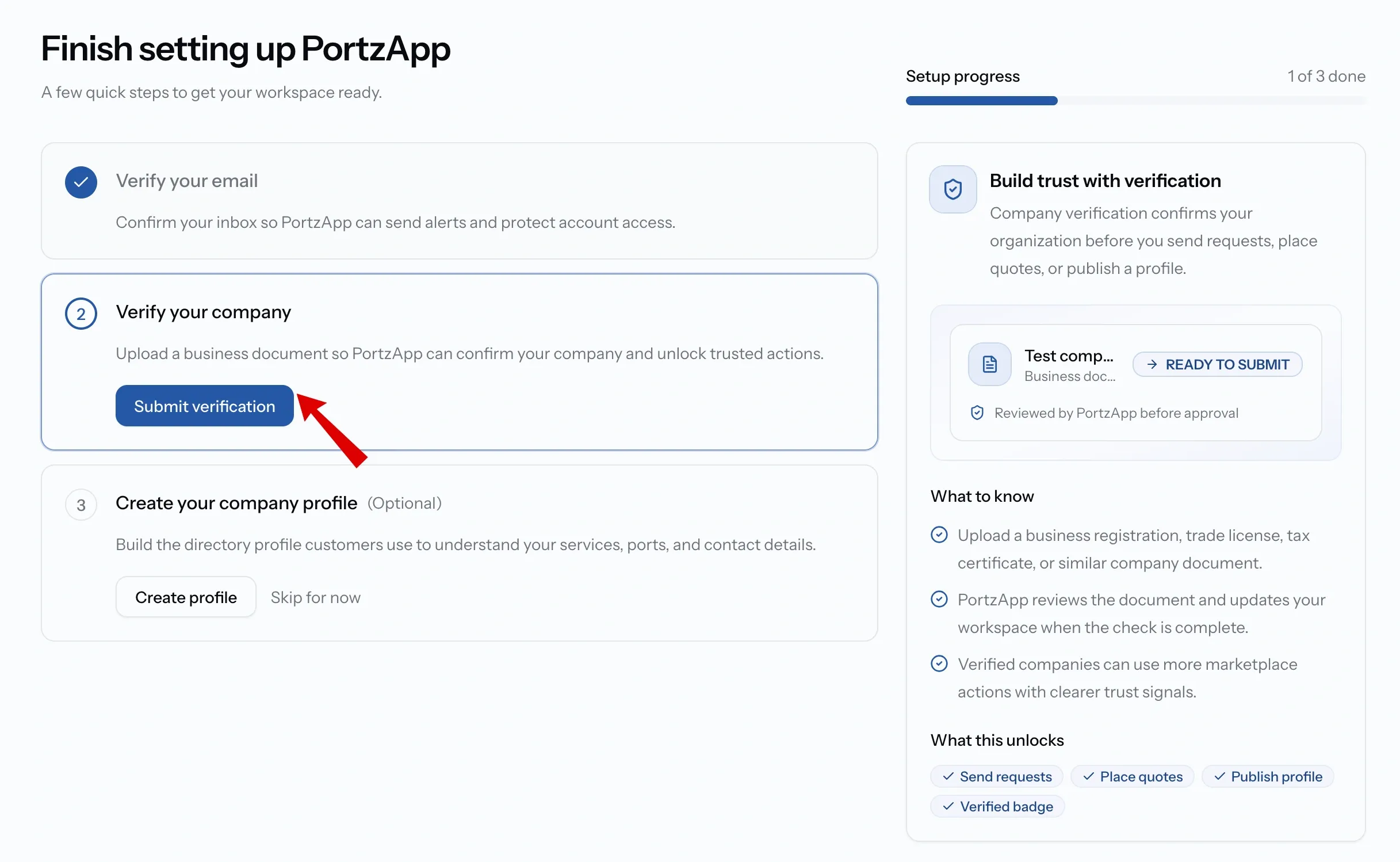
Enter your company's registered name and upload one document that shows it. PortzApp reviews it by hand and updates your workspace when the check is done.
The name you enter becomes your organization's name, so if you signed up as an individual, this is where your workspace gets its real name. It has to match the document.
Full walkthrough in Get your company verified.
Step 3. Build your company profile
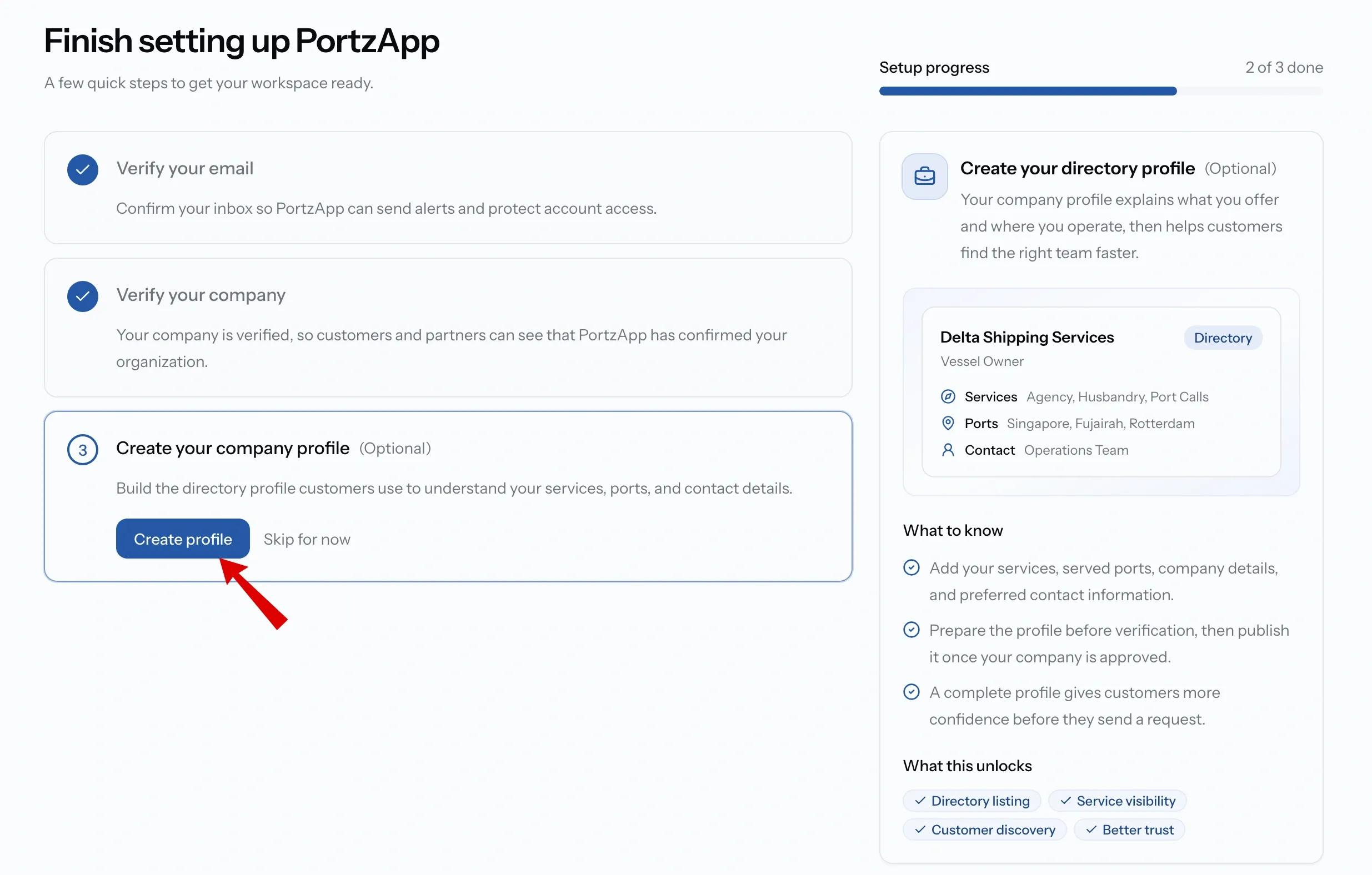
Your profile is your page in the Maritime Directory, and how other companies find you.
You only need your company and contact details. Services and ports can wait. Create it whenever you like, but it only goes live once your company is verified.
Not ready? Press Skip for now and come back.
Full walkthrough in Create your company profile.
If something goes wrong
Verify your company is locked
Your email is not confirmed yet. Open the link we sent, or press Verify email on the checklist. The task unlocks straight after
I signed up with the wrong email address
Add the correct address from your email settings and verify that one.
I cannot find the checklist
It belongs to organization. If an Admin added you to a company that is already set up, there is nothing for you to finish
What you'll have
A verified email, a company with its real name and a verification decision on the way, and a directory profile ready to publish. Once verification comes back you can send requests and quote on them.
FAQ
01
02
03
04
05