
Create your account
Sign up as an individual or as a company. One form creates your account and your workspace, and whoever signs up becomes the Admin.
Before you start
You need an email address you can open and a phone number. Your company's registered name is useful but not essential, because you can sign up as an individual and add it later.
If a colleague already uses PortzApp, ask them to add you instead of signing up. Signing up again creates a second, separate company.
Key takeaways
One form creates your account and your workspace together.
You can sign up as an individual or as a company. Both give you the same thing.
Your work types decide what PortzApp shows you, so add every one that applies.
You start on the Standard free plan and can look around straight away.
Acting on anything, like sending a request or quoting, comes after setup.
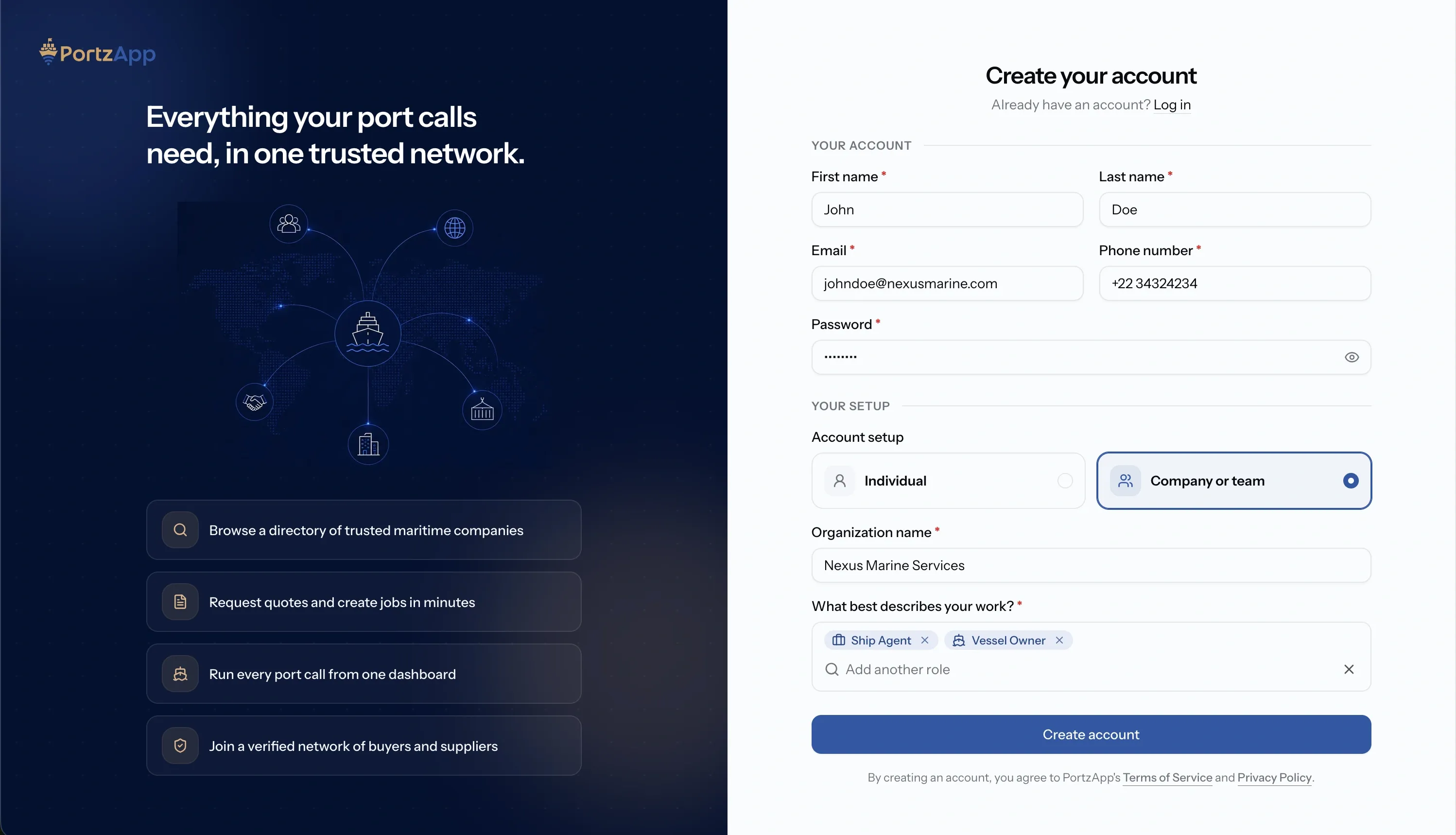
How it works
It is one form, in three parts.
Step 01
Your details
Name, email, phone and password.
Step 02
Individual, or company or team
Whether you name your company now or later.
Step 03
What your company does
Pick your work types.
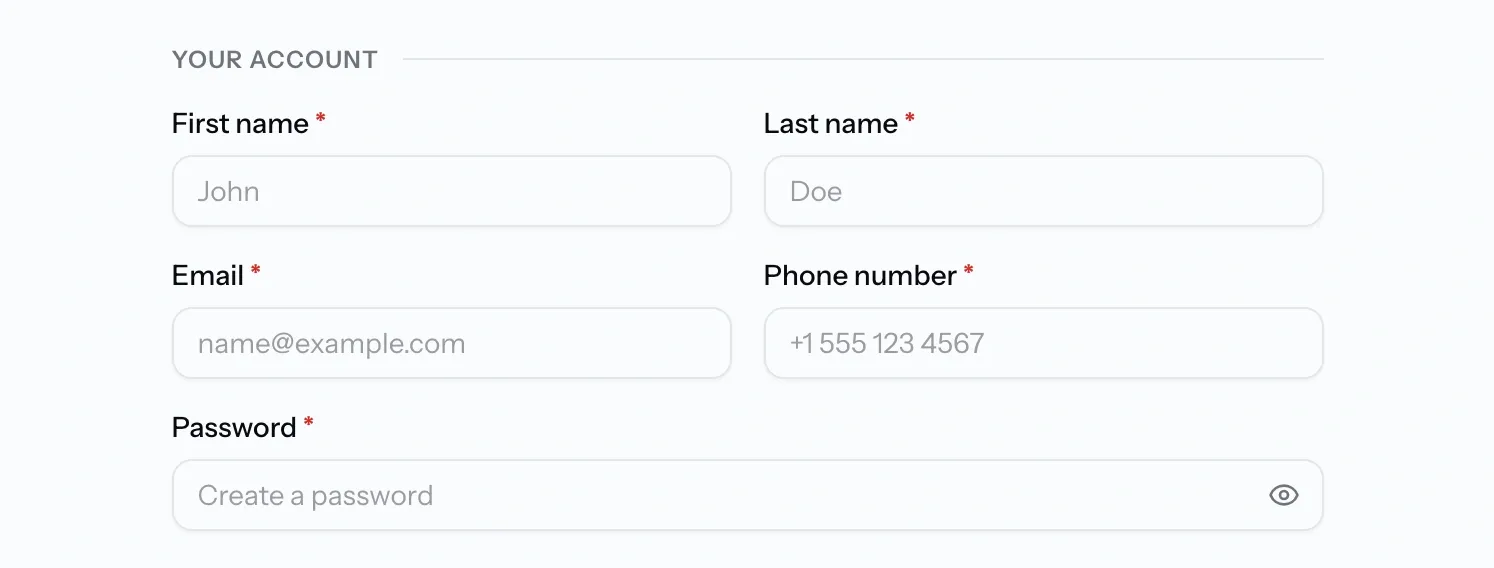
Step 1. Your details
Go to app.portzapp.com/sign-up, or press Get Started Free on the PortzApp website.
The top of the form is about you:
- First name and last name
- Email. This becomes your sign-in, so use a company address if you have one.
- Phone number. Required. It is how a counterparty reaches you when something is urgent at the berth.
- Password
You do not pick a username. PortzApp makes one from your email.
Step 2. Individual, or company or team
Next you choose between two tiles. This trips people up, so it is worth a moment.
It is not two kinds of account. You get the same workspace either way, with the same powers. The only difference is whether you type your company's name on this form, or add it later.
Which one should you pick?
Individual
No company name to type. The quickest way in
Company or team
You type your company's registered name
Individual
Your workspace is named after you for now, for example "John Doe's Workspace"
Company or team
Your workspace carries your company name from the start
Individual
You name the company when you build your profile or verify it
Company or team
The name is already in place, and you can still change it
Individual
Pick this if you are having a look first, or the registered name is not to hand
Company or team
Pick this if you are setting your company up properly today
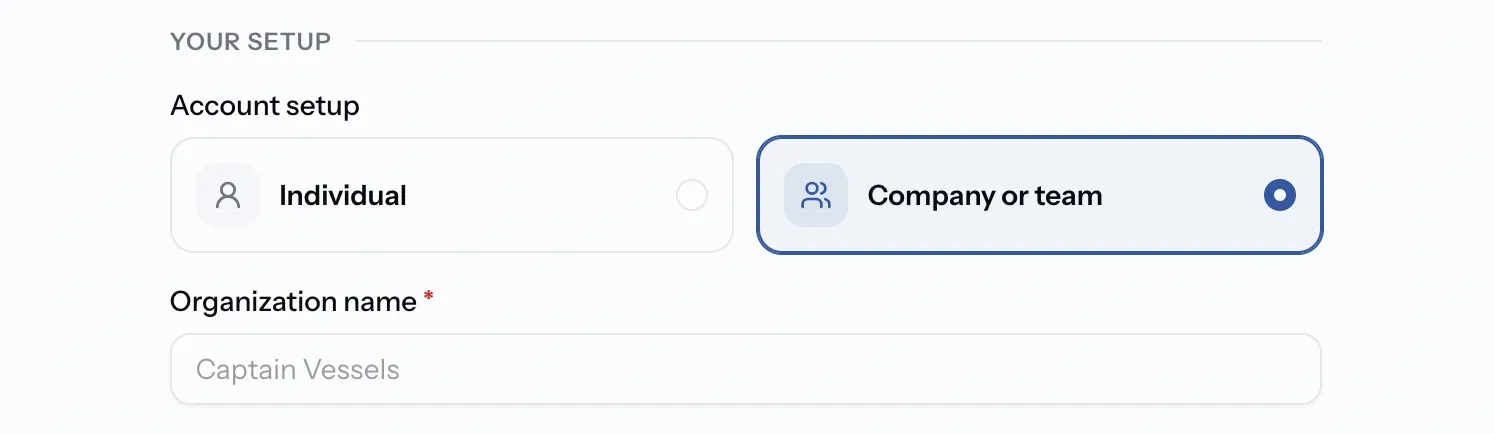
Either tile lets you look around straight away. Neither lets you send a request or quote on one until your company is verified, and that needs your registered company name and legal document.
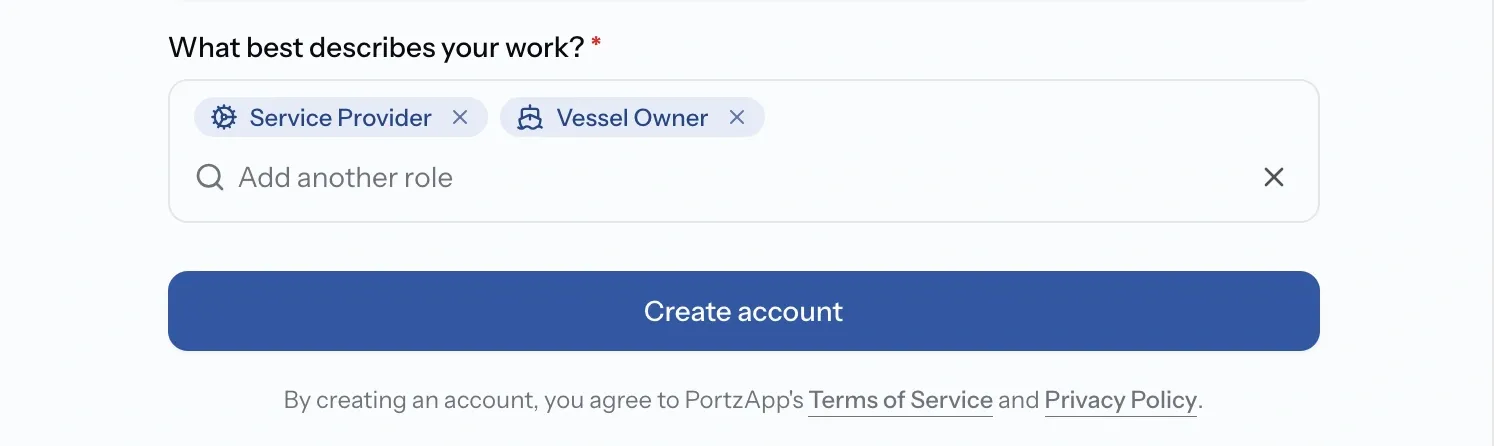
Step 3. What your company does
Search the list and add everything that applies. You need at least one, and there is no limit.
This decides what PortzApp shows you. Companies that buy services get Requests, Jobs, Port Calls and Vessels. Companies that sell them also get a Requests Inbox, Open RFQs and My Services. If you do both, tick both.
You can change this later. A missing menu item is almost always a missing work type.
Then press Create account.
You are in
You are signed in and taken to the Maritime Directory, on the free Standard plan. Your account, your workspace and your Admin role all exist now.
What you can do right away. Browse the Directory, search and filter companies, read their pages, look around the rest of the platform, and save drafts.
What comes next. Anything another company would see is held back until you finish setting up: sending a request, quoting on one, publishing your profile. That means verifying your email and then your company, which is where you give your company its registered name if you signed up as an individual.
If something goes wrong
That email is already in use
You or a colleague signed up before. Log in, or use the forgotten password link
My workspace is named after me
You signed up as an individual. Add your company name when you build your profile or verify your company. An Admin can also change it at Settings > Organization
A menu item is missing
Your work types decide what appears. Update them on your company profile
Next step
Complete your initial setup.
Verify your email, verify your company, and build your profile. That is what turns a look around into an account you can trade with.
What you'll have
An account, a workspace you administer on the free Standard plan, and the Maritime Directory open in front of you.
FAQ
01
02
03
04
05
06