
Manage your password and email addresses
Where your settings live, how to change or reset your password, and how to add, verify and switch between email addresses.
Key takeaways
All of this is your own account, so every role can do it.
You can have several verified addresses, with one marked Primary.
A verified address is what makes password recovery work, so keep at least one current.
Verify a new address by the link in the email, or by typing the six-digit code.
Open your settings
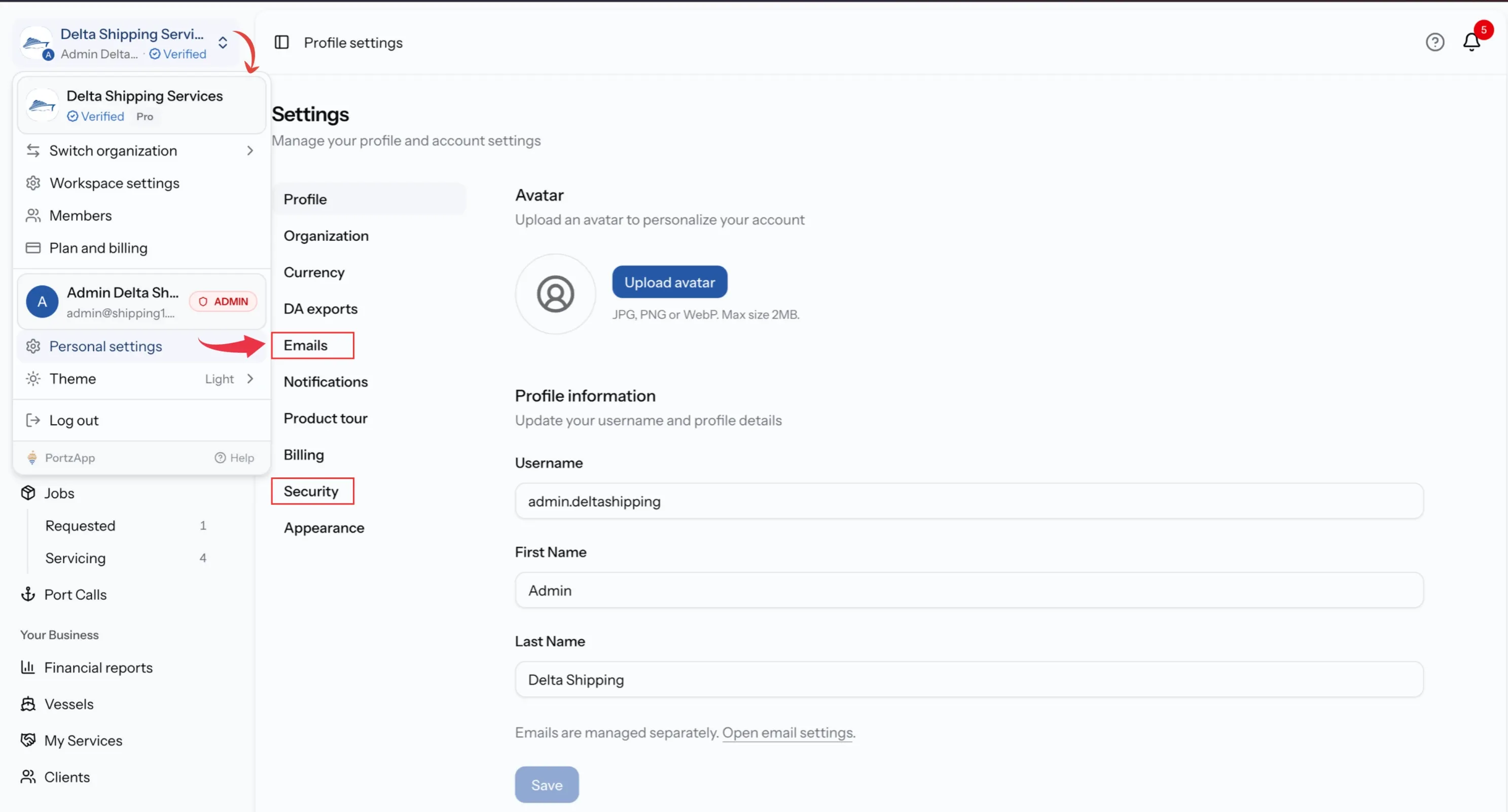
Select your name at the top of the sidebar to open the account menu. It shows the organization you are working in, its workspace settings, and below them your own name, email and role.
Choose Personal settings. That takes you into Settings, where a menu lists the tabs you can use, such as Profile, Emails, Notifications, Security and Appearance. Which tabs you see depends on your role.
Pick Security to change your password, or Emails to add and manage your addresses. Both are covered below, and you can move between them without leaving Settings.
Change your password
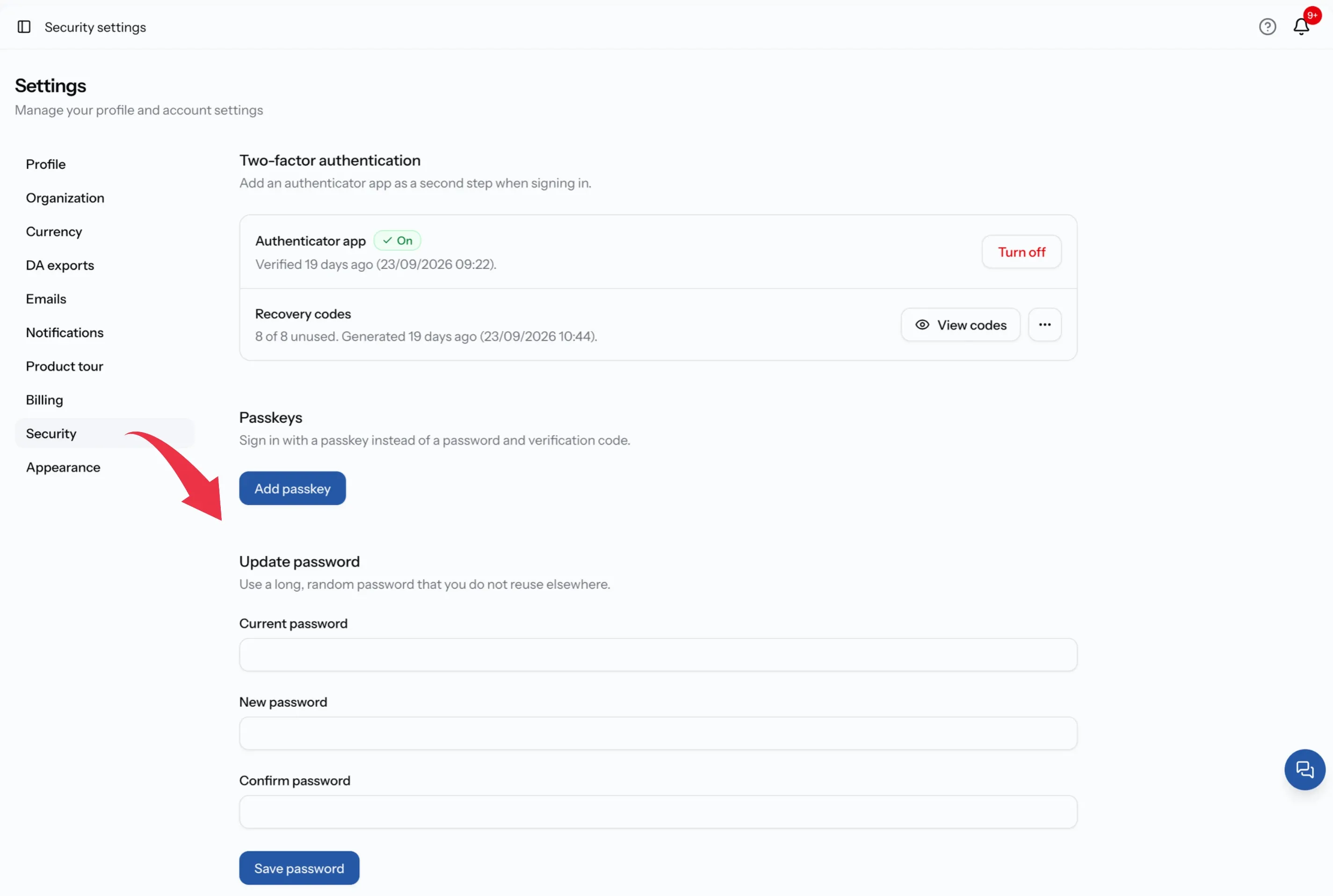
Go to Settings > Security. Under Update password, enter your current password, then the new one twice, and press Save password. You stay signed in.
If you have forgotten it, use Forgot password on the sign-in screen instead. We send a reset link to an email address on your account, which is the practical reason to keep a verified address. If none of your addresses are reachable, an Admin at your organization can reset your password for you.
To add two-factor authentication or a passkey, see Secure your account.
Add another email address
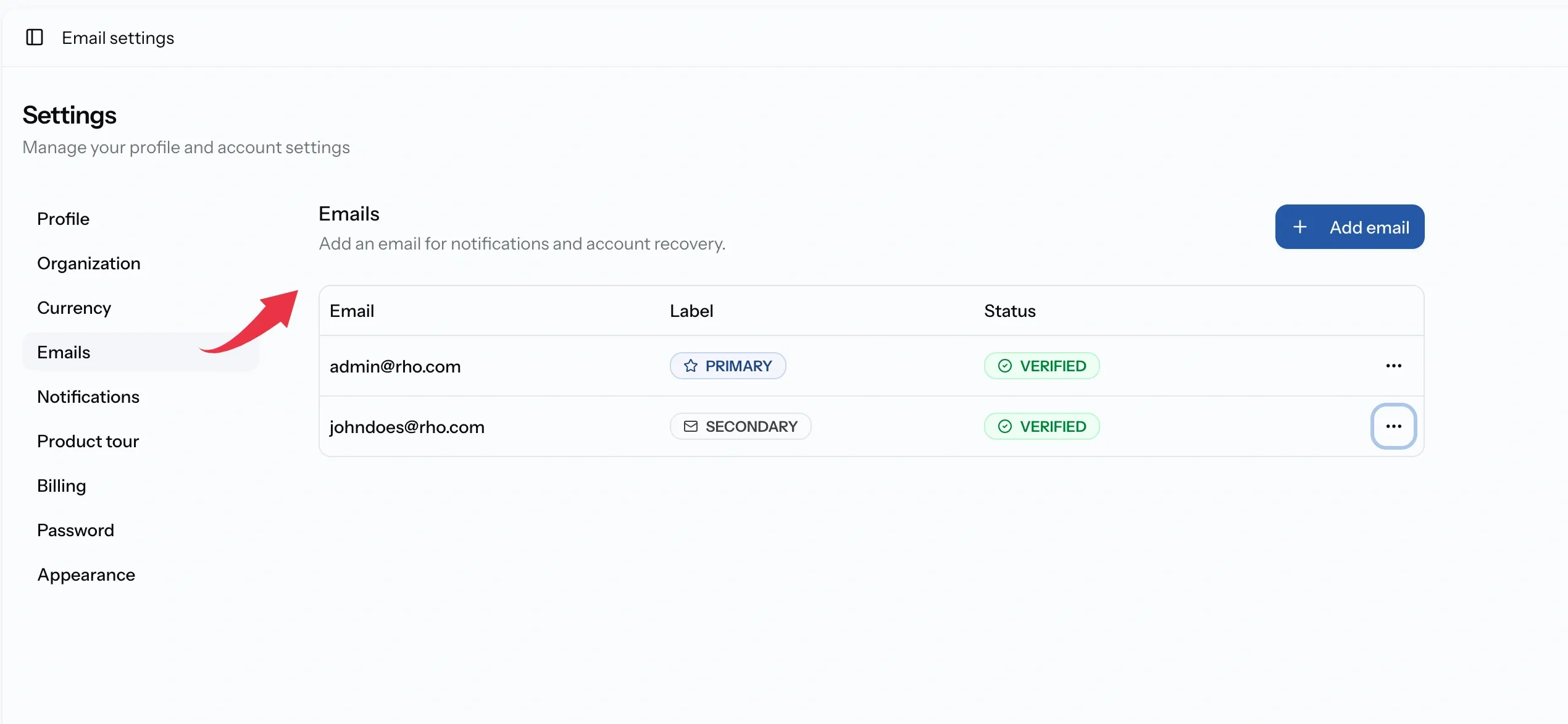
Go to Settings > Emails and press Add email. Enter the address and we send it a verification message.
A second address earns its keep when:
- You want operational alerts going to a shared operations inbox and account mail going to you.
- You want a personal fallback, so a locked company mailbox cannot lock you out of PortzApp.
- You are moving between company addresses and want both live during the handover.
Verify it, by link or by code
There are two ways, and either finishes the job.
Open the link in the email we sent.
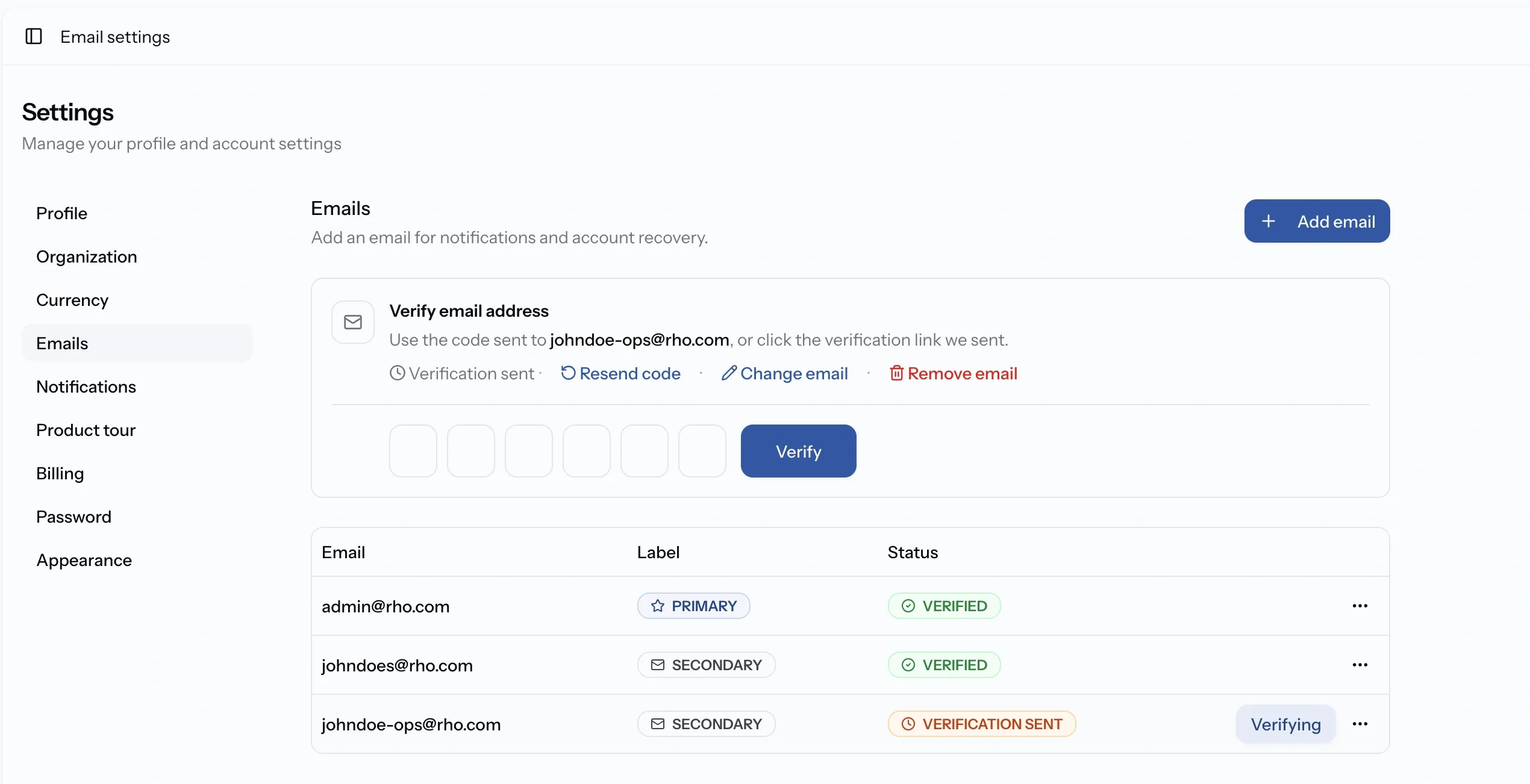
Or type the code. Press Verify next to the pending address and a panel opens asking for the six-digit code from that same email. Enter it and press Verify. Useful when the email opens on your phone and you are working on a laptop.
If nothing arrives, press Resend code. There is a short wait between sends, so the button counts down before it becomes pressable again.
Set your primary, or remove an address
Open the menu beside any verified address to Set as primary, or to Remove it.
Changing your primary changes where PortzApp sends things by default. If you want different kinds of notification going to different verified addresses rather than all to one, that is set up in your notification preferences.
You cannot remove your only verified address, and you cannot remove the primary one. Add and verify another, make that one primary, then remove the old address.
If something goes wrong
The reset link has expired
Request a new one from the sign-in screen. Links are single use and time limited.
No reset email arrives
The address has to be verified on your account. If none of yours are reachable, ask an Admin at your organization to reset your password.
I cannot remove an email address
You cannot remove your only verified address or the primary one. Add another, verify it, make it primary, then remove the old one.
FAQ
01
02
03
04