
The port call workflow, end to end
How maritime port calls run on PortzApp, from RFQ to settlement. What principals do, what service providers see, at every stage.
Stage 01
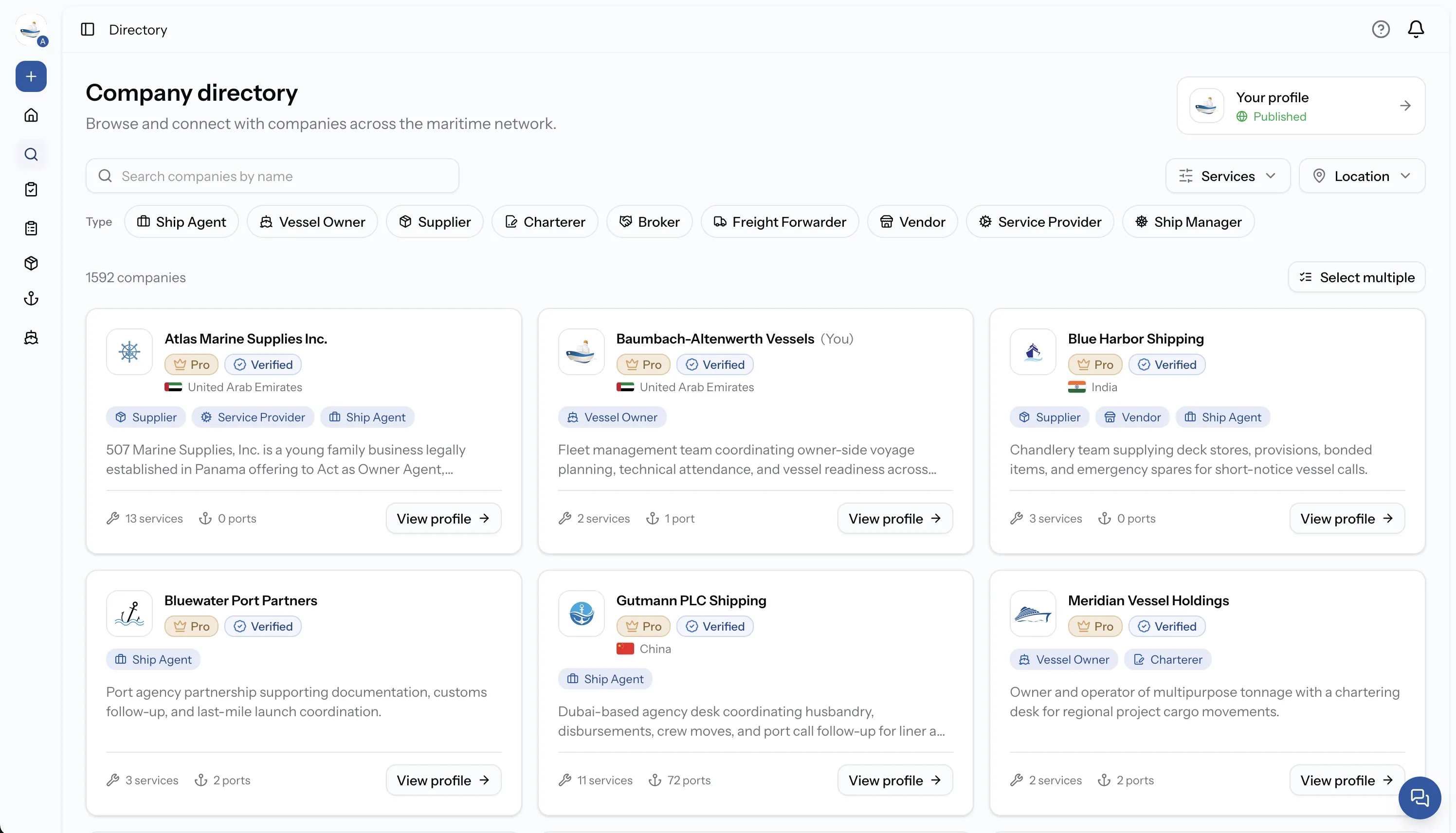
Discover and connect
Find verified providers in any port. Be found by principals who need your services.
For principals
- Search the verified directory
- Filter by port and service type
- Review company profiles
For service providers
- List your company and services
- Publish coverage per port
- Be discoverable by principals
Stage 02
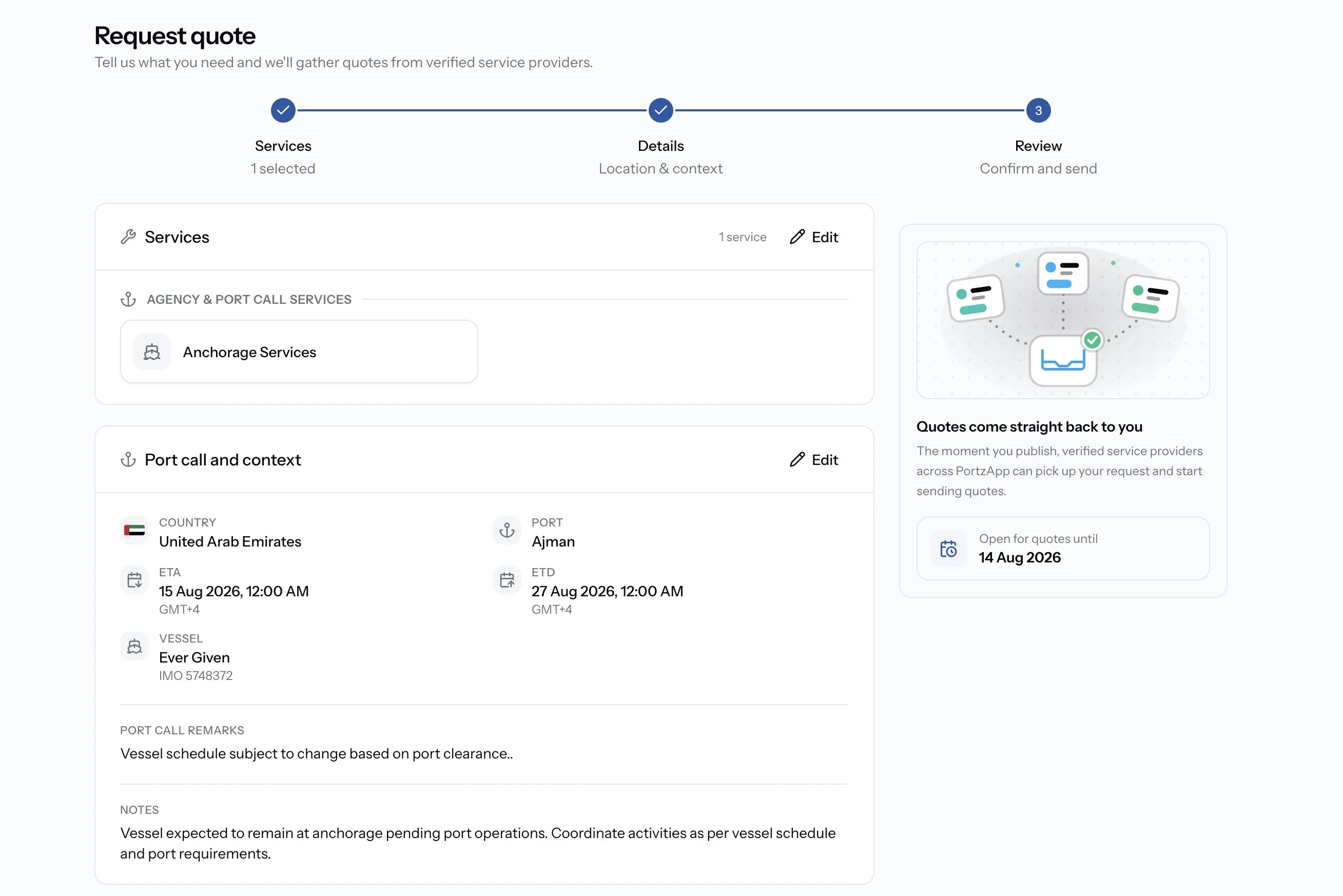
Create the request
A structured form captures services, port, dates, vessel, and attachments in one pass.
For principals
- Fill services, port, and dates
- Add vessel and port call details
- Attach port call info sheets
For service providers
- Requests arrive with full context
- No back-and-forth for missing info
- Consistent format across principals
Stage 03
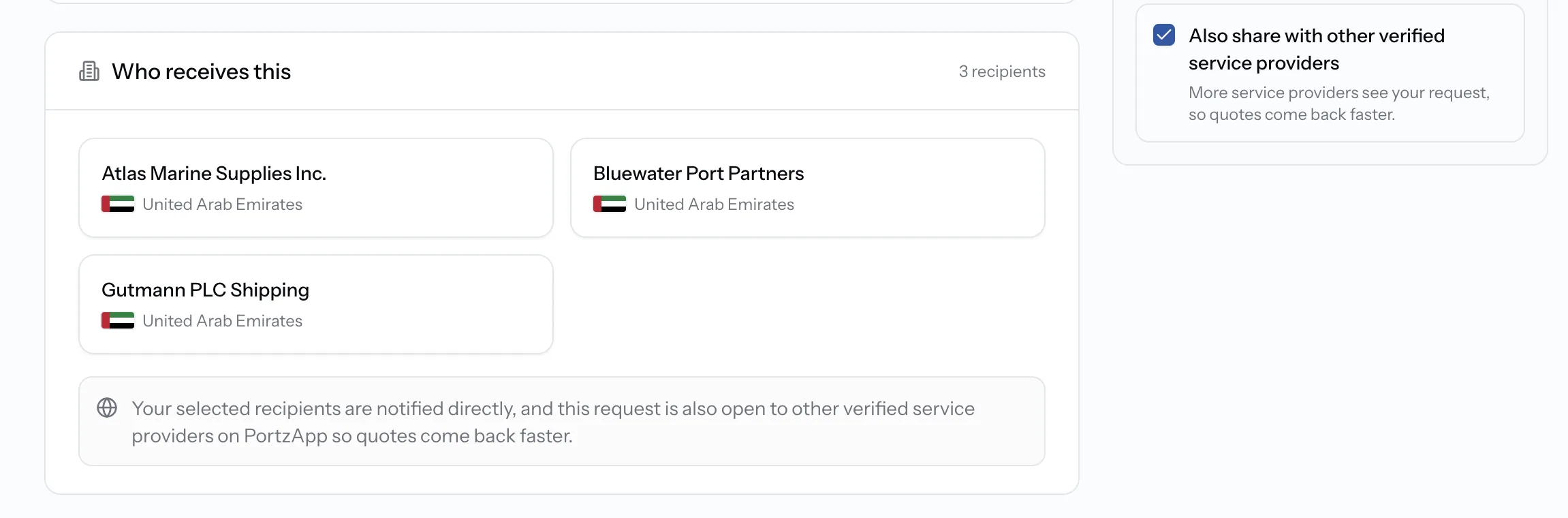
Choose how to send
Send the RFQ open to every verified agency, target specific providers, or both together with one checkbox.
For principals
- Target a shortlist of providers
- Open to every verified agency
- Combine targeted and open sends
For service providers
- Receive targeted requests directly
- See open requests in your ports
- Compete for new business
Stage 04
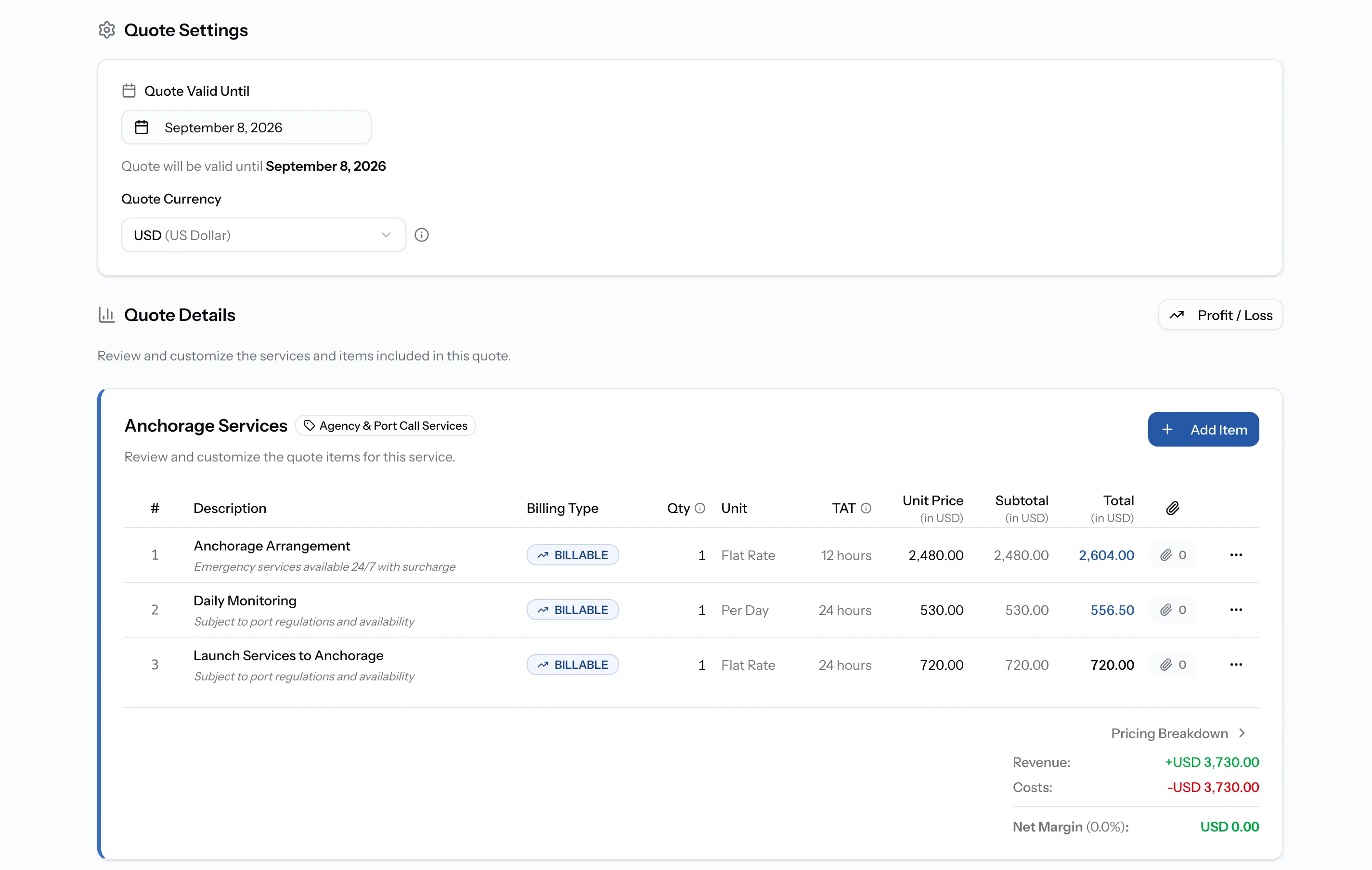
Providers respond with a quote
Providers open the RFQ and respond with a structured quote. Tariff items prefill from the provider's catalog, prices adjust per port call or client, and line items and totals render in any currency.
For principals
- Get notified when quotes arrive
- See how many quotes are in
- Wait until deadline or act early
For service providers
- Prefill items from tariff catalog
- Adjust prices per port or client
- Quote in any currency
Stage 05
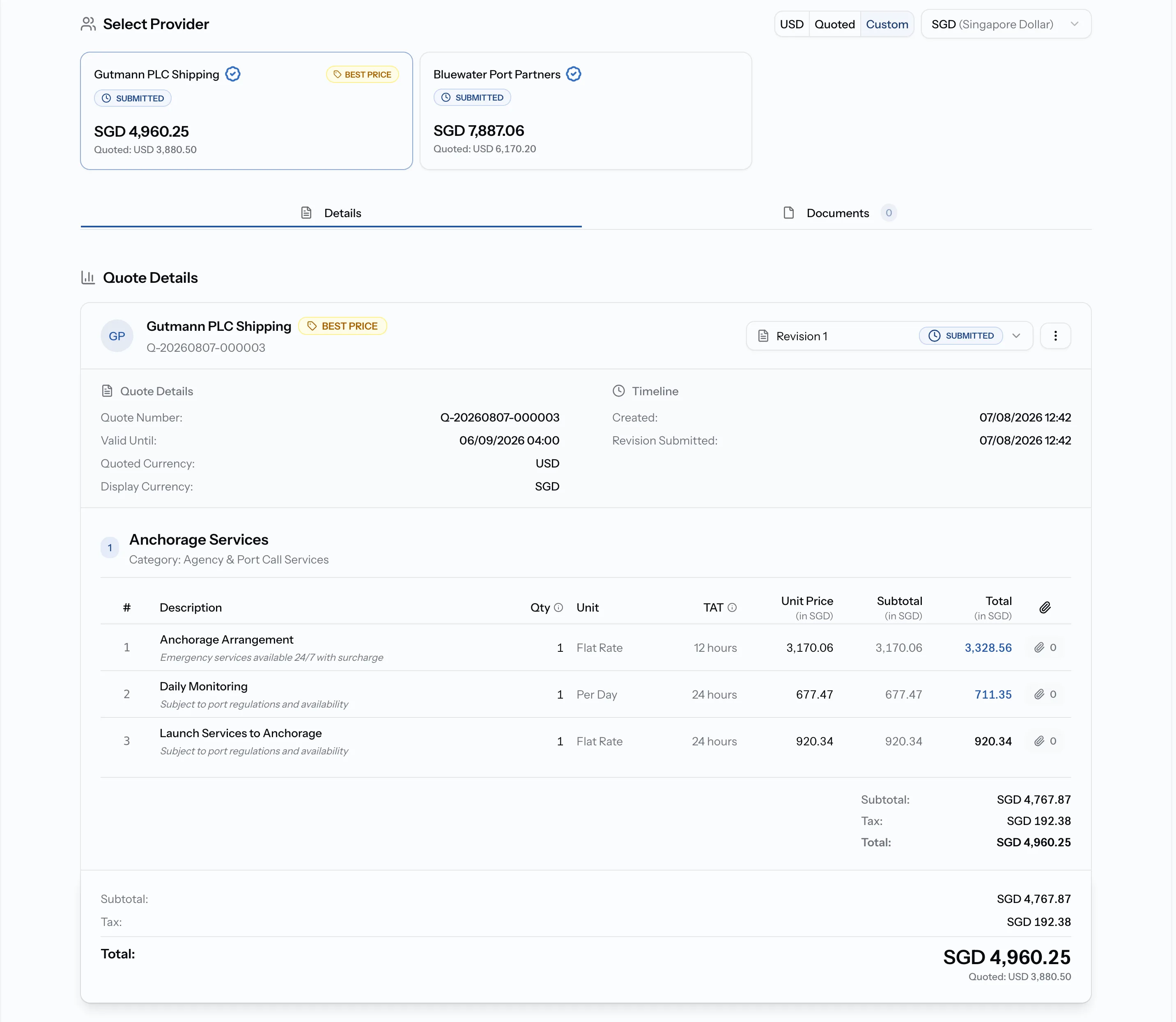
Compare and act
Every quote comes back in the same line-item format, with line items and totals visible in any currency. Compare side by side and accept or negotiate.
For principals
- Compare quotes line by line
- View all amounts in any currency
- Accept or negotiate in-thread
For service providers
- Get accepted or revise a quote
- Negotiate without leaving the job
- See status updates in real time
Stage 06
Coordinate the job
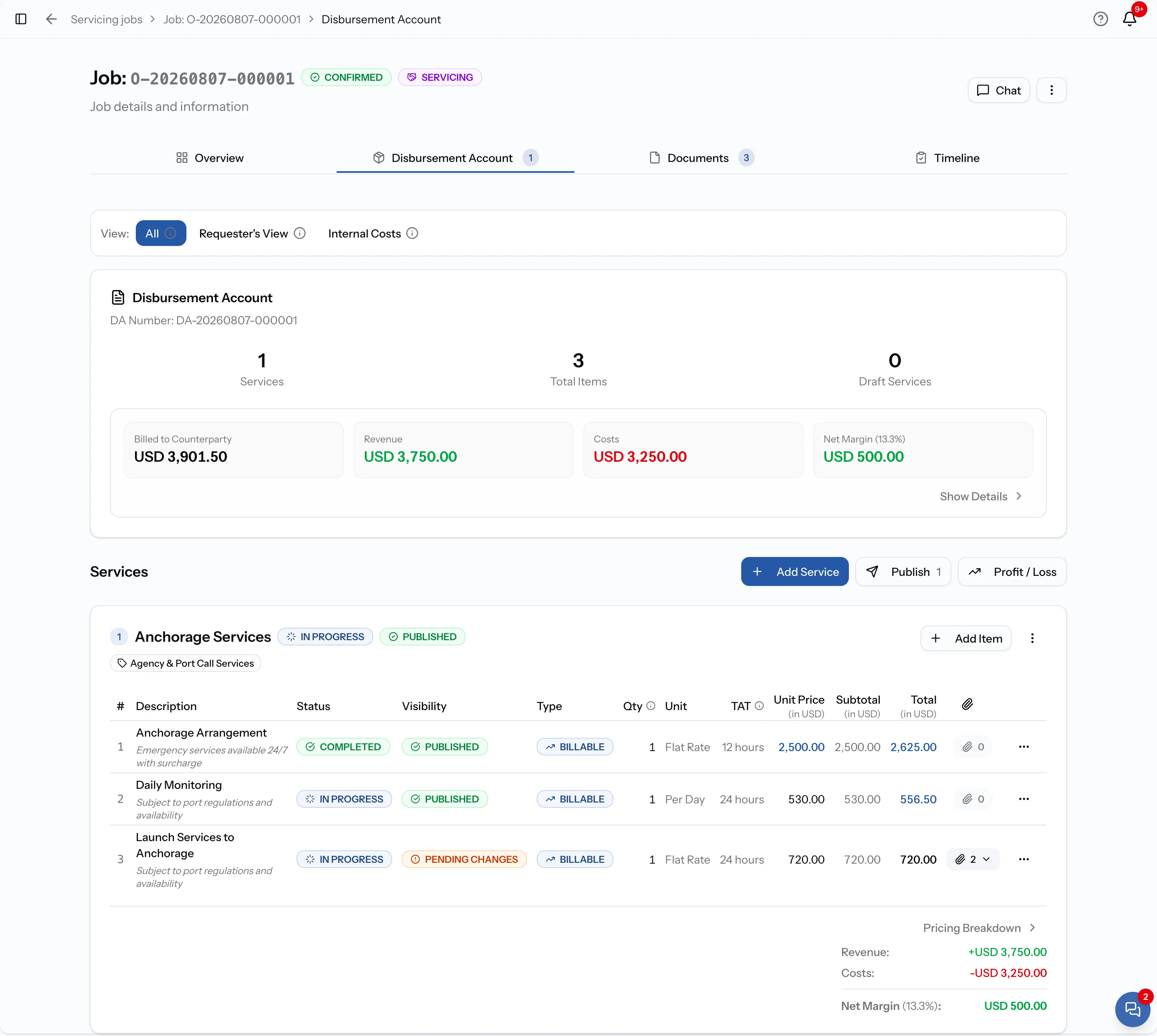
Job-specific chat, a shared port call timeline, and per-item status live under the accepted job.
For principals
- Watch the port call timeline
- Message providers in-thread
- See per-item work status
For service providers
- Update tariff-item status
- Share progress with principals
- Attach files inline in chat
Stage 07
Organize documents
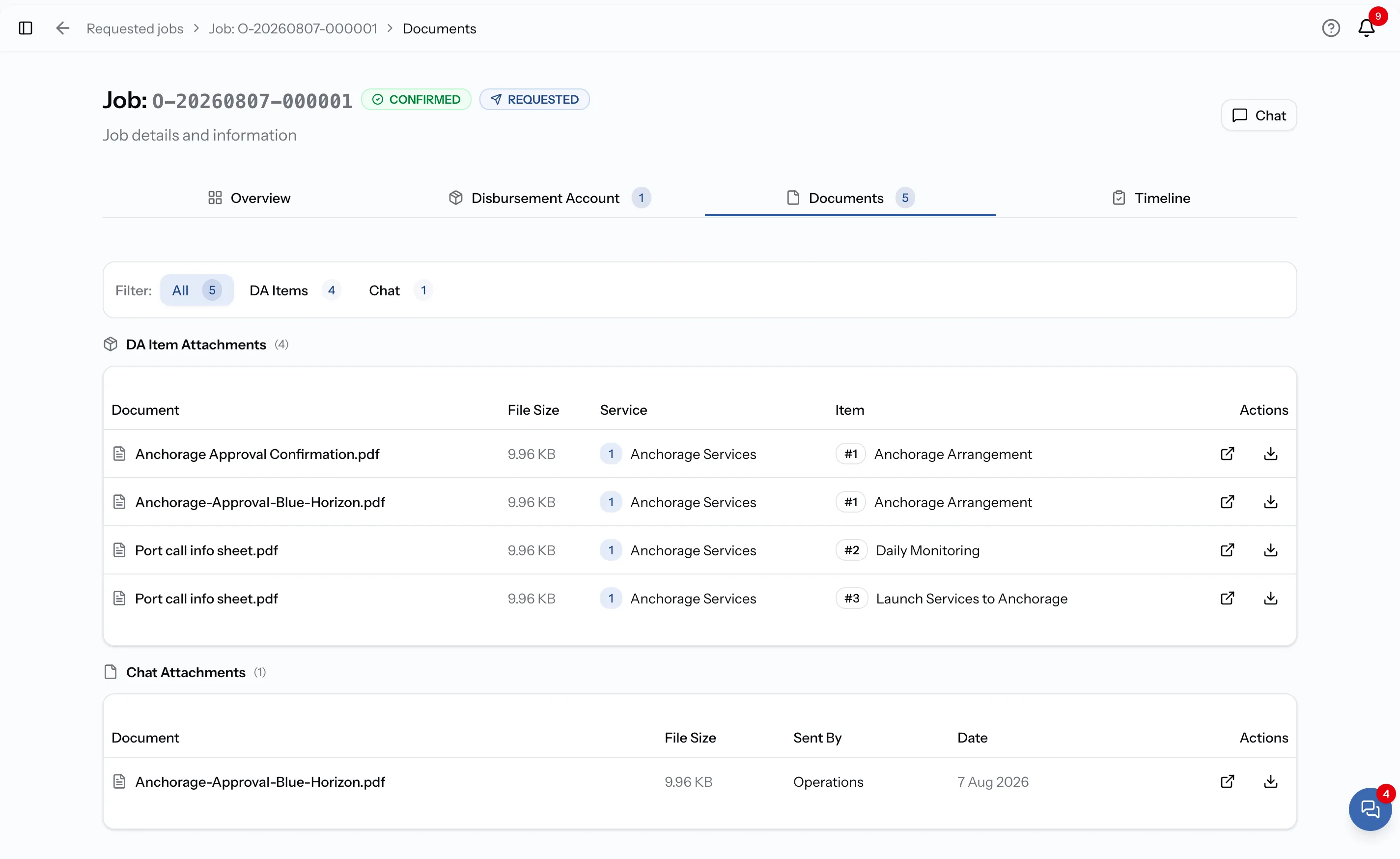
PDAs, port clearance, invoices, and chat attachments all filed under the job they belong to.
For principals
- Find every doc under the job
- Access approvals and clearances
- Download files at any time
For service providers
- Upload approvals and receipts
- Attach port call info sheets
- Files organized per service
Stage 08
Build and settle
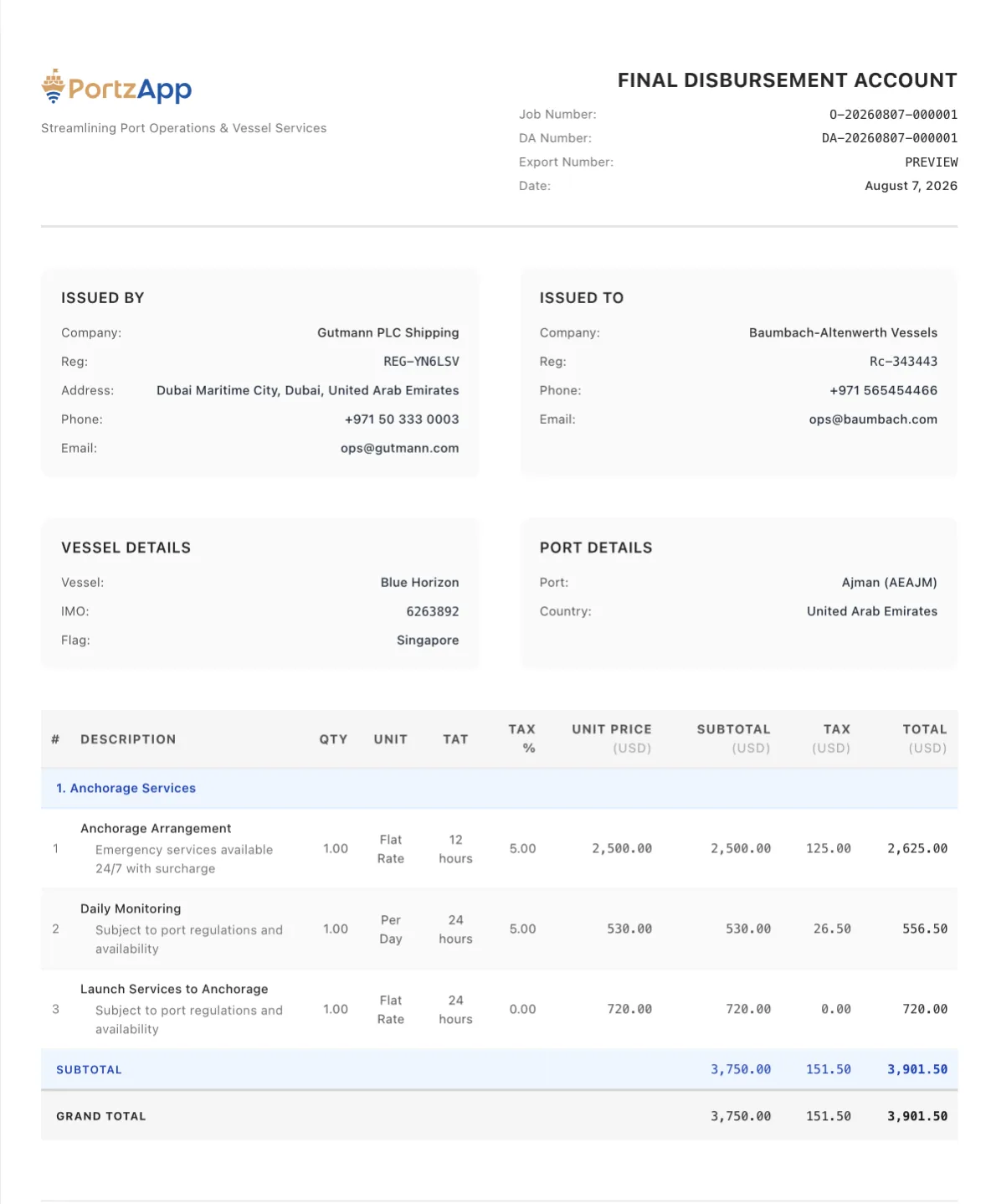
Generate PDA, DA, or FDA from the same job record. Attach receipts, set currencies, and email the branded PDF.
For principals
- Receive branded PDF exports
- Review multi-currency totals
- Pay based on the FDA
For service providers
- Build the DA from line items
- Append receipts and PDFs
- Email the export in one step
Run your next port call on PortzApp
Start with a single RFQ and expand into port call coordination, documents, and disbursement accounts as your team gets comfortable.