
Vessel Privacy & Sharing
Sending a request does not hand over your vessel. Providers see its name and type, and the full record is opened only when you choose to open it, or when you approve a request to.
FOR BUYERS & PROVIDERS
Sharing is controlled by the organization that owns the vessel, on each job separately. Every action here needs the Admin, Manager, or Operations role, and none of them are available once a job is completed or cancelled.
Key takeaways
- Restricted shows the vessel's name and type. Nothing else.
- Full shows every registration and technical detail on the record.
- The level is chosen by the buyer when the vessel is attached, and can be changed later.
- A provider can ask for full access. The buyer accepts or declines.
Naming a vessel is optional
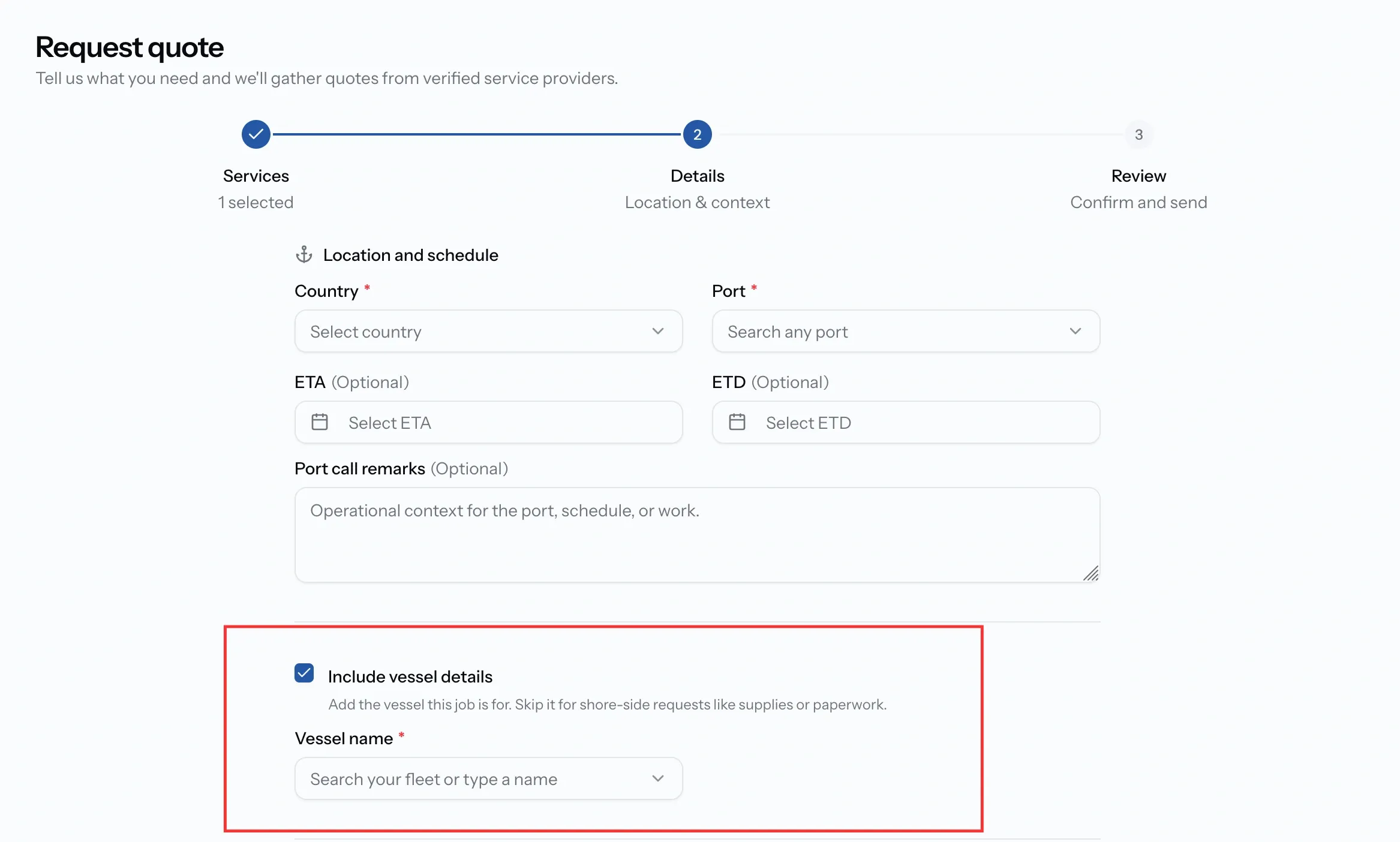
The first decision comes before anything is shared at all. A request carries an Include vessel details option, and leaving it unticked sends the request with no vessel attached.
That is the intended route for shore-side work such as supplies or paperwork, where the ship is beside the point. Providers quote on the port, the services, , and the details and nothing about your fleet leaves your organization.
Where a vessel is named, everything below applies.
Two levels of access
Vessel visibility has two settings, and the lower one applies from the moment a provider receives your request.
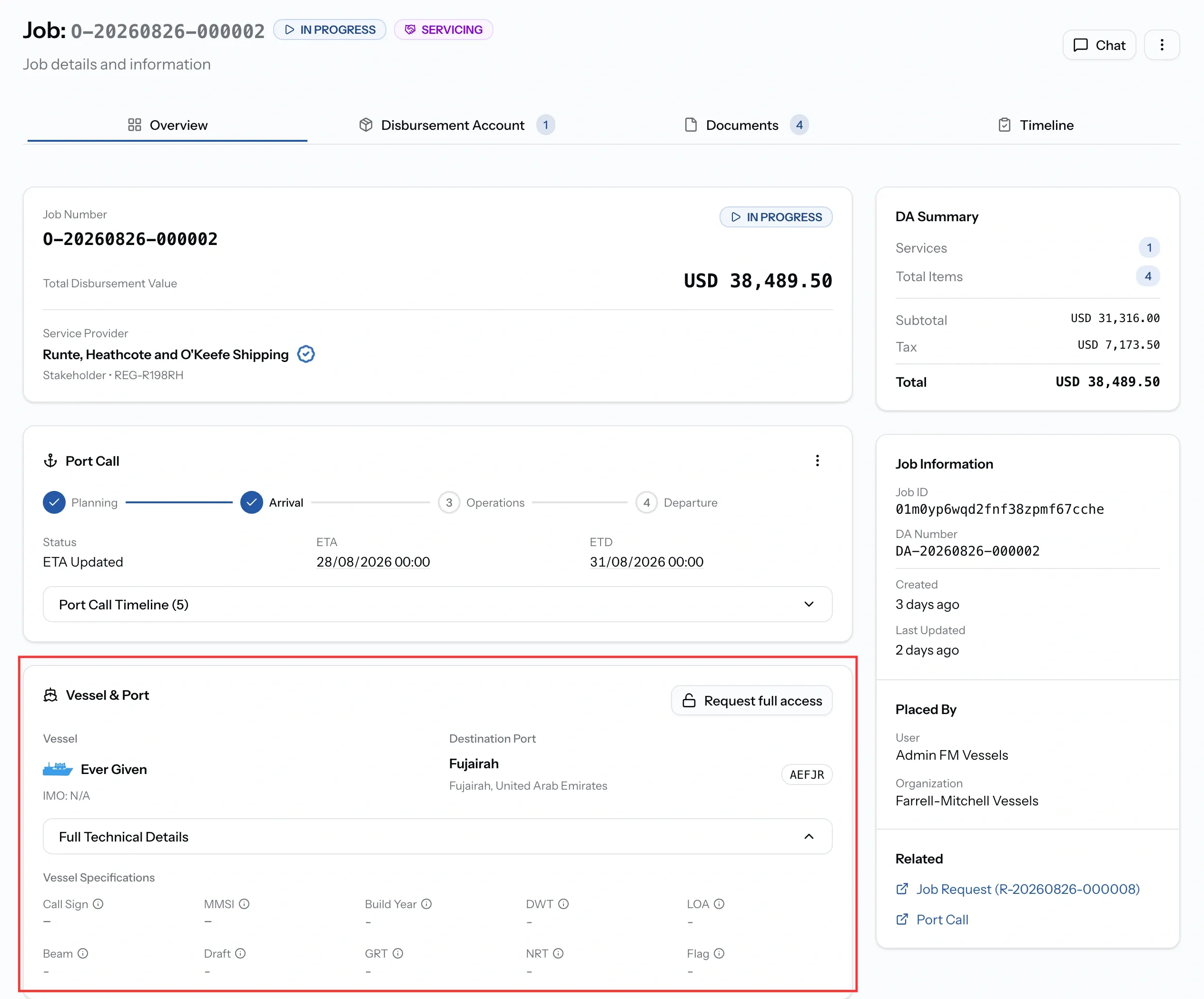
Restricted is the minimum needed to work: the vessel's name and its type. The provider can tell a tanker from a tug and refer to the vessel correctly, and knows nothing more.
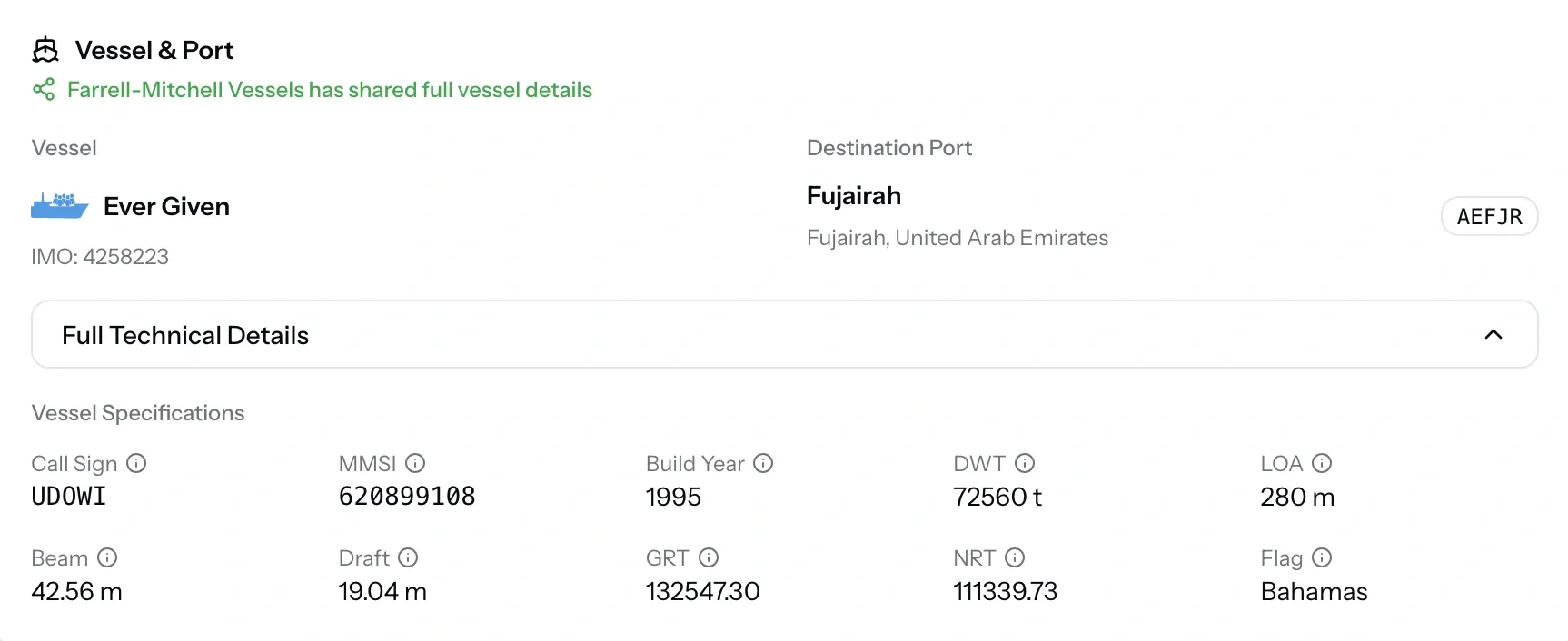
Full opens the record: registration details, tonnages, dimensions, remarks, and the owning organization.
What full access adds
Full opens the rest of the record: the IMO number, MMSI, and call sign, the flag state and build year, GRT, NRT, and DWT, length overall, beam, and draft, and any remarks kept on the vessel.
It also reveals how much is running against the current port call, which restricted access hides along with everything else.
Where the level is set
Restricted needs no decision, because it is where everyone starts. Full is chosen at one of two moments.
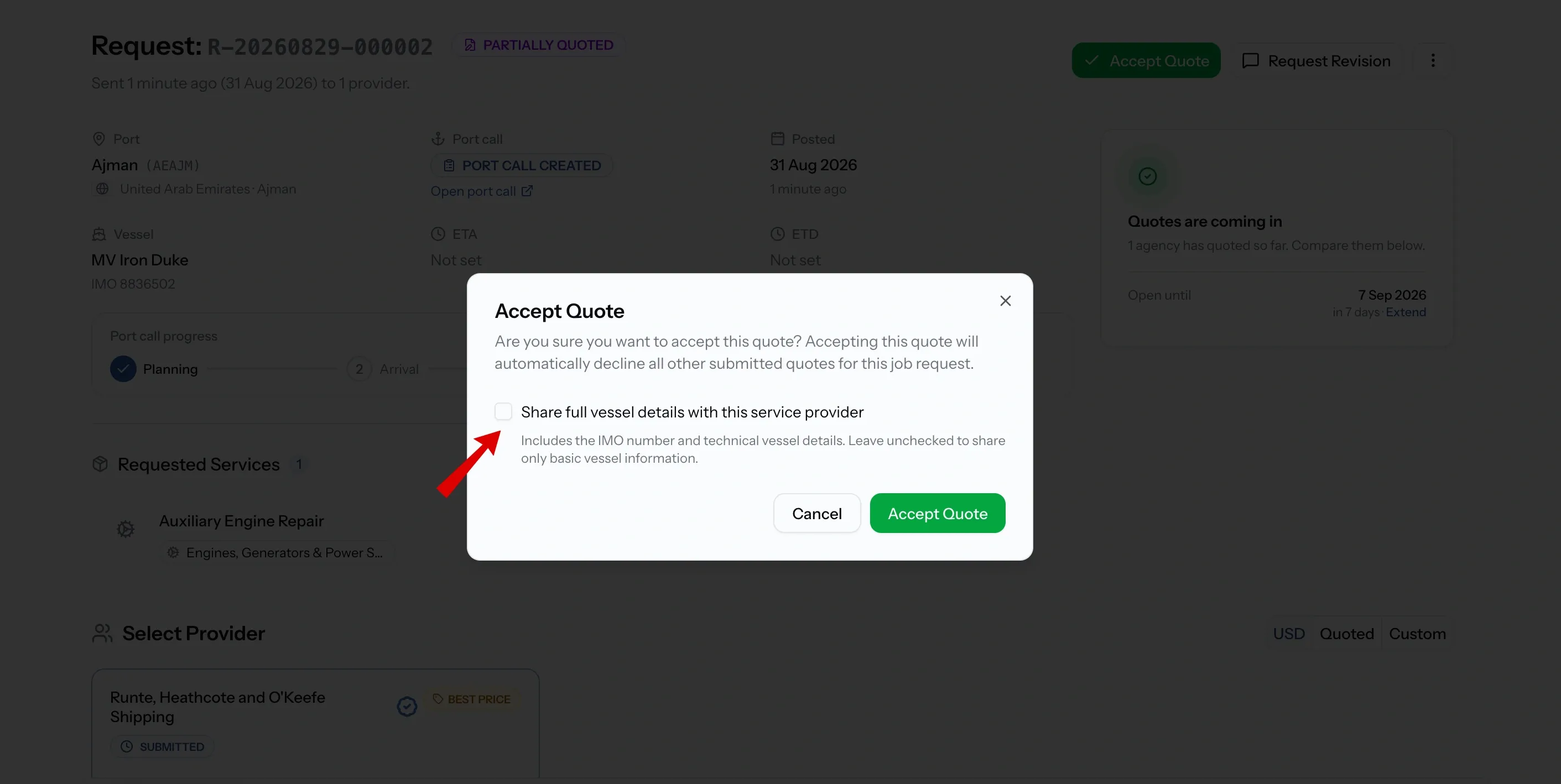
The first is acceptance. Where the request names a vessel, the Accept Quote dialog carries Share full vessel details with this service provider, unchecked, and ticking it hands over the IMO number and technical details along with the job. Only the accepted provider gets it. Every declined quote leaves that organization exactly where it was.
The second is any time afterwards, from the job's vessel section. Nothing is lost by leaving the box alone.
Managing a share from the job
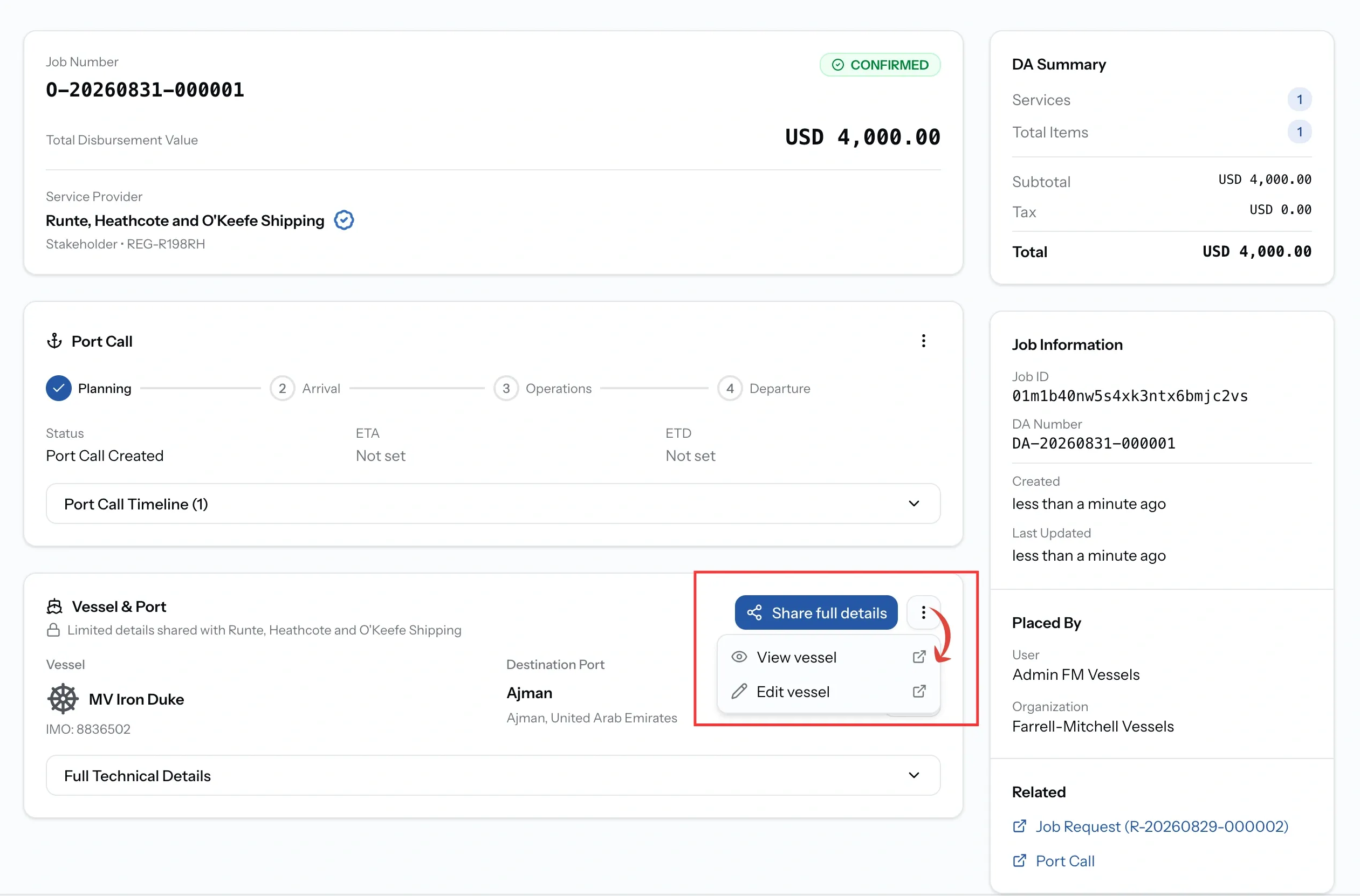
After that, everything happens in the Vessel & Port card rather than on the vessel record. A share belongs to a piece of work, so the buyer is always deciding about one provider on one job.
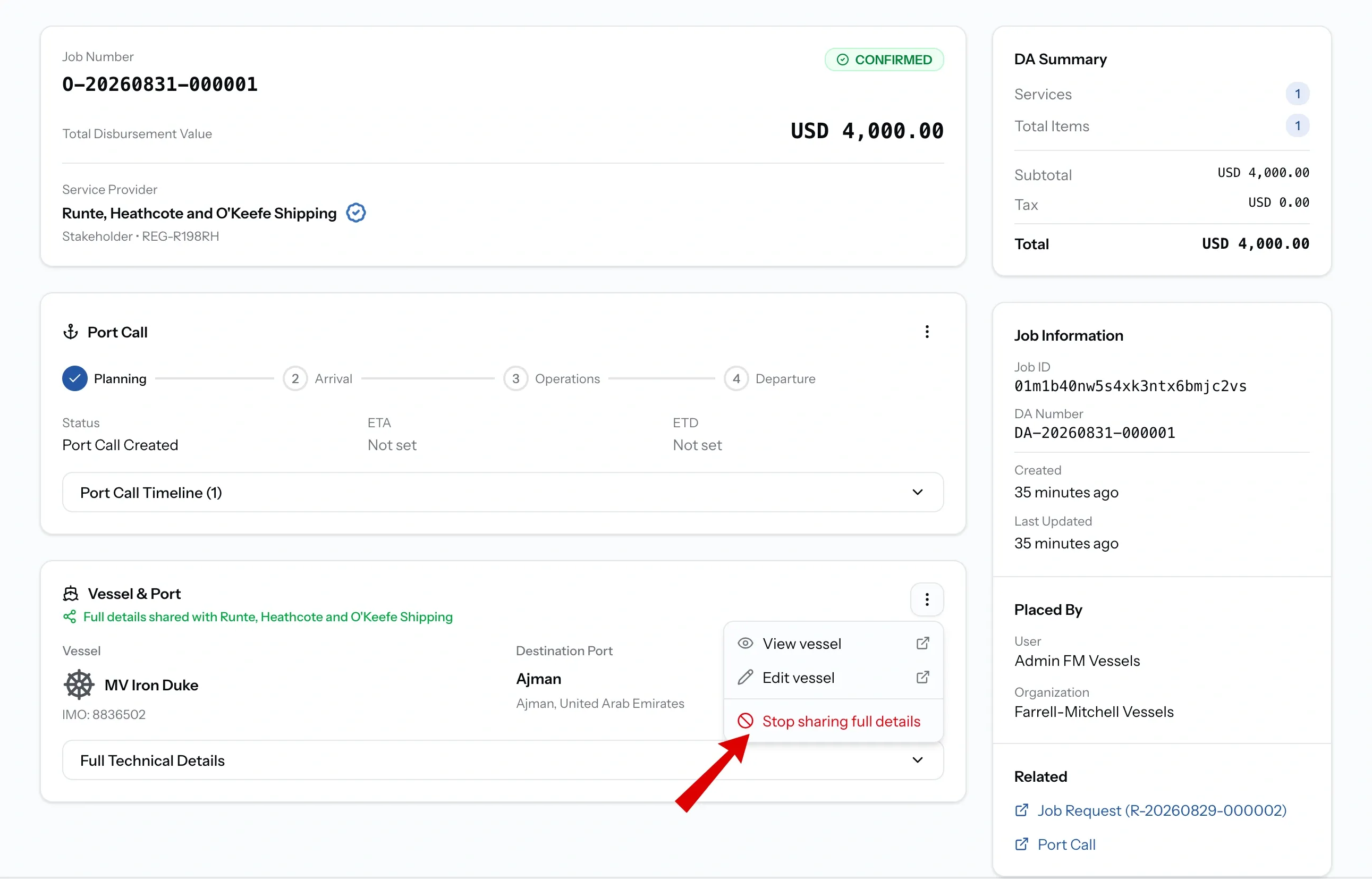
The buyer sees the current level with Share full details beside it, and a menu holding View vessel, Edit vessel, and Stop sharing full details.
Asking for full access
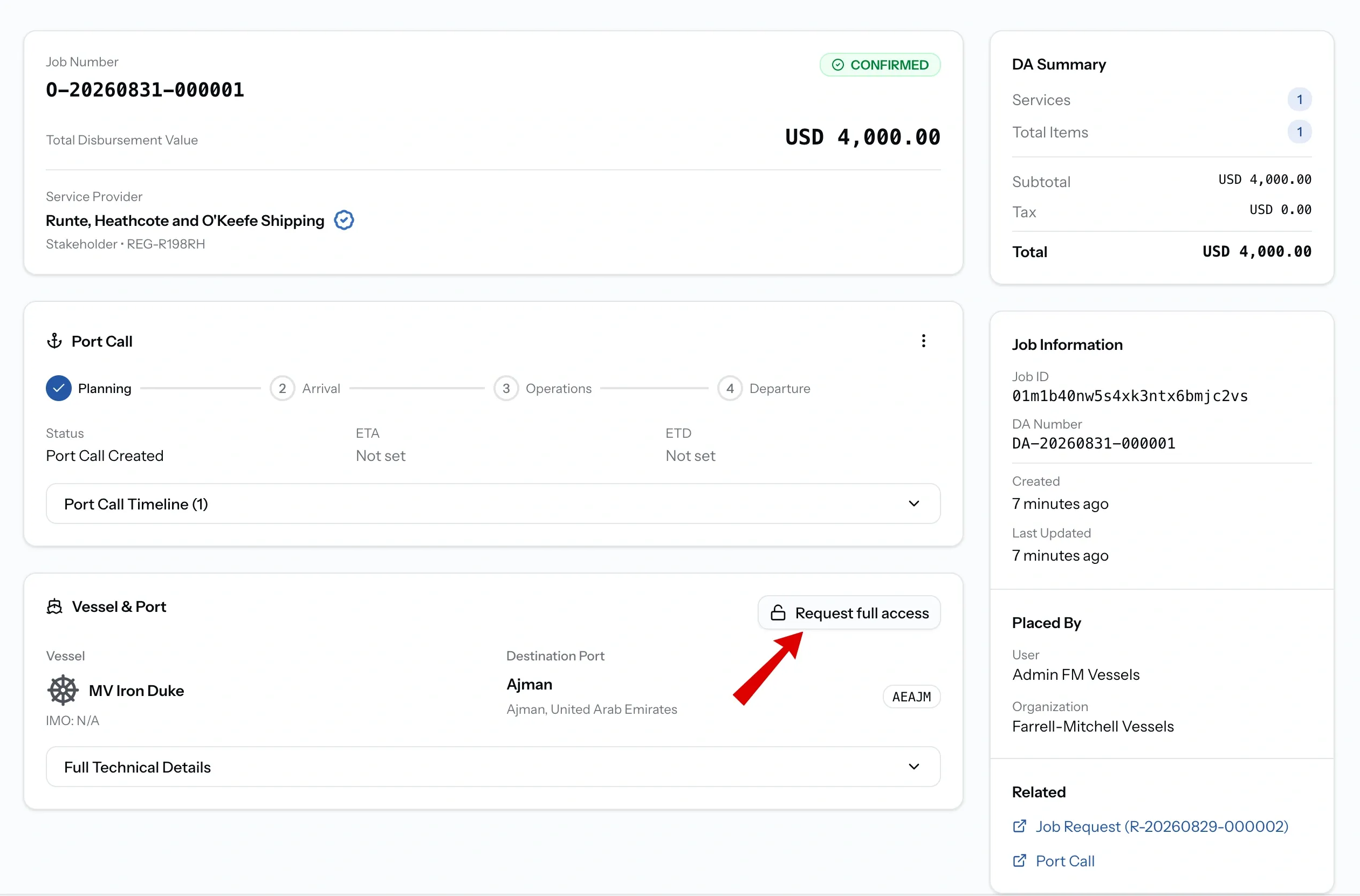
A provider on restricted access can request more. The request goes to the vessel's owner, and the section shows Access requested while it waits.
The provider can withdraw a request that is still open, and can ask again after one has been declined.
The owner's decision
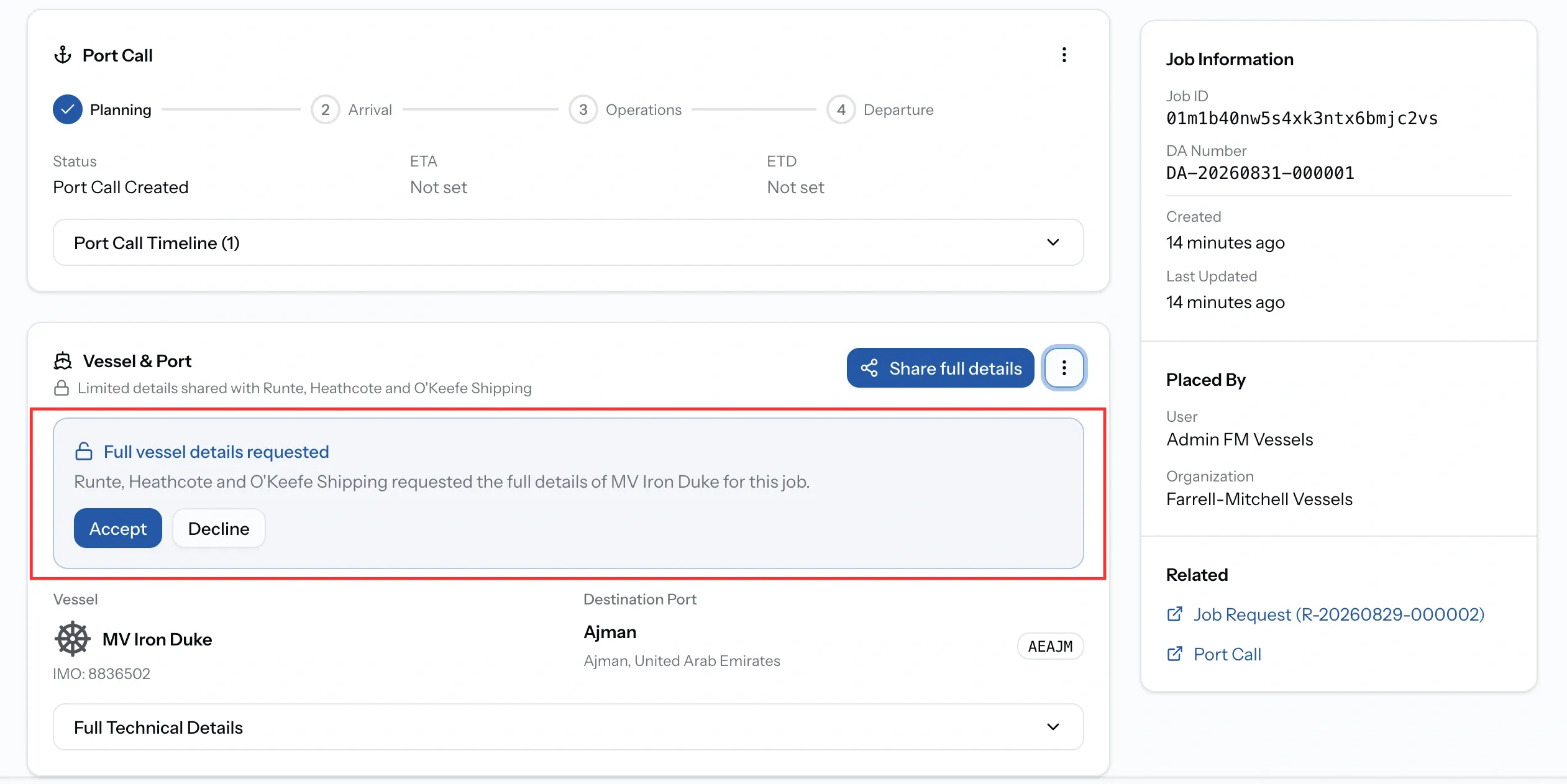
On the other side the request appears as Full vessel details requested, naming the provider and the vessel.
Accepting upgrades the share immediately, and the provider sees the record on their next look at the job. Declining leaves it restricted and does not close the door, since the provider can raise it again.
A vessel shared with you
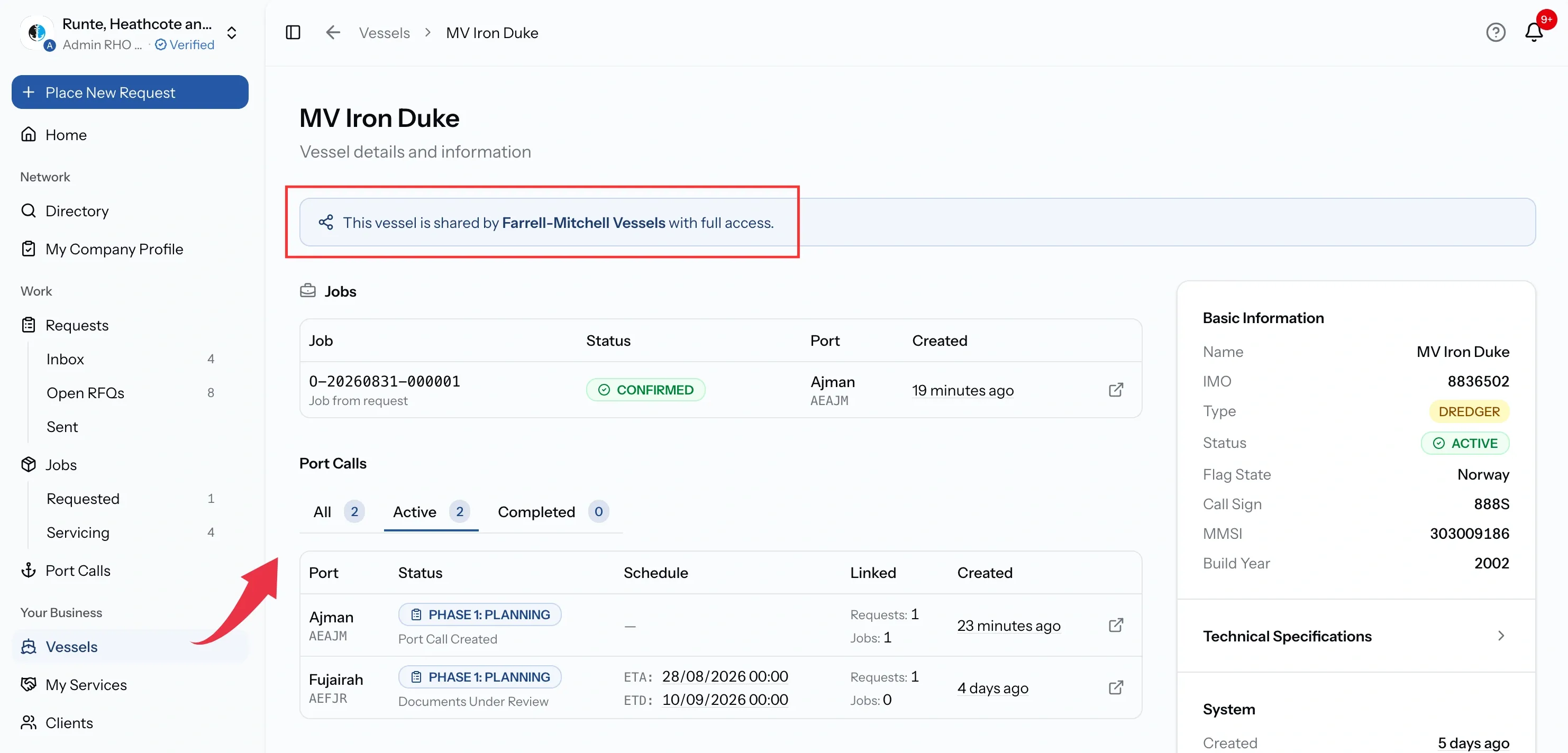
Vessels shared with your organization appear in your own fleet list and open like any other, with a banner naming the organization that shared them and the level they are shared at.
They are read-only. Editing and deleting stay with the owner. Where access is restricted, Request full details sits in the same banner, showing Request pending while the owner considers it and noting when a previous request was declined.
Jobs with no vessel
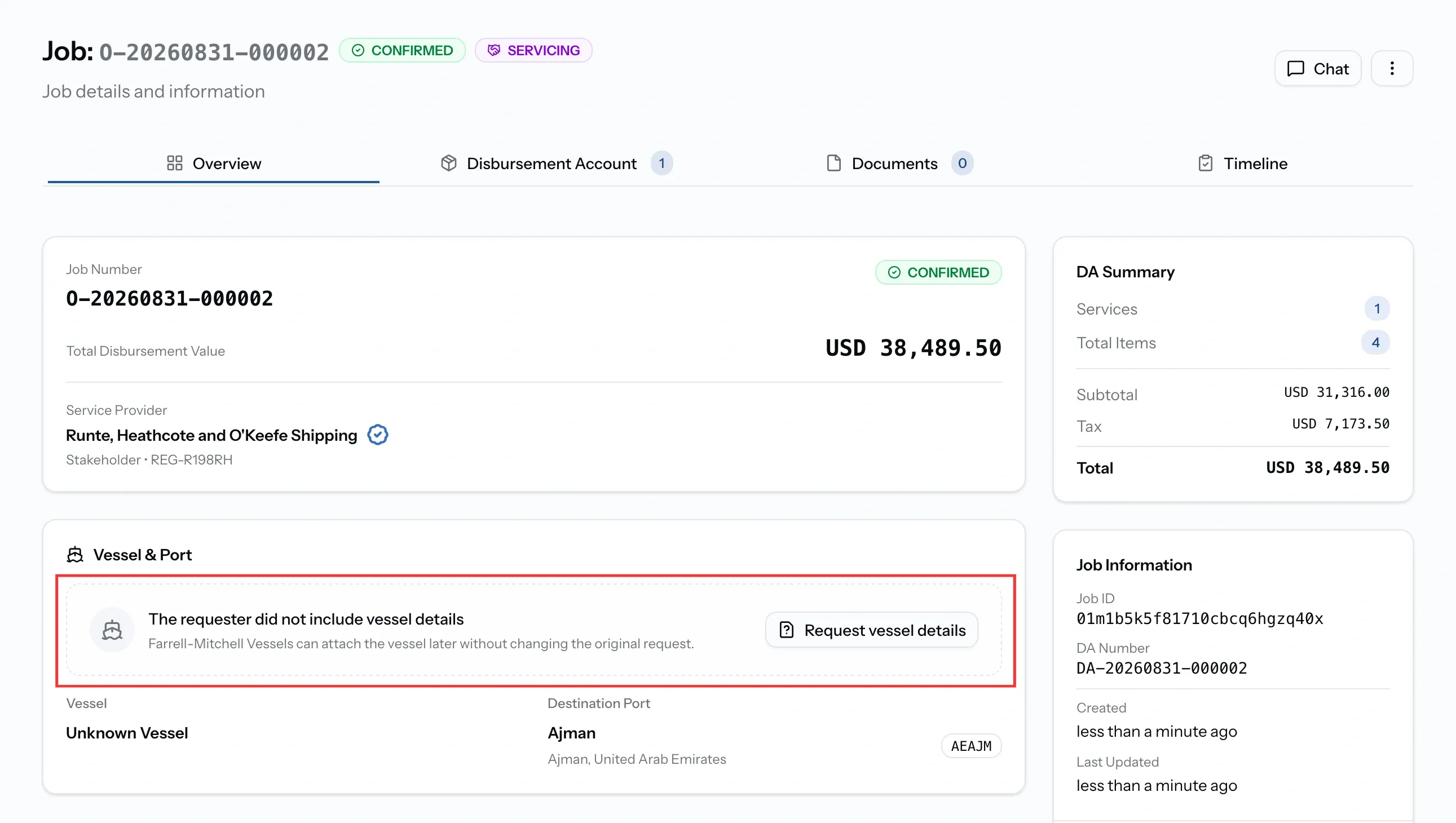
A request sent without a vessel becomes a job without one, and sometimes the ship is needed after all.
The provider, who cannot attach anything, can Request vessel details with an optional message explaining what is needed. The owner attaches the vessel or declines, and the provider can withdraw the request while it is open. Only one such request can be open on a job at a time.
Attaching a vessel later
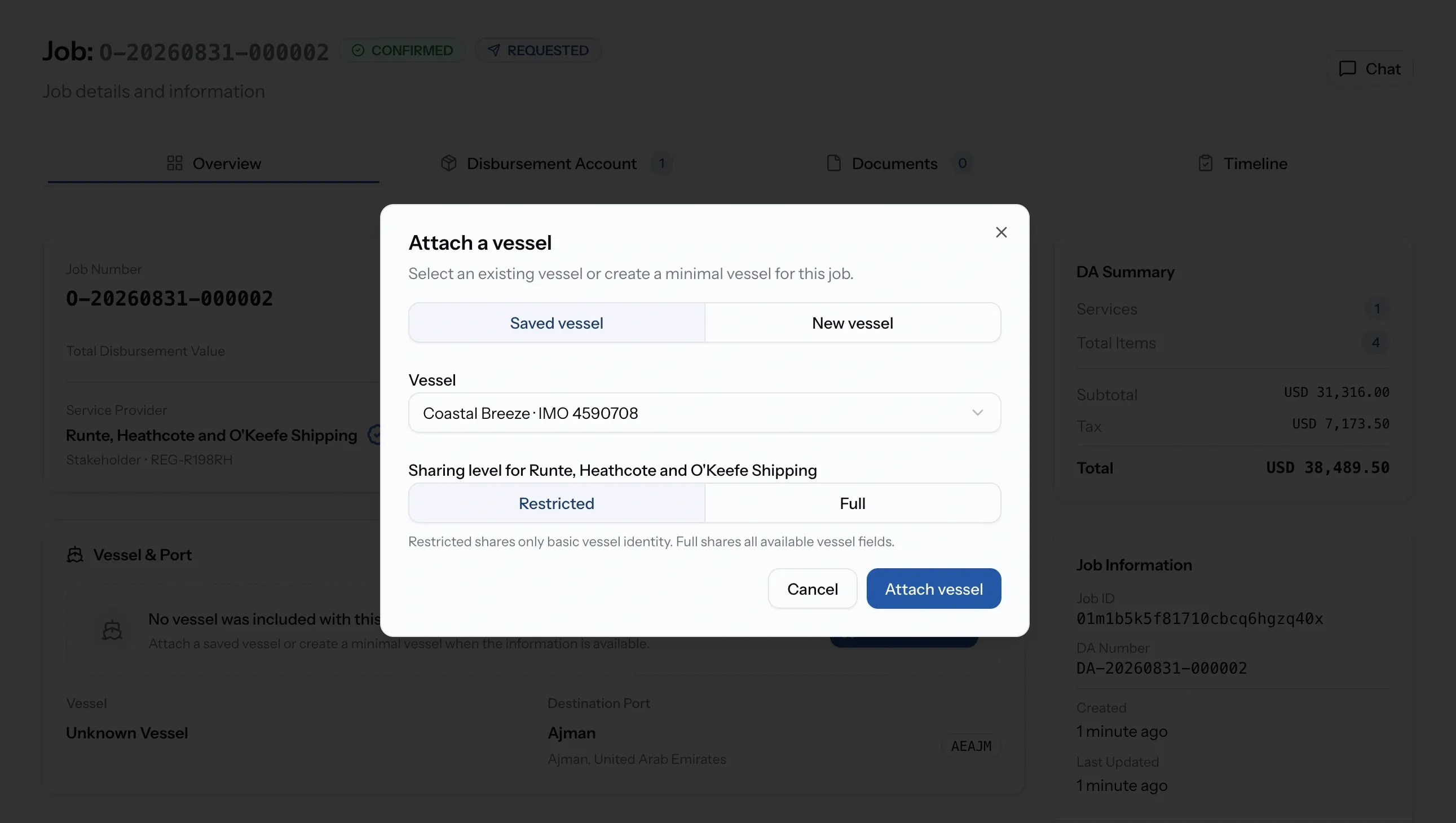
The owner can Attach vessel at any point while the job is live, choosing a saved vessel or creating a minimal one with just a name and an optional IMO number.
The sharing level is set in the same step, so a vessel added late is never handed over more openly than intended. Where the job has a port but no port call yet, attaching a vessel creates one.
Stopping a share
Full access can be withdrawn from the vessel options menu. The provider keeps the vessel's basic identity and loses the technical details.
The share itself is not deleted, because the provider still has a job to run. It drops back to restricted.
Common issues
I can only see the vessel's name and type
The vessel is shared at restricted level, which is where every provider starts. Request full access from the job, or from the vessel's page.
I forgot to tick the box when accepting the quote
Nothing is lost. Share full details from the job's vessel section whenever you are ready.
I cannot share or accept anything
These actions need Admin, Manager, or Operations, and they close once a job is completed or cancelled.